
What Are Team Members & Roles?
Team members are the people you invite to help manage your SympleHost account — from a co-host who handles guest communications to a cleaner who just needs to see the schedule. People who sign in get a role that controls what they can access. People who only need their schedule can get a Workforce portal link instead — or both.
Think of roles like keys to different rooms in your house — everyone on your team gets a key, but each key only opens the doors they need.
Available Roles
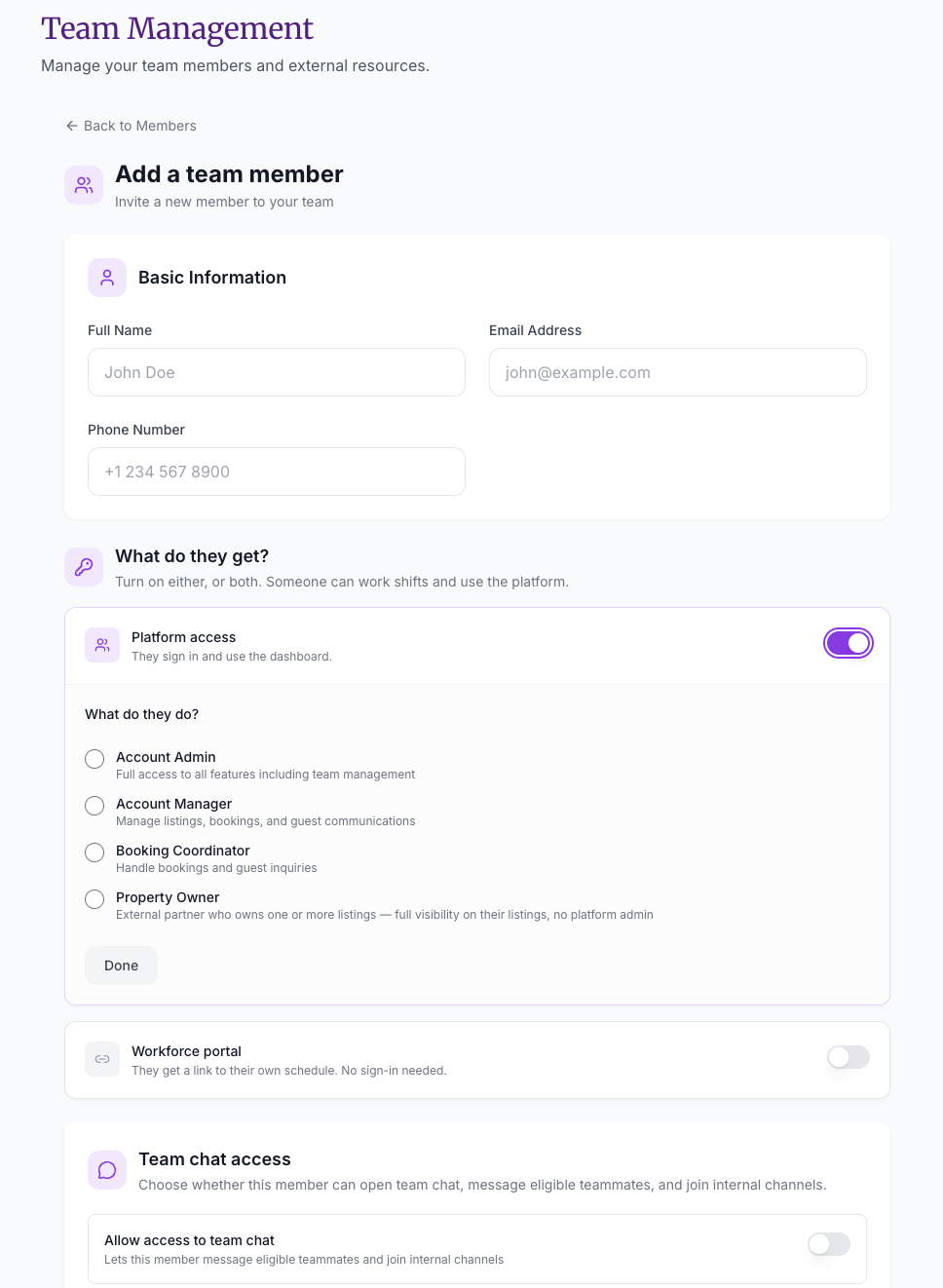
When Platform access is turned on, you choose what the person does:
- Account Admin — Full access to all features including team management.
- Account Manager — Manage listings, bookings, and guest communications.
- Booking Coordinator — Handle bookings and guest inquiries.
- Property Owner — External partner who owns one or more listings — full visibility on their listings, no platform admin. See Set Up the Owner Portal for Managed Properties.
Tip: The Account Owner (that’s you, if you created the account) has full access that can’t be restricted. Only Account Admins can manage team members.
Platform Access or Workforce Portal
Under What do they get? you can turn on either option, or both — someone can work shifts and use the platform.
- Platform access — they sign in and use the dashboard, with one of the roles above.
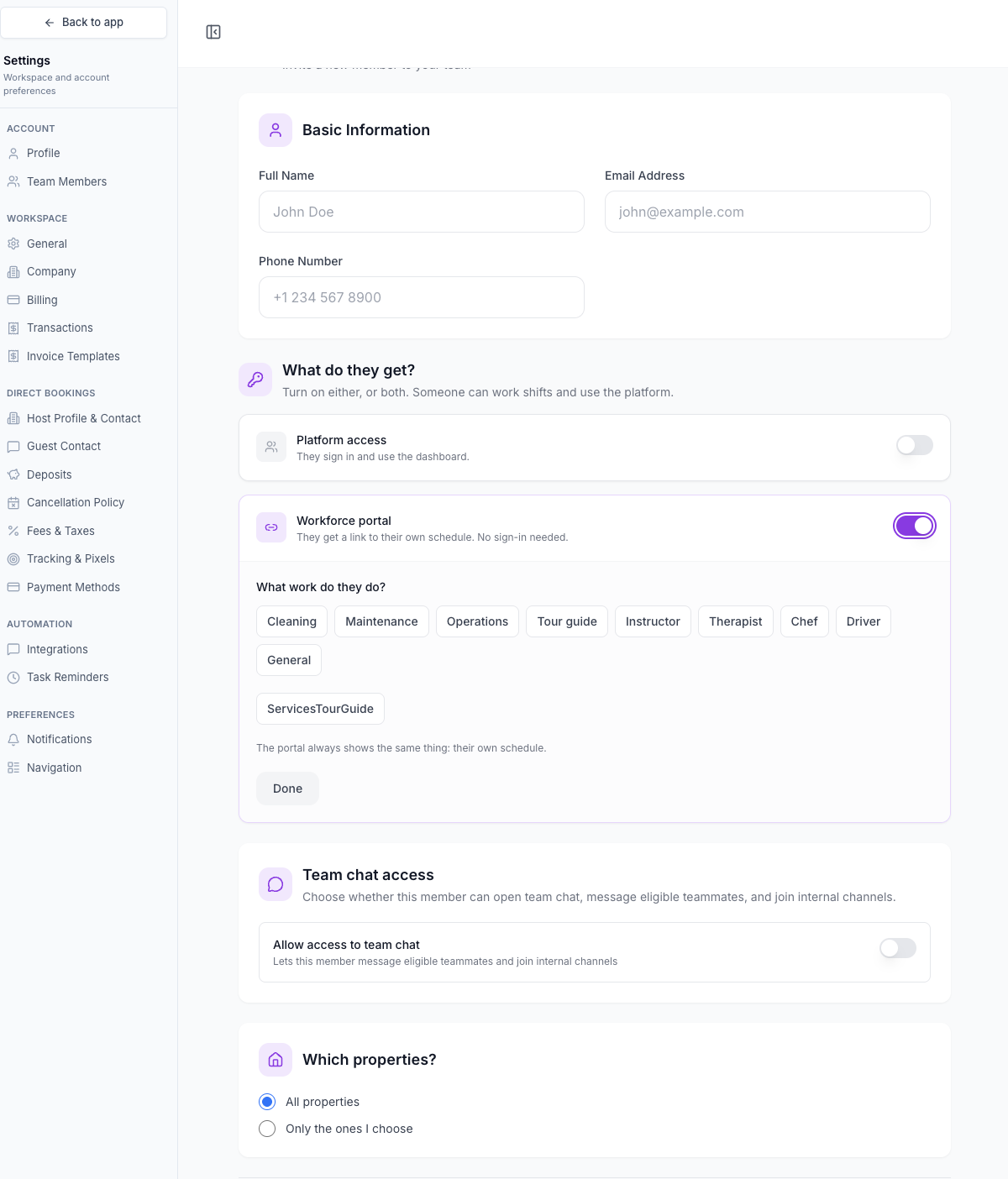
- Workforce portal — they get a link to their own schedule. No sign-in needed. Choose the work they do, such as Cleaning, Maintenance, Operations, Tour guide, Instructor, Therapist, Chef, Driver, or General. The portal always shows the same thing: their own schedule.
See Add Workforce Members and Share the Cleaner Portal for the workforce setup.
How to Add a Team Member
Prefer a quick demo? Watch Invite Team Members (about 1 minute).
-
Click your profile photo or name in the top right, then choose Settings.
-
Click Team Members.
-
Add a new member. The Add a team member page opens.
-
Fill in their Basic Information: Full Name, Email Address, and Phone Number.
-
Under What do they get?, turn on Platform access, Workforce portal, or both:
- Platform access — under What do they do?, pick Account Admin, Account Manager, Booking Coordinator, or Property Owner, then click Done.
- Workforce portal — under What work do they do?, pick the work type(s), then click Done.
-
Under Team chat access, turn on Allow access to team chat if this member should message eligible teammates and join internal channels.
-
Under Which properties?, choose All properties or Only the ones I choose.
-
Finish the form and save.
Managing Existing Team Members
Viewing Your Team
Go to Settings → Team Members to see everyone on your team. Each member shows:
- Name and email
- Role — displayed as a badge
- Status — “Active” (green) or “Invited” (yellow, waiting for them to accept)
- Last login — when they last accessed the account
Editing a Team Member
- Click the Edit button (pencil icon) next to the member’s name.
- You can update their:
- Name
- Phone number
- Role
- Status (active or inactive)
- Click Save.
Important: Changing someone’s role takes effect immediately — they’ll see different options in the sidebar the next time they load the page.
Resending an Invitation
If a team member hasn’t accepted their invitation, click the Resend Invitation button next to their name. They’ll get a fresh email with a new activation link.
Removing a Team Member
Click the Delete button (trash icon) next to the member. This removes their access entirely. They won’t be able to log in anymore, but any bookings or actions they made will remain in the system.
Troubleshooting
I don’t see the Team settings
Team management is only available to the Account Owner and Account Admins. If you don’t see it, ask your account owner to upgrade your role.
My team member says the invitation email never arrived
Check that the email address was entered correctly. Ask them to check their spam/junk folder. If it’s still missing, click Resend Invitation from the members list.
A team member can see things they shouldn’t
Check their role — they may have been assigned a broader role than intended. Edit their profile and change them to a more restrictive role like Booking Coordinator, or limit their properties under Which properties?
I want to temporarily disable someone’s access without deleting them
Edit the team member and set their status to inactive. This prevents them from logging in while keeping their profile in the system. You can reactivate them later.
Related Articles