
What Is a Reservation?
A reservation is the record SympleHost creates when a guest books your property — whether they booked through Airbnb, Booking.com, your direct booking website, or you created it manually. It’s the single source of truth for that stay: who’s coming, when, how much they paid, and what needs to happen before they arrive.
This article walks you through opening your first reservation and reading every piece of information on it, so you know exactly what to do next.
Where to Find Your Reservations
There are three places a new reservation will show up:
- Reservations (sidebar) — the full list of every reservation, across all properties and channels. Start here.
- Overview dashboard — upcoming check-ins appear in Today’s schedule and Upcoming arrivals.
- Calendars — the reservation appears as a colored block on the calendar for the booked dates.
💡 Tip: If you just received a booking notification, click the notification to jump straight to the reservation.
Opening a Reservation
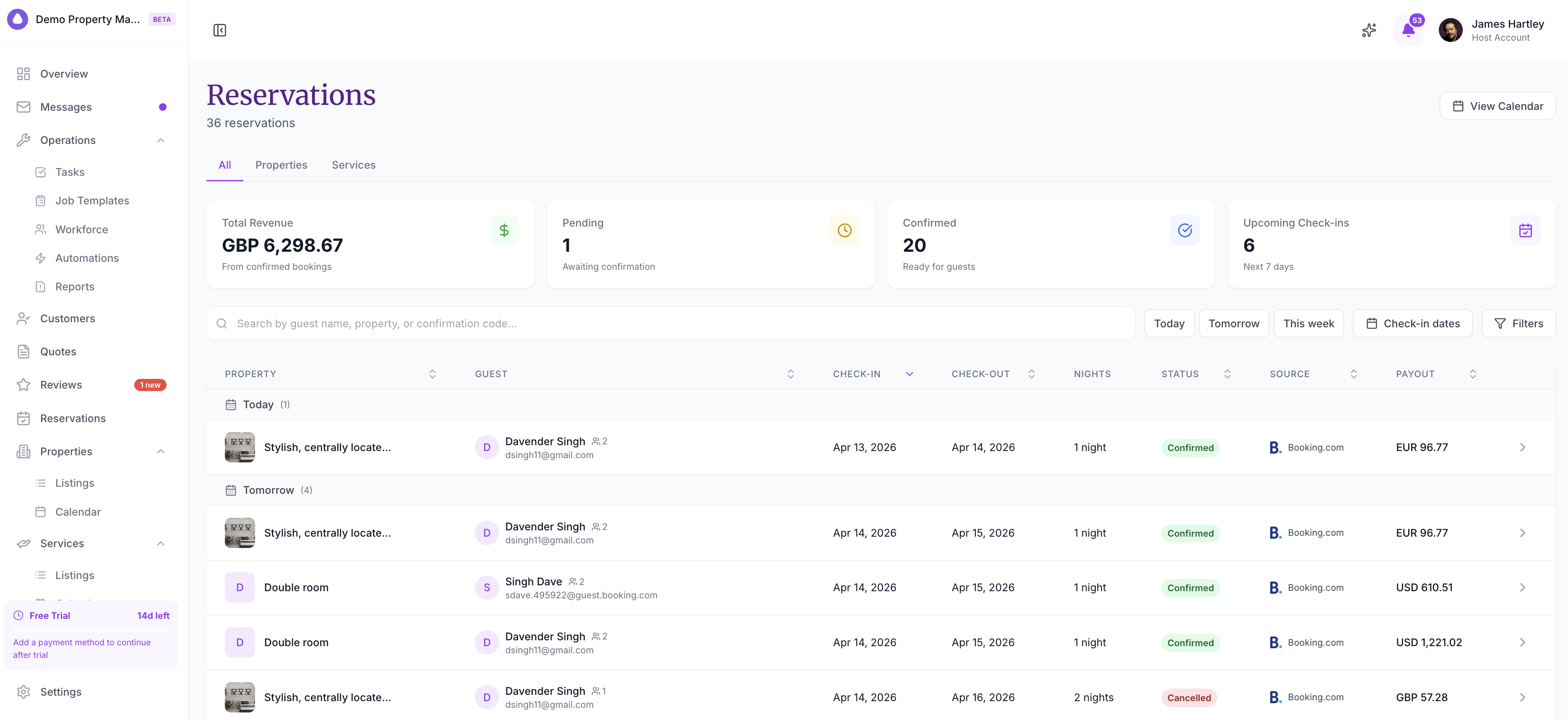
- Click Reservations in the sidebar.
- You’ll see a list of all your reservations, with the most recent at the top.
- Use the filters to narrow down by:
- Date range — check-in or check-out dates
- Listing — a specific property
- Status — Pending, Confirmed, Checked In, Checked Out, or Cancelled
- Channel — Airbnb, Booking.com, Direct, or Manual
- Click any row to open the reservation’s detail view.
Understanding the Reservation Details
When you open a reservation, you’ll see several sections. Here’s what each one means:
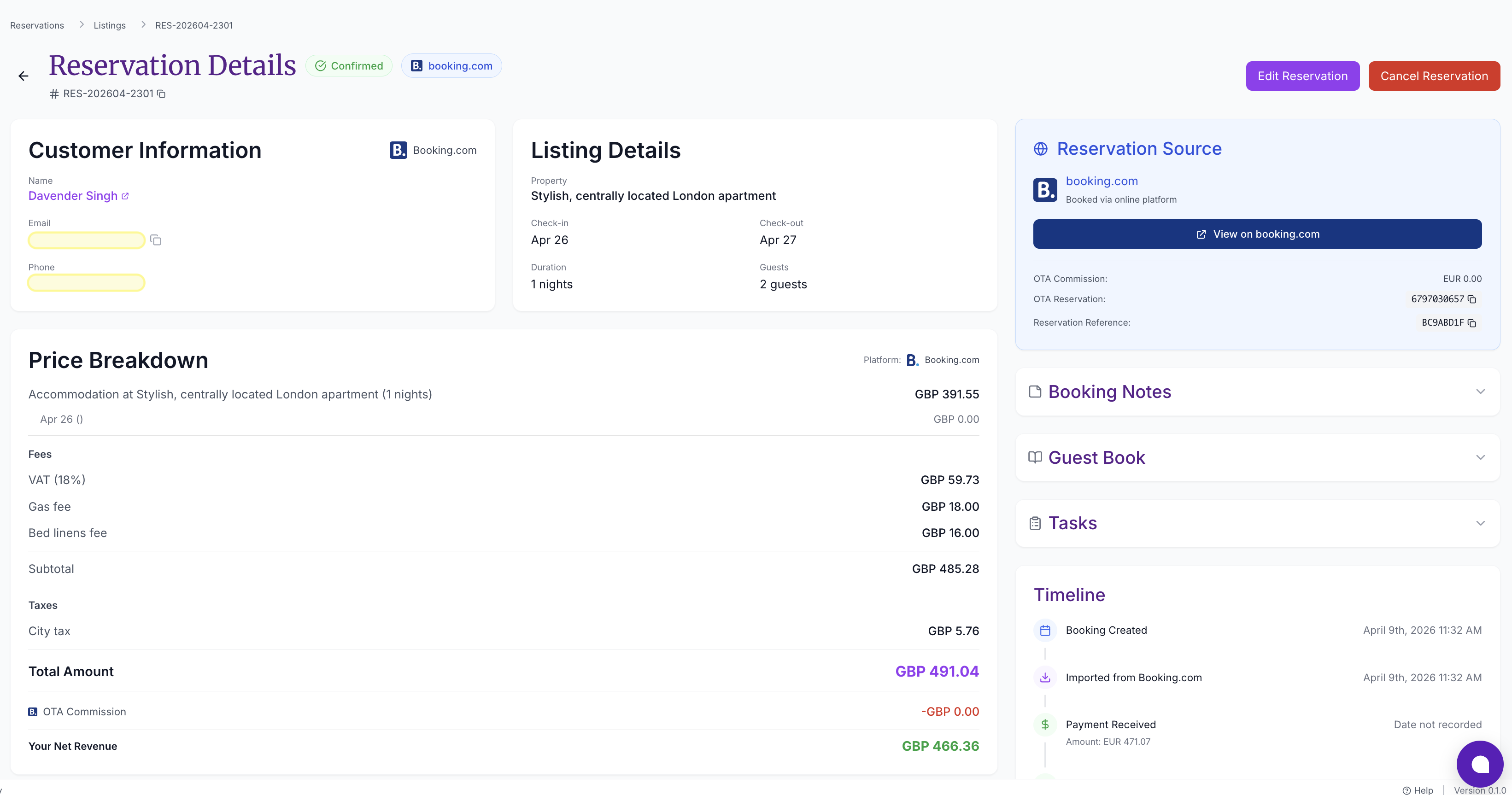
Header — The Essentials at a Glance
At the top of the reservation you’ll see:
- Guest name and available contact info
- Property the booking is for
- Check-in and check-out dates plus the total number of nights
- Status badge — the current stage of the booking (see statuses below)
- Channel — where the booking came from (e.g., Airbnb, Direct)
- Booking reference — a unique ID you can share with the guest or your team
Guest Information
Full contact details for the guest:
- Full name
- Email address
- Phone number
- Guest count — how many adults, children, and infants are staying
- Special requests — any notes the guest provided during booking (e.g., “late check-in”, “allergic to feathers”)
If the guest has booked with you before, you’ll also see a link to their customer profile with their booking history and available contact details.
Stay Details
The specifics of the stay itself:
| Field | What It Means |
|---|---|
| Check-in date & time | When the guest arrives |
| Check-out date & time | When they depart |
| Nights | Total nights booked |
| Listing | Which of your properties is reserved |
| Unit / Room | If your listing has multiple units, which one is assigned |
Payment Summary
How much the guest paid and what’s still owed:
- Total amount — the full booking value
- Paid — how much has been received so far
- Balance due — what’s still outstanding (if anything)
- Payment status — Paid, Partially Paid, Pending, or Failed
- Breakdown — nightly rate × nights, plus cleaning fees, taxes, service fees, and any discounts
⚠️ Important: If the payment status is Failed, reach out to the guest promptly. A failed payment means the reservation is at risk until it’s resolved.
Timeline & Activity
A chronological log of what’s happened on this reservation — when it was booked, when it was confirmed, any modifications, messages sent via Autopilot, status changes, and payment events. Scroll this section to see the full history.
Understanding Reservation Statuses
Every reservation moves through a lifecycle. The status badge tells you where it is right now:
| Status | What It Means | What to Do |
|---|---|---|
| Pending | Booking created but not yet confirmed | Review and confirm, or cancel if it doesn’t work |
| Confirmed | Locked in — the dates are blocked on your calendar | Prepare for the stay (cleaning, guest communication) |
| Checked In | Guest has arrived | Monitor for any issues during the stay |
| Checked Out | Guest has departed | Trigger cleaning task, follow up for a review |
| Cancelled | The booking is no longer active | No action — the dates are freed on your calendar |
Actions You Can Take from a Reservation
From the detail view, you can:
- Confirm a pending booking — changes status to Confirmed
- Cancel the reservation — frees up the dates (cancellation policy may apply)
- Edit guest info, dates, or notes
- Message the guest — opens a conversation in the unified inbox
- View the invoice — see or download the full invoice/receipt
- Collect payment — if there’s a balance due, send a payment link to the guest
- Create a task — assign a related task to your team (e.g., “prepare welcome basket”)
A Typical First-Reservation Workflow
Here’s what to do the first time a booking lands:
- Open the reservation from the Reservations list or notification.
- Verify the details — dates, guest count, and payment status look right.
- Message the guest with a welcome note and check-in instructions. If Autopilot is on, this may already be handled.
- Confirm the booking if it’s still Pending and everything looks good.
- Check payment status — if there’s a balance due, send the payment link.
- Trigger prep tasks — cleaning, linen change, welcome setup. Automations can do this for you.
- Mark Checked In on arrival, and Checked Out on departure (some integrations do this automatically).
Troubleshooting
The reservation shows limited guest email or phone details
This can happen with OTA bookings where the channel masks guest contact information. Use the Message the guest button inside SympleHost when available — it routes through the correct connected channel automatically.
The payment shows as “Failed” but the guest says they paid
Check the Timeline & Activity section for the exact error. Most often this is a card decline — ask the guest to retry with a different card via the payment link. If the guest paid outside SympleHost (e.g., bank transfer), you can manually mark the reservation as paid.
Dates are wrong on the reservation
Click Edit at the top of the reservation, update the check-in and check-out dates, and save. SympleHost will warn you if the new dates conflict with another booking.
I want to cancel but I’m worried about the cancellation policy
Before cancelling, check the listing’s Cancellation Policy from Listings → [Your Listing]. The policy determines whether the guest is entitled to a refund. If the reservation came from an OTA, the OTA’s cancellation rules also apply.
Key Takeaways
- The Reservations page in the sidebar is your starting point for every booking
- Every reservation has a guest section, stay details, payment summary, and activity timeline
- The status badge tells you where the booking is in its lifecycle — always check this first
- Most actions (confirm, message, collect payment, edit) happen from the reservation detail view