
Connect PriceLabs with SympleHost to bring dynamic pricing recommendations into your SympleHost listings and calendar workflow.
TL;DR: First enable SympleHost inside PriceLabs. Then open Settings → Integrations in SympleHost, click Connect PriceLabs, enter your PriceLabs Account Email, click Manage, add the listings you want to enrol, review them in PriceLabs, and enable syncing when the rates look right.
What Syncs Between PriceLabs and SympleHost
The connection has two jobs:
- SympleHost sends listing and calendar context to PriceLabs so PriceLabs can model pricing correctly.
- PriceLabs sends pricing decisions back to SympleHost so your calendar reflects the revenue-management settings you approve.
When you enrol a listing, SympleHost pushes listing metadata, rates, calendar data, reservations, and blocks to PriceLabs. In the SympleHost app, the PriceLabs manage page lists these synced capabilities: nightly rates, availability, minimum stay, check-in and check-out restrictions, weekly and monthly discounts, extra-person fees, and amenities.
PriceLabs can send pricing updates back to SympleHost for up to 365 days in advance.
Supported updates include:
- Daily rates
- Minimum stay rules
- Check-in restrictions
- Check-out restrictions
- Weekly discounts
- Monthly discounts
PriceLabs remains the place where you review pricing recommendations and revenue-management settings. SympleHost remains the place where you manage listings, calendars, reservations, guest communication, tasks, and operations around those prices.
Before You Start
Make sure you have:
- A SympleHost account with permission to manage integrations
- A PriceLabs account
- At least one listing already created in SympleHost
- The email address used for your PriceLabs account
If you still need to create or review your SympleHost pricing setup, see How to Set Up Your Pricing & Rate Rules.
Step 1: Enable SympleHost in PriceLabs
Start inside PriceLabs.
- Log in to your PriceLabs account.
- Click Add your listings if this is your first listing import.
- If you already have listings in PriceLabs, click Add/Re-Import Listings.
- Choose PMS / Channel Manager as the connection type.
- Select SympleHost from the dropdown.
- Enable the option that allows SympleHost to add listings to your PriceLabs account.
- Save the connection.
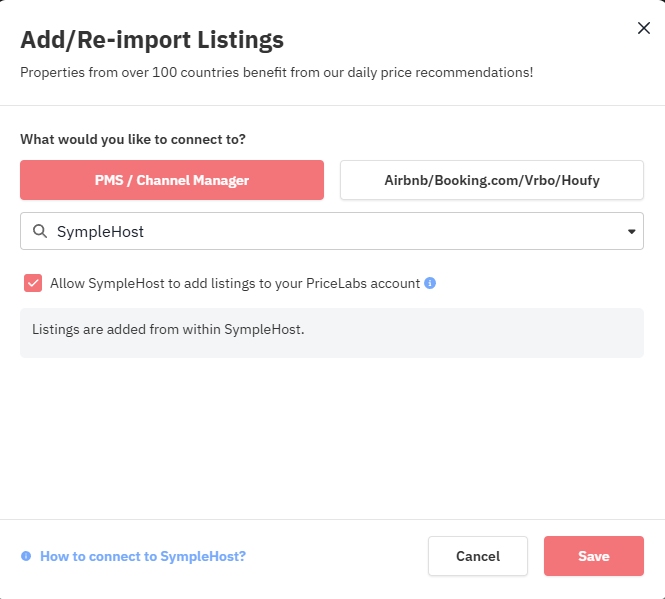
This prepares PriceLabs to accept listings from SympleHost during the next step.
Step 2: Connect PriceLabs in SympleHost
Now switch to SympleHost.
- Log in to your SympleHost account.
- Open Settings.
- Go to Integrations.
- Find the PriceLabs integration.
- Click Connect PriceLabs.
- In the Connect PriceLabs dialog, enter your PriceLabs Account Email.
- Click Connect.
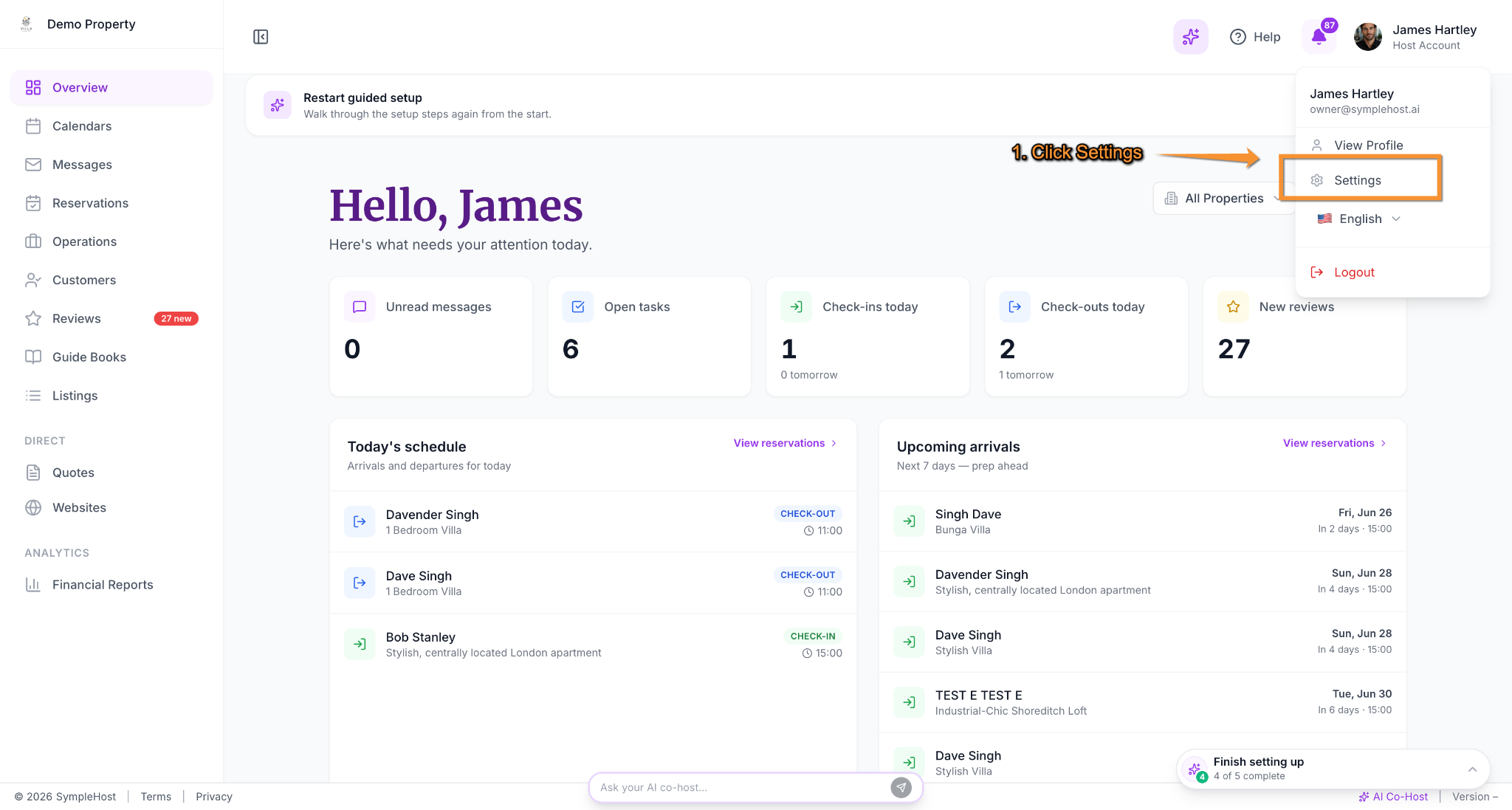
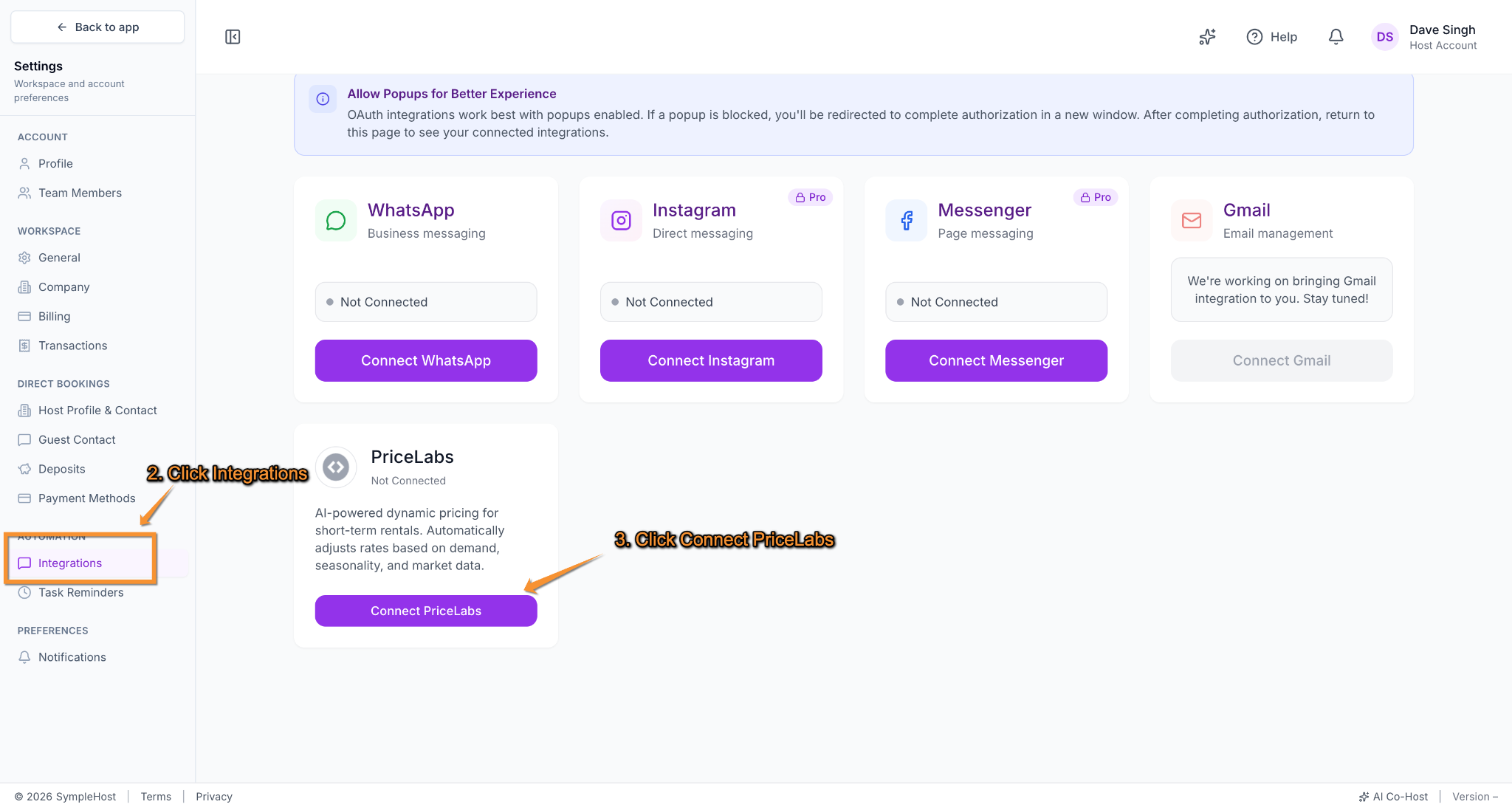
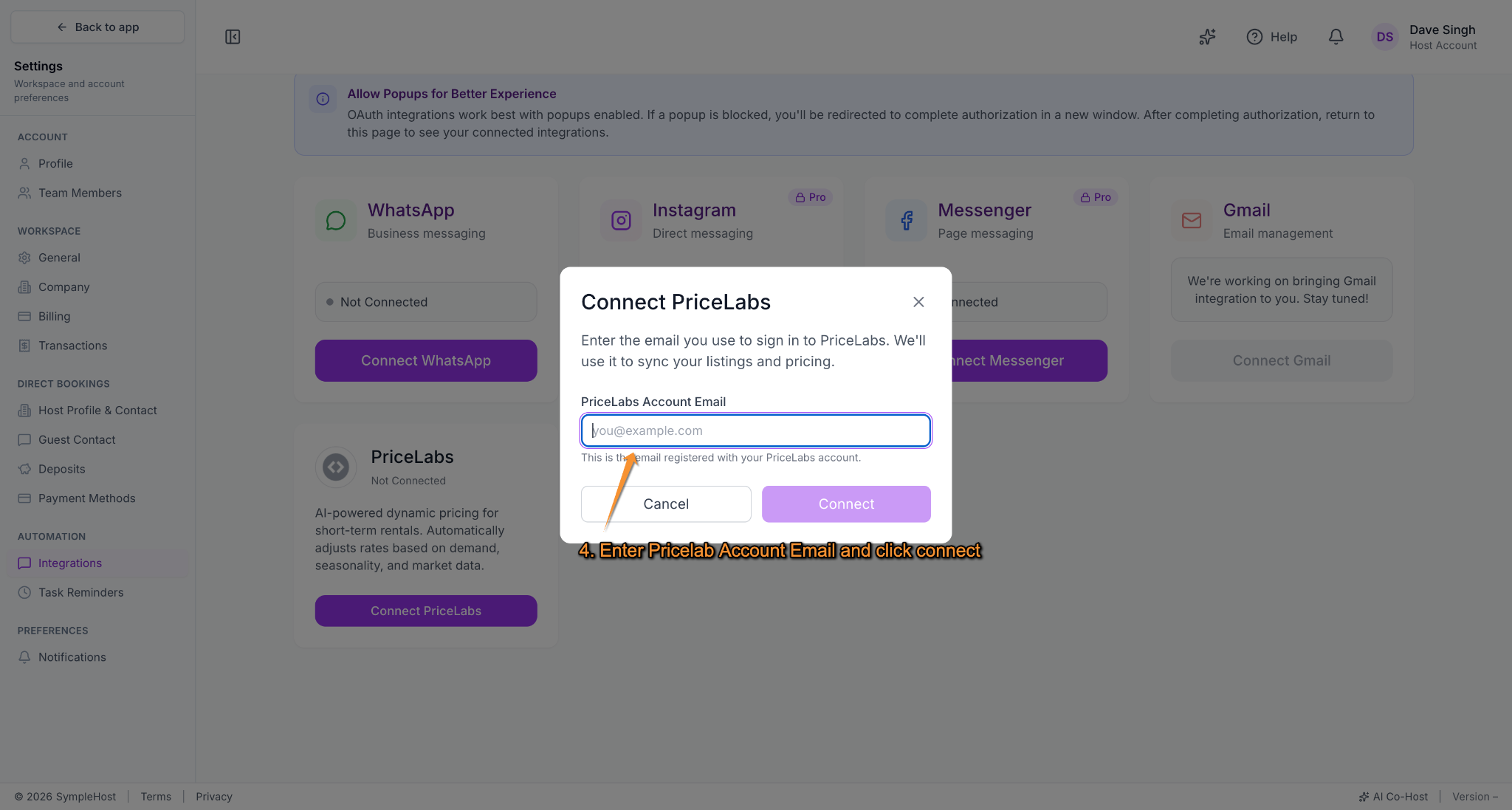
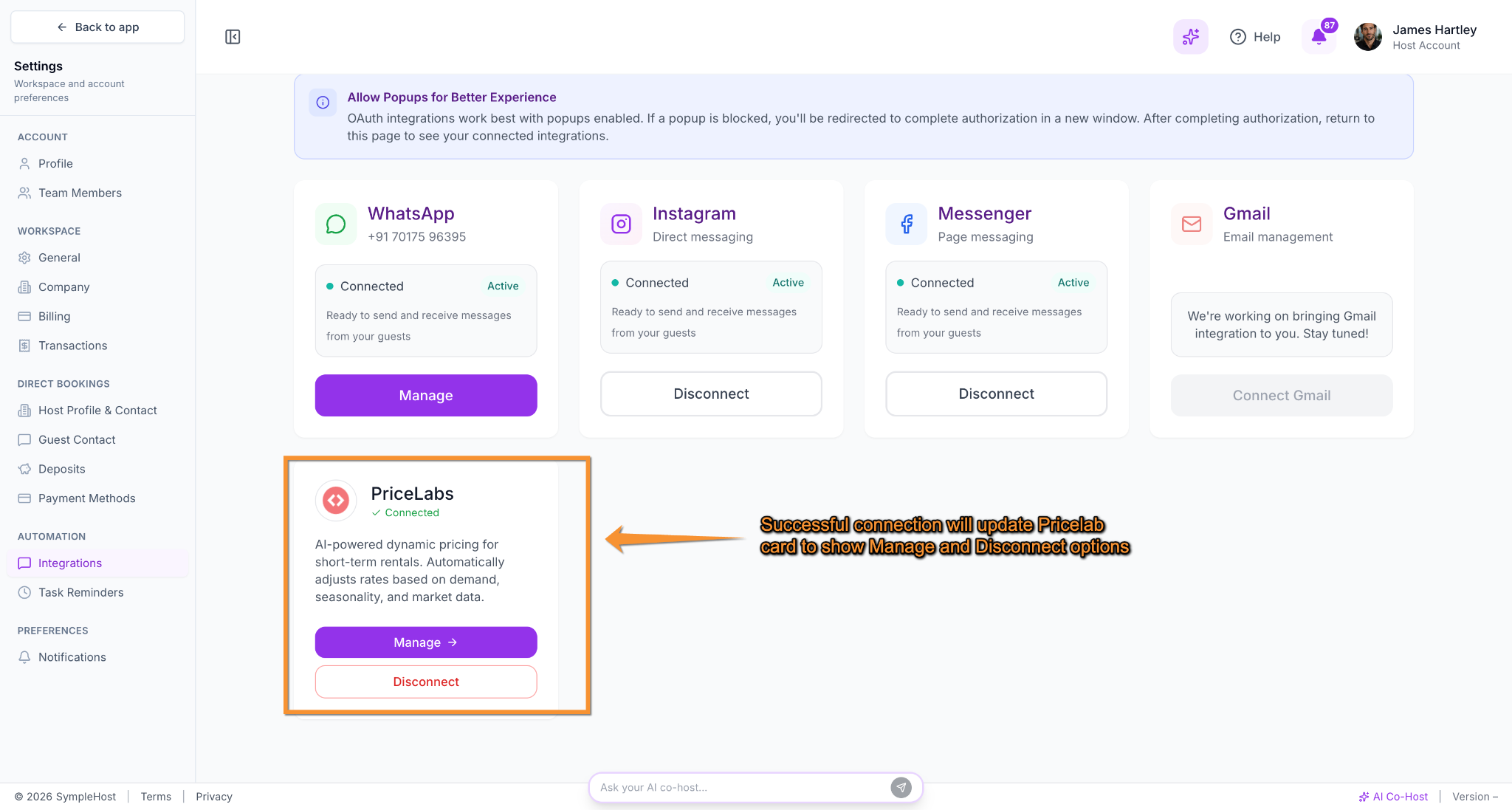
After the connection succeeds, the PriceLabs card changes from Connect to Manage.
Step 3: Add Listings to PriceLabs
After PriceLabs is connected:
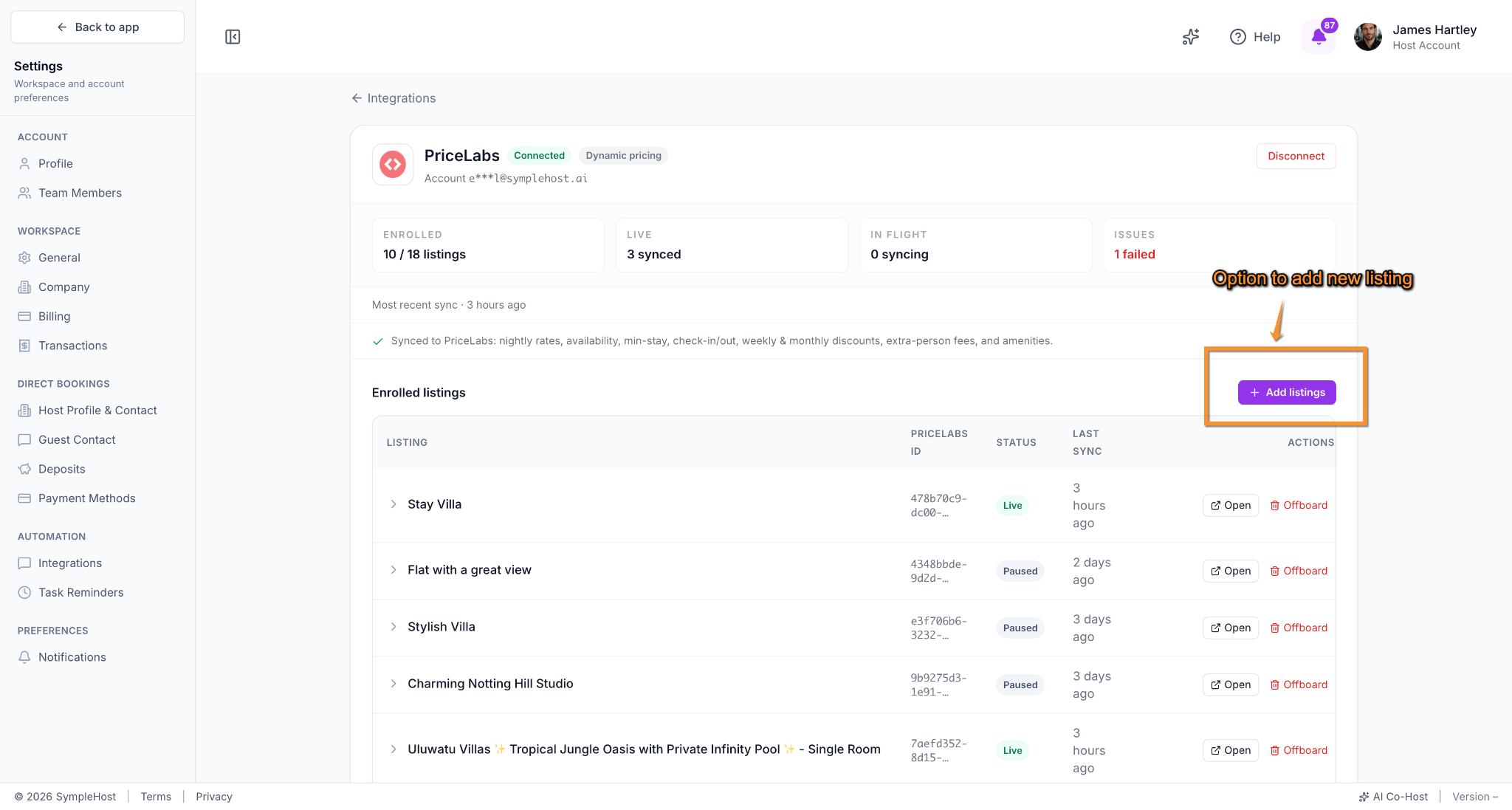
- Click Manage on the PriceLabs integration card in SympleHost.
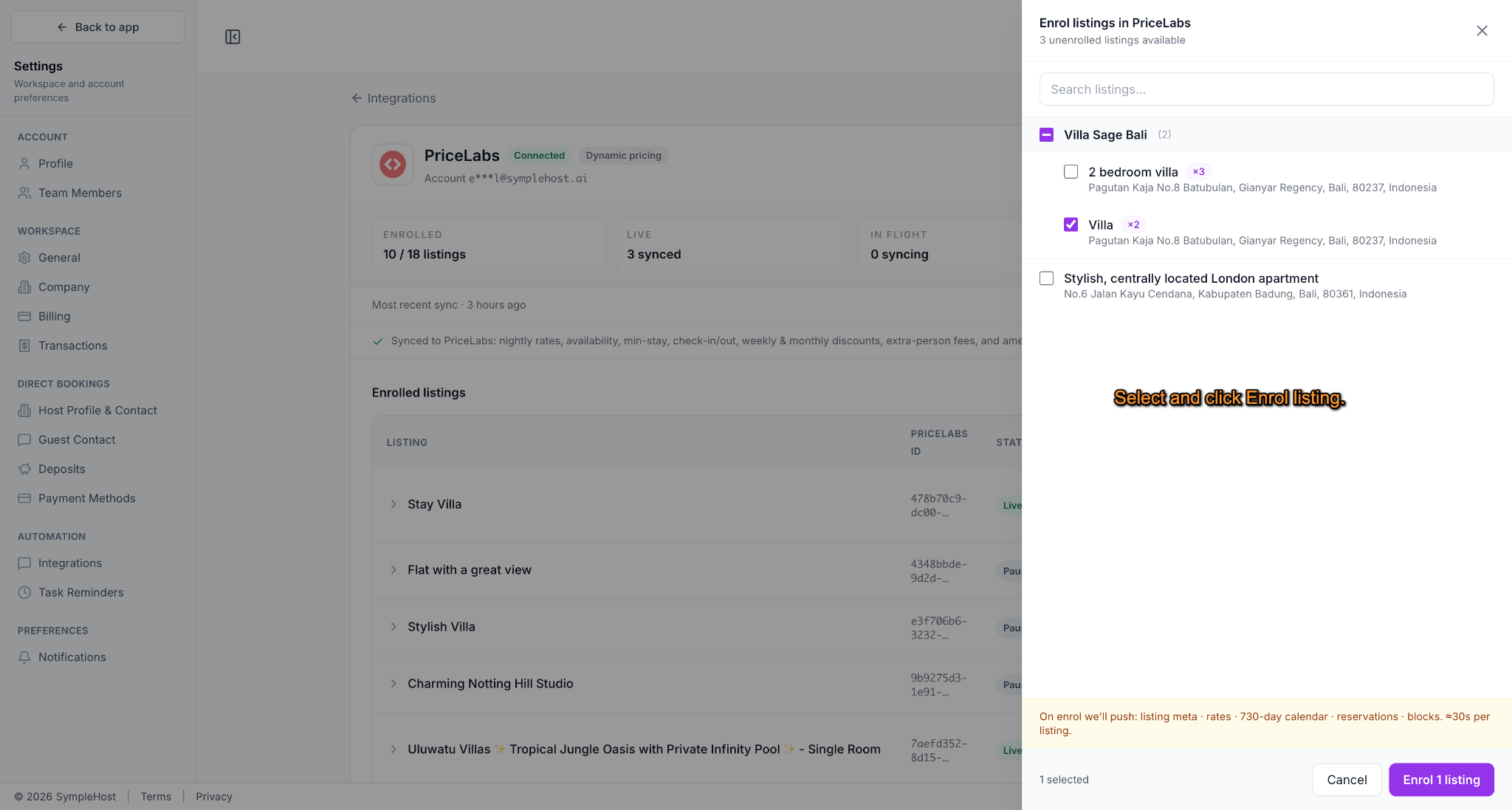
- Click Add listings.
- Select the SympleHost listings or room-type units you want to enrol in PriceLabs.
- Click Enrol to send the selected listings to PriceLabs.
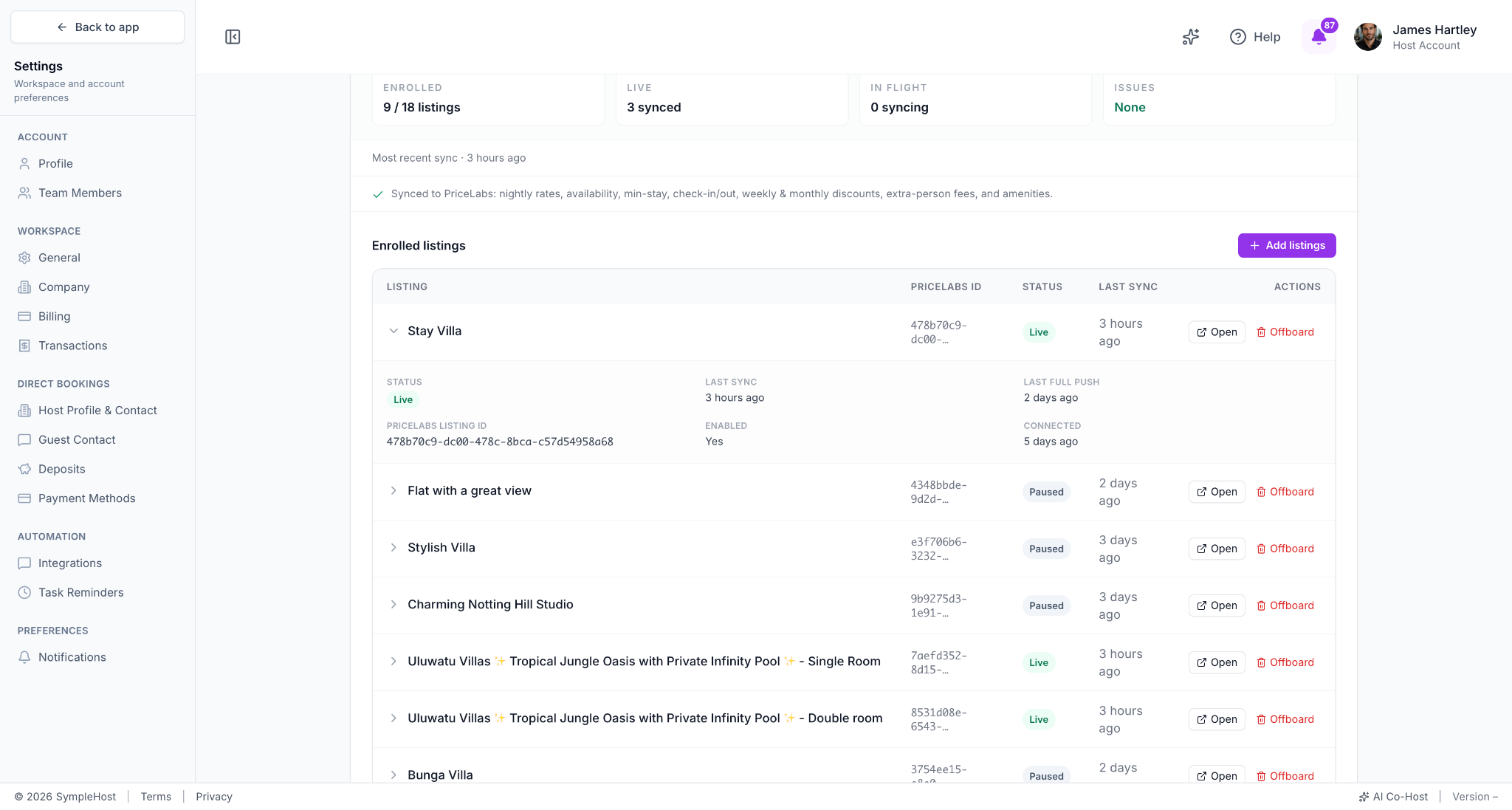
Only add listings that you want PriceLabs to manage. If a listing should keep using SympleHost pricing rules only, leave it out of the PriceLabs connection.
Multi-unit note: In SympleHost, multi-unit parent listings act as groups. PriceLabs enrolment happens at the room-type or unit level, so you may see child units listed under a parent property.
Step 4: Review Pricing in PriceLabs
Once the listings are connected, return to PriceLabs and review each listing before turning on syncing.
Check:
- Base price
- Minimum price
- Maximum price
- Seasonality
- Occupancy settings
- Minimum stay rules
- Check-in and check-out restrictions
- Weekly and monthly discount settings
Do not turn on automatic syncing until the recommendations look right for the listing.
Step 5: Sync Prices
When you are ready:
- In PriceLabs, open the connected listing.
- Review the recommended rates and rules.
- Enable Sync Prices for automatic syncing.
- Use Sync Now if you want to push updates immediately.
After sync is enabled, PriceLabs sends pricing updates to SympleHost according to your PriceLabs settings.
What to Check After Syncing
After your first sync, review the listing in SympleHost.
Check that:
- Rates appear on the expected dates
- Minimum stay rules match your PriceLabs setup
- Check-in and check-out restrictions are correct
- Weekly or monthly discounts are behaving as expected
- Your connected OTA channels show the intended pricing after downstream sync
If something looks wrong, pause syncing in PriceLabs, review the listing settings, and sync again after correcting the issue.
Common Questions
Does PriceLabs replace SympleHost pricing rules?
No. PriceLabs manages the synced pricing recommendations for connected listings. SympleHost still remains your operating system for listings, calendars, bookings, guest communication, tasks, and operational workflows.
How far ahead can PriceLabs send prices to SympleHost?
PriceLabs can send supported pricing data to SympleHost up to 365 days in advance.
Which listings should I connect?
Connect listings where you want PriceLabs to control pricing recommendations. Keep simple or manually priced listings outside PriceLabs if you prefer to manage them directly in SympleHost.
What should I do before enabling automatic sync?
Review each listing inside PriceLabs first. Confirm the base price, minimum price, maximum price, seasonality, stay restrictions, and discounts before enabling Sync Prices.
Where do I manage dynamic pricing after connecting?
Use PriceLabs to manage dynamic pricing strategy and recommendations. Use SympleHost to manage the listing, calendar, reservations, guest messages, tasks, and day-to-day operations around that pricing.