
What Is Pricing in SympleHost?
Pricing in SympleHost is how you control what guests pay for each listing, how many guests are included in that price, and what rules apply when guests book directly.
Each listing starts with a Base Rate / Standard Rate. You can then add rate plans such as weekend, peak season, or holiday rate, apply those rates on the Pricing Calendar, and add optional discounts or add-ons if your account uses them.
Use pricing setup before you publish direct booking pages or connect more channels. Wrong pricing can create messy quotes, underpriced bookings, or OTA sync problems.
How to Access Price Settings
-
Click Listings in the sidebar.
-
Click on the listing you want to price.
-
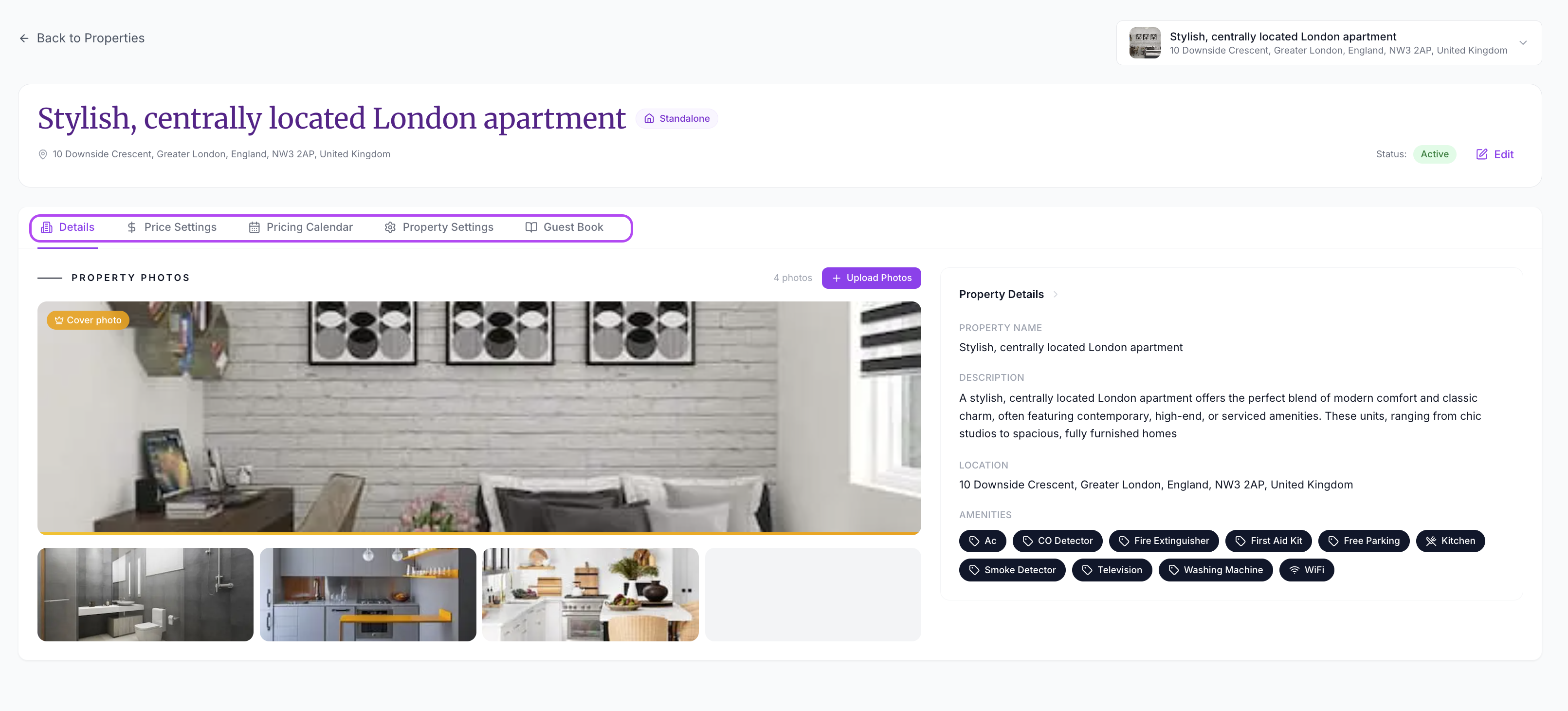
Click Price Settings.
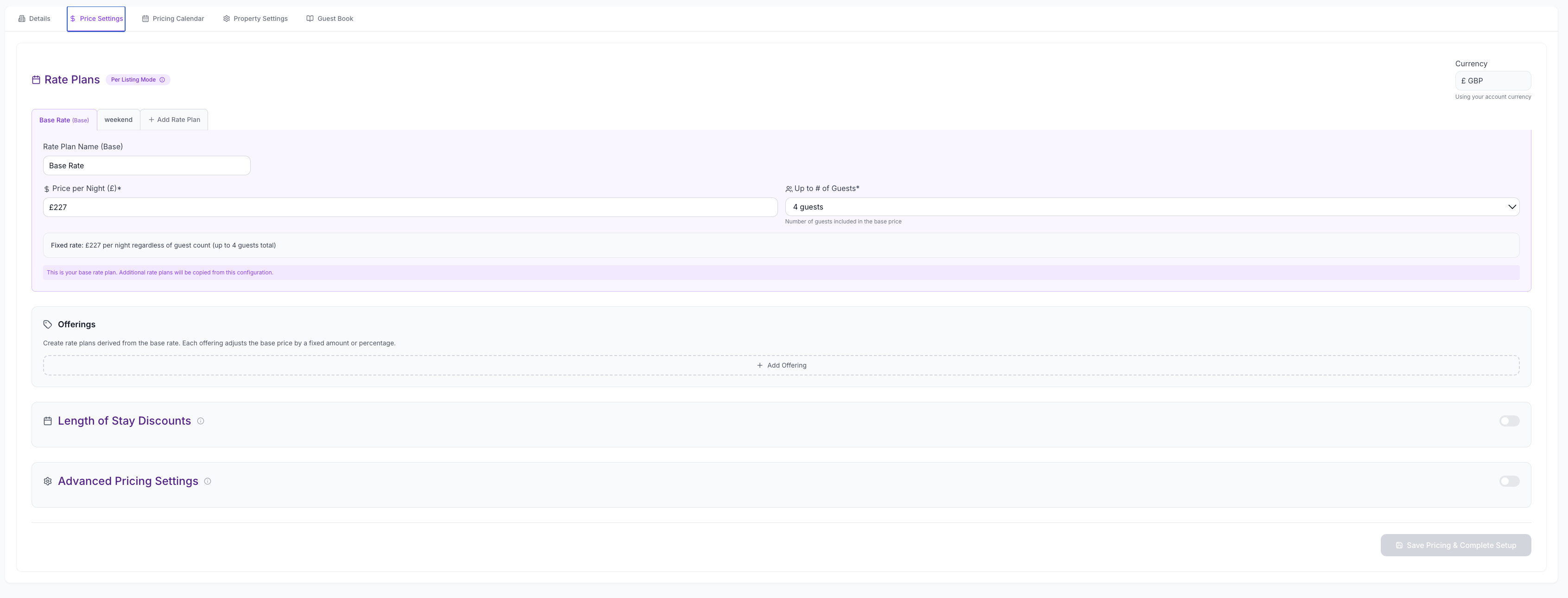
You’ll see Rate Plans, Offerings, Length of Stay Discounts, and Advanced Pricing Settings. The currency is shown on the right and comes from your account currency.
If the wrong currency is showing, update your company/account settings before saving pricing.
Choose the Pricing Model
Most short-term rental listings use Per Listing Mode. This means the guest pays one nightly price for the listing, up to the number of guests included in that rate.
Some accounts may also support Per Person Mode, where pricing changes based on guest count. Use this only if your business genuinely prices by person, because it is more complex for guests and your team.
| Pricing mode | Best for | What guests see |
|---|---|---|
| Per Listing | Most villas, apartments, houses, and direct booking websites | A fixed nightly rate for the property |
| Per Person | Tours, shared accommodation, or properties where guest count materially changes the nightly price | Pricing that scales by adult/child guest count |
Set Your Base Rate
Your Base Rate is the fallback price. SympleHost uses it when no special rate plan or custom calendar price applies.
-
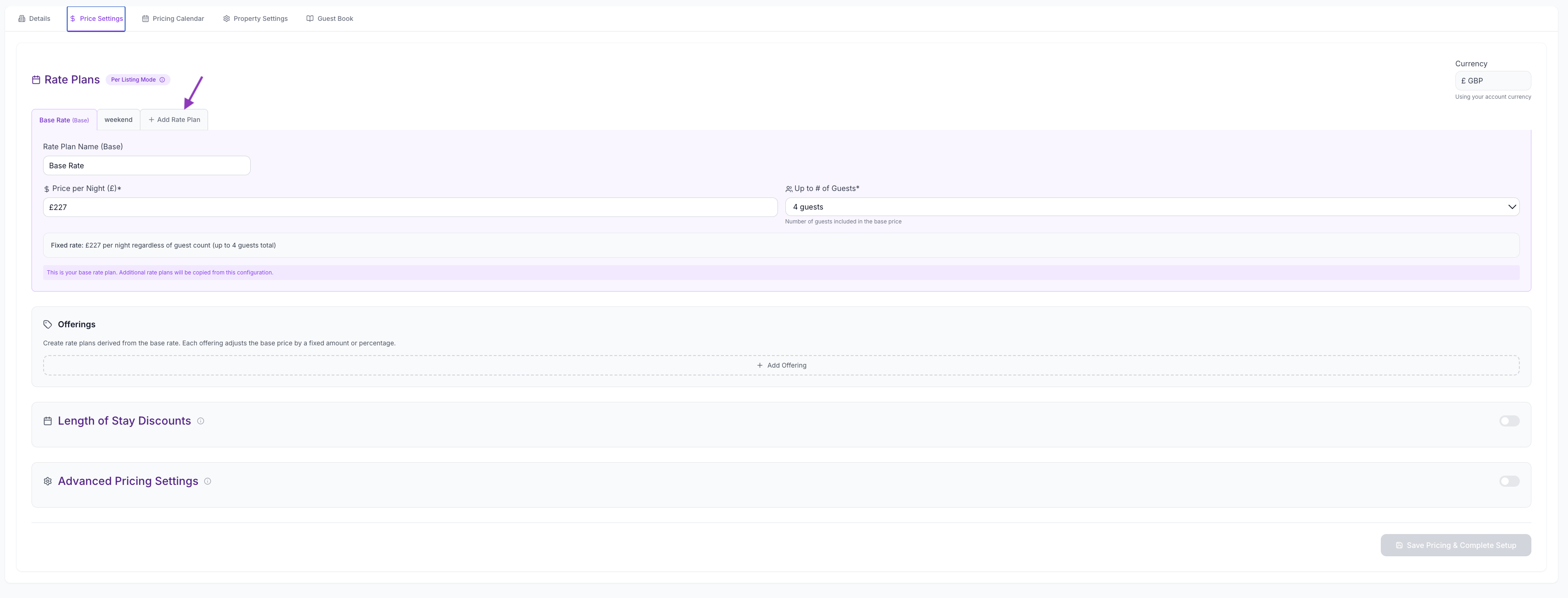
On the Price Settings tab, click Base Rate (Base) if it isn’t already selected.
-
Confirm the Rate Plan Name. The default is Base Rate or Standard Rate.
-
Enter Price per Night.
-
Set Up to # of Guests. This is the number of guests included in the base price.
-
Save your pricing changes.
For example, if the base rate is £227 and Up to # of Guests is 4, the guest pays £227 per night for up to 4 guests.
If your listing allows more guests than the number included in the base rate, you may also see Price per Additional Guest. Use this when extra guests should be charged per night.
How to Add a Rate Plan
Rate plans let you create named prices that can be applied to dates in the Pricing Calendar. Common examples are weekend, high season, low season, school holidays, or event week.
-
Click + Add Rate Plan.
-
Enter a clear Rate Plan Name, such as “Weekend”, “Summer 2026”, or “Christmas Week”.
-
Enter Price per Night.
-
Set Up to # of Guests.
-
Save the rate plan.
Your new rate plan appears as a tab beside the base rate. You can click between tabs to view or edit each rate plan.
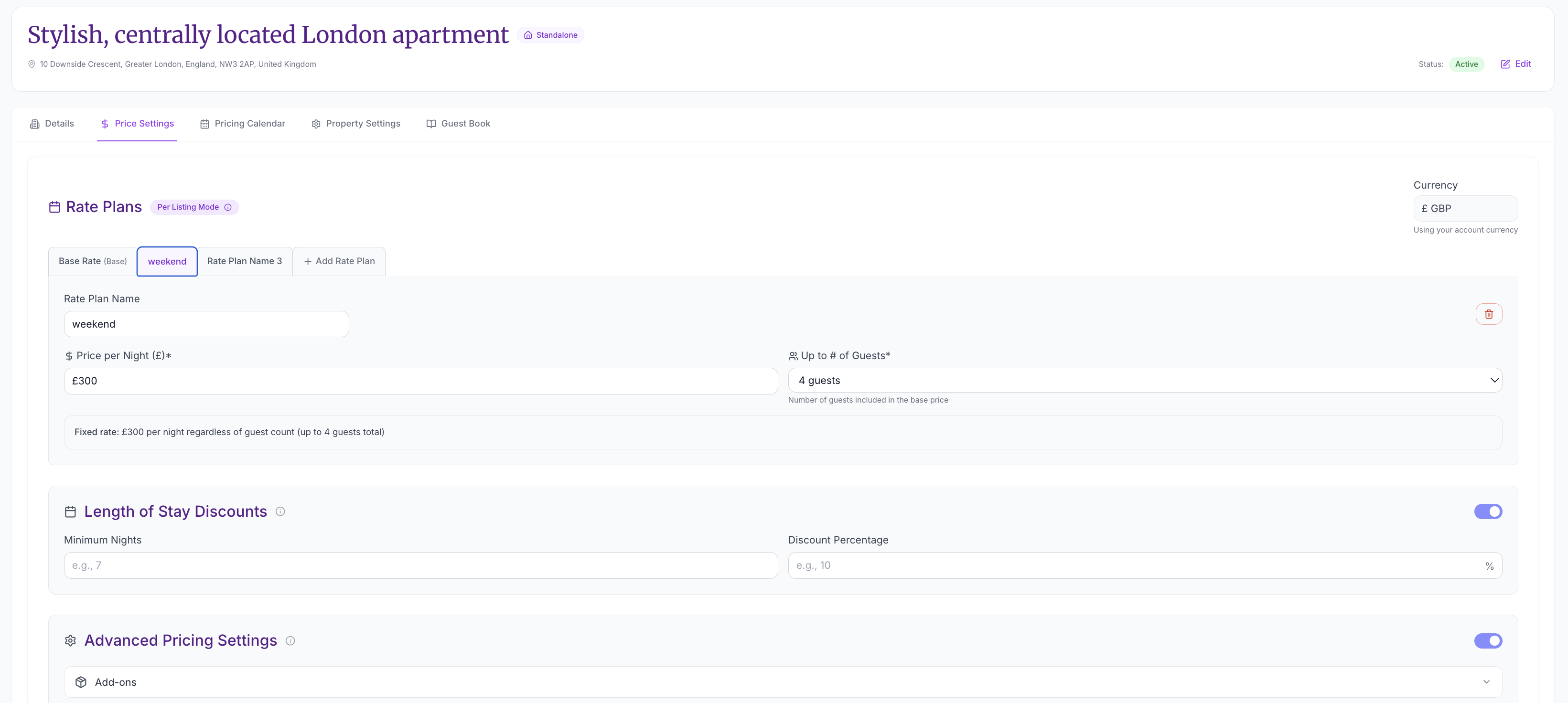
Creating a rate plan does not mean every date automatically uses it. After creating the plan, open Pricing Calendar and apply or confirm where the plan should be used.
Use Offerings When You Need Derived Rates
The Offerings section lets you create rate options derived from the base rate by increasing or decreasing the price by a fixed amount or percentage.
Use offerings when you want a reusable option that should follow the base price, for example:
- Refundable vs non-refundable style offers
- A package that is always 10% above the base rate
- A promotion that is always a fixed amount below the base rate
If you are editing an existing listing, save the base rate first before adding offerings.
Add Length of Stay Discounts
Use Length of Stay Discounts when you want to encourage longer bookings.
- Turn on Length of Stay Discounts.
- Enter a Weekly Discount for stays of 7+ nights, if applicable.
- Enter a Monthly Discount for stays of 28+ nights, if applicable.
- Save your pricing changes.
If your account has a PriceLabs integration, weekly and monthly discounts can sync so direct booking quotes stay consistent with your revenue management setup.
Do not set very large discounts until you have tested a booking quote. A 30% monthly discount can be useful for long stays, but it can also reduce revenue quickly during peak season.
Configure Advanced Pricing Settings
Advanced pricing settings are optional. Use them only when they are part of your actual guest offer.
| Advanced setting | Use it for | How it is charged |
|---|---|---|
| Meal Pricing | Breakfast, lunch, or dinner | Per person, per meal |
| Add-ons | Bike rental, airport transfer, baby cot, extra services | Based on the frequency/unit you choose |
| Fees | Cleaning fee, early check-in fee, late check-out fee | Usually once per booking |
Keep advanced pricing simple at first. Add-ons and fees should be clear enough that a guest understands them before checkout.
How to Edit or Delete a Rate Plan
-
Go to the listing’s Price Settings tab.
-
Click the tab for the rate plan you want to change.
-
Update the name, price per night, or guest count as needed.
-
Save your changes.
To delete a rate plan, open it and click the trash icon on the right side of the rate plan form. The Base Rate / Standard Rate cannot be deleted because it is the fallback rate.
Important: deleting a rate plan removes it permanently. Any bookings already made at that price won’t be affected, but future bookings will fall back to your base rate.
Using the Pricing Calendar
After your rates exist, click Pricing Calendar. This calendar shows which price or rate plan applies on each date, alongside booked or blocked dates.
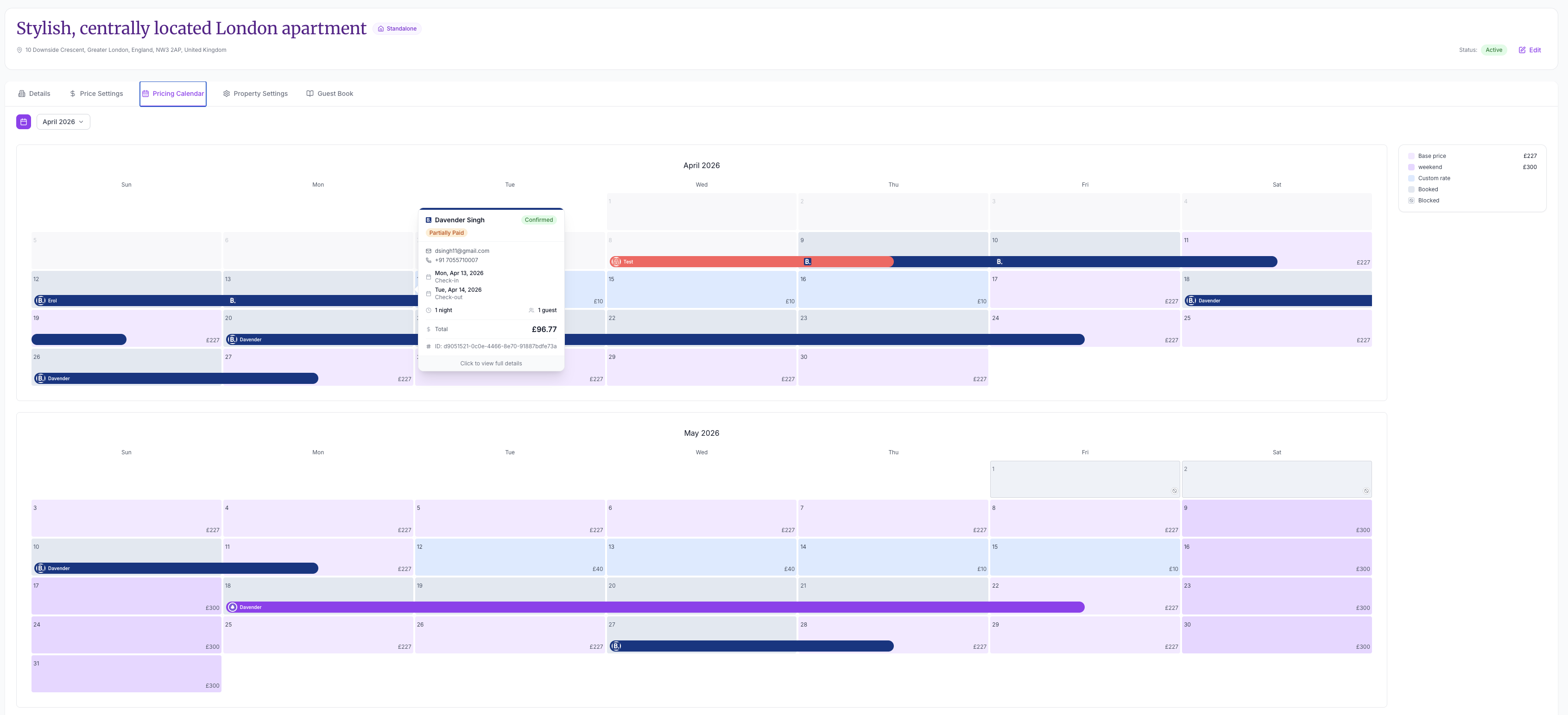
Use the Pricing Calendar to:
- Confirm the base rate is appearing on normal dates
- Check weekend or seasonal rates
- Select dates and apply a saved rate plan
- Enter a custom price for selected dates
- Block or unblock dates
- Add restrictions such as no check-in or no check-out when available
For a guesthouse or boutique hotel with Number of units above one, pricing changes apply to the listing as a whole. Use Block day to take individual units out of the available count.
Pricing Rules for Direct Bookings
Some accounts can add Pricing Rules from Price Settings. These rules automatically adjust direct booking quotes when conditions match.
Examples:
- Last-minute discount — apply a discount when a guest books within a certain number of days before check-in.
- Early-bird discount — apply a discount when a guest books far in advance.
- Length-of-stay rule — apply a discount when the stay is at least a certain number of nights.
Pricing rules apply in priority order, from high to low. They are mainly for direct booking quotes. OTA pricing is usually managed through the OTA or a connected dynamic pricing tool.
If a PriceLabs or other revenue management integration owns OTA rates, do not use manual rules expecting them to override OTA pricing.
Tips for Setting Up Pricing
- Start with your base rate. Get your fallback price right first, then add seasonal or weekend rate plans as you learn your demand patterns.
- Name rate plans clearly. Use names like “Weekend”, “Summer 2026”, or “Holiday Week” so you can identify them quickly in the calendar.
- Review the Pricing Calendar. After adding rate plans, check the Pricing Calendar tab to make sure the right rates apply on the right dates.
- Review availability before connecting channels. Pricing and availability should be checked before syncing or promoting direct bookings.
- Keep add-ons honest. Only add fees and extras that you actually want guests to see and pay for.
- Use pricing rules carefully. A last-minute discount and length-of-stay discount can stack depending on setup, so test the final quote.
- Check direct booking pages after saving. Make sure the guest-facing price matches what you expect.
Troubleshooting
I don’t see the Price Settings tab on my listing
Make sure you’ve saved the listing first — Price Settings only appears on listings that have been fully created, not drafts. Pricing is also only visible to roles that can manage listings, typically Account Owner, Account Admin, or Account Manager. If your role is Booking Coordinator, ask your account owner to open the top-right profile menu and update your role under Settings → Team.
I can’t delete the Standard Rate
The Base Rate / Standard Rate is your default rate plan and can’t be removed. It ensures there is always a fallback price. You can edit its price and name, but not delete it.
Guests are seeing the wrong price
Check which rate plan is active for the dates the guest is looking at. Open the Pricing Calendar tab to see which plan applies on specific dates. If the wrong plan is covering those dates, adjust the date ranges on your rate plans.
My rate plan exists but dates still show the base rate
Creating a rate plan only creates the price option. Open Pricing Calendar, select the dates, and apply the rate plan or custom price to those dates.
My OTA price is different from SympleHost
Check whether that OTA is connected through a channel manager or dynamic pricing tool. Some OTA prices are controlled by the OTA, PriceLabs, or channel mapping settings rather than the manual direct booking price.
The Save button is disabled
Check that every rate plan has a valid name and nightly price. In per-person mode, the minimum and maximum prices must both be valid, and the maximum price must be greater than or equal to the minimum price.