
What Messages Is For
Messages is where guest conversations live in SympleHost. It brings WhatsApp, Instagram, Facebook Messenger, Gmail, supported OTA messages, and direct guest threads into one workspace.
Use it to:
- reply to guests from the right channel
- search by guest name or message text
- filter conversations by status or owner
- star important conversations
- mark conversations as read
- archive or reopen conversations
- assign conversations to a team member
- escalate guest issues for manager review
- open guest, quote, and booking context beside the conversation
- use AI suggestions, translation, and task creation from the reply box
Open Messages
- Click Messages in the sidebar.
- The inbox opens at Messages.
- Choose a guest conversation from the list, or use New message if you need to start a new thread.
You can also arrive in Messages from another part of SympleHost:
- Reservations can open the guest thread for that stay.
- Customers can open the customer’s conversation history.
- Deep links can open a specific thread at
/messages/c/[conversation-id]. - If no thread exists yet, SympleHost can open the new-message flow with the customer or reservation preselected.
Use the Messaging Tabs
Across the top of Messages, you may see:
| Tab | What it is for |
|---|---|
| Messages | The main guest inbox and conversation workspace. |
| Autopilot | Account-level AI reply mode and response delay settings. |
| Concierge | Guest knowledge, AI ground rules, and answer improvement workflows when enabled for the account. |
| Message Automation | Scheduled guest touchpoints around booking, check-in, checkout, and services. |
| Scheduled Messages | Upcoming automated messages that are prepared, held, sent, or need review. |
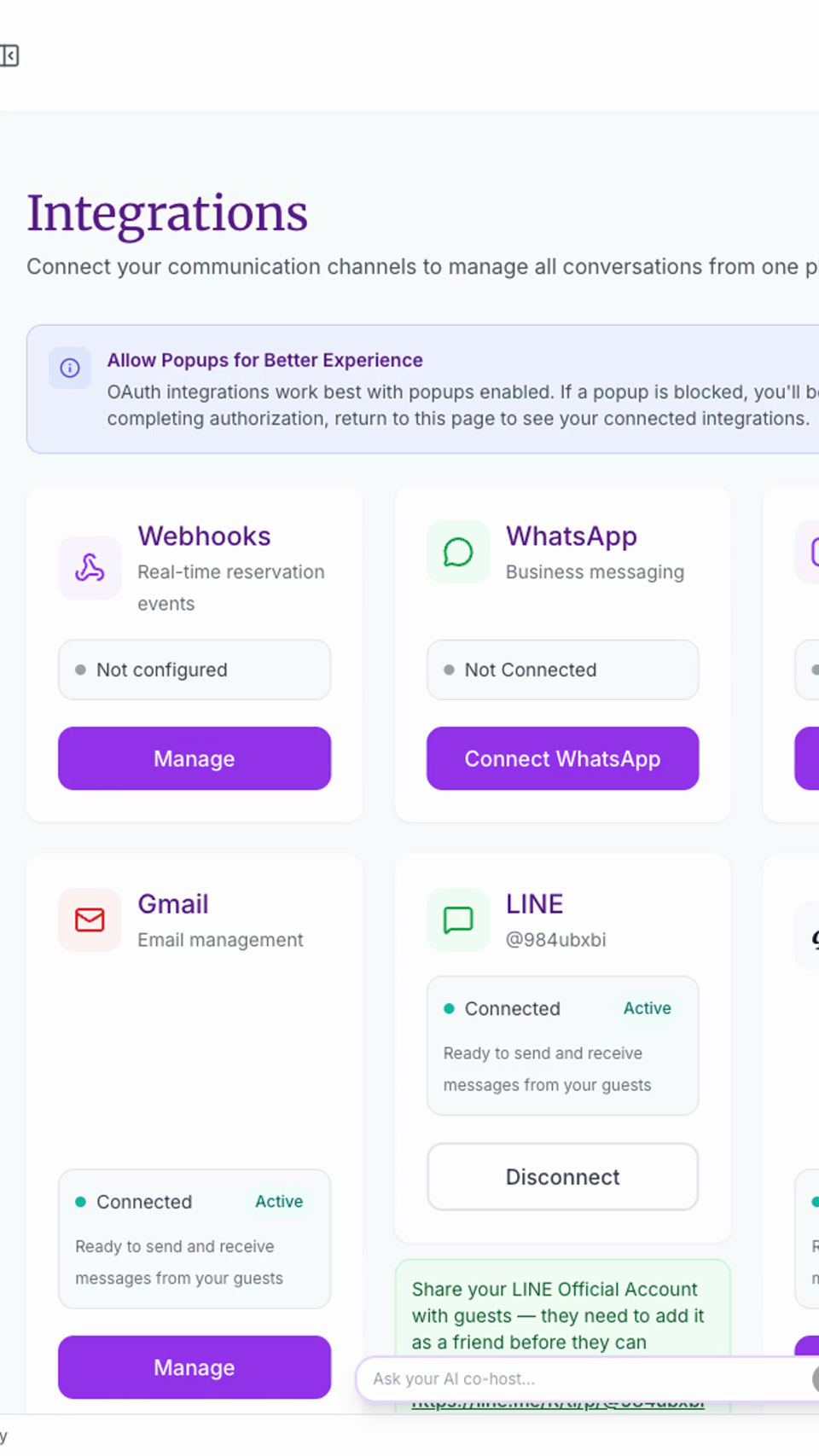
| Integrations | Messaging channel connections such as WhatsApp, Instagram, Messenger, and Gmail. |
Some tabs are shown only when your role and account plan allow access.
Understand the Inbox Layout
Messages has three main areas.
Conversation List
The left panel shows your conversations. Each row can show:
- guest name or phone number
- channel badge, such as WhatsApp or Gmail
- latest message preview
- unread count
- star indicator
- escalation indicator
- assigned team member
- archive/reopen action on hover
Use this panel to choose the thread you want to work on.
Conversation Thread
The middle panel shows the selected conversation. It includes:
- guest name and channel
- assignment control
- escalation control
- channel strip when the same guest has multiple channels
- stay context ribbon
- message history
- load-earlier control for older messages
- suggested replies and action cards where available
- reply composer
Guest Context Drawer
Click Guest context to open the drawer on the right.
The drawer has three tabs:
- Guest — profile details, guest intelligence, notes, and pending requests
- Quotations — quotes linked to the guest or conversation
- Bookings — reservation context for the guest
Use this drawer before replying when you need stay dates, quote status, guest notes, or booking history.
Search and Filter Conversations
Use the search bar to find guests or message text. Search is handled by the server, so it can find conversations beyond the first visible page.
Use the filter button beside the conversation count to narrow the list.
Scope filters:
- All — all conversations you can access
- Mine — conversations assigned to you
Status filters:
- All
- Starred
- Escalated
- Archived
When a filter is active, SympleHost shows a removable filter pill so you can clear it quickly.
Work from the Conversation Row
Hover over a conversation row to use quick actions:
- Star or remove star
- Mark as read
- Archive conversation
- Reopen conversation if it is archived
Open archived conversations from the Archived filter.
Reply to a Guest
- Open a conversation.
- Check the channel badge so you know where your reply will send.
- Review the stay context ribbon and guest drawer if needed.
- Type your reply in the composer.
- Click the send arrow.
Keyboard behavior:
- Enter creates a new line.
- Cmd + Enter or Ctrl + Enter sends the reply.
Replies go out through the conversation’s original channel. For example, a WhatsApp thread sends via WhatsApp, and a Gmail thread sends via Gmail.
Use Composer Tools
The composer includes channel-aware tools.
Attachments
Attachments are available only on supported channels. If the paperclip is disabled, the current channel does not support attachments through SympleHost.
Emoji
Use the smile icon to add emoji to a reply.
Create Task
Use the task icon when a guest message needs operational follow-up, such as:
- missing towels
- maintenance issue
- late checkout request
- cleaning note
- arrival support
The task is anchored to the conversation so the team can see the original context.
Auto-Translate
When SympleHost detects that the guest language differs from your interface language, the composer can show Auto-translate.
When enabled, you write in your language and SympleHost sends the translated reply to the guest. The original text is included for transparency.
Translate Guest Messages
Guest messages in another language can show Translate. Click it to read the translated version, then use Show original to switch back.
Very short messages may not provide enough text for language detection.
Assign and Escalate Conversations
Use Assign when one person should own the guest reply.
Use Escalate when a conversation needs manager review or a decision. Add a short note so the team understands why it was escalated.
Escalated conversations:
- appear in the Escalated filter
- show an escalation badge
- display a banner in the thread
- can be resolved after the issue is handled
Use the Stay Context Ribbon
When a conversation is linked to a stay, the ribbon above the thread can show:
- stay progress
- check-in and check-out dates
- property name
- current Autopilot mode
Click the ribbon cells to open the relevant guest context drawer tab.
The Autopilot cell can cycle the customer-level mode between Suggesting, Auto-replying, and Off when your account permissions allow it.
Start a New Conversation
Use New message when you need to contact a customer.
The flow is:
- Choose or create a customer.
- Select an available channel.
- Write the first message.
- Send it.
SympleHost only shows channels that make sense for the customer and your connected integrations. For example, WhatsApp requires a phone number and an active WhatsApp integration.
Instagram cannot be used to start a brand-new DM with someone who has never messaged your business account first. That is a Meta rule.
Troubleshooting
New messages are not appearing
Open the top-right profile menu, go to Settings → Integrations, and confirm the channel is still connected. For Meta channels, reconnect if the token expired or permissions changed.
I cannot find an older conversation
Search by guest name or message text. If Gmail is connected and the conversation is not local yet, use the Gmail search/import option when it appears.
I cannot start an Instagram conversation
The guest must message your Instagram Business or Creator account first. Meta does not allow businesses to initiate DMs to users who have never contacted them.
Attachments are disabled
The current channel may not support attachments in SympleHost.
Auto-translate is not visible
Auto-translate appears only when SympleHost detects a guest language that differs from your interface language.
Airbnb shows my reply under another host’s name
Airbnb shows messages sent from SympleHost under the account that owns the listing, not the co-host who wrote them. Sign your replies by name so guests know who is writing. See Why Airbnb Shows the Listing Owner’s Name on Replies Sent from SympleHost.
A conversation link opens blank
Refresh the page. If the link is stale or the thread was removed, SympleHost returns you to the conversation list and shows a warning.
Related Articles
- Connecting Messaging Integrations
- Autopilot, Automated Messages, and Concierge
- Set Up Automated Messages
- Set Up Concierge for Guest Questions
- How to Create and Manage Quotes
- How to Check Reservations in the Reservations Module
- Why Airbnb Shows the Listing Owner’s Name on Replies Sent from SympleHost