
Connecting Airbnb is usually the first step in setting SympleHost up as your PMS (property management system). It changes how you work with Airbnb, so it helps to know what’s coming. This guide follows the order most hosts go through it:
- You connect your first OTA, and SympleHost becomes your one source of truth.
- You add more OTAs, and each one gets its own markup.
- You manage each OTA’s settings from SympleHost, not from the OTA.
1. Your First OTA: SympleHost Becomes Your One Source of Truth
Choosing a PMS means your calendar, prices and availability now live in one place. Every OTA (online travel agency, such as Airbnb or Booking.com) follows what you set in SympleHost. That’s what stops double bookings and different prices on different sites.
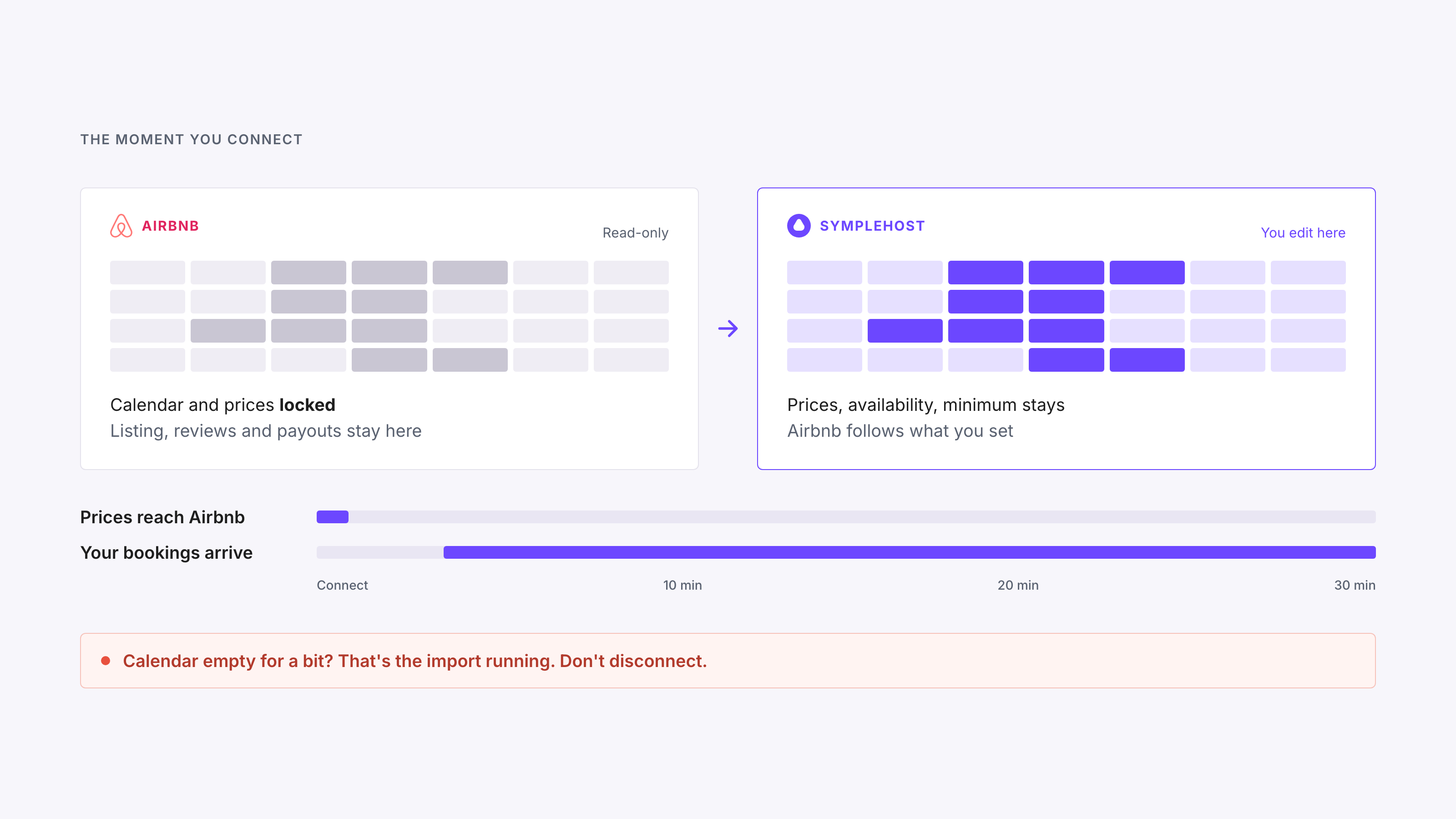
So the moment you connect Airbnb, Airbnb hands its calendar and prices over to SympleHost:
What this means for you:
- Airbnb’s calendar and prices go grey. You can still see them on Airbnb, but you change them in SympleHost from now on.
- Your listing, reviews, guests and payouts stay on Airbnb. Only the calendar and prices move.
- Your existing bookings take up to 30 minutes to appear. If your SympleHost calendar looks empty at first, the import is still running. Don’t disconnect. Still nothing after 30 minutes? Contact support.
Where to connect: Listings → Channel Manager (top right) → Connect OTA → Airbnb. Full steps: How to Import Airbnb and Connect OTA Channels.
💡 Before you click connect: turn off Airbnb’s Smart Pricing. It stops applying once SympleHost sends your prices. Airbnb also switches Instant Book off while connecting; SympleHost remembers your setting so you can turn it back on.
2. Adding More OTAs: Base Price and Markups
Once Airbnb is in, most hosts add Booking.com, Agoda or others. This is where markups come in.
SympleHost keeps one base price for each listing. Each OTA gets that base price plus its own markup (an extra percentage for that OTA only). So you can charge more on an OTA with higher commission without changing your price everywhere else.
Here’s the catch: when you connect Airbnb, SympleHost uses your Airbnb price as your base price. If your Airbnb price already includes extra to cover Airbnb’s fee, that extra follows you to every OTA you add:
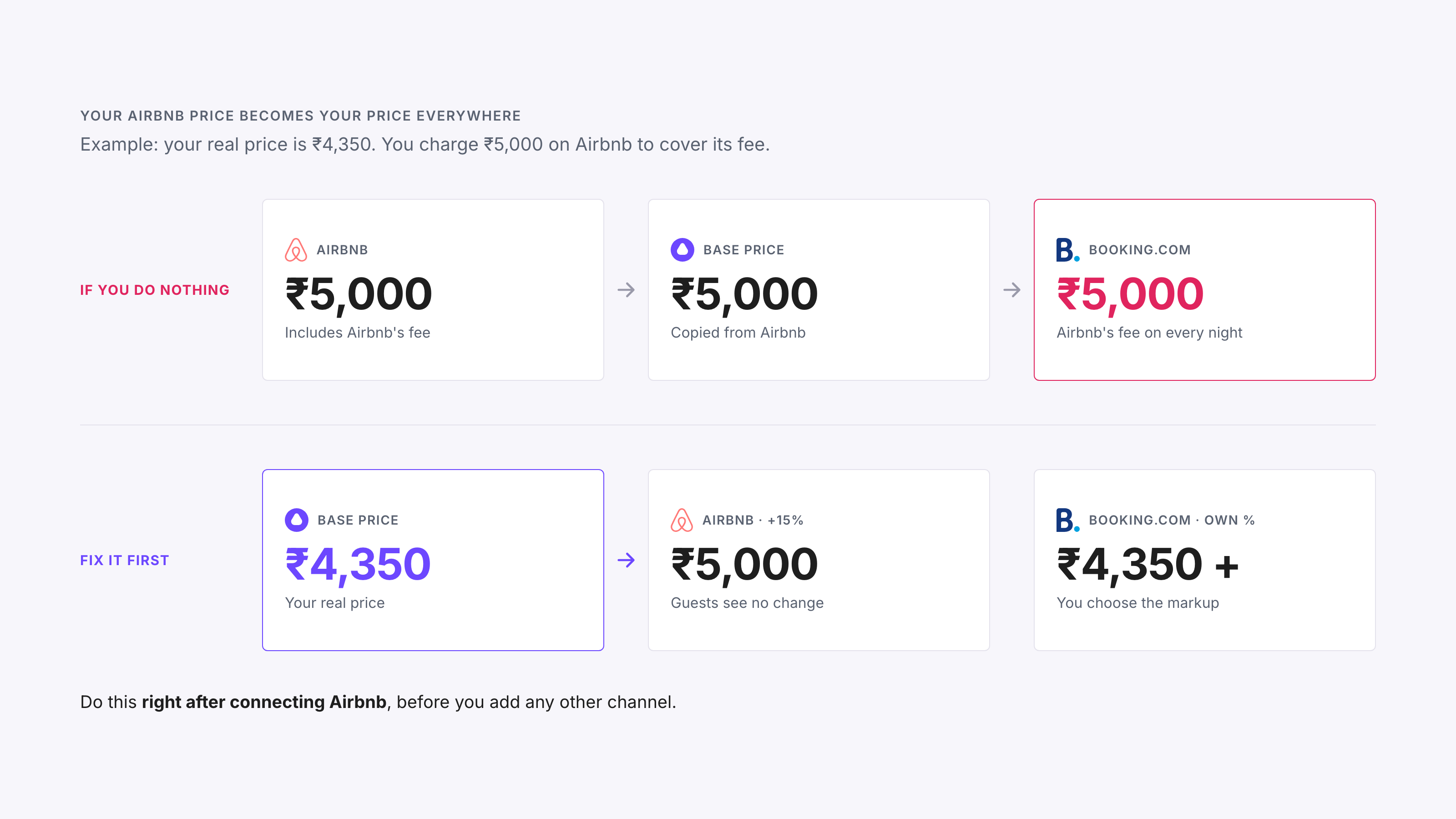
Do this right after connecting Airbnb, before you add another OTA:
- Set your base price to your real price. See How to Set Up Pricing and Rate Rules.
- Give Airbnb a markup that covers its fee, so Airbnb guests still pay the same.
- Each time you connect a new OTA, set its markup straight after mapping the listing, before prices go out.
Where markups live: Listings → Channel Manager → Listing mapping tab → click the listing → Markup on each OTA’s card. The line underneath shows exactly what guests will pay on that OTA:
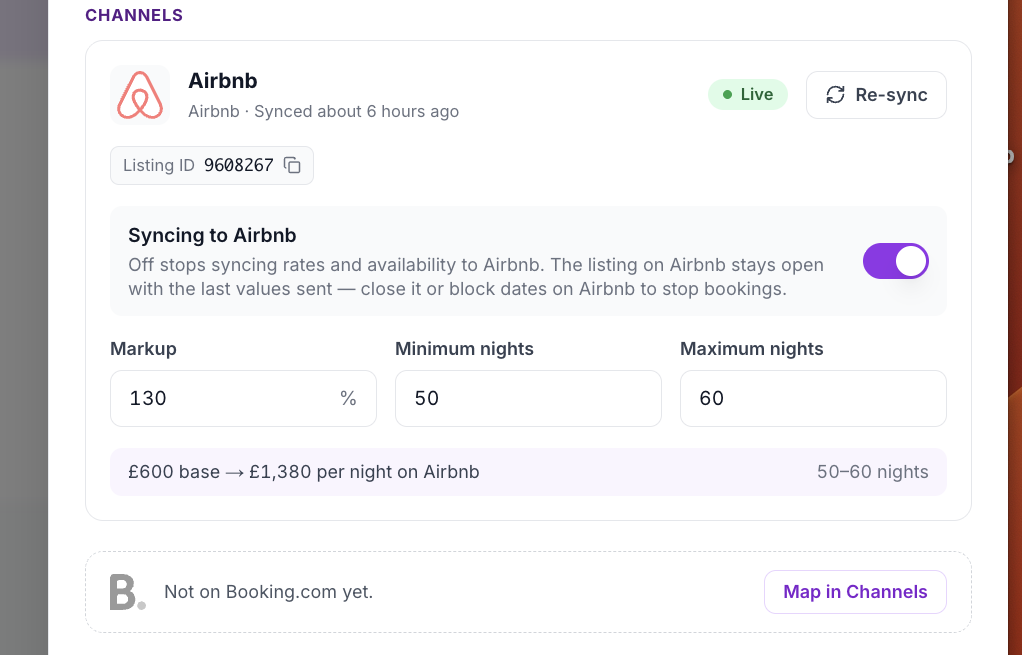
Full steps: How to Set Markups for All OTAs.
💡 Discounts and promotions you created inside Airbnb (weekly, early-bird and so on) stay on Airbnb only. Set them up again on other OTAs if you want them there.
3. Your OTA Settings Now Live in SympleHost
With SympleHost as your PMS, you don’t need to log in to each OTA to change how a listing sells there. The settings you used to set on Airbnb were copied across when you connected, and you change them in SympleHost. SympleHost then sends them to the OTA for you.
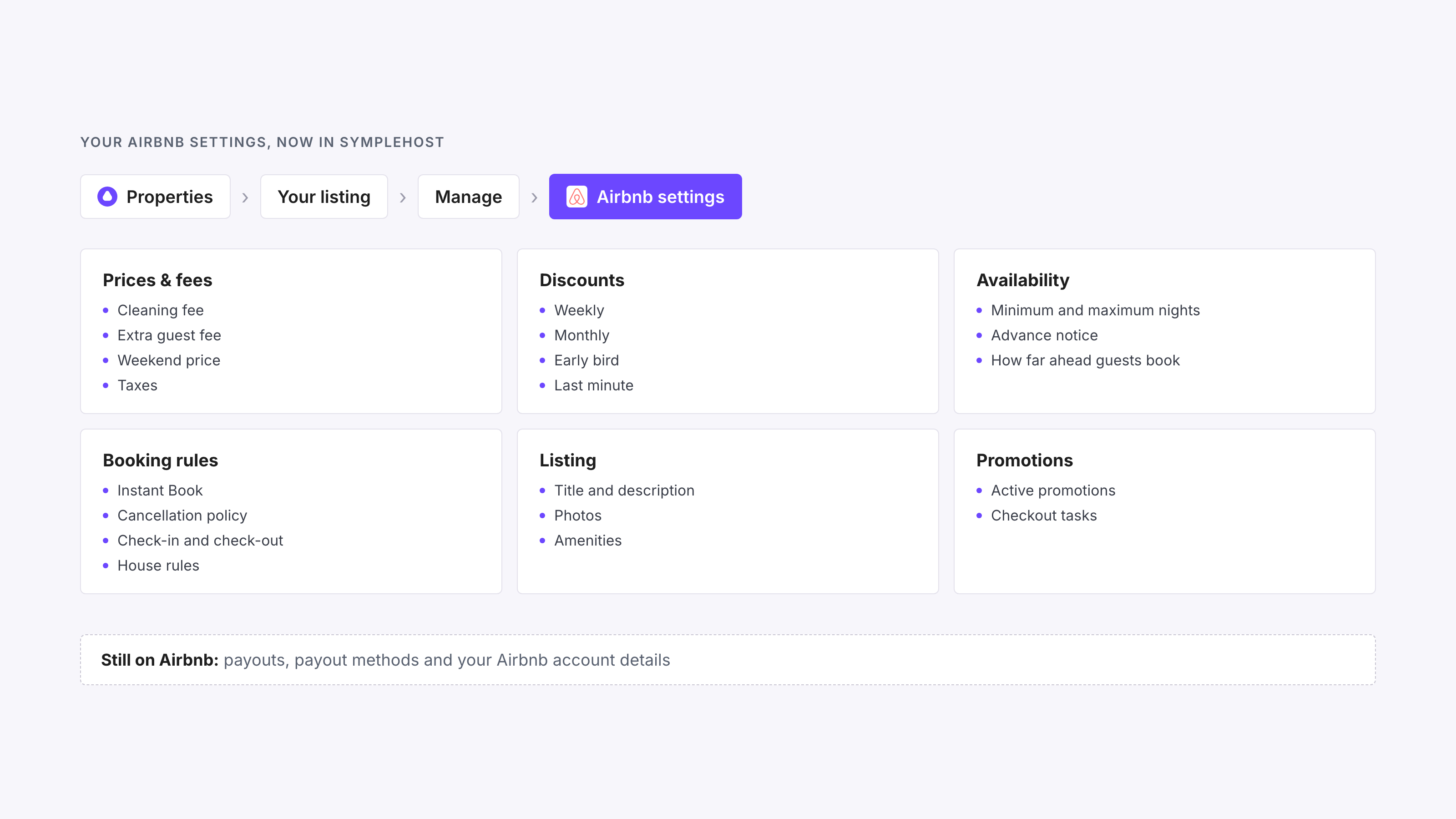
Where to find them: Listings → Channel Manager → Channels tab → click Edit on the Airbnb row → click Settings next to the listing. The Price, Availability and Booking tabs hold the settings for that OTA:
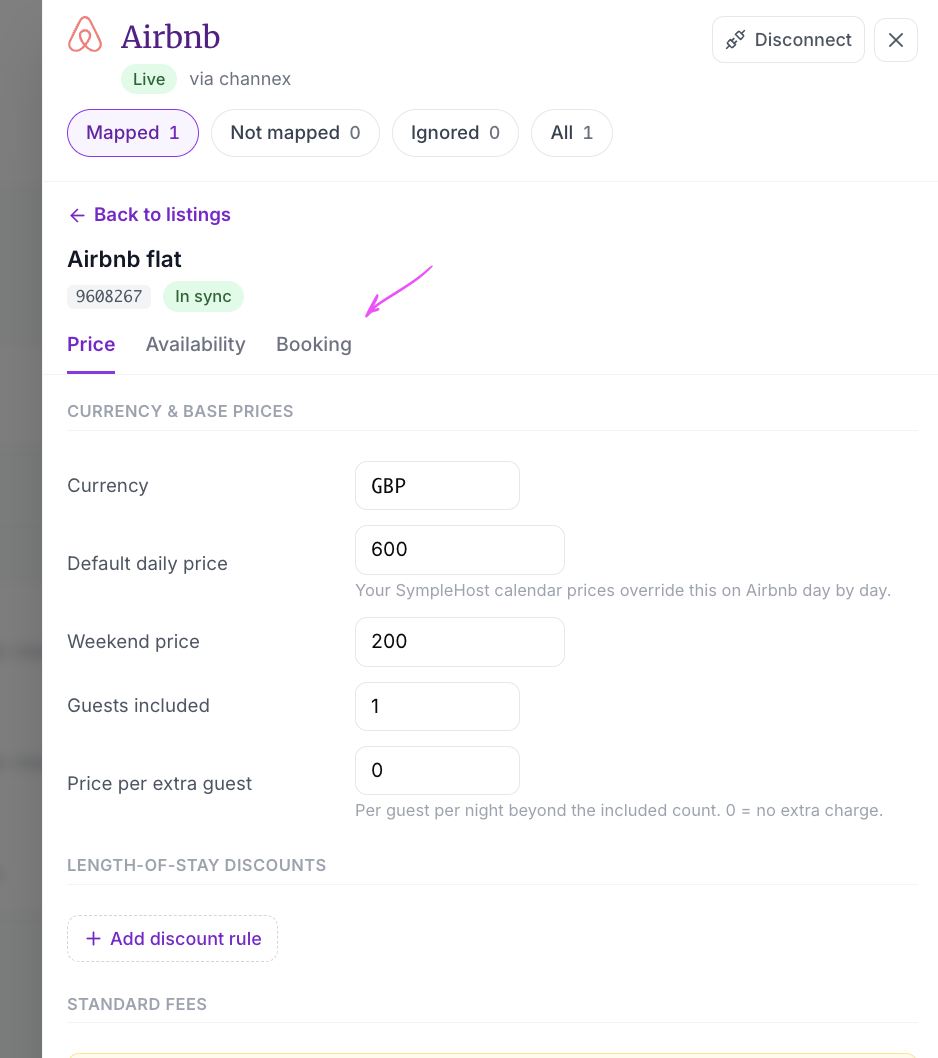
You can also open them from the listing itself: Properties → your listing → Manage → Airbnb settings.
Payouts and your Airbnb account details are still managed on Airbnb. Airbnb may also move you to its host-only service fee, which happens with any connected software.
Full steps: How to Check a Listing’s Settings for Each OTA.
Thinking of Disconnecting?
Most first-week disconnects happen because bookings hadn’t arrived yet (section 1) or a price looked wrong on another OTA (section 2). Both can be fixed while you stay connected, so talk to support first. If you still want to go ahead, see How to disconnect Airbnb.