Your SympleHost subscription invoices and receipts are in Settings, under Billing.
Step 1: Open Billing
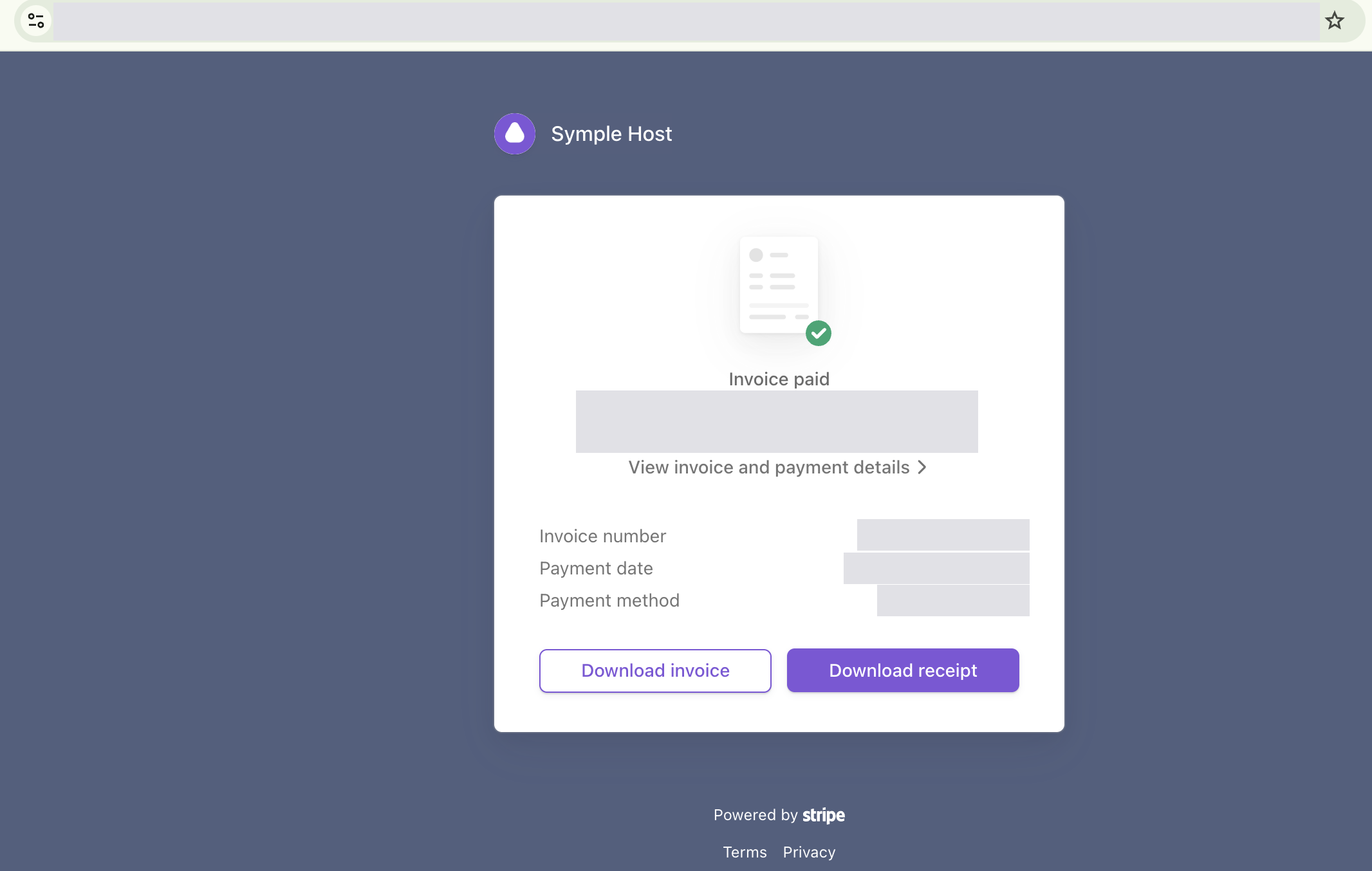
Go to Settings. In the left menu, under WORKSPACE, click Billing.
The Billing page shows your current plan at the top, such as Pro Plan, along with Manage Subscription, Change billing cycle, and Change plan.
Step 2: Open an Invoice from Payment History
Scroll down to the Payment History card. This lists your recent invoices and receipts. The card says Click an invoice to see details.
Each row shows the invoice number, date, amount, and a paid status, with an open (external-link) icon on the right.
Click the invoice, or click its open icon, to open that invoice.
Step 3: Download the Invoice or Receipt
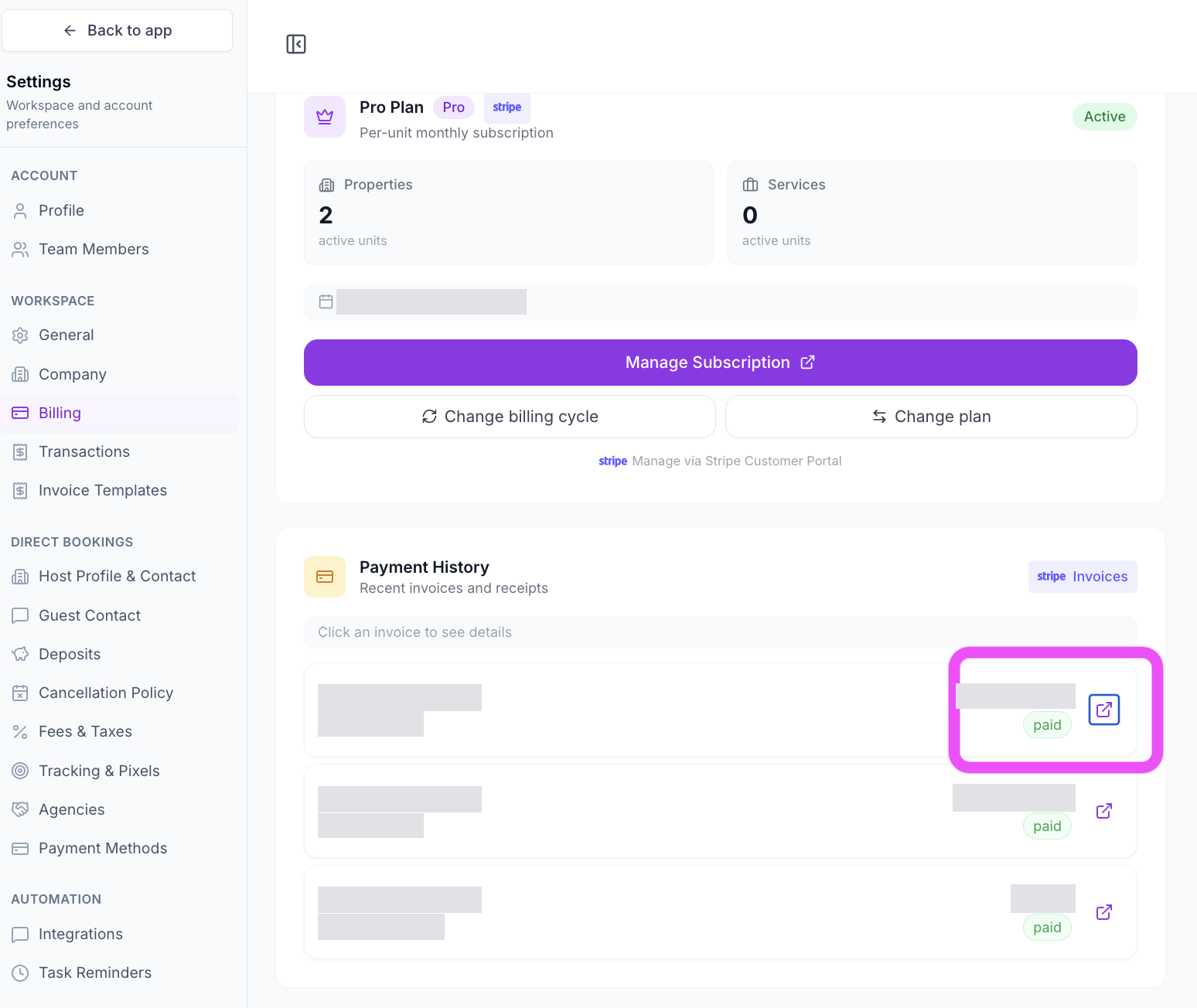
The invoice page opens. It is hosted by Stripe. When the invoice is paid, the page shows Invoice paid, the amount, View invoice and payment details, and the invoice number, payment date, and payment method.
Click Download invoice or Download receipt.
The invoice is the bill for the subscription charge. The receipt is your proof of payment.