
When to Use Reservations
Use Reservations when you want to work from the booking record rather than from the calendar date.
The calendar is best for availability, pricing, blocks, and quick booking actions. The Reservations module is best for searching, filtering, checking guest information, reviewing payment status, and following the full activity history for a stay.
Open the Reservations List
- Click Reservations in the sidebar.
- Review the booking list. The most recent or relevant reservations appear in the table.
- Use filters to narrow the list by date, listing, status, or channel.
- Click a reservation row to open the full detail page.
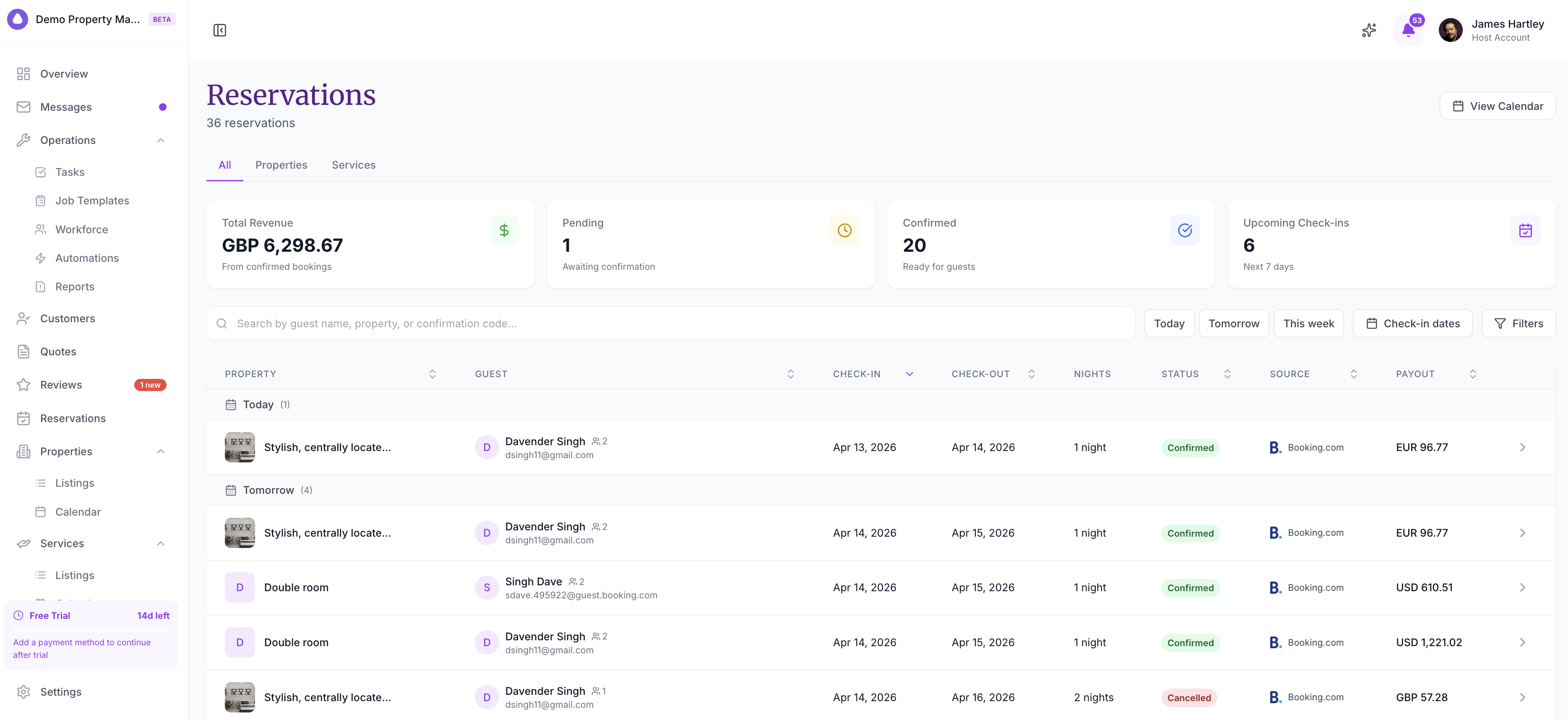
The list view is useful when you need to answer questions like:
- Which bookings are still pending?
- Which guests are arriving soon?
- Which reservations have unpaid balances?
- Which OTA or direct channel did the booking come from?
- Which listing or unit is reserved?
Check the Reservation Details
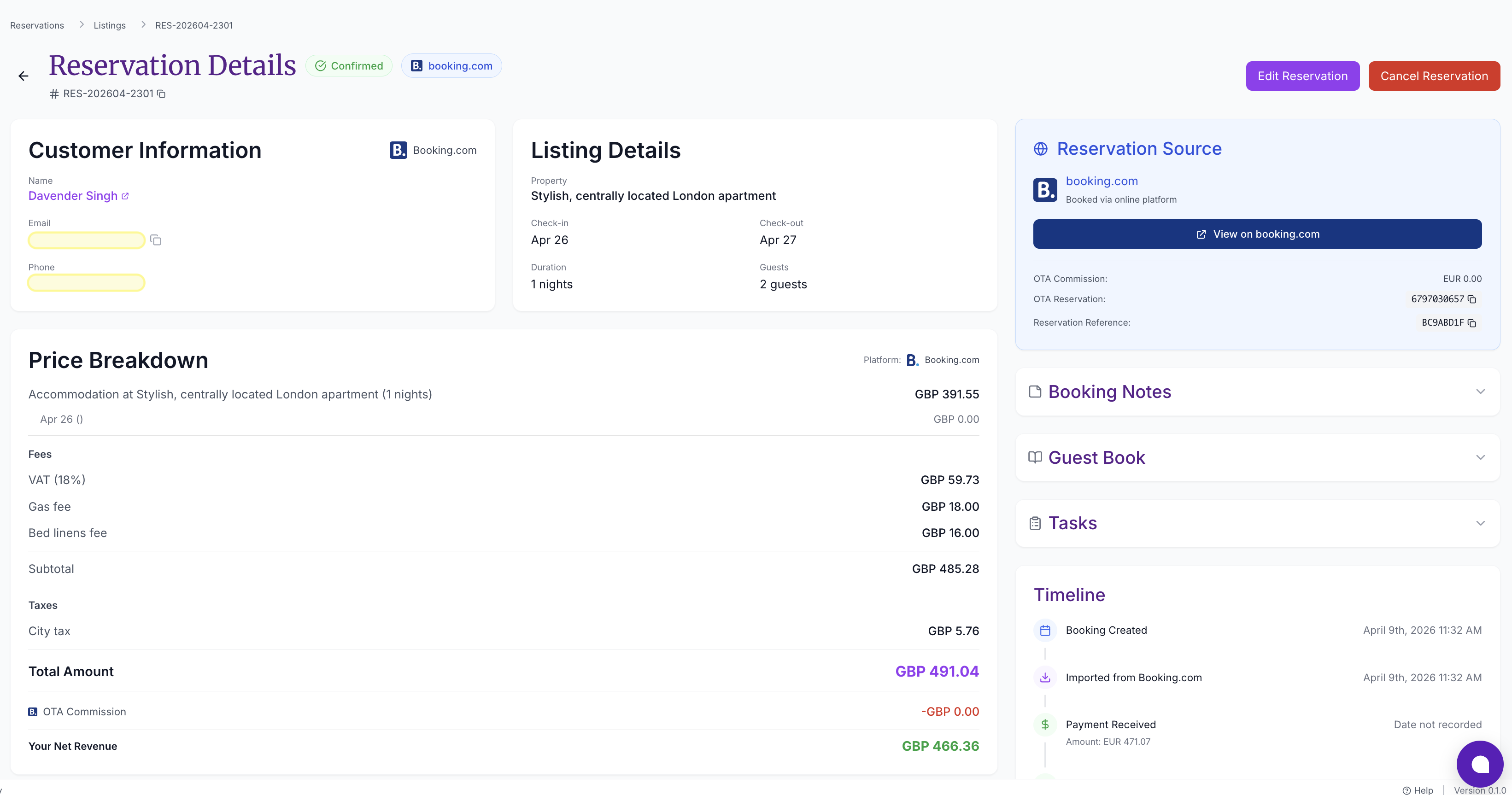
Open a reservation to review the full booking record.
At the top of the reservation, check:
- guest name and available contact details
- property, unit, check-in, and check-out
- number of nights and guest count
- reservation status
- booking channel
- reservation reference
- payment status and amount due
Review Payment Status
The payment area shows whether the reservation is paid, partially paid, pending, failed, refunded, or still has a balance due.
For direct/SympleHost bookings, you may be able to:
- send or review a payment link
- record an offline payment, such as bank transfer or cash
- confirm a reservation after payment is received
- mark a deposit as paid
- release or deduct a held security deposit
OTA bookings usually follow the payment rules of the OTA. If the guest paid through Airbnb, Booking.com, or another connected channel, check the OTA record as well when something looks unclear.
Read the Activity Timeline
Use the activity timeline to understand what happened on a booking. It can include booking creation, confirmation, payment activity, cancellations, message events, notes, and system updates.
The timeline is the first place to check when:
- a guest says they paid but the reservation still looks unpaid
- a booking status changed unexpectedly
- a confirmation email did not go out
- a team member needs context before replying to a guest
- an OTA booking appears different from what the guest expected
Take the Next Action
Depending on the reservation source, status, payment state, and your permissions, you may be able to:
- message the guest
- edit reservation details
- add internal notes
- record payment
- confirm a pending reservation
- cancel the reservation
- view invoices or payment records
- create or review related operational tasks
If you are working from a specific date on the calendar, you can also click the reservation bar and choose Open reservation to jump into this same detail page.
Troubleshooting
I cannot find a reservation
Check your filters first. Clear property, status, channel, and date filters, then search again. If the reservation came from an OTA, also check that the channel is still connected in Channel Manager.
Guest contact details look incomplete
Some OTAs mask guest email or phone details. Use Message guest inside SympleHost when available so the reply goes through the correct connected channel.
Payment status looks wrong
Check the reservation activity timeline and the payment provider dashboard. If the guest paid outside SympleHost, record the payment manually so the reservation stays accurate.
The dates are wrong
Open the reservation and use the edit action if available. SympleHost will warn you if the new dates conflict with another booking or block.