
Use this guide the first time you set up guest messaging and AI in SympleHost. It explains what each Messages tool does, what to configure first, and how to turn automation on without losing control of guest experience.
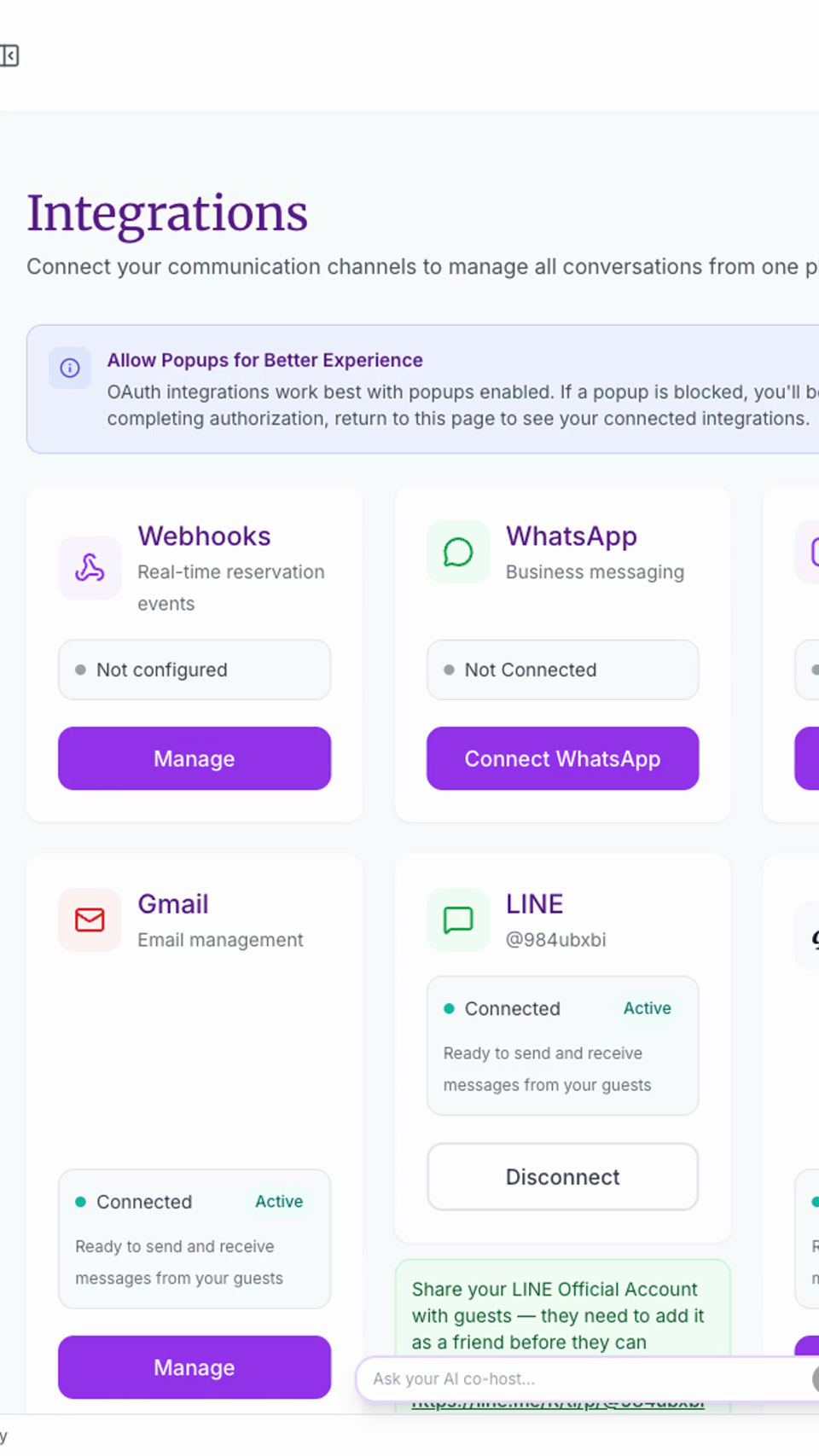
The First-Time Setup Path
Set up Messages in this order:
| Step | What to do | Why it matters |
|---|---|---|
| 1. Connect channels | Connect the messaging integrations your team uses. | Messages need a source before the inbox and AI can help. |
| 2. Learn the Inbox | Review filters, status tabs, channel badges, guest context, and reservation details. | Your team needs one place to read, reply, assign, and escalate. |
| 3. Choose Autopilot mode | Start with Suggestion before allowing automatic replies. | This lets AI draft replies while your team checks accuracy. |
| 4. Create Automated Messages | Add predictable SOP messages for booking, arrival, checkout, and reviews. | These reduce repeat manual work without needing AI judgment. |
| 5. Teach Concierge | Add property facts, rules, notes, documents, and brand voice. | Concierge needs accurate knowledge before it answers guest questions. |
| 6. Go live gradually | Turn on one property, channel, or workflow at a time. | Gradual rollout makes it easier to spot issues and improve replies. |
The Simple Mental Model
| Tool | Best way to think about it | Use it for |
|---|---|---|
| Inbox | The shared guest communication workspace | Reading, filtering, replying, assigning, and tracking conversations |
| Integrations | The channels that bring conversations into SympleHost | OTA messages, WhatsApp, Instagram, Messenger, LINE, Gmail, and other supported channels |
| Autopilot | The permission switch for AI replies | Choosing Off, Suggestion, or On and setting the response delay |
| Automated Messages | Scheduled SOP messages | Booking confirmations, check-in instructions, checkout reminders, review requests |
| Scheduled Messages | The queue created by automation rules | Reviewing, pausing, cancelling, sending now, or regenerating upcoming messages |
| Concierge | The contextual AI guest assistant | Answering live guest questions using property data, past chats, notes, documents, rules, and brand voice |
Automated Messages are for communication you can plan in advance. Concierge is for live questions where the answer depends on context.
Connect Your Messaging Channels
Open the top-right profile menu, click Settings, then go to Integrations.
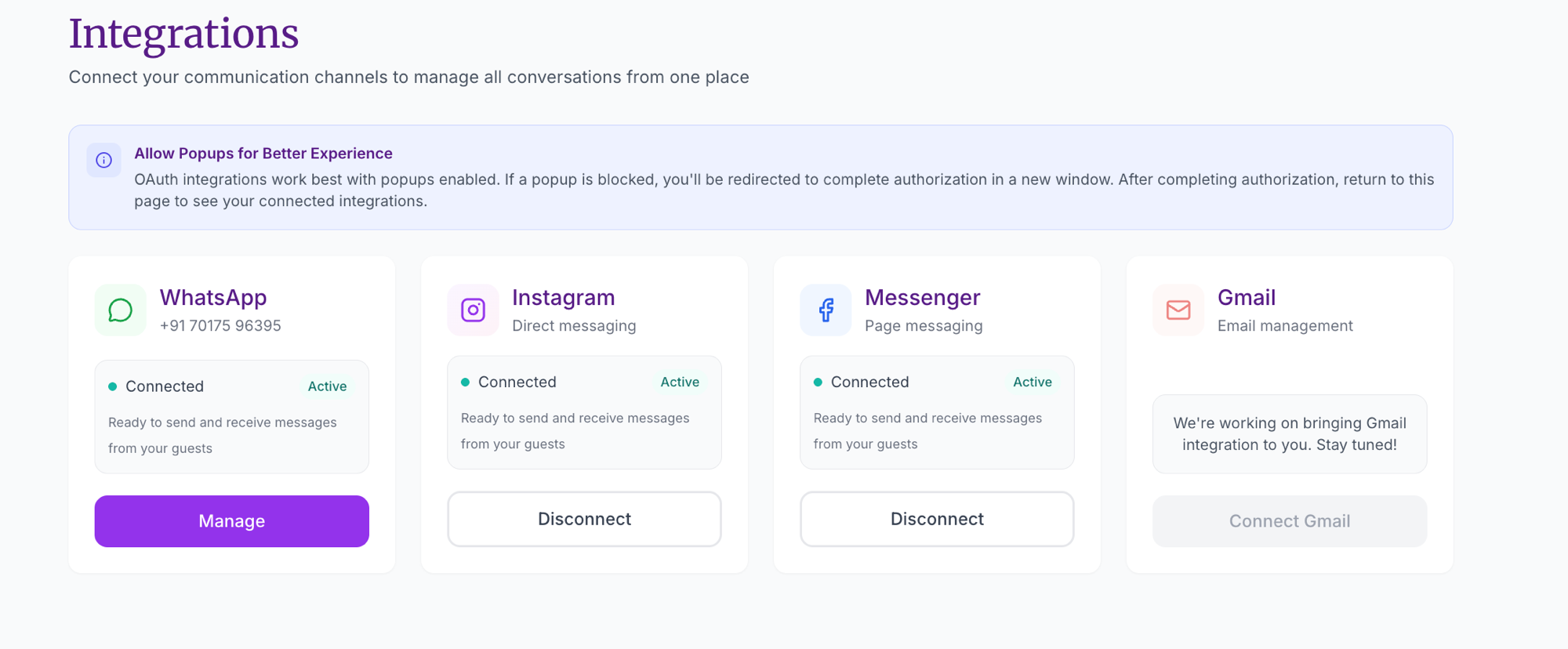
Connect the channels that matter for your operation:
- OTA channels for reservation-related guest messages.
- WhatsApp, Instagram, Messenger, and LINE when those channels are part of your guest communication flow.
- Gmail when your team handles guest or enquiry email from a shared inbox.
Gmail can be filtered by label and replied to directly from Messages, but Gmail automation is not supported yet. Use Gmail in the inbox for visibility and manual replies, then use supported channels for automation where available.
Learn the Inbox Before Turning on AI
Start in Messages and make sure your team understands the basics:
- Use status tabs and filters to find conversations that need attention.
- Check the channel badge so replies go back to the right place.
- Review the guest, customer, reservation, and property context before replying.
- Assign or escalate conversations that need a team member.
- Keep sensitive topics manual until your rules are clear.
This is important because AI should support the workflow your team already understands. The inbox remains the place where humans can review, correct, and take over.
Start Autopilot in Suggestion Mode
Open Messages -> Autopilot.
Choose one of these modes:
| Mode | What happens |
|---|---|
| Off | AI does not reply. Your team handles messages manually. |
| Suggestion | AI drafts replies for your team to review and send. |
| On | AI can send replies automatically after the response delay. |
For a first rollout, use Suggestion. This gives your team the benefit of AI drafts while you check tone, facts, escalation behavior, and property-specific accuracy.
If you later choose On, set a response delay. SympleHost enforces a minimum delay of 20 seconds, which gives your team time to jump in before AI sends.
Add Automated Messages for Predictable Touchpoints
Use Messages -> Message Automation for messages that should happen at known points in the stay.
Good first automations are:
- Booking confirmation or next steps after a new reservation.
- Arrival instructions before check-in.
- Welcome or in-stay check-in after arrival.
- Checkout reminder before departure.
- Review request after checkout.
Use Scheduled Messages to review the actual messages generated from active rules. This is where you can check timing, pause or resume messages, cancel messages, send now, regenerate content, and monitor status.
Teach Concierge Before Letting It Reply
Use Messages -> Concierge to teach the AI what it should know and how it should behave.
Start with:
- Property access details, check-in method, parking, Wi-Fi, amenities, and house rules.
- Emergency contacts and issues that should be escalated.
- Notes for common corrections or property-specific details.
- Documents such as house manuals, welcome books, service menus, and policies.
- Brand voice, tone, and language preferences.
- Upsells such as early check-in, late checkout, transfers, food packs, tours, or services, when configured.
Concierge can answer while your team is offline because it uses property data, reservation context, past chats, notes, uploaded documents, and your rules. It still needs to be taught and tested before you allow automatic replies.
Recommended First 24 Hours
- Connect your main messaging channels.
- Open the Inbox and confirm conversations are arriving with the right channel badges.
- Turn Autopilot to Suggestion.
- Add or review core Automated Messages for check-in, checkout, and review requests.
- Open Scheduled Messages and check what will be sent.
- Add Concierge knowledge for Wi-Fi, parking, check-in, checkout, house rules, emergency contacts, and common guest questions.
- Test Concierge with real questions from your past conversations.
- Keep refunds, complaints, safety issues, and VIP guest handling manual until your escalation rules are ready.
What Not to Confuse
| Do not confuse | Difference |
|---|---|
| Operations Automations and Message Automation | Operations automations create staff tasks. Message Automation sends guest messages. |
| Task Reminders and Scheduled Messages | Task Reminders notify staff about work. Scheduled Messages are guest messages queued from message rules. |
| Automated Messages and Concierge | Automated Messages are planned and rule-based. Concierge answers live questions using context. |
| Gmail Inbox support and Gmail automation | Gmail can be filtered and replied to from Messages, but Gmail automation is not supported yet. |
Common Mistakes to Avoid
- Turning Autopilot On before the team has reviewed AI suggestions.
- Using Automated Messages for guest questions that need live context.
- Expecting Concierge to know property details that have not been added or synced.
- Letting AI answer refunds, safety issues, major complaints, owner-sensitive stays, or VIP situations without escalation rules.
- Activating too many message rules at once without checking Scheduled Messages.