
What the Owner Portal Is For
The Owner Portal gives property owners a transparent view of the properties you manage for them.
Use it when you manage properties on behalf of owners and want them to see:
- property performance
- upcoming, current, past, and cancelled reservations
- who is arriving next
- owner payout figures, if financial visibility is enabled
- monthly owner statements
- forecasted payout based on confirmed bookings
- expenses that need their approval
- properties shared with their owner account
This keeps owner communication out of spreadsheets and one-off messages. Owners can log in, review what is happening, and approve expenses from their own portal.
Setup Flow at a Glance
| Step | Where to Do It | Why It Matters |
|---|---|---|
| 1. Mark the property as managed | Listings → Property → Settings | Enables commission tracking and owner statements. |
| 2. Set the management fee | Property Management section | Calculates your commission and owner payout. |
| 3. Add or invite the owner | Settings → Team or the property’s owner access section | Gives the owner access to the correct property. |
| 4. Choose financial visibility | Settings → General | Controls whether owners can see payout figures. |
| 5. Review owner reports | Financial Reports → Owner Reports | Lets your team generate and export statements. |
| 6. Request expense approvals | Operations → Expenses | Sends owners invoice/expense decisions in the portal. |
Mark a Property as Managed
- Open Listings.
- Select the property you manage on behalf of an owner.
- Open the property’s Settings tab.
- Find Property Management.
- Turn on Mark as managed property.
- Enter the Commission percent or management fee.
- Add the owner name if needed.
- Click Save.
The commission percent is your management fee for that property. SympleHost uses it when calculating management commission, owner payout, and owner statements.
For multi-unit properties, child units may inherit the parent property’s management settings. If you are updating a unit and cannot edit the management section, open the parent property settings instead.
Invite or Connect a Property Owner
Owners need a user account with owner access before they can log in to the Owner Portal.
You can connect owners from the property owner access area or from Settings → Team:
- Open Settings from the top-right profile menu.
- Go to Team.
- Add or edit a team member.
- Choose the Property Owner role.
- Select the managed properties this owner should access.
- Send the invitation or save the access change.
Owners only see the properties shared with their account. If one owner should see two villas and another owner should see only one, select the property access accordingly.
If a property is not marked as managed yet, mark it as managed and save the management fee before inviting the owner.
Choose Whether Owners Can See Financial Figures
Go to Settings → General and find Owner financial visibility.
Use Show financials to property owners when you want owners to see payout-related figures in the Owner Portal.
When financial visibility is enabled, owners can see figures such as:
- net payout
- gross revenue
- management fees
- owner payout
- statement totals
- forecasted payout
When financial visibility is disabled, owners can still use the portal for operational transparency, but payout figures are hidden.
Use this setting intentionally. Some property managers want full transparency; others prefer to share financials only through exported statements.
What Owners See in the Portal
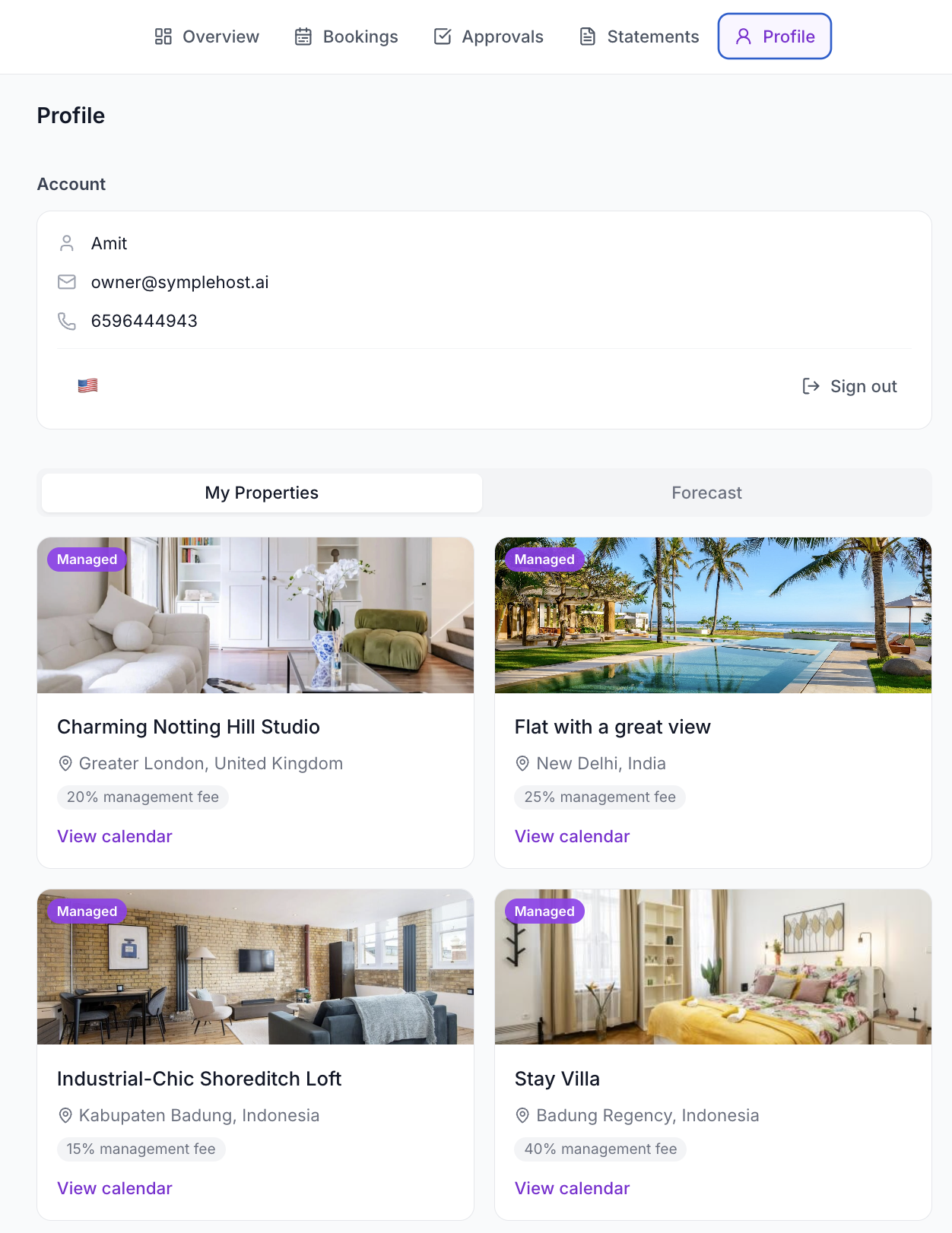
Owners sign in to the Owner Portal and see the properties shared with them.
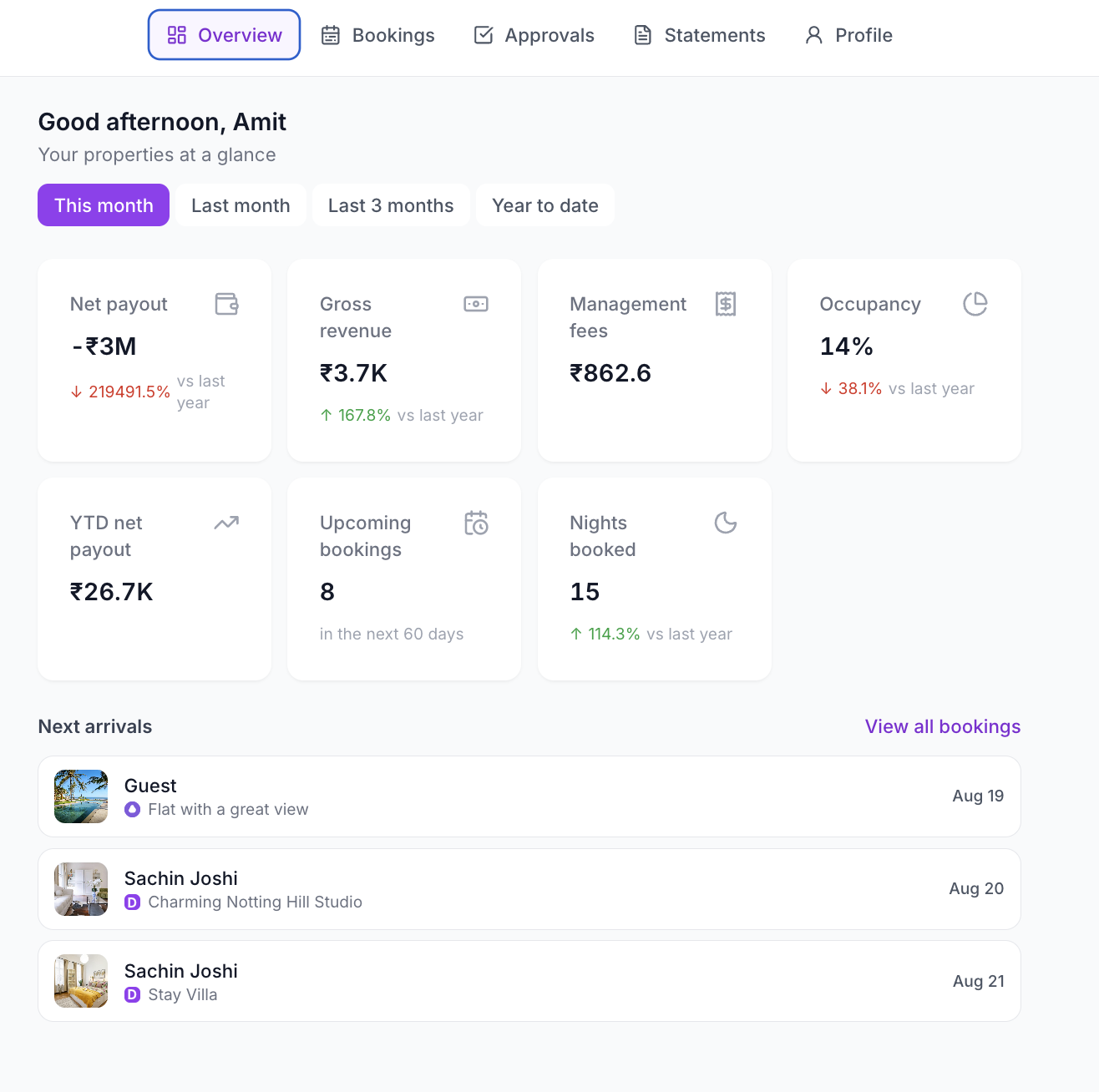
The portal includes:
| Section | What Owners Can See |
|---|---|
| Overview | Performance snapshot, upcoming bookings, next arrivals, and pending approvals. |
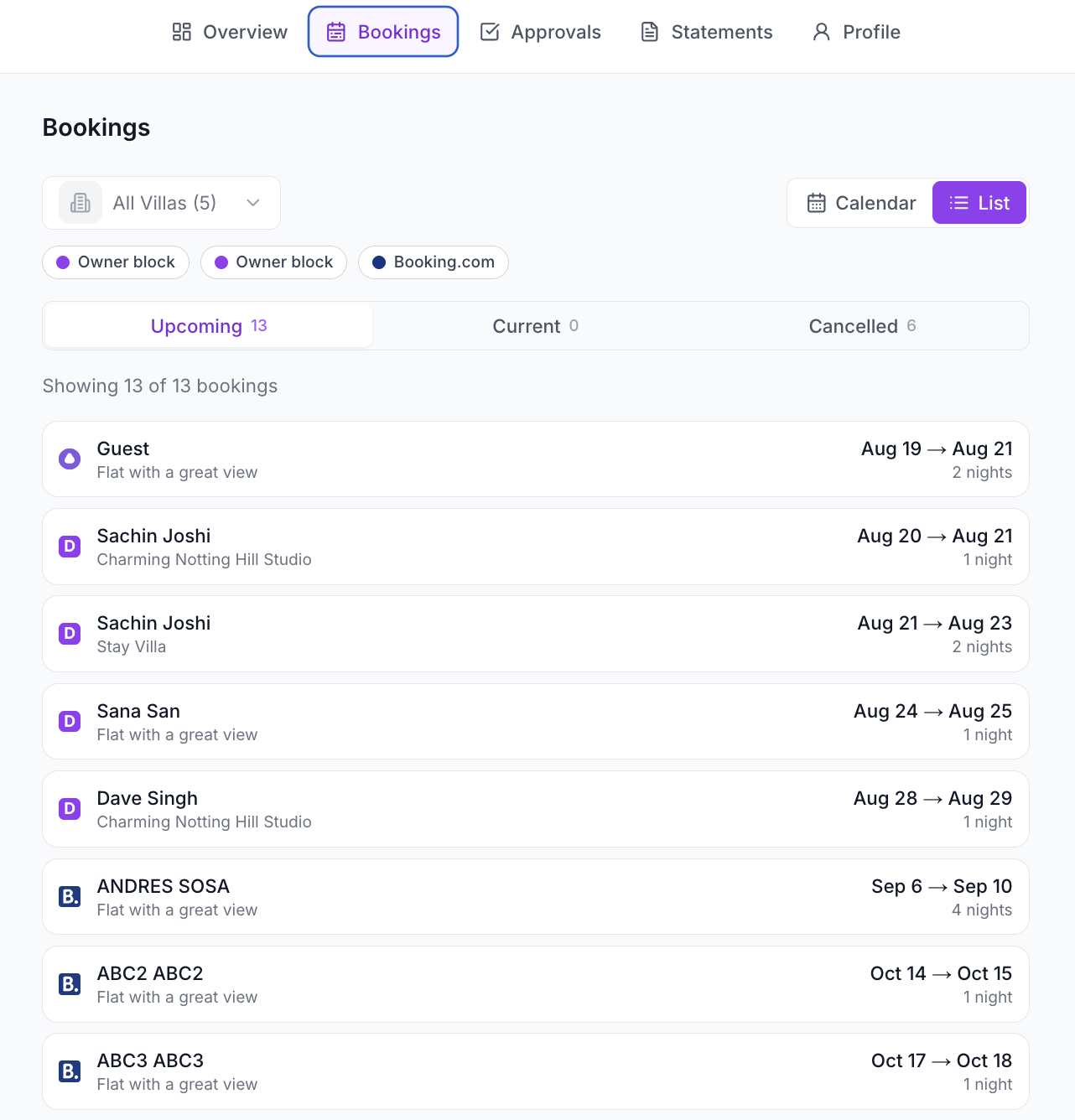
| Bookings | Calendar or list view of upcoming, current, past, and cancelled bookings. |
| Statements | Owner payout statements for selected periods. |
| Forecast | Projected payout based on confirmed bookings on the books today. |
| Approvals | Expenses or invoices awaiting the owner’s decision. |
| Profile | Owner account and properties shared with them. |
Booking details can show guest, dates, nights, guest count, status, channel, and estimated payout where available.
Forecasts are based on confirmed bookings currently on the books. They are not demand forecasts, and the monthly statement remains the final source of truth.
Generate Owner Statements
Your internal team can review owner statements from Financial Reports → Owner Reports.
Owner statements can include:
- accommodation income
- cleaning fees
- add-ons
- refunds
- OTA commissions
- gateway fees
- net rental income
- management commission
- property expenses
- amount due to owner
- reservation-level detail
- KPIs such as occupancy, ADR, nights booked, and year-to-date payout
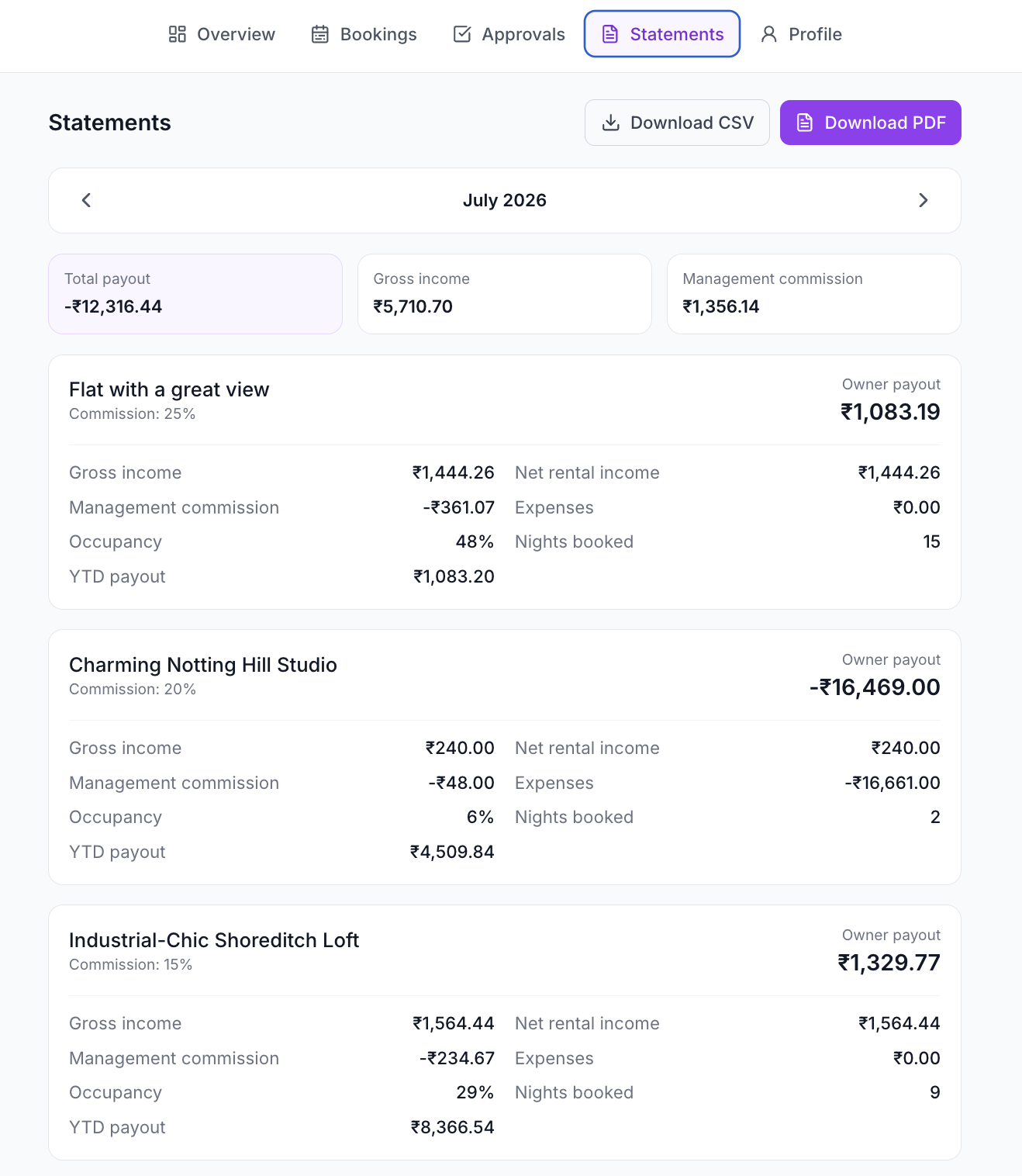
You can export statements as CSV or PDF. Use these exports when you need to send formal reporting outside the portal or keep monthly records.
Request Owner Approval for Expenses
Go to Operations → Expenses when an expense needs owner approval.
- Click Add Expense or open an existing expense.
- Link the expense to the relevant managed listing.
- Add amount, category, vendor, notes, and receipts.
- Turn on Request owner approval.
- Save the expense.
The owner sees the request under Owner Portal → Approvals. They can approve or deny it and optionally add a note.
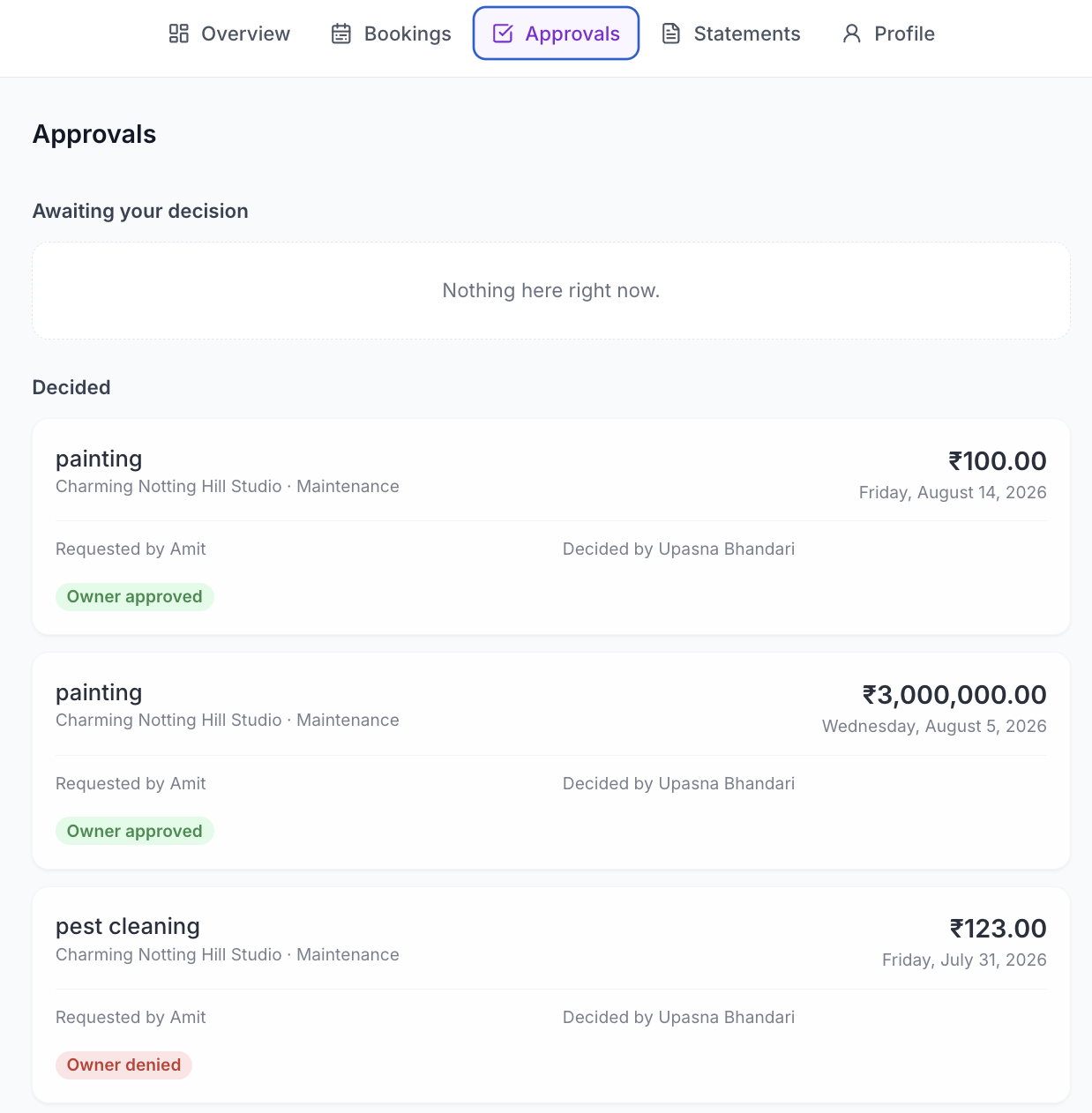
Owner approval statuses include:
- No approval requested
- Sent for approval
- Owner approved
- Owner denied
Once an expense has been sent for owner approval, key details are locked to protect the approval record. If the amount, category, vendor, date, or description is wrong, create a new expense instead of changing what the owner already approved.
Best Practices
- Mark managed properties before inviting owners.
- Set the commission percent carefully, because it affects owner reporting.
- Give each owner access only to the properties they should see.
- Decide whether owners should see financial figures before sending invitations.
- Use owner approvals for costs that owners expect to review, such as repairs, replacement items, and larger maintenance invoices.
- Attach receipts before requesting approval.
- Use owner statements as the final monthly record, especially if forecasts changed during the month.
- Preview the Owner Portal as an admin before inviting an owner.
Troubleshooting
The property does not appear in Owner Reports
Open the property’s Settings tab and confirm Mark as managed property is enabled and saved.
The owner cannot see a property
Check the owner’s team profile and confirm the property is selected in their listing access.
The owner can see bookings but not financials
Open Settings → General and check Owner financial visibility. If financials are hidden, payout figures will not appear in the Owner Portal.
The owner approval toggle is missing on an expense
Owner approval is available for expenses linked to managed properties. Make sure the expense is linked to the correct managed listing.
The management fee looks wrong
Check the property’s commission percent in Listings → Property → Settings. Owner statements use the managed property commission setting.