
Where to Find a Listing’s OTA Settings
Each listing has settings that apply to one OTA (online travel agency) at a time, such as its markup or minimum nights on that OTA. You can check them in two places in Channel Manager:
- Listing mapping tab: one panel per listing, with a card for each OTA the listing is mapped to.
- Channels tab: one panel per OTA connection, with a Settings view for each mapped listing.
This guide uses Airbnb as the example. Use the same steps for the other OTAs your listing is mapped to.
Open Channel Manager
- Click Listings in the sidebar.
- Click Channel Manager at the top right of the page.
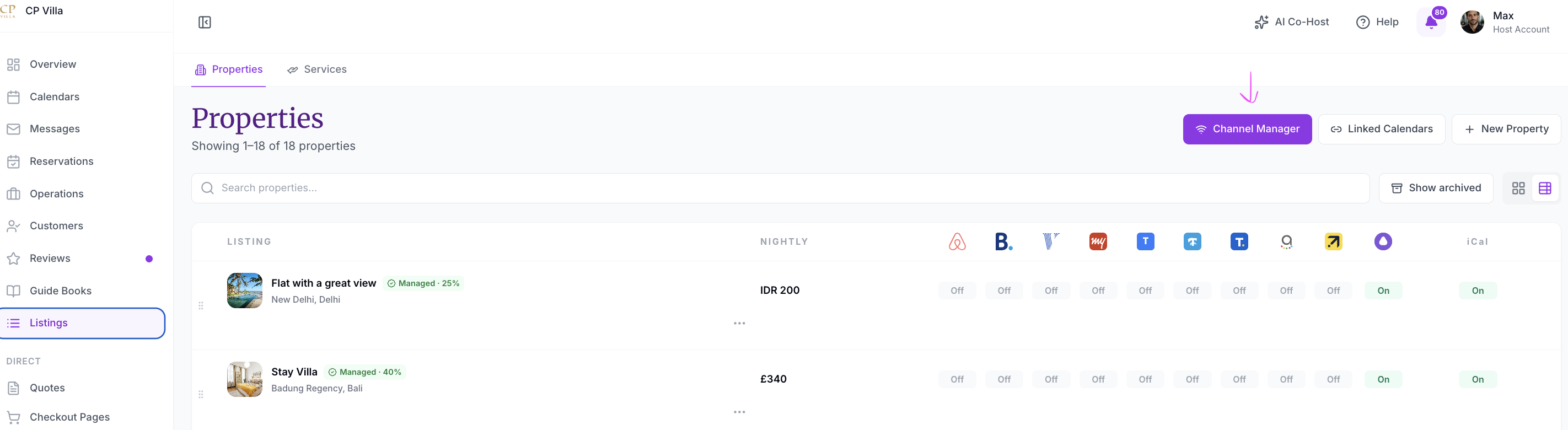
Channel Manager has two tabs: Channels and Listing mapping.
Option 1: Check Settings from the Listing Mapping Tab
Open the Listing
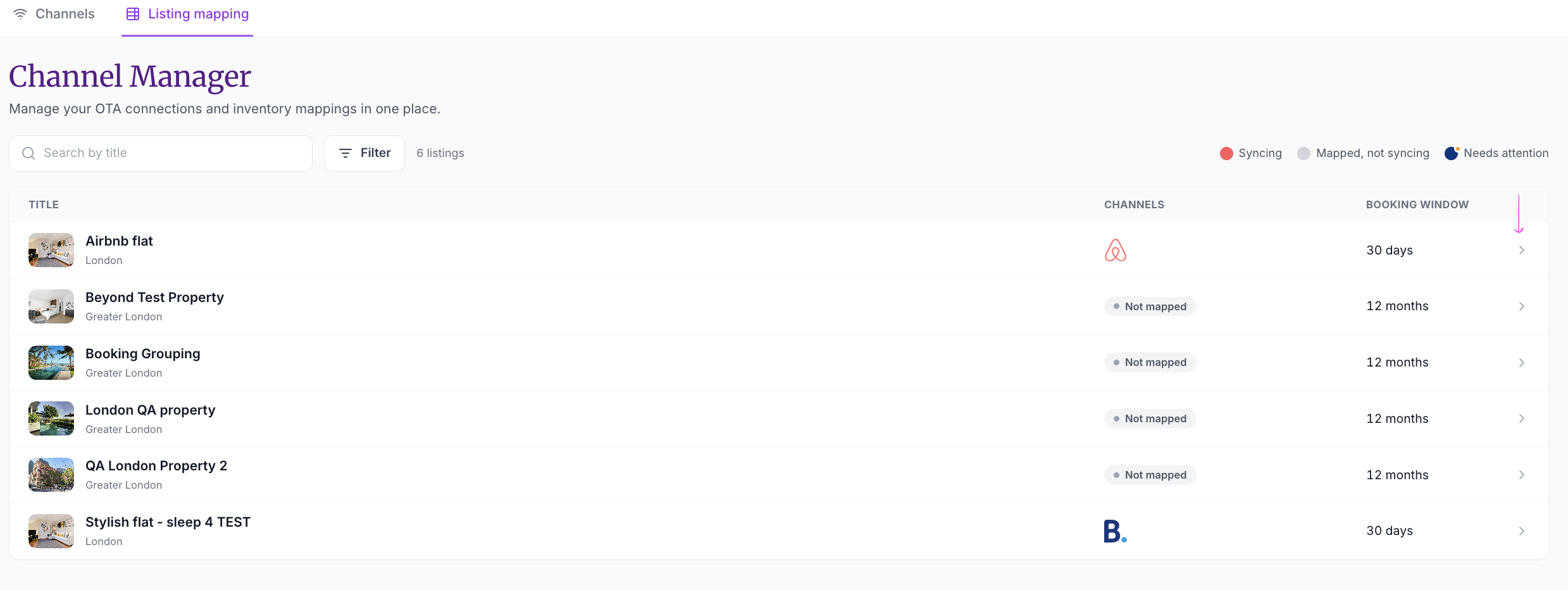
- Click the Listing mapping tab.
- Find the listing. You can use Search by title or Filter.
- Click the listing’s row. The arrow at the end of the row opens it.
The table shows each listing’s Title, its Channels, and its Booking window. A listing that is not on any OTA shows Not mapped. The legend at the top right explains the status colours: Syncing, Mapped, not syncing, and Needs attention.
Read the Listing Panel
The panel opens with the listing name and location at the top.
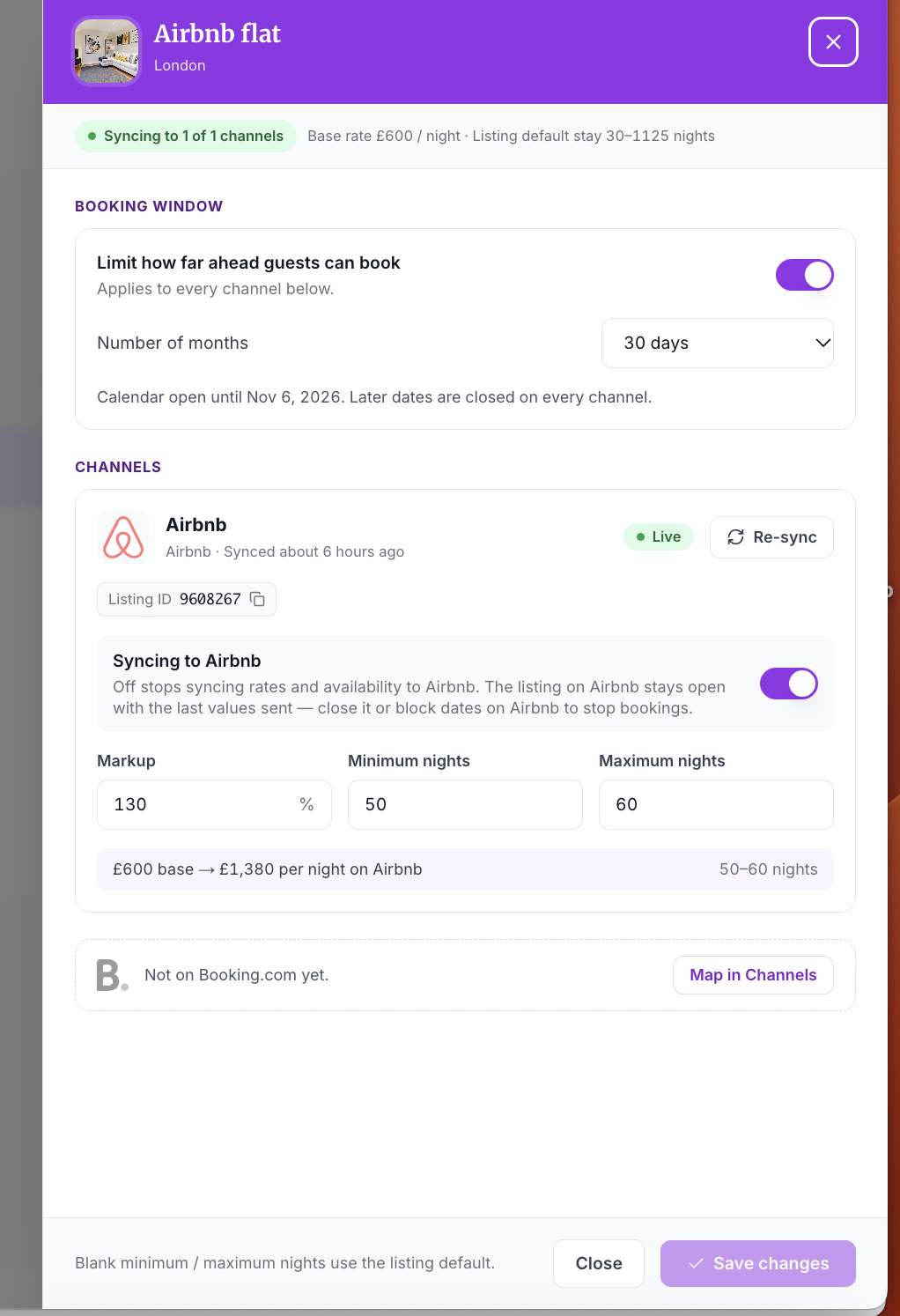
Summary bar. Shows how many channels the listing is syncing to, for example Syncing to 1 of 1 channels. It also shows the listing’s base rate and default stay, for example Base rate £600 / night · Listing default stay 30–1125 nights.
BOOKING WINDOW. Use the Limit how far ahead guests can book switch to cap how far ahead guests can book. The card notes that it Applies to every channel below. Choose the period in the Number of months dropdown, for example 30 days. The card then tells you the last open date, for example Calendar open until Nov 6, 2026. Later dates are closed on every channel.
CHANNELS. Each OTA the listing is mapped to has its own card. The Airbnb card shows:
- A status badge, such as Live, and when it last synced, such as Synced about 6 hours ago.
- A Re-sync button.
- The Listing ID on that OTA, with a copy icon.
- The Syncing to Airbnb switch.
- Markup (%), Minimum nights, and Maximum nights for this OTA.
- A preview line, such as £600 base → £1,380 per night on Airbnb and 50–60 nights.
About the Syncing Switch
The panel describes what turning the switch off does:
Off stops syncing rates and availability to Airbnb. The listing on Airbnb stays open with the last values sent — close it or block dates on Airbnb to stop bookings.
So turning sync off does not close the listing on the OTA. Guests can still book it there. To stop bookings, close the listing or block the dates on the OTA itself.
Markup and Minimum and Maximum Nights
- Markup is the percentage added to the rate for this OTA only. For how to set it, see How to Set Markups for All OTAs.
- Minimum nights and Maximum nights apply to this OTA only. If you leave them blank, the listing default is used. The panel footer says: Blank minimum / maximum nights use the listing default.
Check the preview line after you change a value. In the example, a £600 base with a 130% markup gives £1,380 per night on Airbnb, with a stay of 50–60 nights.
OTAs the Listing Is Not On
If the listing is not mapped to an OTA, the panel shows a line such as Not on Booking.com yet. with a Map in Channels button.
Save Your Changes
Click Save changes to save, or Close to leave the panel.
Option 2: Check Settings from the Channels Tab
Open the OTA Connection
- Click the Channels tab.
- Find the OTA in the Channels table and click Edit on its row. The connection panel opens on the right.
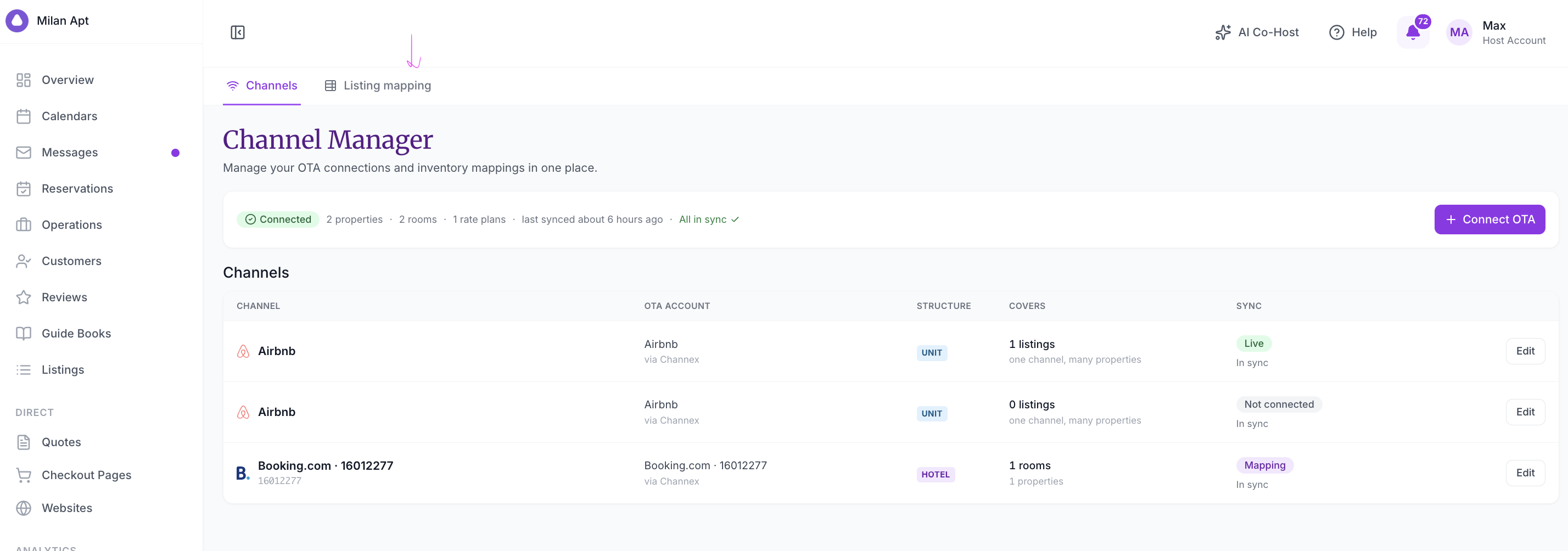
The table shows each connection’s OTA account, Structure (for example UNIT or HOTEL), what it Covers, and its Sync status, such as Live, Not connected, or Mapping. The bar above the table shows an overall summary, such as Connected, the number of properties, rooms, and rate plans, when it last synced, and All in sync.
Open the Listing’s Settings
The connection panel shows the OTA’s status, for example Live via channex. Use Mapped, Not mapped, Ignored, and All to filter the listings, or Search listings.
Each row under Mapped listings shows the listing name, its listing ID on the OTA, its sync status (such as In sync), and its markup (such as +130.0%).
- Find the listing under Mapped listings.
- Click Settings on that row.

Check the Price Tab
The Settings view shows the listing name, its listing ID and sync status, and three tabs: Price, Availability, and Booking. Click Back to listings to return to the list.
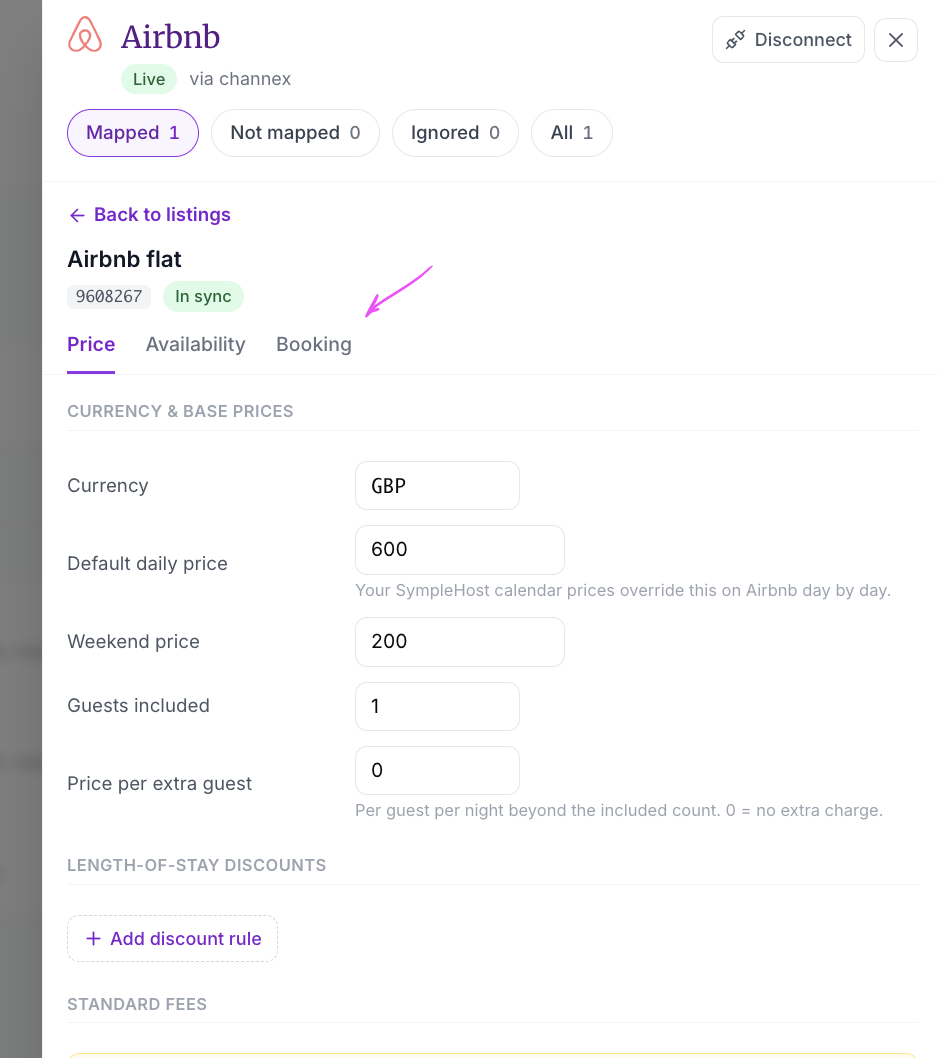
The Price tab has these sections:
CURRENCY & BASE PRICES
- Currency
- Default daily price. The hint says: Your SympleHost calendar prices override this on Airbnb day by day.
- Weekend price
- Guests included
- Price per extra guest. The hint says: Per guest per night beyond the included count. 0 = no extra charge.
LENGTH-OF-STAY DISCOUNTS
- Click + Add discount rule to add a discount rule.
A STANDARD FEES section follows below.
The Availability and Booking tabs hold more settings for the listing on this OTA. They are not covered in this guide yet.
Discounts You Set in Airbnb
Discounts and promotions you set up inside Airbnb itself, such as Airbnb’s Top-rated guests discount, are not affected by SympleHost. Keep managing them in Airbnb. See How to Manage Airbnb-Specific Discounts.