
Connect WhatsApp, Instagram, Facebook Messenger, LINE, and Gmail so guest messages land in SympleHost Messages.
TL;DR: SympleHost can bring guest conversations from WhatsApp, Instagram, Facebook Messenger, LINE, Gmail, and supported OTA channels into Messages. WhatsApp, Instagram, and Messenger connect through Meta. LINE requires your LINE Messaging API credentials. Gmail connects through Google OAuth, then lets you choose which Gmail labels to sync. Gmail currently supports filtering and replying from the inbox; Gmail automation is not supported yet.
Supported Messaging Channels
| Channel | What it supports today | Setup method |
|---|---|---|
| Guest messages, replies, templates, and supported automation workflows | Meta Embedded Signup | |
| Facebook Messenger | Page messages and replies | Meta Login for Business |
| Instagram DMs and replies, subject to Meta’s reply window | Meta Login for Business | |
| LINE | LINE guest messages and replies | LINE Messaging API credentials |
| Gmail | Email threads in Messages, label filtering, direct replies from the inbox | Google OAuth + label selection |
Important: Gmail is available for inbox visibility and replying, but Gmail is not yet connected to message automation. Use labels to control what appears in SympleHost.
What You’ll Need Before You Start
Get these ready first — Meta’s signup flow times out after about an hour, and chasing missing assets mid-flow is the #1 reason connections fail.
For all three platforms:
- A Facebook account that’s an admin of your business (personal Facebook account works — it just needs admin rights on the Business Portfolio you’ll connect).
- Admin access in SympleHost (Account Admin or Account Manager role).
For WhatsApp specifically:
- A phone number you control — the number must be able to receive an SMS or a voice call. It cannot already be active in the WhatsApp consumer app or the WhatsApp Business mobile app on any device. If it is, you’ll need to delete that account first or use a fresh number.
- A business display name that complies with WhatsApp’s display name guidelines — guests will see this name when you message them.
- A Meta Business Portfolio (formerly “Business Manager”) — you can also create one inside the popup if you don’t have one yet.
For Instagram + Facebook Messenger:
- A Facebook Business Page for your rental business (not a personal profile).
- An Instagram Business or Creator account (not a Personal account) — and it must be linked to that Facebook Page. You can convert a personal Instagram account in the Instagram app: Settings → Account → Switch to Professional Account.
For LINE:
- Access to the LINE Developers console for your business.
- A LINE Messaging API channel.
- The channel’s Channel ID, Channel secret, and Channel access token.
For Gmail:
- Access to the Gmail account you want to connect.
- Permission to authorize SympleHost through Google’s OAuth popup.
- A decision on which Gmail labels should sync into SympleHost. Most teams start with INBOX, then add booking or support labels if needed.
How to Connect WhatsApp
The whole flow happens in two places: the SympleHost Integrations page to kick it off, then a Meta-hosted popup window (called Embedded Signup) where the actual connection happens.
Step 1: Open the WhatsApp connection flow in SympleHost
- Open the top-right profile menu.
- Click Settings.
- Open Integrations.
- Find the WhatsApp card and click Connect.
A pop-up window opens. This is Meta’s Embedded Signup — everything from here through the success screen happens in Meta’s window, not in SympleHost.
⚠️ Don’t close the popup. The session expires after about 60 minutes. If you close or refresh the popup mid-flow, you’ll lose your progress and have to start over.
Step 2: Log in with Facebook
The first screen asks you to log in with Facebook. Click Continue as [Your Name] (if you’re already logged in to Facebook in this browser) or sign in with your Facebook credentials.
Step 3: Accept Meta’s terms
Meta shows a short terms screen explaining that you’re authorizing SympleHost to manage WhatsApp messaging on your behalf. Read it, then click Continue.
Step 4: Select or create your Meta Business Portfolio
You’ll see a dropdown listing every Business Portfolio your Facebook account is an admin of. Pick the right one — this is the parent container that will own your WhatsApp Business Account.
If you don’t have a Business Portfolio yet, click Create a Meta Business Portfolio and fill in:
- Business name — your legal or trading name.
- Your name.
- Business email — use a real address; Meta sends notices here.
Step 5: Create or select your WhatsApp Business Account (WABA)
The WABA is a Meta-managed container that holds your phone number, your message templates, and your conversation history. You can have multiple phone numbers under one WABA.
- If you’ve never used WhatsApp Business Platform before, click Create a WhatsApp Business Account and give it a name (your business name is fine) and a category (e.g., “Travel & transportation” or “Hotel & lodging”).
- If you already have a WABA, select it from the list.
Step 6: Add your business phone number
Meta now asks for the WhatsApp number guests will message:
- Choose Add a new number (recommended).
- Enter the phone number including the country code (e.g.
+62 812 3456 7890for Indonesia). - Enter your WhatsApp Display Name — this is what guests see at the top of the chat. Use your business name; emojis and generic words like “support” are blocked by Meta.
💡 Tip: If the popup rejects the number with “This number is already registered with WhatsApp,” it means the number is still active in the consumer WhatsApp app or WhatsApp Business mobile app. Open WhatsApp on the phone holding that number, go to Settings → Account → Delete my account, and delete the WhatsApp account on that number. Then return to the Embedded Signup popup and try again.
Step 7: Verify ownership of the phone number
Meta needs to confirm the number is yours by sending a one-time code to it.
- Choose how you want to receive the code:
- Text message (SMS) — works for most mobile numbers.
- Voice call — works for landlines or numbers that can’t receive SMS.
- Click Send code.
- Within a few seconds, the number receives the 6-digit code. Type it into the verification field on the popup.
- Click Next.
⚠️ You only get a few attempts. Meta limits how many times you can request a code per day per number. If verification fails repeatedly, wait 24 hours before trying again.
Step 8: Review the permissions and finish
Meta shows you exactly what SympleHost will be allowed to do — typically:
- Send and receive WhatsApp messages on your behalf
- Manage WhatsApp Business Account templates
- Read your WhatsApp Business Account profile
Review the list, then click Continue. Meta confirms with a “You’ve successfully connected your WhatsApp account” success screen showing your business portfolio, WABA, phone number, and display profile. Click Finish (or Next).
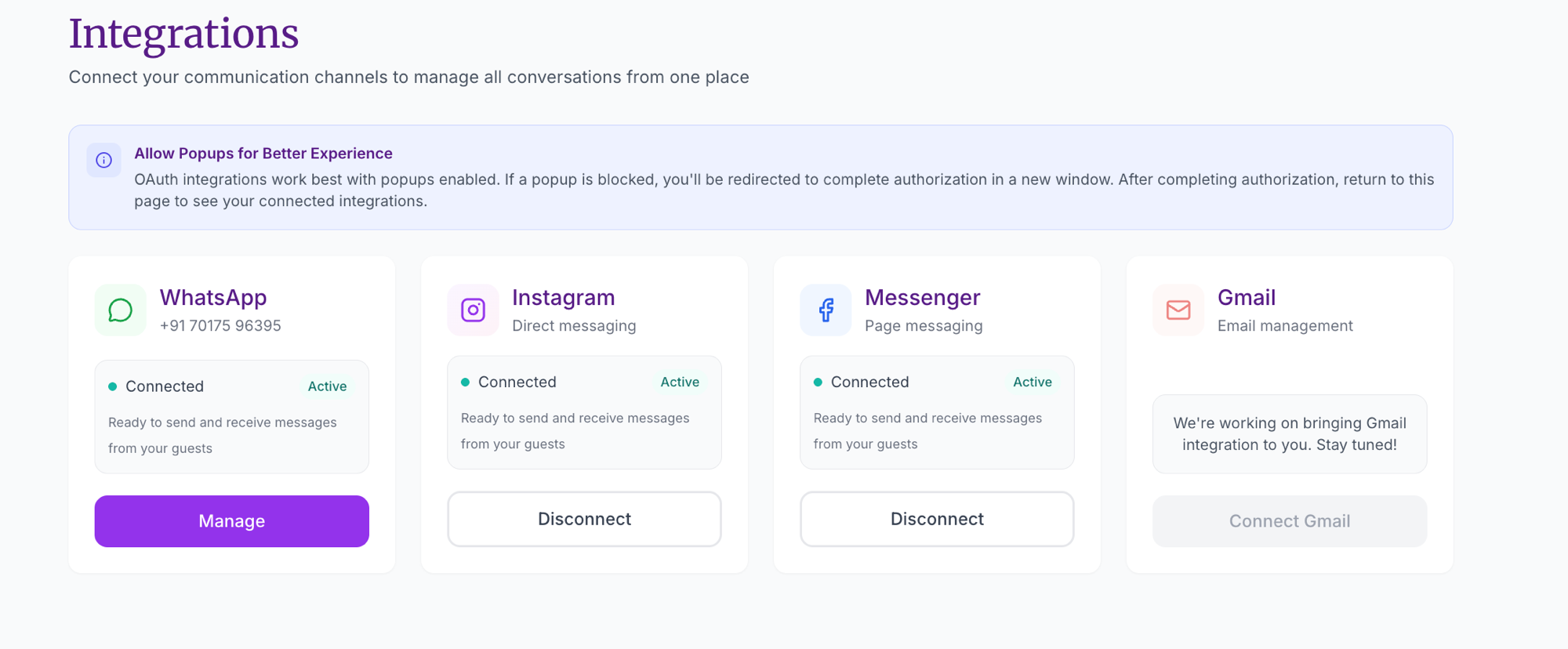
The popup closes automatically and you’ll land back on the SympleHost Integrations page. The WhatsApp card now shows Connected with the phone number you registered, and the Connect button changes to Manage (compare with the screenshot above).
How to Connect Facebook Messenger & Instagram
Messenger and Instagram show up as two separate cards on the Integrations page, each with its own Connect or Disconnect button:
- Messenger — page messaging from your Facebook Business Page.
- Instagram — direct messages on your Instagram Business or Creator profile.
Both run through Meta’s Login for Business popup. The popup is the same for both, and a single sign-in can authorize both Page and Instagram access at once, so most hosts connect them back-to-back in one sitting.
Step 1: Open the integration in SympleHost
- Open the top-right profile menu.
- Click Settings.
- Open Integrations.
- Find the card for the channel you want — Messenger or Instagram.
- Click Connect on that card.
A Meta popup opens.
💡 Connecting both? Whichever card you click first, Meta’s popup lets you grant both Page and Instagram access in one flow. After you finish, the other card will also flip to Connected without a separate sign-in. You can also connect them one at a time if you’d rather.
Step 2: Log in with Facebook
Same as the WhatsApp flow: Continue as [Your Name] or sign in.
Step 3: Select the Business Portfolio
If your Facebook account is an admin of multiple Business Portfolios, Meta asks which one you want to use. Pick the one that owns your rental business’s Facebook Page.
Step 4: Choose which Pages and Instagram accounts to connect
This is the most important screen. Meta shows a checklist of:
- Facebook Pages — tick the rental business Page(s) you want to use.
- Instagram accounts — only Instagram accounts that are (a) Business or Creator type and (b) already linked to one of the Pages above will appear. Tick the one you want to connect.
⚠️ Don’t see your Instagram account? It means it’s not yet linked to your Facebook Page or it’s still a Personal account. Cancel the popup, switch your Instagram to Professional → Business in the Instagram app, link it to your Facebook Page (Instagram → Settings → Account → Linked Accounts → Facebook), and try connecting again.
Step 5: Review and grant permissions
Meta shows the full list of permissions SympleHost is requesting. For Pages + Instagram messaging, this typically includes:
- Read and respond to Page messages (
pages_messaging) - Manage Page metadata (
pages_manage_metadata) - List Pages on your account (
pages_show_list) - Read and respond to Instagram messages (
instagram_business_manage_messages) - Read your Instagram business profile (
instagram_business_basic)
Each permission has its own toggle. Leave them all on — toggling any of them off will break messaging. Click Continue.
Step 6: Confirm and return to SympleHost
Meta closes the popup and returns you to SympleHost. The Messenger card and the Instagram card both flip to Connected / Active, each with its own Disconnect button.
You can disconnect either card independently — turning off Messenger does not affect Instagram, and vice versa. To stop messages from a channel without removing the connection entirely, use the channel’s per-card controls (or simply disconnect and reconnect later).
💡 Instagram’s 24-hour rule. Meta only lets you reply to an Instagram DM within 24 hours of the guest’s last message. After that, the conversation is closed until the guest messages you again. This is a Meta restriction, not a SympleHost limitation.
How to Connect LINE
LINE is useful for hosts and teams who receive guest questions through a LINE Official Account. The connection uses LINE’s Messaging API credentials, so you need access to the LINE Developers console before you start.
Step 1: Open the LINE connection flow
- Open the top-right profile menu.
- Click Settings.
- Open Integrations.
- Find the LINE card.
- Click Connect.
SympleHost opens a setup modal asking for three values:
- Channel ID
- Channel secret
- Channel access token
Step 2: Copy your LINE credentials
In LINE Developers, open the Messaging API channel for your business. Copy the Channel ID and Channel secret from the channel’s Basic settings, then copy or issue the Channel access token from the Messaging API settings.
Paste those values into the SympleHost LINE setup modal and click Connect LINE.
Step 3: Complete webhook verification if prompted
After LINE connects, the integration may show a pending webhook setup state. If you see that message, click Verify webhook from the LINE card. Once the webhook is active, LINE messages can appear in Messages and you can reply from SympleHost.
When LINE is active, SympleHost also shows an add-friend link for the connected LINE account. Share that link with guests if you want them to start conversations through LINE.
How to Connect Gmail
Gmail lets your team handle guest emails from Messages instead of switching between Gmail and SympleHost. You can choose which Gmail labels sync, filter those conversations in the inbox, and reply directly from SympleHost.
Current limitation: Gmail automation is not supported yet. Gmail conversations can be read, filtered, and replied to from the inbox, but they should not be treated as part of automated message flows.
Step 1: Start Gmail setup
- Open the top-right profile menu.
- Click Settings.
- Open Integrations.
- Find the Gmail card.
- Click Connect.
Google opens an OAuth popup. Sign in to the Gmail account your team uses for guest communication and approve the requested access.
Step 2: Choose which labels to sync
After the account is connected, SympleHost takes you to a Gmail setup wizard. The label step controls which Gmail conversations are pulled into Messages.
- Keep INBOX selected if you want normal incoming emails to appear.
- Add specific labels if you use Gmail rules such as
Bookings,Guest Support, orAirbnb Enquiries. - Avoid syncing labels that contain internal-only emails, invoices, newsletters, or private owner communication.
Finish setup to run the first sync. Recent matching Gmail threads will appear in Messages.
Step 3: Reply from Messages
Open Messages, choose a Gmail conversation, and reply from the email composer. Gmail conversations use an email-style composer with recipient, subject, and message body fields, while chat channels use the normal chat composer.
You can filter and search Gmail conversations from the inbox like other channels. You can also hide a Gmail message inside SympleHost if it is not relevant; this keeps the workspace cleaner without treating Gmail automation as live.
Verifying Your Connection
Once a platform shows as Connected, send yourself a test message to confirm everything is wired up end-to-end:
- From a different phone or account (not the one you just connected), message the connected number/page/profile.
- WhatsApp: message your business WhatsApp number from a personal phone.
- Messenger: open your Facebook Page and click Message — or message the Page from a friend’s account.
- Instagram: send a DM to your Instagram business profile from a personal Instagram account.
- LINE: send a LINE message to the connected LINE Official Account.
- Gmail: send a test email that matches one of the synced Gmail labels.
- In SympleHost, open Messages in the sidebar.
- The message should appear within 5–10 seconds.
If it shows up, you are done. Reply directly from SympleHost; the response appears on the original platform from your business identity. You can then assign the conversation, escalate it, translate messages, or use supported AI tools from the same thread. For Gmail, use SympleHost for direct inbox replies and filtering, but keep automation workflows on supported channels only.
Troubleshooting
”This phone number is already registered with WhatsApp”
The number is still active in the consumer WhatsApp app or WhatsApp Business mobile app. On the phone holding that number, open WhatsApp, go to Settings → Account → Delete my account, and confirm. Wait two minutes, then retry the Embedded Signup flow with the same number.
”Phone number verification failed”
You’ve hit Meta’s daily verification cap. Wait 24 hours and retry. If it keeps failing, double-check the country code (must include +) and that the number can actually receive SMS or voice calls in that country.
Embedded Signup popup closes immediately
A browser extension is blocking the popup. Try again in an incognito/private window with extensions disabled. Make sure pop-ups from facebook.com are allowed.
Instagram doesn’t appear in the asset list
The account isn’t a Business or Creator account, or it isn’t linked to a Facebook Page yet. Open the Instagram app:
- Settings and privacy → Account type and tools → Switch account type → Switch to Business.
- Settings → Accounts Center → Connected experiences → Connect — link to the Facebook Page that’s in the same Business Portfolio.
- Restart the connection in SympleHost.
”I’m an admin but I don’t see my Business Portfolio in the dropdown”
Sometimes Meta’s session is logged in as a different Facebook account than you expect. Click Switch account at the top of the popup, or sign out of facebook.com in another tab and re-trigger the popup.
Messages aren’t appearing in my inbox
- Check the integration still shows Connected in Settings → Integrations. Open Settings from the top-right profile menu. Meta tokens expire if you change your Facebook password — if so, click Reconnect.
- Confirm you’re testing with a different account — Meta sometimes silently drops messages you send to yourself.
- For Instagram, confirm the conversation was started by the guest. Instagram does not allow you to initiate messages to users who haven’t messaged you first.
- Open Messages, clear any Mine, Archived, or Escalated filters, then search for the guest name or recent message text.
Gmail emails aren’t appearing
- Open the top-right profile menu, go to Settings → Integrations → Gmail, and confirm Gmail is active.
- Check the selected Gmail labels. Only messages in the labels you chose during setup will sync into SympleHost.
- If you use Gmail filters, confirm the test email is actually receiving the label you selected.
- Run or wait for the next Gmail sync, then open Messages and search by sender, subject, or message text.
Gmail replies work, but automation does not
That is expected. Gmail currently supports inbox visibility, label-based filtering, and direct replies from SympleHost. Gmail is not yet supported in message automation.
LINE is pending webhook setup
Open Settings → Integrations, find the LINE card, and click Verify webhook. If it stays pending, check that the LINE Messaging API channel is active and that the Channel ID, Channel secret, and Channel access token were copied from the correct LINE channel.
I connected the wrong Facebook account
Open the top-right profile menu, go to Settings → Integrations, find the Facebook Integrations card, click Disconnect, then reconnect with the correct account. Disconnecting only affects SympleHost — your Page and Instagram account stay live.
How do I revoke SympleHost’s access from outside SympleHost?
You can revoke at the Meta level too:
- Facebook/Instagram: facebook.com/settings → Apps and Websites → find SympleHost → Remove.
- WhatsApp: business.facebook.com → Settings → WhatsApp Accounts → select the WABA → Remove SympleHost.
Key Takeaways
- WhatsApp uses Meta’s Embedded Signup popup — Business Portfolio → WABA → phone number → OTP → permissions.
- Facebook Messenger and Instagram use Meta’s Login for Business popup and have separate cards in SympleHost.
- LINE connects with Channel ID, Channel secret, and Channel access token from LINE Developers.
- Gmail connects with Google OAuth, then lets you choose which labels sync into Messages.
- Gmail can be filtered and replied to from SympleHost, but Gmail automation is not supported yet.
- Instagram only works on Business or Creator accounts linked to a Facebook Page.
- Messages from connected channels flow into Messages, alongside supported OTA messaging.
- Send yourself a test message after connecting — the round-trip should complete in under 10 seconds.