
Use Operations → Job Templates to create reusable checklists for work your team repeats. Templates help every cleaner, inspector, maintenance worker, or provider follow the same standard each time.
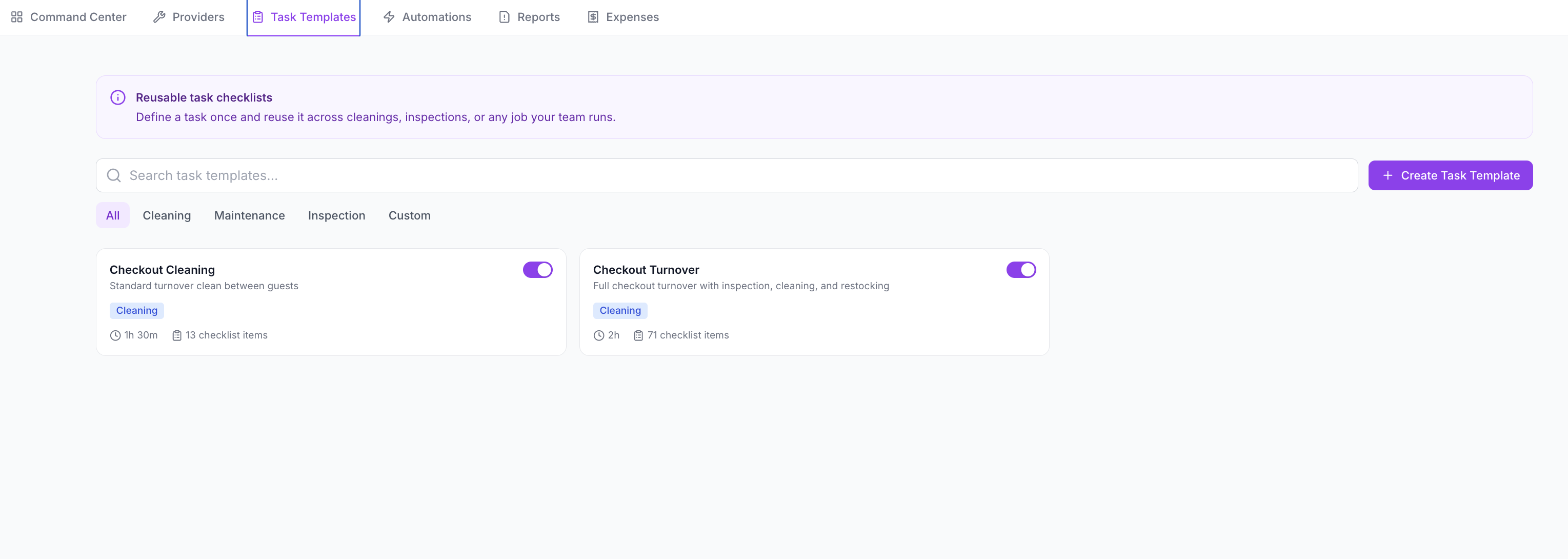
When to Use a Job Template
Create a template for anything that happens more than once, especially:
- checkout turnovers
- pre-arrival inspections
- linen and towel checks
- restocking
- monthly maintenance
- pool or garden checks
- owner-stay preparation
- damage inspections
- safety checks
- service setup or cleanup
Templates save time, but the bigger value is consistency. They make it clear what “done” means.
Create a Job Template
- Go to Operations → Job Templates.
- Click Create Task Template or New Template.
- Add the template name, such as Checkout Turnover.
- Choose a category, such as Cleaning, Maintenance, Inspection, or Custom.
- Set the default priority.
- Add estimated duration if you want to plan workload.
- Add default consumable cost if the work usually uses supplies.
- Add checklist items.
- Save the template.
Checklist Item Types
Use different checklist types depending on the proof or response you need.
| Checklist Type | Best Use |
|---|---|
| Checkbox | Simple steps such as empty bins or switch off AC. |
| Text Item | Notes, explanations, or written observations. |
| Photo Required | Proof of setup, damage, cleaning, or repair. |
| Before & After Photo | Maintenance jobs, cleaning proof, or issue resolution. |
| Count Item | Towels, keys, amenities, supplies, or inventory. |
| Yes / No | Binary checks such as Safe locked? or Wi-Fi working? |
| Score 1-10 | Quality checks and inspection ratings. |
| Video | Moving proof such as appliance noise, leaks, or room walkthroughs. |
| Reference | Show the expected standard with photos, videos, or instructions. |
| Section Divider | Break long checklists into cleaning, restocking, damage, and final inspection sections. |
Example: Checkout Turnover Template
A strong checkout turnover template might include:
- remove rubbish
- check fridge and kitchen
- count towels and linen
- replace amenities
- inspect bathrooms
- check keys, remotes, and access cards
- report damage with photos
- take final bedroom and bathroom photos
- confirm doors and windows are locked
- mark guest-ready inspection complete
For turnover work, include photo proof for the things that create disputes later: damage, missing items, room setup, and final condition.
Attach a Template to a Task
- Go to Operations → Tasks.
- Click New Task.
- Select the template from Job Template.
- Fill in the task title, assignee, due date, and linked booking or listing.
- Create the task.
The checklist is copied into that task so the assignee can complete it step by step.
Use Templates With Automations
Templates become more powerful when used with Operations Automations.
Example:
- Create a Checkout Turnover template.
- Create an automation that runs after checkout.
- Attach the Checkout Turnover template.
- Assign it to the cleaner or cleaning team.
Every checkout can then create a consistent cleaning task automatically.
Good Habits
- Keep templates specific to one type of work.
- Use required photos only where proof matters.
- Add reference photos when the expected standard is visual.
- Keep checklist names short and action-based.
- Review templates after the first few completions.
- Split very long templates into sections.
- Use one template per operating standard, not one template for everything.