
The Operations module is the day-to-day work hub for your properties. It helps your team manage tasks, repeatable checklists, staff workload, automations, issue reports, expenses, and provider work from one place.
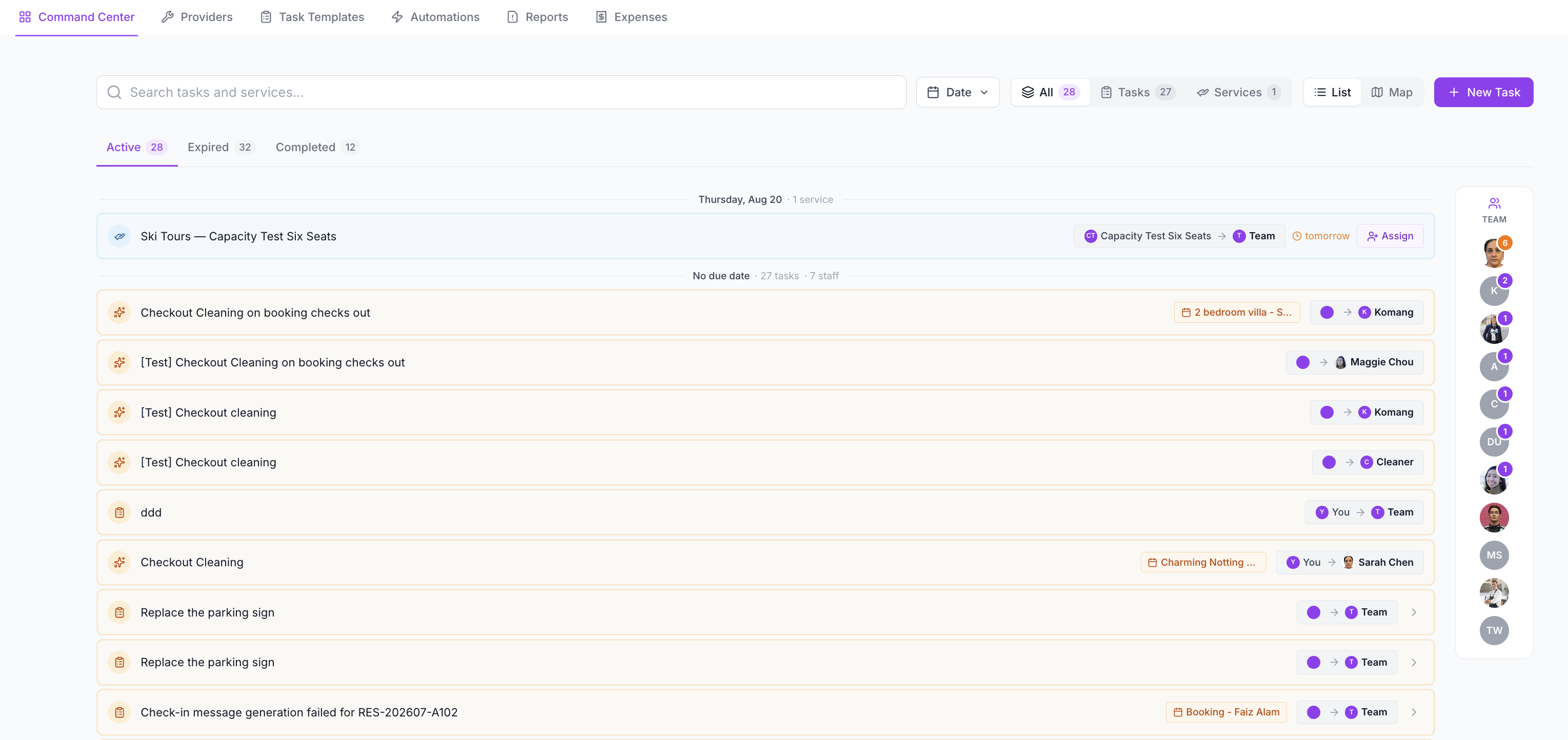
Use Operations when you need to coordinate:
- checkout turnovers
- pre-arrival inspections
- cleaning and maintenance
- guest-request follow-up
- provider jobs
- task checklists and proof
- team progress
- recurring work
- task-related expenses
- owner approval for managed-property costs
What Each Operations Area Does
| Area | Use It For |
|---|---|
| Tasks | Create, assign, and track work for team members or providers. |
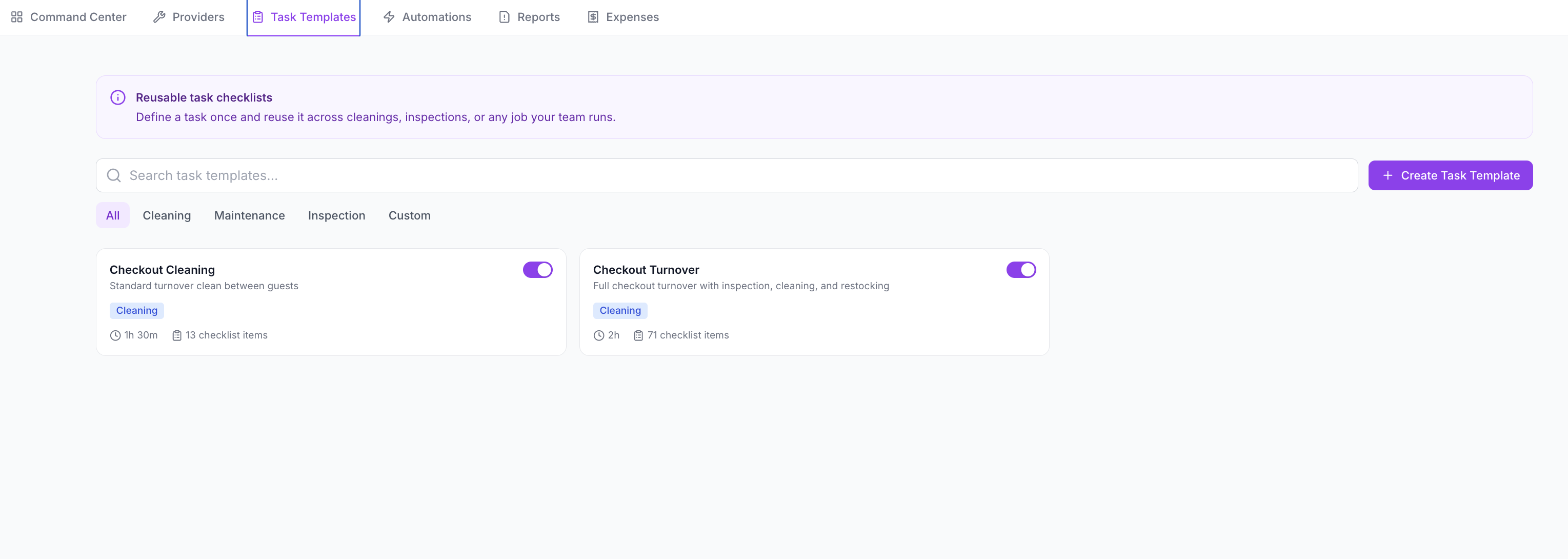
| Job Templates | Build reusable checklists for cleaning, inspections, maintenance, and standard operating procedures. |
| Workforce | Review the team or people available for operational work where enabled on your account. |
| Automations | Automatically create operational tasks from booking events or schedules. |
| Reports | Review issues raised during task completion, such as damage, missing items, or failed checks. |
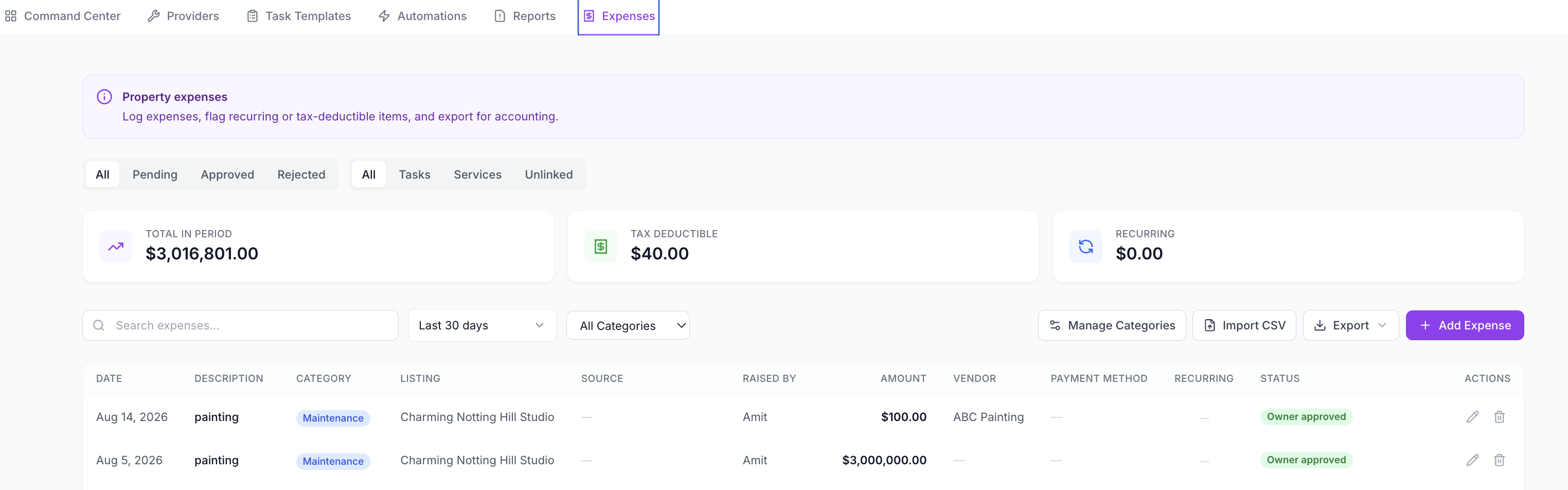
| Expenses | Record task or property costs, attach receipts, and manage approval status. |
| Providers | Track external contractors or vendors used for operational work. |
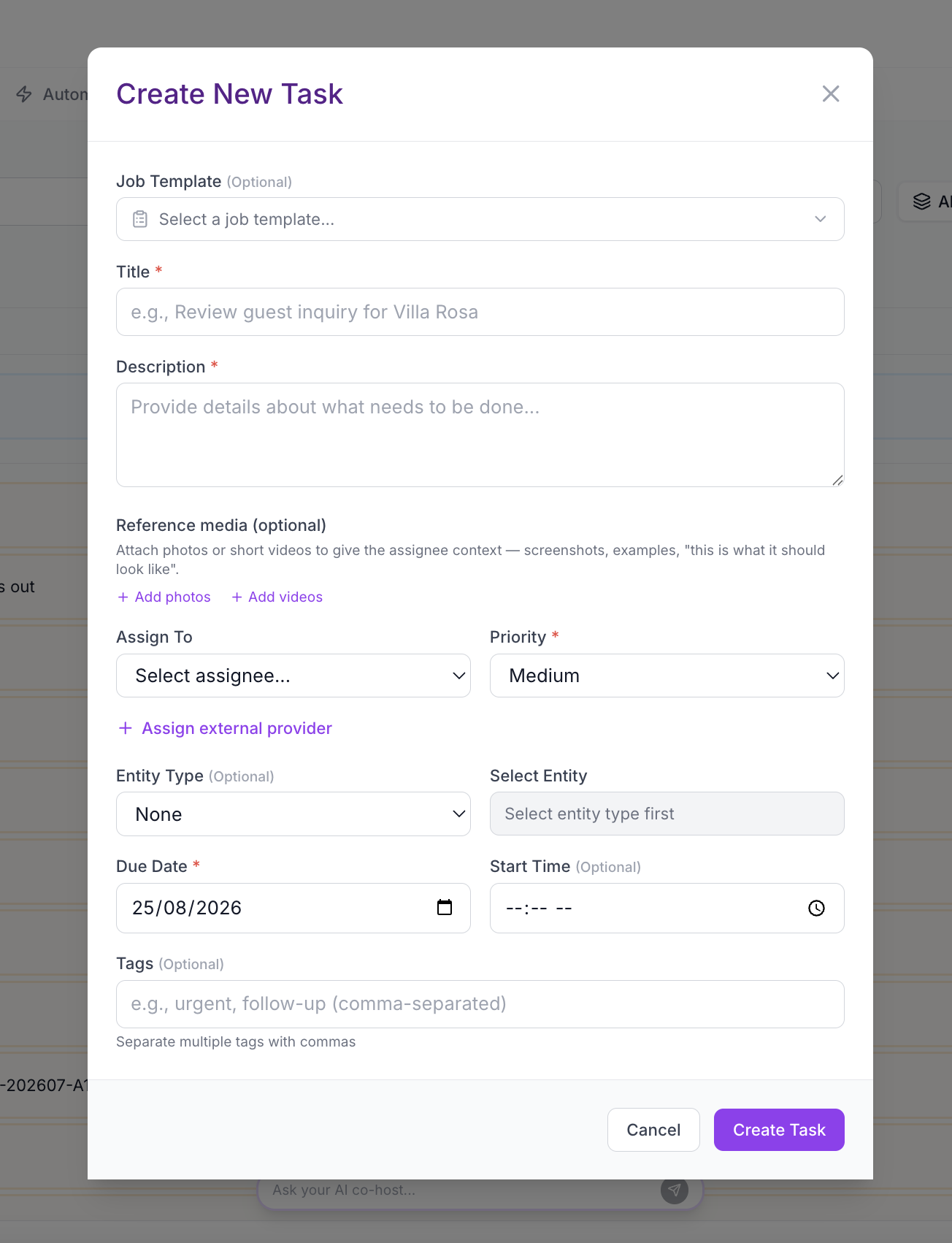
Use the Command Center for the daily view, then open the right area depending on what you are managing:
- Tasks for work that needs an owner and due date
- Job Templates for repeatable checklists
- Workforce for cleaners and operational team members
- Automations for recurring or event-based task creation
- Reports for issues raised during completion
- Expenses for receipts, provider costs, and owner approval
Recommended Setup Order
For a new property or team, set up Operations in this order:
- Create your core Job Templates.
- Start with checkout turnover and pre-arrival inspection templates.
- Create a few manual tasks so the team understands the workflow.
- Link tasks to bookings or listings.
- Track work through Active, Expired, and Completed.
- Review issues in Reports.
- Add Expenses for task-related costs.
- Use owner approval for managed-property costs where required.
- Add Automations once the manual workflow is working.
This keeps the setup practical: define the standard first, assign real work second, then automate once the process is reliable.
Daily Operating Rhythm
A simple daily rhythm is:
- Open Operations → Tasks.
- Check Expired tasks first.
- Review today’s active tasks.
- Check the team panel for overloaded or unassigned work.
- Open completed tasks that need review.
- Review Reports for flagged issues.
- Add or approve Expenses while receipts and context are fresh.
What Operations Is Not
Operations is for staff work and internal workflows. It is not the same as guest messaging automation.
| If You Need To… | Use |
|---|---|
| Assign a cleaner after checkout | Operations → Tasks or Operations → Automations |
| Send check-in instructions to a guest | Messages → Automated Messages |
| Let AI answer a guest question | Concierge |
| Record a repair receipt | Operations → Expenses |
| Ask an owner to approve a cost | Operations → Expenses and Owner Portal |