
Use Workforce when cleaners, maintenance staff, inspectors, or other operations team members need a simple way to see and update the work assigned to them.
The manager stays in SympleHost. The cleaner can use a staff portal link to open their assigned tasks without needing the full host workspace.
When to Use This
Set up a workforce member when you want to:
- assign cleaning, inspection, maintenance, or operations tasks to a specific person
- share a simple cleaner portal link with that person
- let them see today’s assigned work, overdue work, and completed work
- collect checklist progress, notes, photos, videos, counts, or issue reports
- track progress back in Operations
Add a Workforce Member
There are two common ways to add the person.
Option 1: From Team Ops Workforce
- Open Operations.
- Go to Workforce.
- Click Invite.
- Add the person’s name, phone number, and email if available.
- Choose the primary role, such as Cleaning, Maintenance, Operations, or a service role.
- Add extra capabilities if the same person handles more than one type of work.
- Save the invite.
This creates the person as a staff team member with workforce capability.
Option 2: From Settings Team
- Click your profile in the top right.
- Open Settings.
- Go to Team → Members.
- Add or edit the team member.
- Set the role to Staff.
- Save the member.
- Open Operations → Workforce to confirm the person appears, then update their workforce role or capabilities from the workforce member detail page if needed.
Use Settings when you also need to control data access, listing access, or broader account permissions. Use Operations → Workforce for the workforce-specific setup, including cleaner roles, extra capabilities, staff portal links, assignments, and working schedule.
Generate the Cleaner Portal Link
After the person exists as workforce:
- Open Operations → Workforce.
- Click the workforce member.
- Open the member detail page.
- In the Staff Portal card, choose the portal language.
- Click Generate Link if no link exists yet.
- Click Copy and share the link with the cleaner.
The Staff Portal link can also be revoked from the same card if the person should no longer have access.
What the Cleaner Sees
The cleaner portal is a focused mobile-friendly view of assigned work.
Depending on the task setup, the cleaner can see:
- assigned tasks grouped by To do, Overdue, and Done
- task title, due date, start time, end time, and priority
- property name and property address
- a Google Maps link when an address is available
- job type or category, such as cleaning or maintenance
- special instructions from the host or manager
- checklist items from the attached task template
- reference photos or videos added by the manager
- required photo, video, yes/no, score, count, or checkbox items
- consumable costs or receipt information where enabled
They can update checklist progress, upload proof, report issues, and mark work complete from the portal.
Track Progress in the Command Center
Managers can continue tracking the work from Operations → Command Center.
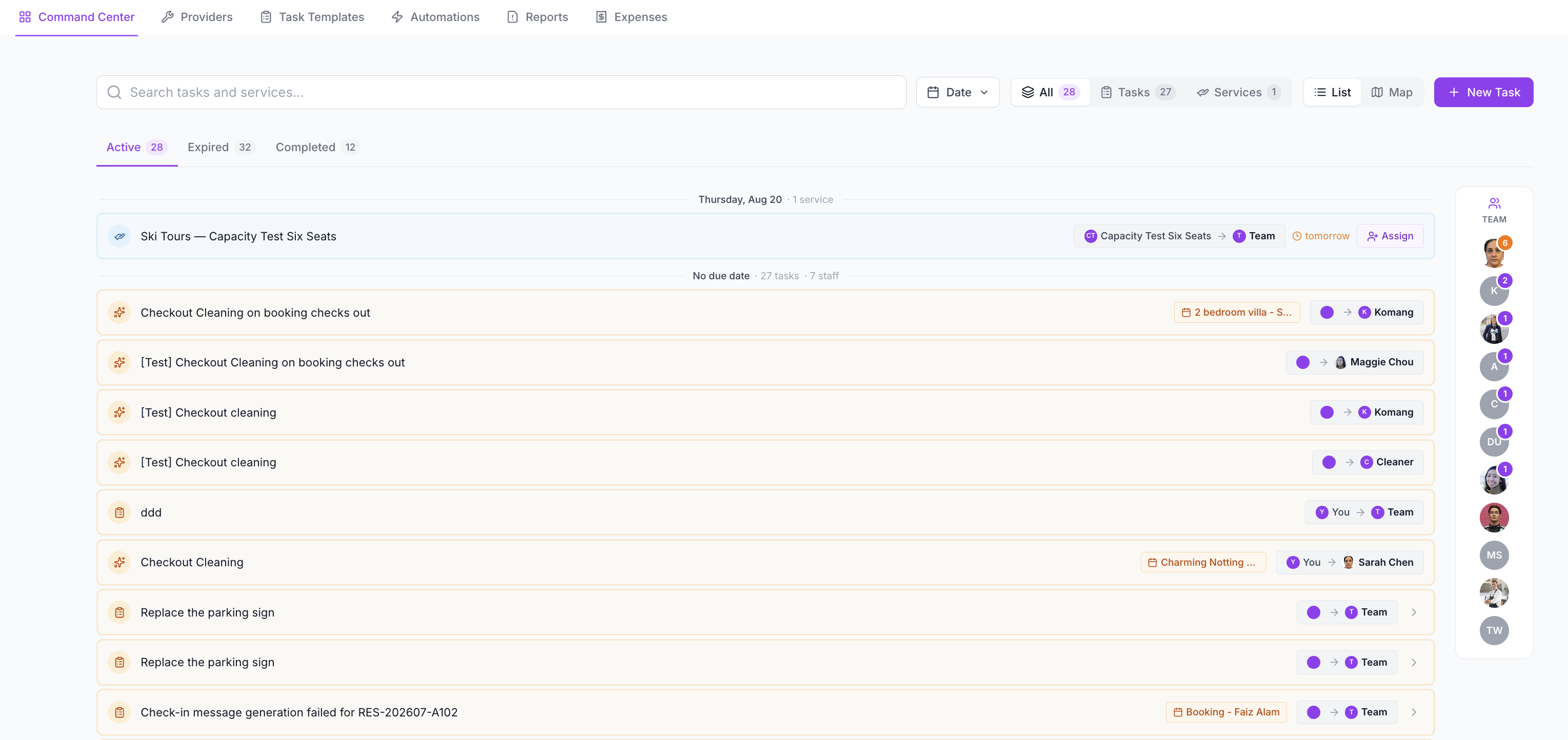
Use the Command Center to check:
- Active tasks still in progress
- Expired tasks that are overdue
- Completed tasks ready for review
- team workload by person
- unassigned work
- task details, checklist progress, and completion proof
- reports created from issues flagged during completion
- expenses or owner approvals linked to the work
If a cleaner has too many open tasks, open the task and reassign it before it becomes overdue.
Best Practice for Cleaners
For cleaning and turnover workflows:
- Create a reusable task template with the checklist.
- Create or automate the task from the booking event.
- Assign the task to the cleaner.
- Share the staff portal link once.
- Ask the cleaner to update tasks from the portal instead of WhatsApp messages.
- Review completion proof and flagged issues in Operations.
This keeps the team conversation cleaner and gives managers a reliable operational record.
Troubleshooting
The person does not appear in Workforce
Check that the team member has the Staff role and a workforce type or capability, such as cleaning, maintenance, operations, inspection, or a service workforce role. The fastest route is usually Operations → Workforce → Invite because it creates the person as staff and asks for their workforce role in the same flow.
The cleaner cannot open the portal
Generate a fresh Staff Portal link from the workforce member detail page. If the old link was revoked or expired, copy and share the new one.
A cleaner cannot see a task
Check that the task is assigned to that workforce member. Also confirm the task has not been completed, filtered out, or assigned to a provider instead of a team member.
The cleaner completed the work but the manager cannot see proof
Open the task detail from Operations and review the checklist progress, uploaded media, issue reports, and status history. If the cleaner used WhatsApp instead of the portal, upload or record the proof on the task so the operational record is complete.