
Use Operations → Expenses to record costs connected to tasks, service bookings, maintenance, supplies, and managed-property work. Expenses help you keep a clean financial trail instead of losing costs in chat messages or spreadsheets.
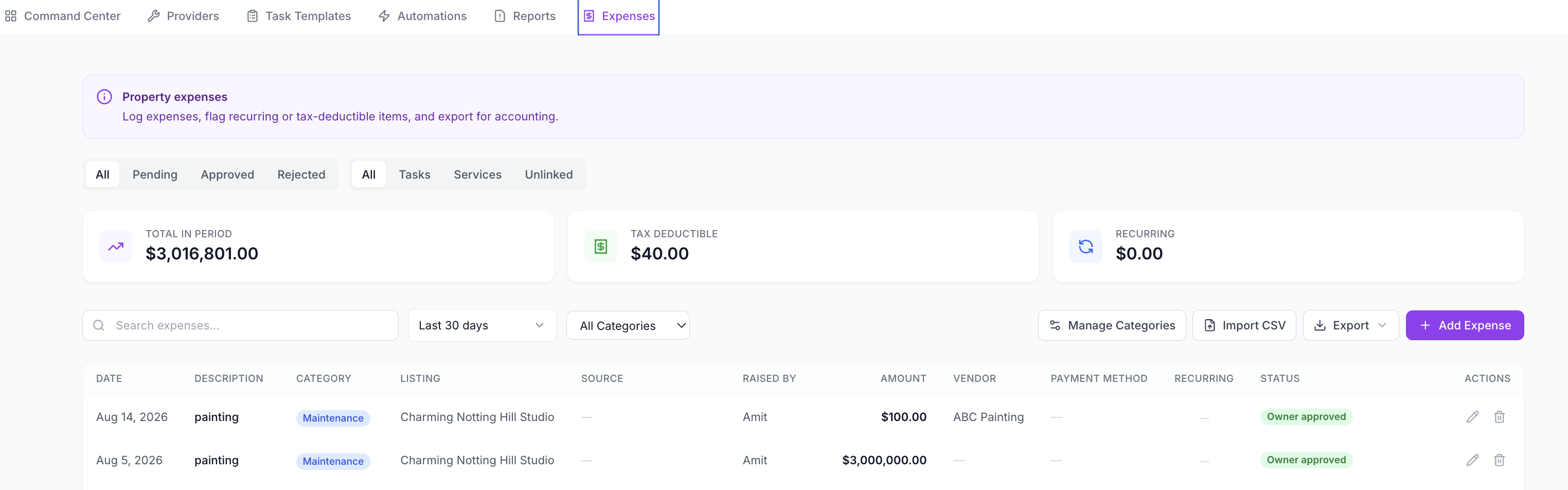
What to Track in Expenses
Track costs such as:
- cleaning supplies
- linen replacement
- maintenance repairs
- provider invoices
- transport or service costs
- replacement items
- consumables
- owner-approved repairs
- recurring property costs
You can link expenses to a property, task, or service booking so the cost stays connected to the work that created it.
Add an Expense
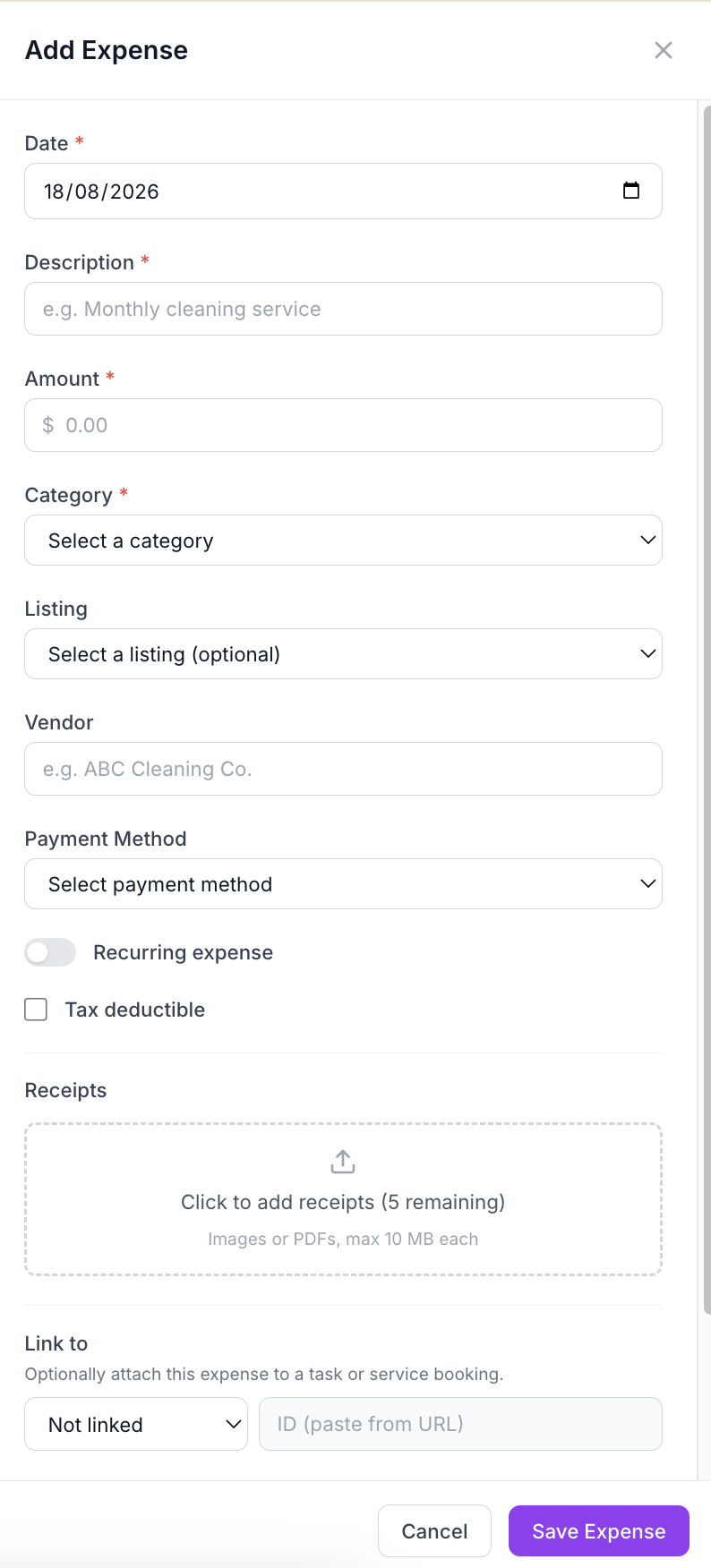
- Go to Operations → Expenses.
- Click Add Expense.
- Add the expense date.
- Add a clear description.
- Enter amount and currency.
- Choose a category.
- Link the relevant listing, task, or service booking where possible.
- Add vendor or provider details.
- Attach receipts or invoice files.
- Set the review or approval status.
- Save the expense.
Expense Fields to Keep Clean
For accurate reporting, complete these fields consistently:
| Field | Why It Matters |
|---|---|
| Date | Keeps owner statements and reports in the right period. |
| Description | Makes the cost understandable later. |
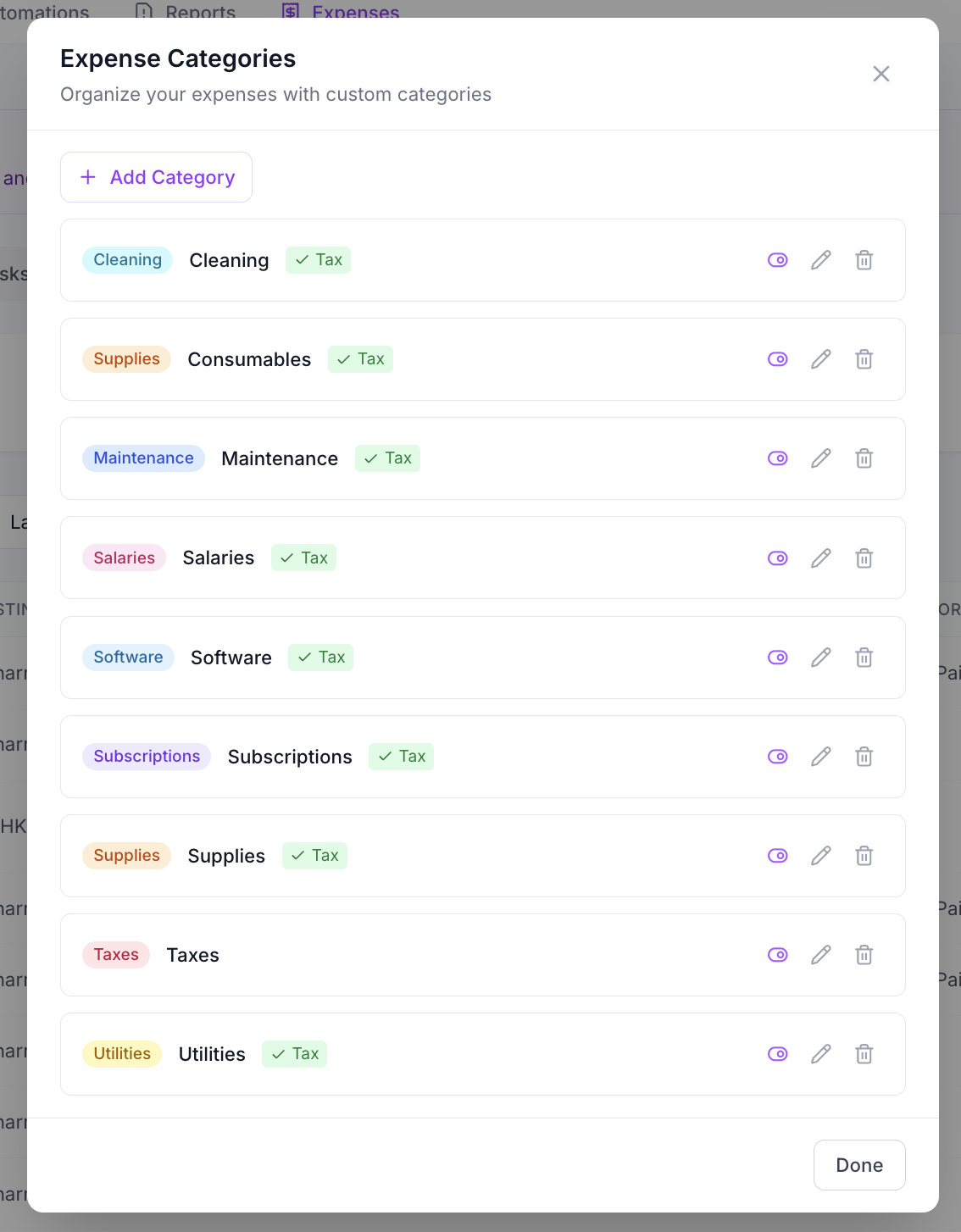
| Category | Helps filter repairs, supplies, cleaning, and other costs. |
| Listing | Connects the cost to the correct property. |
| Task or Service Booking | Explains why the cost happened. |
| Vendor | Helps review repeat provider spend. |
| Receipt | Gives proof for accounting and owner review. |
| Approval Status | Shows whether the cost has been checked internally. |
| Owner Approval | Shows whether an owner has approved or denied a managed-property cost. |
Internal Expense Status
Use internal status to manage your own review process.
Common statuses include:
- Pending review
- Approved
- Rejected
Use Pending review when a team member or provider submits a cost that still needs manager approval.
Owner Approval for Managed Properties
For managed properties, some expenses may need owner approval before they are charged, deducted, or included in reporting.
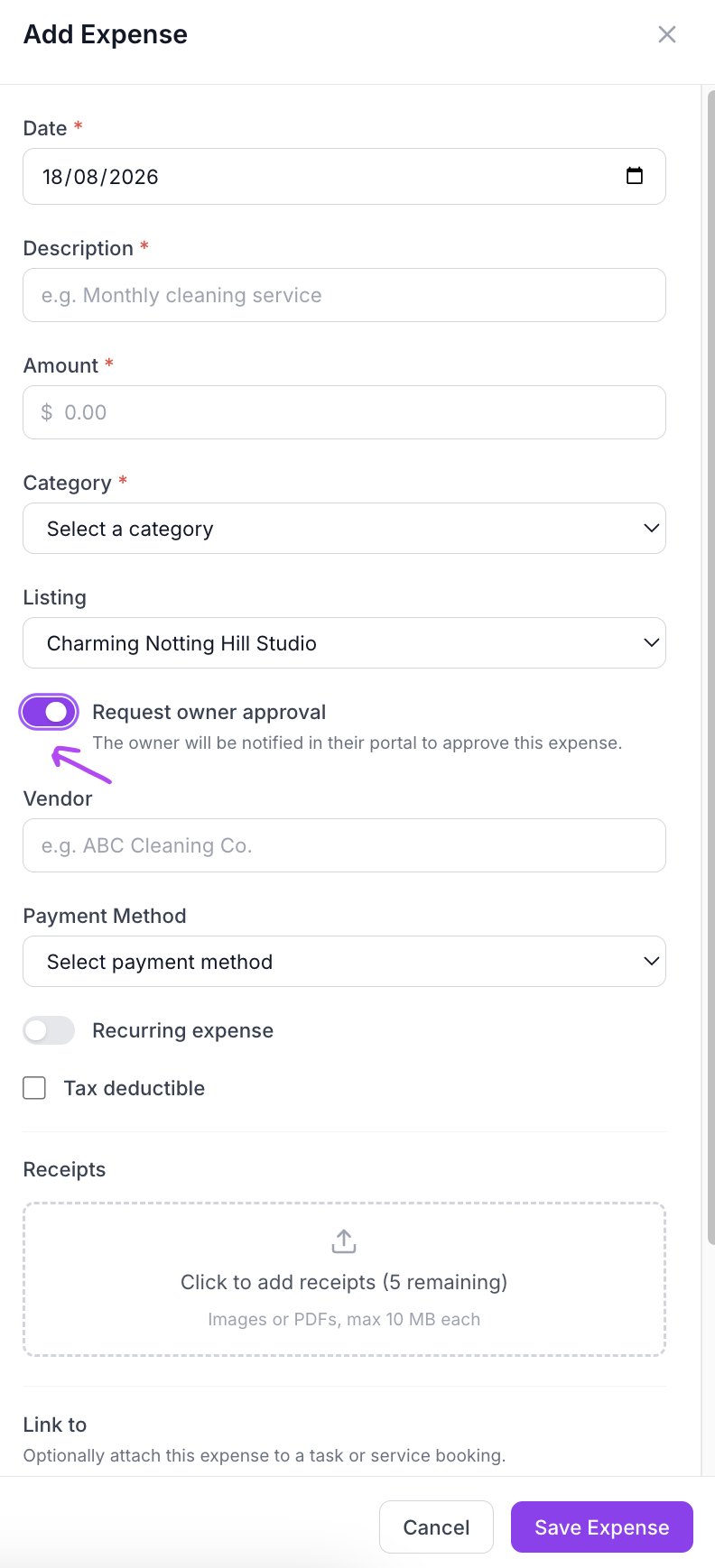
Owner approval statuses include:
- No approval requested
- Sent for approval
- Owner approved
- Owner denied
Request owner approval for costs that owners expect to review, such as repairs, replacement items, maintenance invoices, or larger one-off expenses.
Important Approval Rule
Once an expense has been sent for owner approval, avoid changing the approved cost record. The owner should approve the same amount, vendor, category, receipt, and description you intend to use.
If the amount or description is wrong after approval, create a new corrected expense instead of editing the approved record.
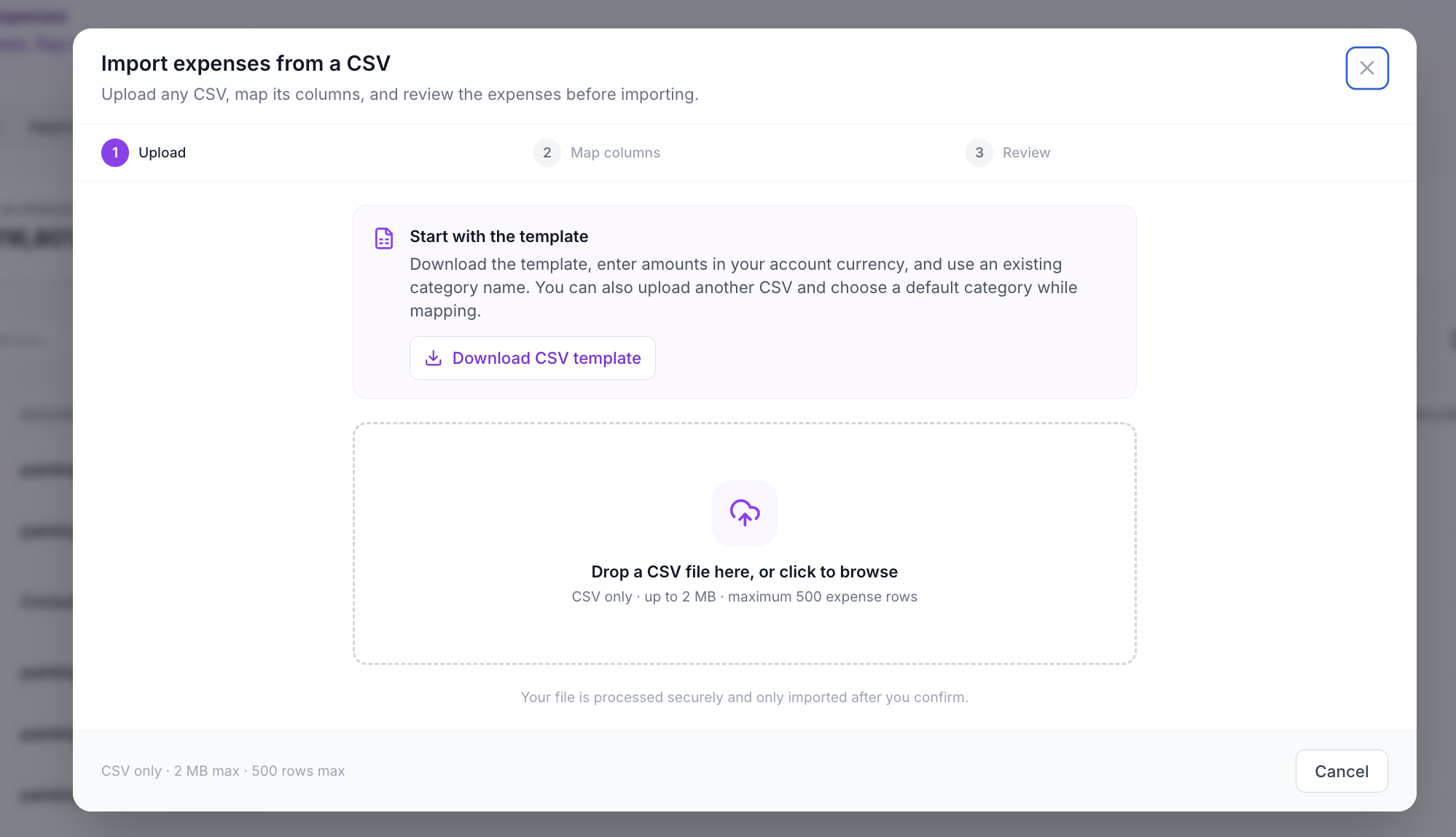
Import Expenses From CSV
Use Import CSV when you need to bring in multiple expenses from an accountant, spreadsheet, or provider export.
Good Habits
- Add expenses as soon as the work happens.
- Attach receipts before requesting approval.
- Link expenses to the relevant task or service booking.
- Use consistent categories.
- Review pending expenses weekly.
- Request owner approval before the cost becomes a dispute.
- Keep rejected expenses for audit context instead of deleting important history.
Troubleshooting
The owner approval option is missing
Owner approval is available when the expense is linked to a managed property with owner reporting enabled. Check the property’s management setup and owner assignment.
The expense is linked to the wrong property
Open the expense and correct the listing if editing is still available. If the expense has already been approved by an owner, create a corrected expense instead.
A provider submitted a different invoice amount
Keep the original record if it was already reviewed, then create a new expense for the corrected invoice amount. Add notes so the change is clear later.
I cannot see Expenses
Your role may not allow expense management. Ask an account admin or owner to review your permissions.