
Each listing in SympleHost has an iCal export link. Google Calendar, Airbnb, or Booking.com can subscribe to this link to see the listing’s blocked dates.
This guide shows how to get the link and add it to Google Calendar.
Step 1: Open the Property
- Click Listings in the sidebar.
- On the Properties tab, click the property you want.
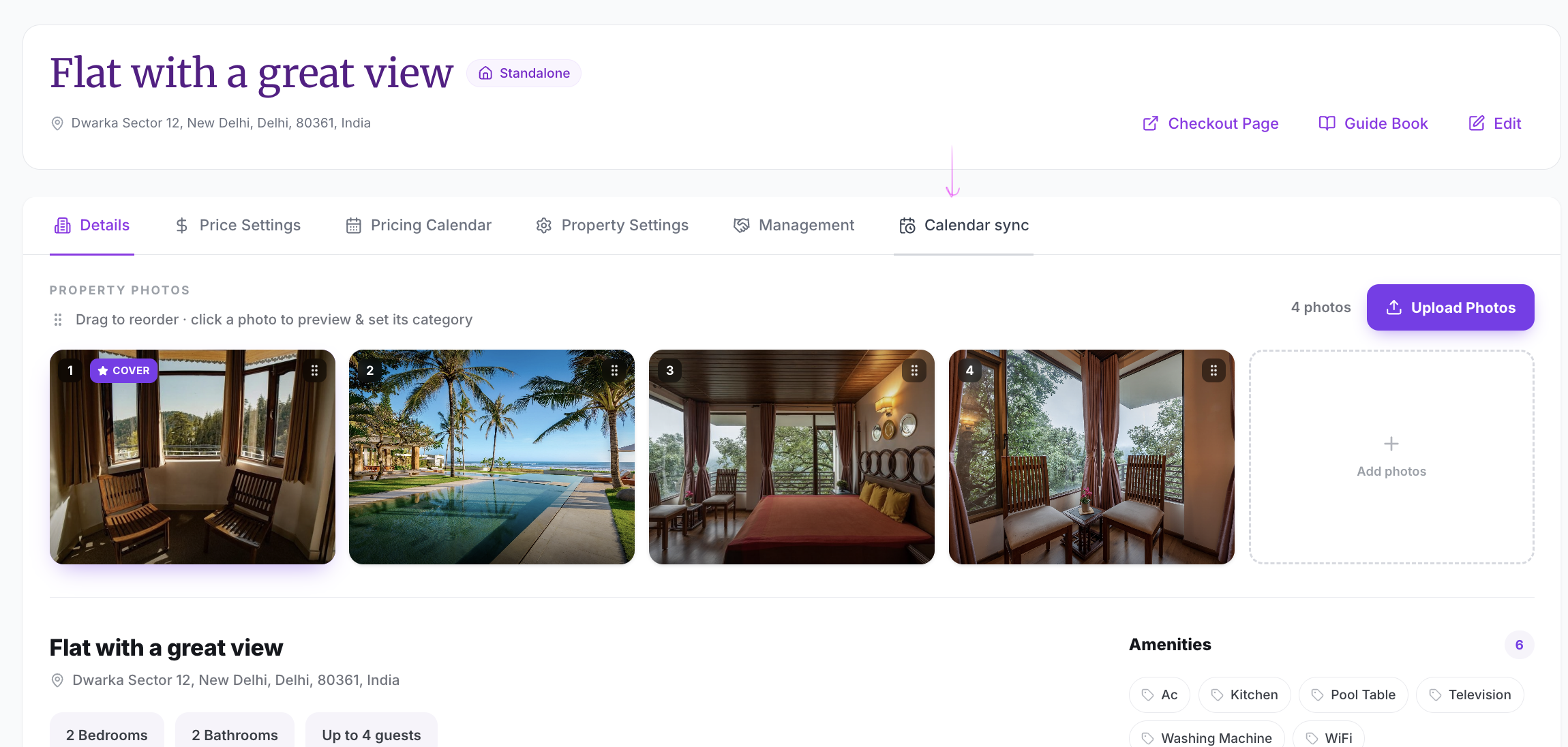
Step 2: Open the Calendar Sync Tab
At the top of the property page, click the Calendar sync tab.
Step 3: Generate the Link (If iCal Export Is Off)
Look at the iCal export row.
If it shows Off, click Generate. The row then shows On.
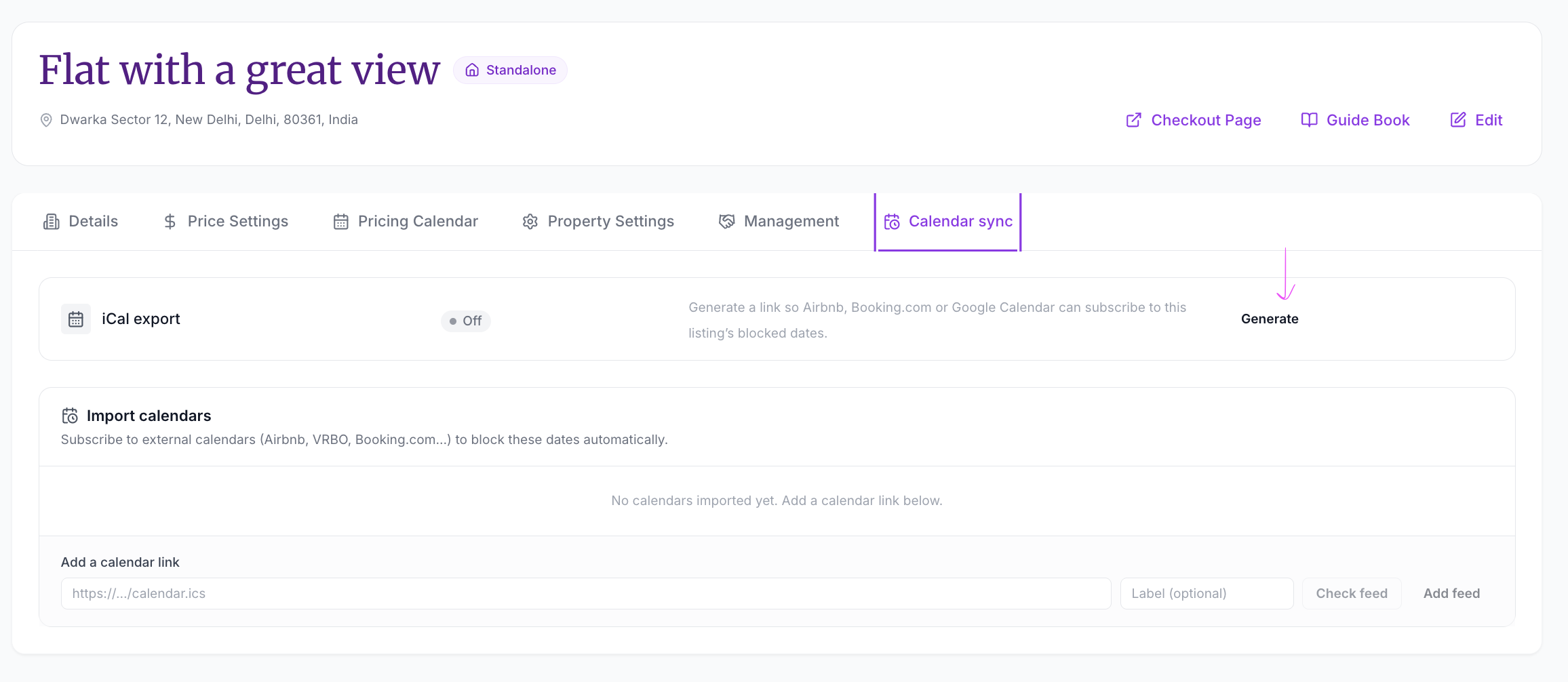
If it already shows On, go to the next step.
Step 4: Copy the Link
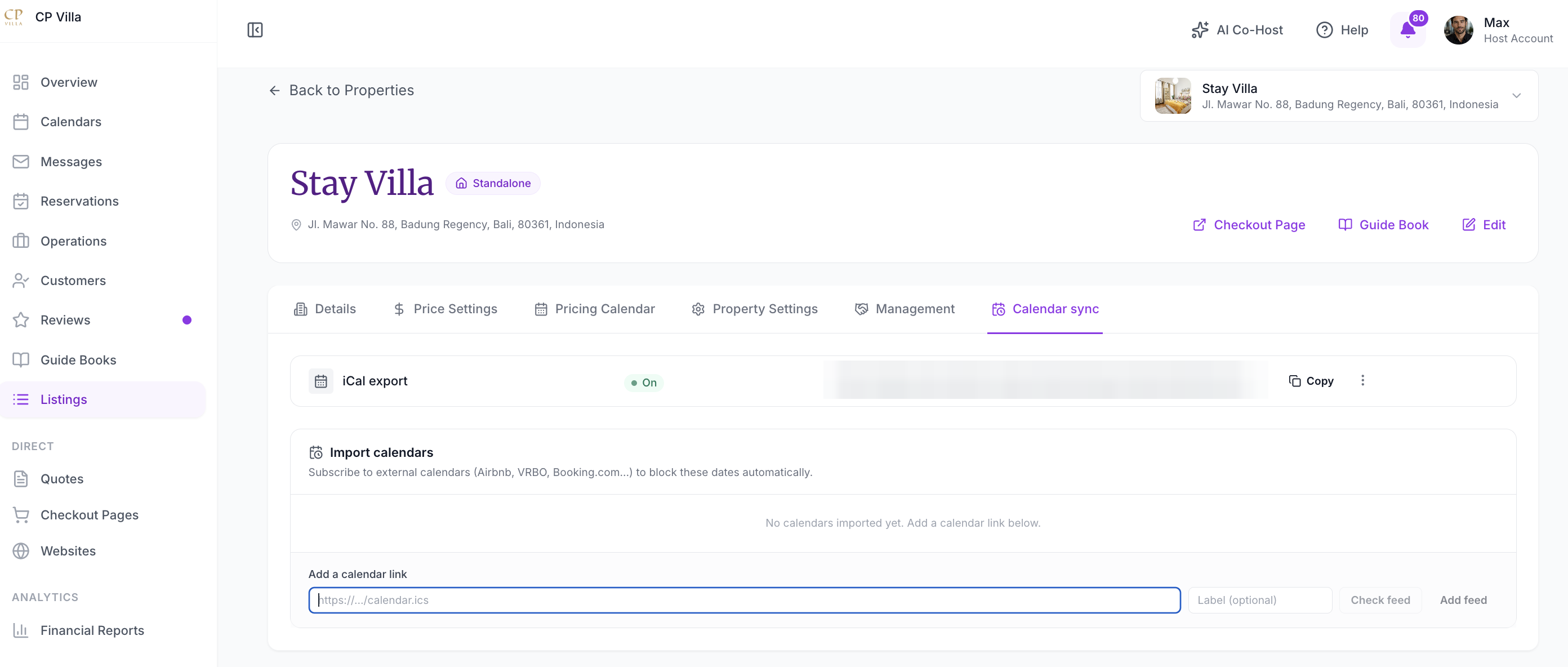
When iCal export is On, the row shows the link. Click Copy next to it.
Step 5: Add the Link to Google Calendar
- On a computer, open Google Calendar.
- Next to Other calendars, click +.
- Choose From URL.
- Paste the link you copied.
- Click Add calendar.
The listing’s calendar now appears under Other calendars in Google Calendar.
💡 Good to know: Google Calendar refreshes subscribed calendars on its own schedule. Changes in SympleHost may take a while to show in Google Calendar.
Keep the Link Private
The link shares the listing’s blocked dates. Only add it to calendars you trust.
Optional: Import Calendars into SympleHost
The Calendar sync tab also has an Import calendars section. It lets you subscribe to external calendars, such as Airbnb, VRBO, or Booking.com, to block those dates on this listing automatically.
- Copy the calendar link from the other platform.
- In Import calendars, paste it into Add a calendar link.
- Optionally, enter a Label.
- Click Check feed.
- Click Add feed.