
What Quotes Are For
Quotes help you turn enquiries into confirmed direct bookings. Use them when a guest asks for a price before booking, when you are arranging a group stay, or when you want to sell a service such as a transfer, tour, chef, or experience.
SympleHost supports:
- Property quotes for accommodation stays
- Service quotes for published services and experiences
- Multi-property quotes when a guest group needs more than one listing
- discounts, add-ons, custom items, fees, taxes, and payment schedules
- customer-facing quote links
- quote status tracking
Quotes are best for conversations where the guest still needs to review the offer before paying. If the guest has already confirmed and paid, create or confirm a reservation instead.
Quote Workflow at a Glance
| Step | What Happens |
|---|---|
| 1. Open Quotes | Go to Quotes from the sidebar under Direct. |
| 2. Choose quote type | Select Property Quote for accommodation or Service Quote for a published service. |
| 3. Add customer and details | Choose the customer, property/service, dates, guest count, add-ons, and notes. |
| 4. Review pricing | Check the automatic price breakdown, custom items, discounts, fees, taxes, and payment schedule. |
| 5. Send or review | Generate the quote, send it by email, submit it for review, or keep it as draft. |
| 6. Follow up | Track whether the quote is sent, viewed, approved, expired, paid, rejected, or invalid. |
Before You Start
Make sure you have:
- at least one active listing if you are creating a property quote
- at least one published service if you are creating a service quote
- pricing, fees, taxes, and availability configured for the property or service
- a customer record, or enough guest details to create one
- payment schedule rules agreed internally, especially if you collect deposits
- payment gateway setup if you want guests to pay online
If Quotes are locked, connect a payment gateway first from the top-right profile menu, then Settings → Payment Gateway.
Open the Quotes Dashboard
Open Quotes from the sidebar. The dashboard shows every property and service quote in one place, including the quote number, customer, property or service, dates, total, status, and expiration.
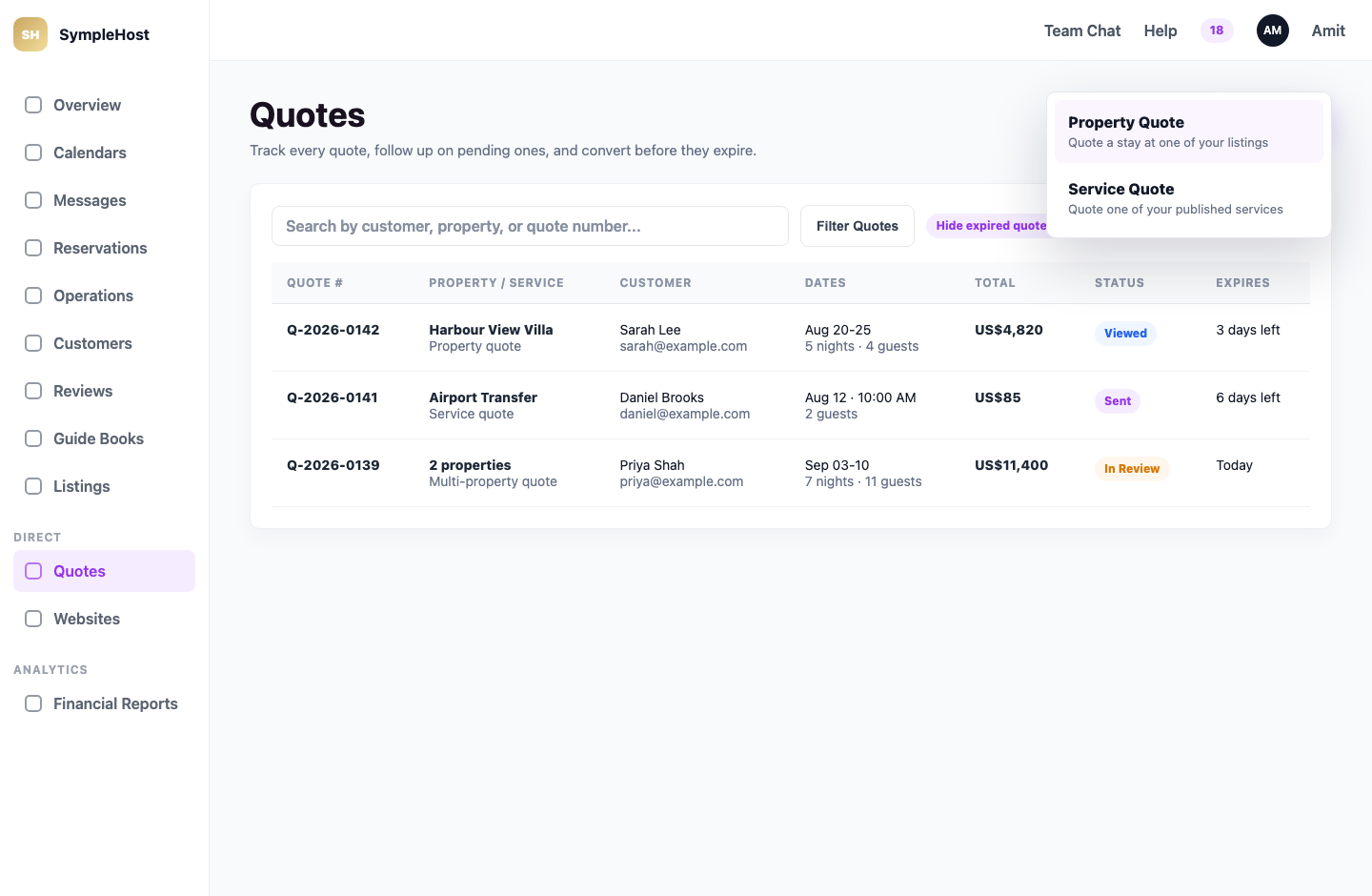
From this page you can:
- search by customer, property, service, or quote number
- filter by customer, property/service, type, status, and expiration
- hide expired quotes from the main list
- create a Property Quote or Service Quote
- open an existing quote to manage actions and follow-up
Use the status and expiry columns as your follow-up list. A quote that has been Viewed but not accepted is usually the best one to follow up before it expires.
Create a Property Quote
- Click Quotes in the sidebar.
- Click Create Quote.
- Choose Property Quote.
- Select or create the customer.
- Select one or more properties.
- Choose check-in and check-out dates from the availability calendar.
- Add guest counts: adults, children, and infants.
- If quoting multiple properties, choose Auto or Manual guest distribution.
- Review pricing, add-ons, meals, fees, taxes, and discounts.
- Set quote validity and payment schedule.
- Add customer-visible notes or internal notes.
- Generate or send the quote.
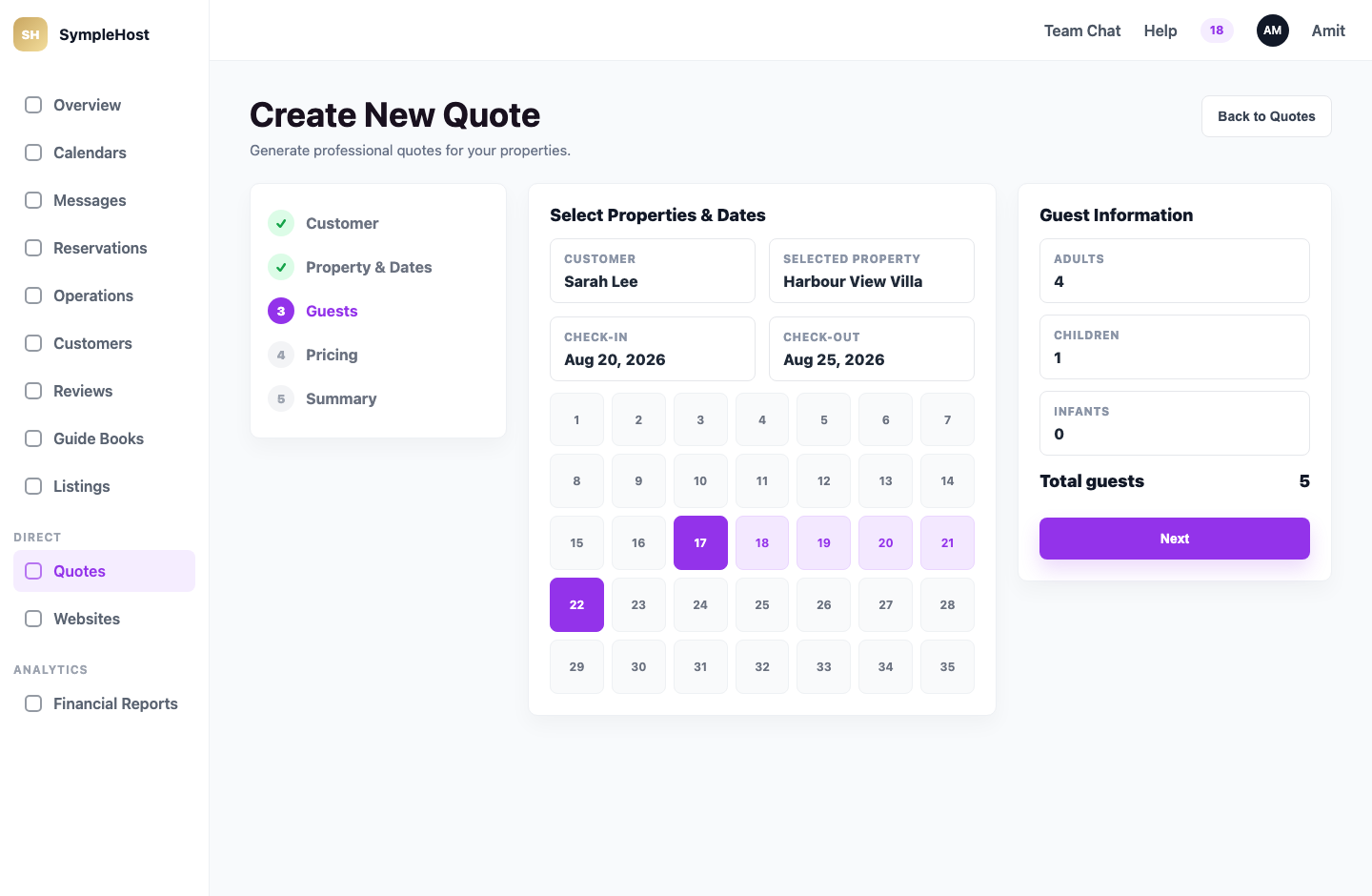
The quote uses your listing pricing, availability, length-of-stay rules, child/infant pricing, and configured fees where available.
Single Property vs Multi-Property Quotes
Use a normal property quote when the guest is enquiring about one listing. Use a multi-property quote when a group needs several listings for the same stay.
For multi-property quotes, SympleHost adds a Guest Distribution step. You can:
- use Auto to distribute guests across selected properties
- use Manual to control guest counts per property
- review each property’s pricing before generating the final quote
This is useful for retreats, family groups, weddings, corporate stays, and any enquiry where one booking may involve more than one listing.
Create a Service Quote
- Click Quotes.
- Click Create Quote.
- Choose Service Quote.
- Select or create the customer.
- Choose a published service.
- Select the date, time slot, duration, and guest count.
- Review service pricing and any add-ons.
- Add notes and quote validity.
- Generate or send the quote.
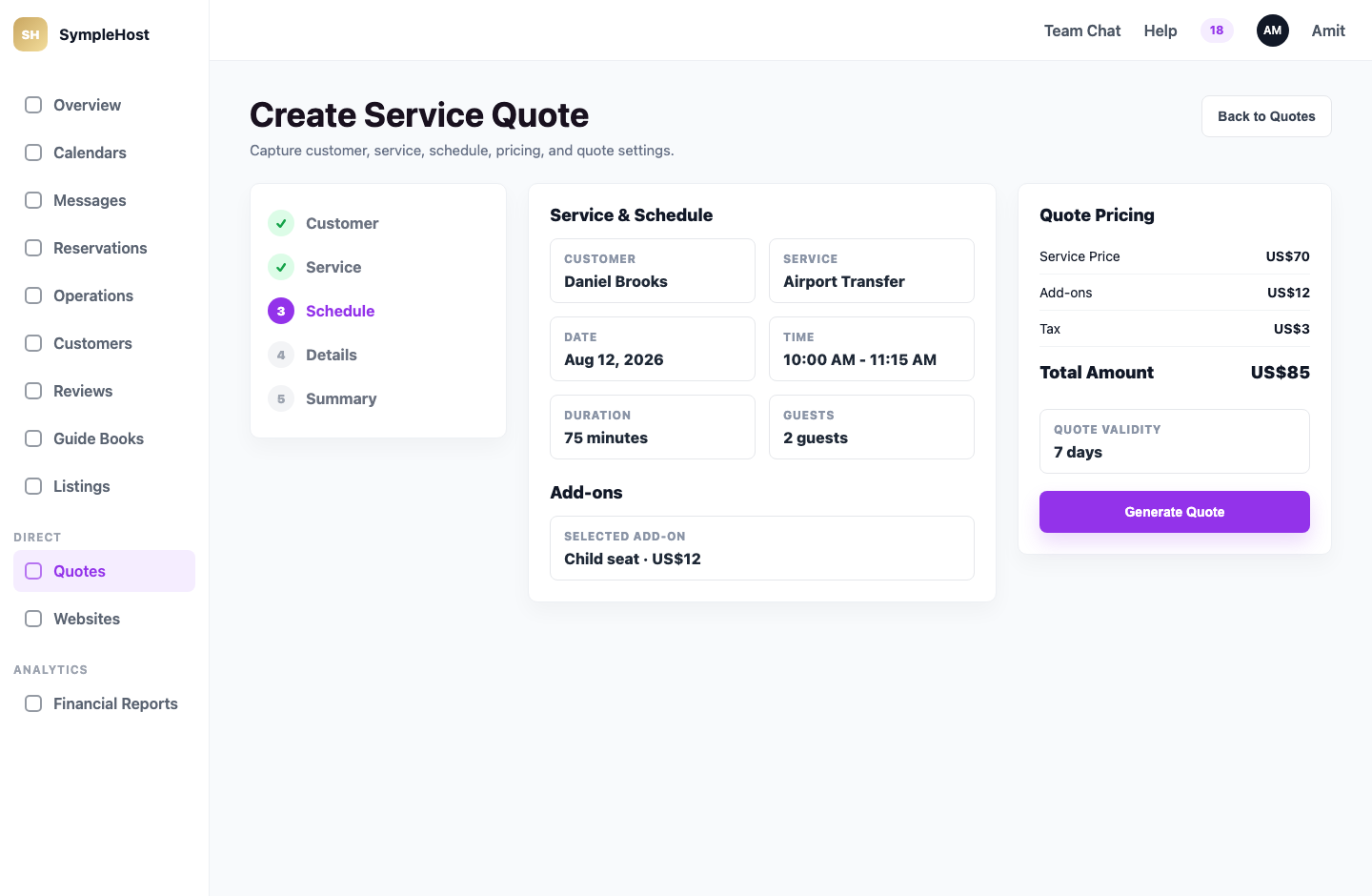
Only published services are available for service quotes. If the service is missing, open Services, finish the service setup, and publish it.
Service quotes are useful for:
- airport transfers
- tours and experiences
- chef, driver, instructor, therapist, or concierge services
- paid extras that need a separate approval before payment
- customised packages that are not part of the accommodation booking
Add Discounts and Custom Items
During the pricing step, you can add:
- a fixed discount
- a percentage discount
- a custom item, such as airport transfer, late checkout, stocked fridge, or extra cleaning
- add-ons or services configured for the listing
Use a clear discount description such as “Returning guest” or “Long-stay offer” so the reason is easy to understand later.
Set Quote Validity and Payment Schedule
In the summary step, check the Quote Settings before generating the quote.
Configure:
- Quote Validity — how many days the customer has before the quote expires
- Customer Notes — visible to the guest on the quote
- Internal Notes — only visible to your team
- Payment Schedule — full payment or deposit plus final payment, depending on your setup
For high-demand dates, use a short validity period so inventory is not held mentally without a decision. For large bookings, make the deposit and final payment timing clear before sending the quote.
Understand Quote Statuses
| Status | What it means |
|---|---|
| Draft | Saved internally and still editable. |
| In Review | Submitted for review before sending. |
| Sent | Sent to the customer. |
| Viewed | Customer has opened the quote. |
| Approved / Accepted | Customer or team accepted the quote. |
| Rejected / Declined | Customer or team declined it. |
| Expired | Validity period ended. |
| Paid | Payment has been received. |
| Invalid | Quote has been invalidated and should not be used. |
The quote list can be filtered by type, status, expiration, customer, and property/service. You can also hide expired quotes.
Manage an Existing Quote
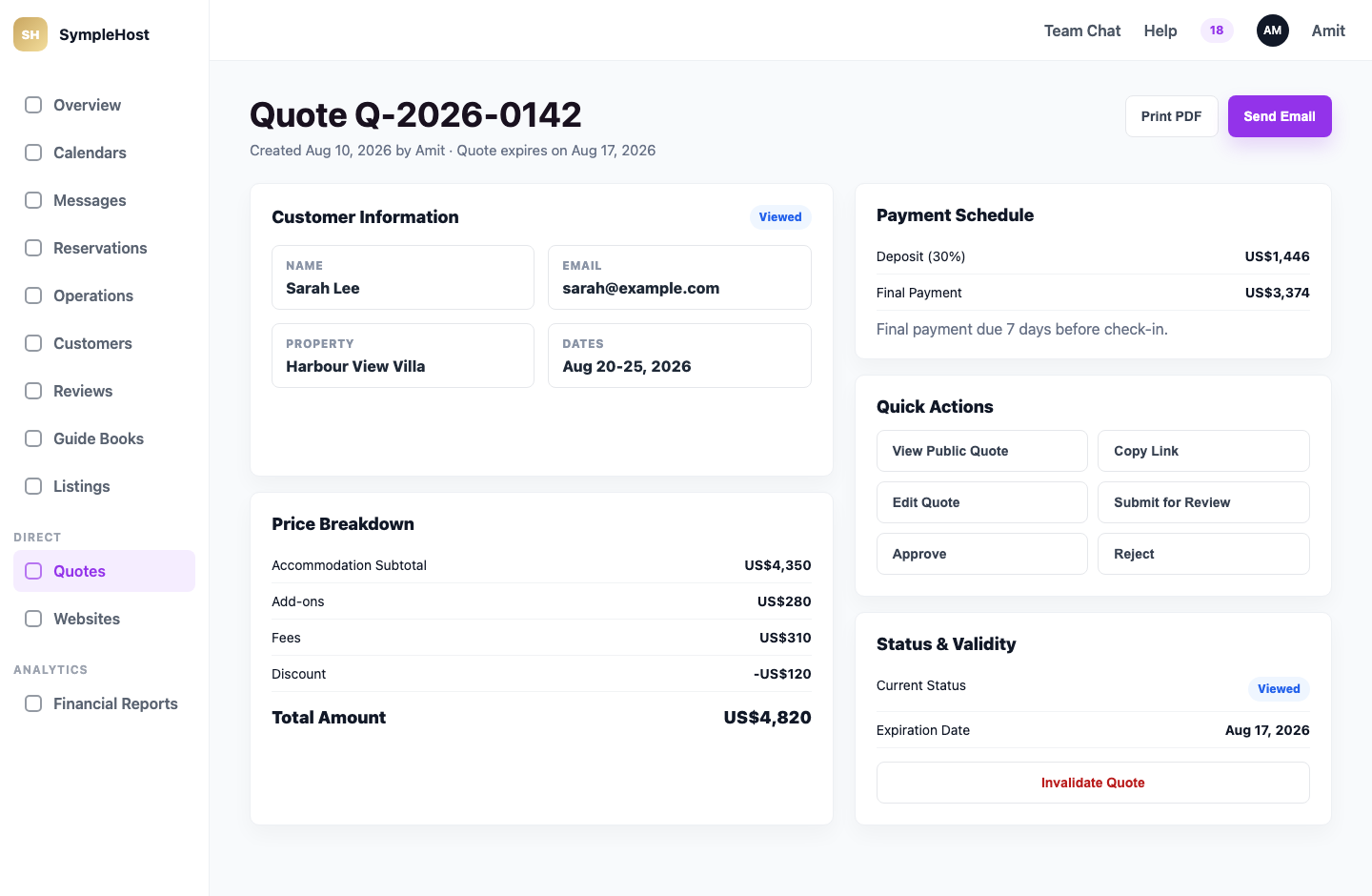
Open any quote from the Quotes table to:
- review customer, property/service, dates, guests, and price breakdown
- check the payment schedule and amount due
- view the customer-facing quote
- copy the public quote link
- send the quote by email
- print or save a PDF
- edit the quote while it is still editable
- submit it for review, approve it, reject it, or invalidate it
- open the related booking details once a booking is created
When to Use Each Action
| Action | Use It When |
|---|---|
| View Public Quote | You want to check exactly what the guest will see. |
| Copy Link | You want to send the quote link manually in a message. |
| Send Email | You want SympleHost to email the quote to the customer. |
| Print PDF | You need a PDF copy for offline records or external sharing. |
| Edit Quote | The guest wants different dates, guests, add-ons, or terms. |
| Submit for Review | Your team reviews quotes before they are sent. |
| Approve / Reject | A reviewer needs to approve or reject the quote internally. |
| Invalidate Quote | The quote should no longer be usable. |
If a quote is expired or invalidated, create a fresh quote rather than sending the old one again.
Good Habits
- Use quotes for serious enquiries instead of sending prices manually in chat.
- Keep internal notes private and customer notes clear.
- Set a short validity window for high-demand dates.
- Use discounts intentionally and label them clearly.
- Check availability before sending a quote for busy dates.
- Follow up on Viewed quotes before they expire.
- Preview the public quote before sending high-value or multi-property proposals.
- If your team uses approvals, do not send the quote until it has been approved.
Troubleshooting
I cannot create a quote
Check that you have an active listing or published service, the customer details are valid, and your payment gateway is active if Quotes are locked by your account setup.
The property is unavailable
Choose another date range or check the calendar for existing bookings, manual blocks, linked calendar blocks, or channel-synced blocks.
Pricing failed to calculate
Review the listing’s pricing setup, base rate, rate plans, fees, taxes, and availability restrictions.
The customer says the quote expired
Open the quote and check the expiration date. If it has expired, duplicate or recreate the quote with a new validity period.