
Linked Calendars helps you coordinate availability between related properties inside SympleHost. When a booking or block is added to one calendar, SympleHost can block the appropriate dates on the other linked calendars.
This is useful when the same inventory is sold in more than one way. For example:
- a whole villa that can also be booked as separate rooms
- a parent property with several child units
- two listings that represent the same physical accommodation
- related properties where one booking must close availability elsewhere
Linked Calendars is different from Channel Manager. Linked Calendars controls how availability moves between SympleHost properties. Channel Manager connects those properties to Airbnb, Booking.com, VRBO, Expedia, Agoda, MakeMyTrip, Trip.com, and other supported booking platforms.
Before You Link Calendars
Make sure every property you want to link already exists in Listings → Properties.
Decide how the inventory should behave before creating the link:
| Linking model | Use it when | What happens |
|---|---|---|
| Direct / one main calendar | One property represents the complete inventory and the others represent parts of it. | A booking or block on the main property blocks the linked properties. A booking on a linked property blocks the main property, but does not automatically block its sibling properties. |
| Two-way | Every listing represents the same inventory. | A booking or block on any linked property blocks all the others. |
Choose carefully. The linking model controls which calendars close when a booking or block is created.
Open Linked Calendars
- Click Listings in the sidebar.
- Open Linked Calendars above the property list.
- Review existing links or click Link calendars.
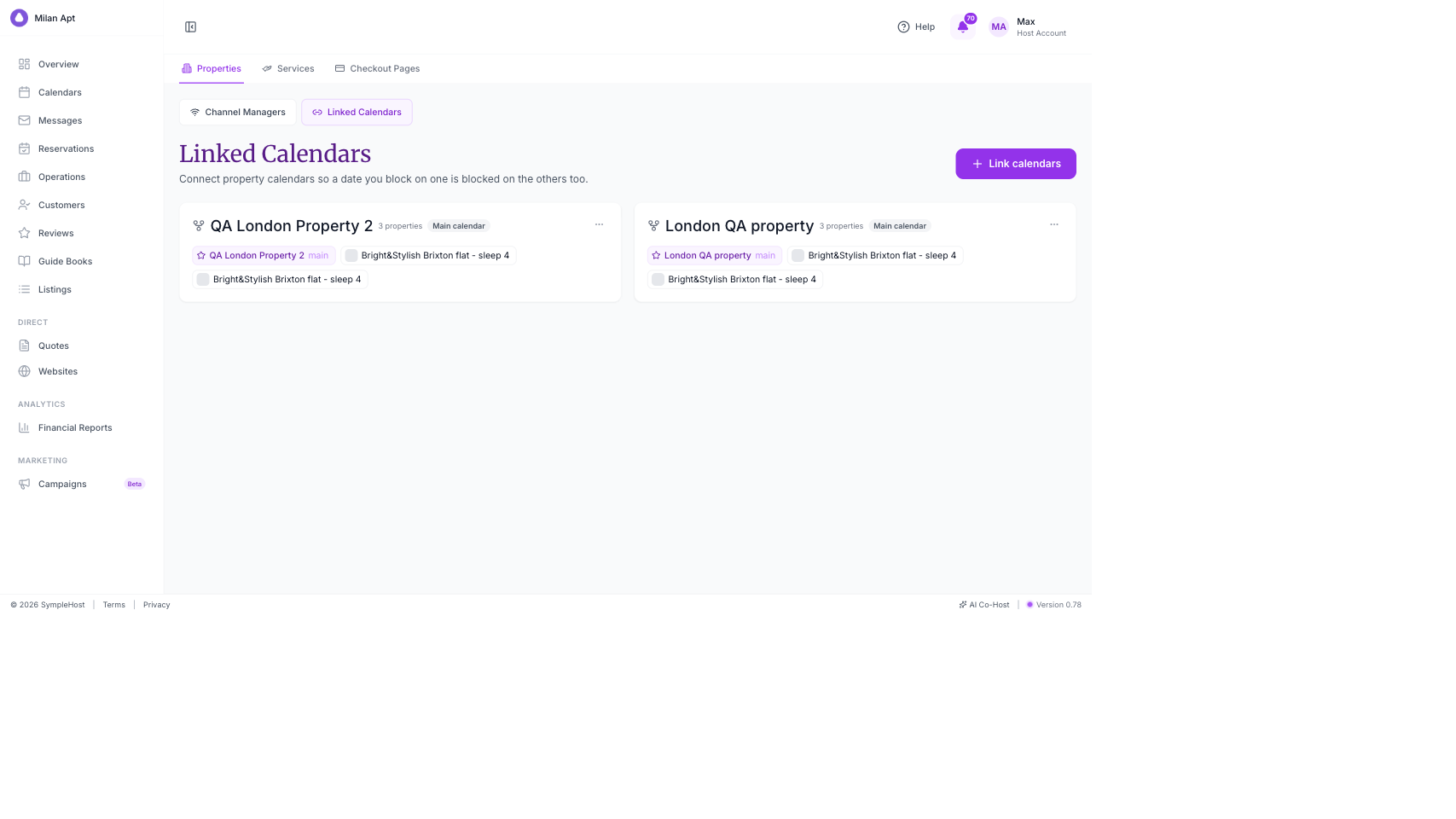
Each group shows the properties in the link and whether it uses a main calendar or blocks both ways.
Create a Calendar Link
- Click Link calendars.
- Choose a linking model:
- Direct for one main calendar with linked child properties.
- Two-way when every property should block all the others.
- For a direct link, choose the Parent property.
- Click Add property and select the child or linked properties.
- Check the How availability flows preview. Select a property in the diagram to see which calendars a booking there will block.
- Click Save link.
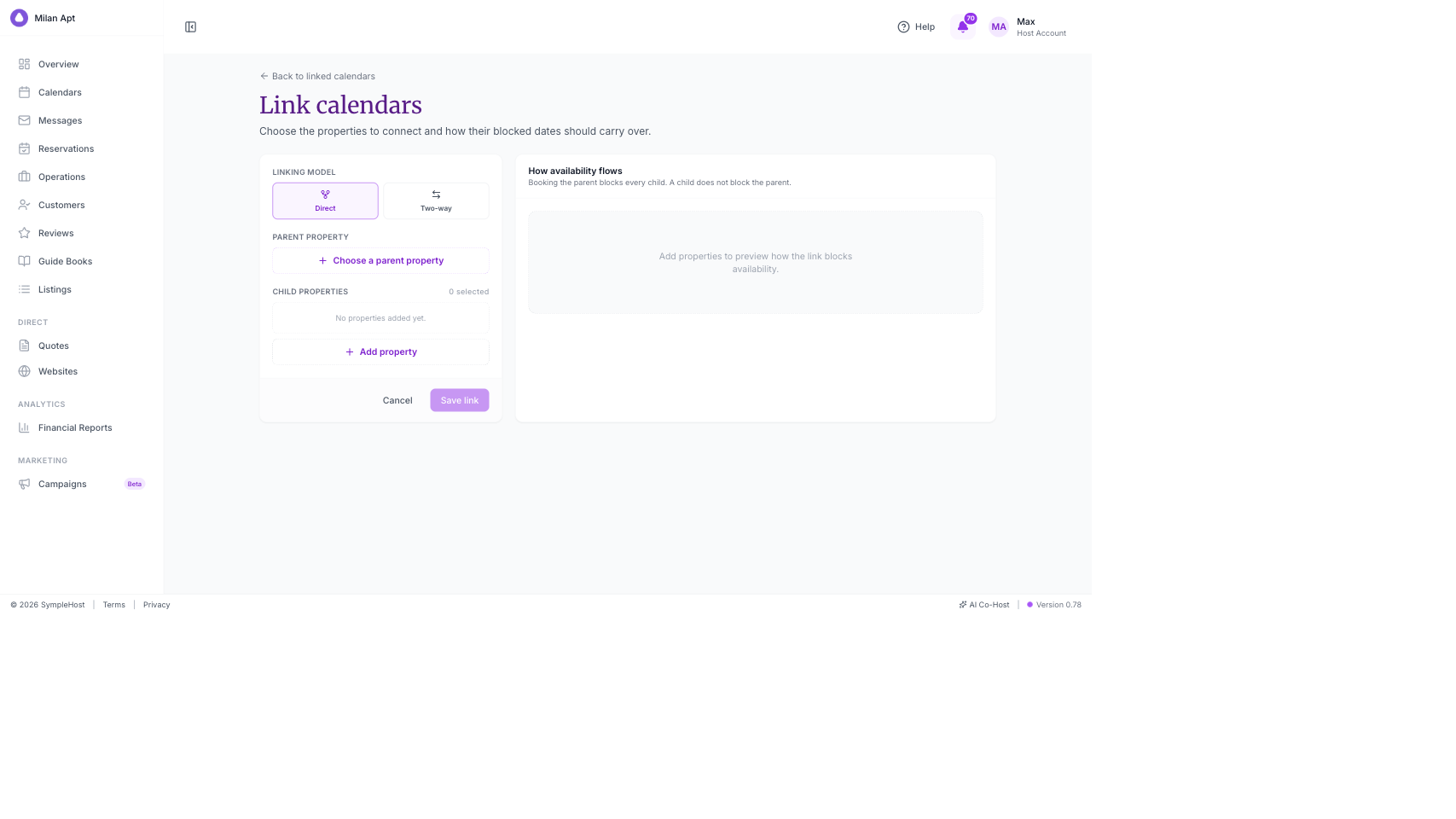
You need at least two properties to create a link.
Choose the Right Linking Model
One Main Calendar
Use a main calendar when a larger property is also sold as smaller parts.
Example:
- Main property: Entire three-bedroom villa
- Linked properties: Bedroom 1, Bedroom 2, and Bedroom 3
If the entire villa is booked, all three room calendars close. If Bedroom 1 is booked, the entire-villa calendar closes, while Bedrooms 2 and 3 can remain available.
This prevents the complete villa from being sold after part of it has already been booked without unnecessarily closing the remaining rooms.
Two-Way Linking
Use two-way linking when two or more listings represent the same physical inventory.
If any linked listing is booked or blocked, every other listing in that group closes for the same dates.
Do not use two-way linking for independent rooms that can be booked at the same time.
Push Linked Blocks to Connected Channels
Calendar links can also push blocked availability to connected booking channels. Keep Push to channels enabled when Airbnb, Booking.com, VRBO, or another connected OTA should receive the linked block.
This requires the affected properties to be mapped and actively syncing through Channel Manager. After creating a link:
- Open Calendars and check the affected dates.
- Open Channel Manager and confirm the relevant connections are live and in sync.
- Check the OTA calendar if the date is commercially important or recently changed.
Linked Calendars does not create or map an OTA connection. Set that up separately in Channel Manager.
Cascade Through Nested Links
Enable Cascade through nested links when a property belongs to another linked-calendar group and blocks should continue through the connected parent-and-child structure.
For cascading to work, both connected groups must have cascading enabled.
Use this only when you understand the complete inventory structure. A nested setup can close several related calendars from one booking. Use the availability-flow preview before saving and test with a future block after setup.
Add a Date-Range Exception
An exception temporarily switches off one linked-calendar rule for a date range you choose. Inside that range, nothing carries between the linked listings in either direction: neither your manual blocks nor real bookings. Outside the range, the link continues working normally.
For example, a whole villa and its individual rooms may normally close each other’s availability. You could add an exception over Christmas when you want to sell the rooms independently instead of only selling the whole villa.
- Open Listings → Linked Calendars.
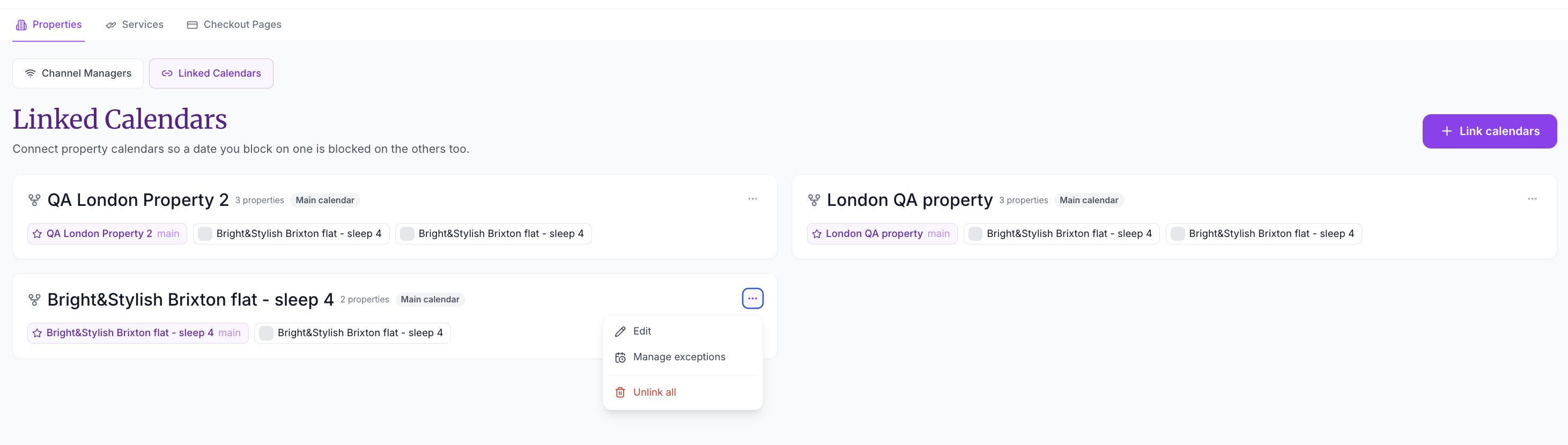
- Open Actions for the relevant group.
- Choose Manage exceptions.
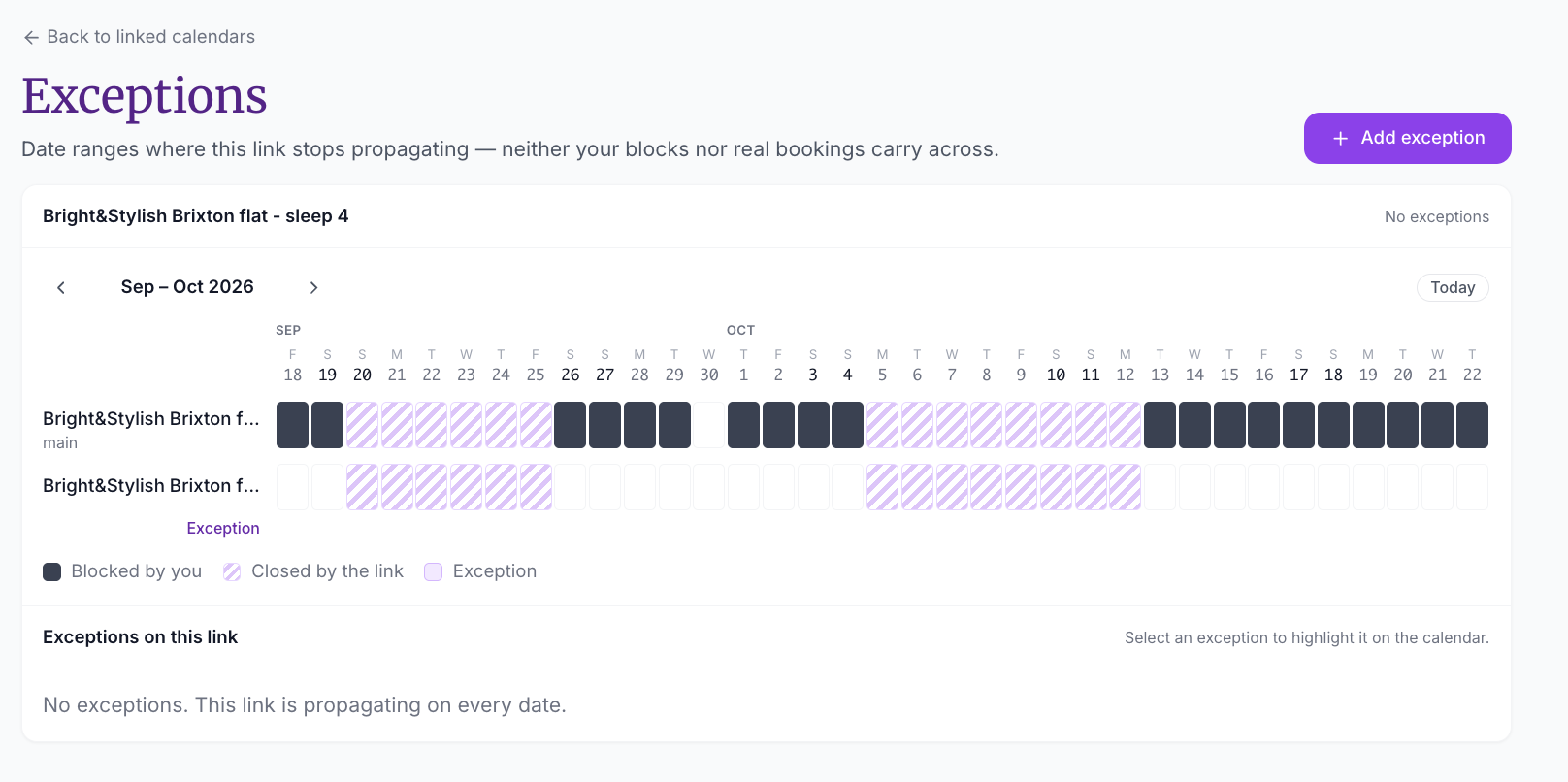
- Review the calendar. Its legend distinguishes dates Blocked by you, Closed by the link, and covered by an Exception.
- Click Add exception.
- Choose the start and end dates. Both dates are included.
- Add an optional reason, such as “Selling the units separately over Christmas.”
- Click Save exception.
- Choose what should happen to nights the link already closed:
- Reopen them now to remove those linked closures and push the updated availability to connected channels.
- Leave them as they are to keep existing closures and apply the exception only to future changes.
Important Exception Rules
- An exception applies only to the selected linked-calendar rule and date range.
- Both the start and end dates are included.
- One exception can cover up to two years.
- Exception ranges can overlap and are never merged. Deleting one exception leaves any other overlapping exceptions in force.
- Saving or deleting an exception can reopen dates previously closed by the link, but only when you choose that option.
- Real reservations are never deleted, reopened, or otherwise changed when you save or remove an exception.
Use the calendar preview before saving so you can see which nights were blocked manually and which were closed by the link. If the linked properties connect to Airbnb, Booking.com, or another OTA, allow time for reopened availability to reach those channels.
Edit or Remove a Link
Open Actions beside a linked-calendar group to:
- add or remove linked properties
- switch the group’s two-way behavior where available
- enable or disable cascading
- manage date-range exceptions
- unlink the group
When you unlink a group, dates blocked by the link are cleared. Existing reservations are not deleted or changed.
Check That the Link Works
After setup, test the link with a future date that has no guest reservation:
- Create a manual block on one property.
- Open Calendars and check the other linked properties.
- Confirm the dates closed according to the selected model.
- Remove the test block and confirm the linked dates reopen.
- If Push to channels is enabled, confirm the connected OTA receives the availability update.
Troubleshooting
A property is unavailable for selection
A property may already be restricted by another linked-calendar structure. Two-way groups are stricter because every property must behave as an equal peer. Review existing groups and remove an incorrect link before trying again.
A child booking blocked the main property but not the other children
That is expected in the Direct / one main calendar model. A linked child blocks the main property, but siblings remain available. Use Two-way only if booking any property must close every other property.
A block did not reach Airbnb or another OTA
Check that Push to channels is enabled and that the affected property is mapped to a live Channel Manager connection. Then check the connection’s sync status.
A linked date reopened unexpectedly
Check whether a date-range exception covers that night. Also review whether the group was edited, unlinked, or changed from two-way to a main-calendar structure.
I cannot edit or create calendar links
Your role may not have permission to manage listings and linked calendars. Ask the account owner or administrator to review your role under Settings → Team Members.