
What Is a Channel Markup?
A channel markup is a percentage increase applied to the rate sent to a connected booking channel. Use it when you want to allow for channel costs or charge a higher rate on an OTA (online travel agency).
For example, if the rate for a night is 100 and you set a 20% markup, the marked-up rate is 120, before any other applicable adjustments, fees, or taxes.
The markup belongs to one listing on one channel. Changing a listing’s Airbnb markup, for example, does not change its Booking.com markup. Each OTA the listing is mapped to has its own Markup field in the listing panel.
The screenshots in this guide use Airbnb as the example. Follow the same steps for your other OTAs.
Before You Start
- Set your listing’s pricing and check the dates in Pricing Calendar. See How to Set Up Your Pricing & Rate Rules.
- Connect the OTA and map the listing to it in Channel Manager. A listing that is not mapped to an OTA has no markup field for that OTA.
- For a guesthouse or boutique hotel with several rooms, see Setting Up a Guesthouse or Boutique Hotel with Several Rooms.
Step 1: Open Channel Manager
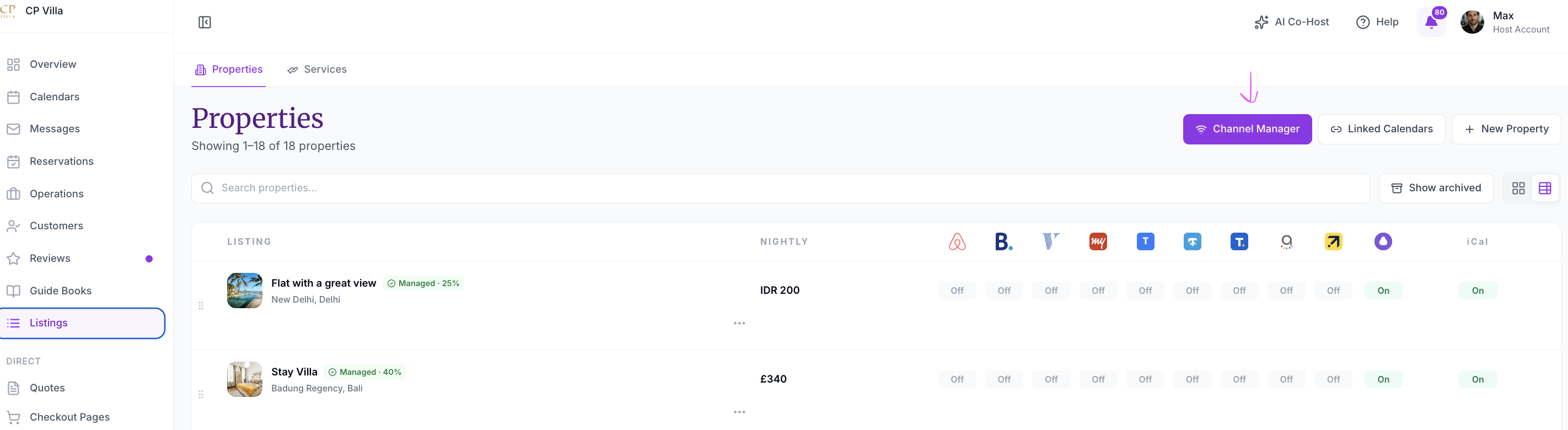
- Click Listings in the sidebar.
- Click Channel Manager at the top right of the page.
Step 2: Open the Listing
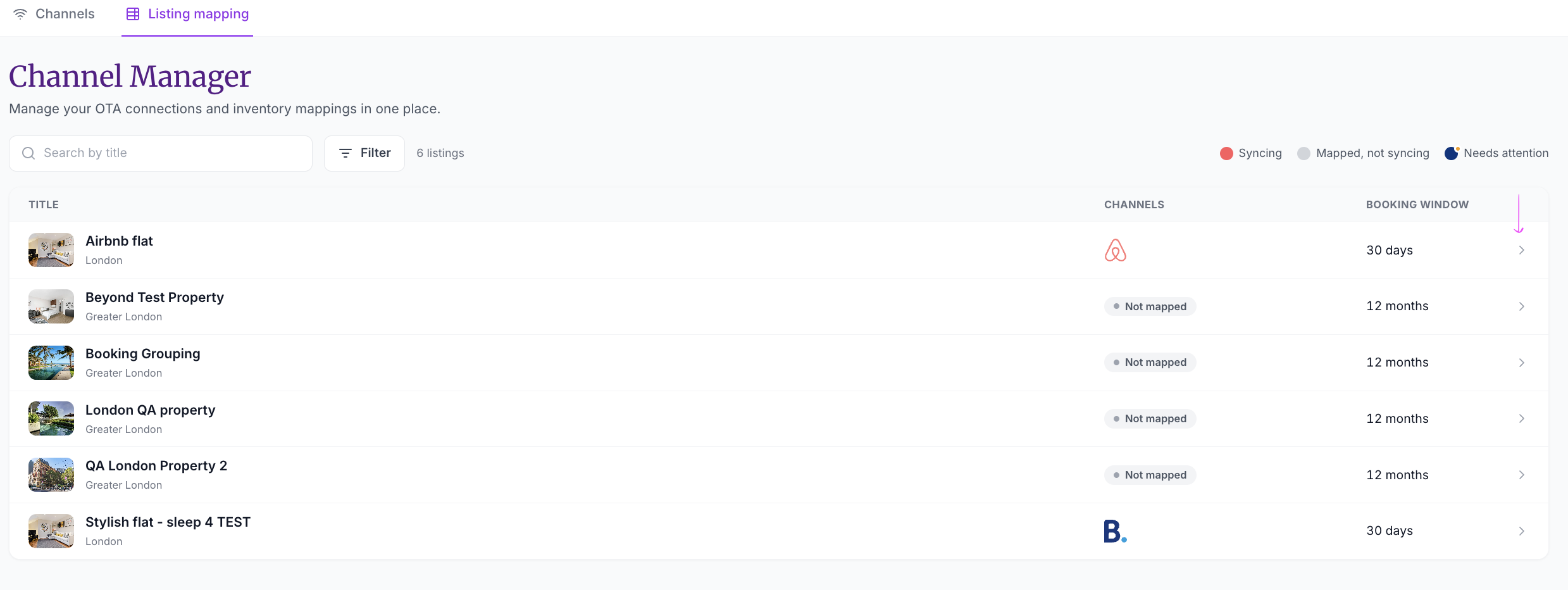
- Click the Listing mapping tab.
- Find the listing. You can use Search by title or Filter.
- Click the listing’s row. The arrow at the end of the row opens it.
The Channels column shows which OTAs the listing is mapped to, or Not mapped.
Step 3: Enter the Markup and Save
- In the listing panel, go to the CHANNELS section.
- Find the card for the OTA you want to update, such as Airbnb.
- In Markup, enter the percentage. For a 20% increase, enter 20.
- Check the preview line under the fields. It shows the base rate and the resulting price per night on that OTA.
- Click Save changes at the bottom of the panel.
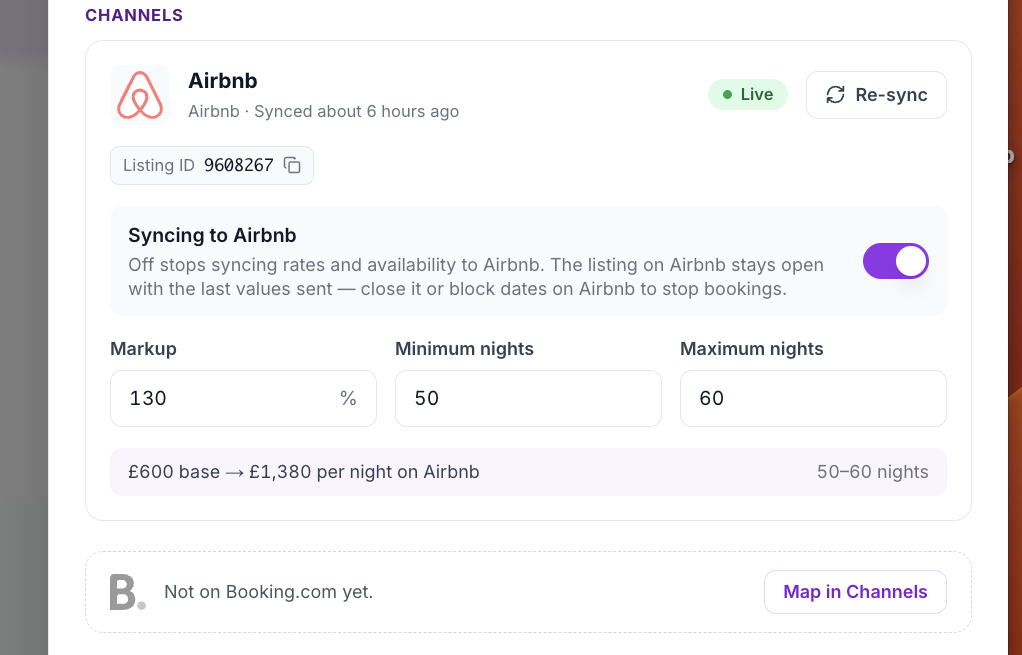
In this example, the base rate is £600 and the Airbnb markup is 130%. The preview shows £600 base → £1,380 per night on Airbnb (600 × 2.3 = 1,380).
If the panel shows a line such as Not on Booking.com yet., the listing is not mapped to that OTA, so there is no Markup field for it. That line has a Map in Channels button.
Repeat these steps for each OTA and each listing that needs a markup.
See the Markup in the Channels Tab
You can also see a listing’s markup from the Channels tab in Channel Manager. Click Edit on the OTA row in the Channels table. In the connection panel, each row under Mapped listings shows the markup as a pill, such as +130.0%.

Understand the Percentage
The basic calculation is:
Marked-up rate = rate × (1 + markup ÷ 100)
| Rate before markup | Markup | Rate after markup |
|---|---|---|
| 100 | 0% | 100 |
| 100 | 10% | 110 |
| 100 | 20% | 120 |
| 150 | 20% | 180 |
| 600 | 130% | 1,380 |
These examples use a single nightly rate without other adjustments. Use the rate that applies to the dates you are checking, which may differ from your default base rate.
Is Markup the Same as Commission?
No. A markup increases a price, while a percentage commission is deducted from the amount on which the channel charges it.
For a simplified example, a rate of 100 with a 20% markup becomes 120. If a hypothetical 20% commission is then deducted from 120, the amount remaining is 96. A 20% markup therefore does not cancel out a 20% commission.
Check the actual charges and calculation basis for your channel before choosing a markup. The examples here are arithmetic illustrations, not channel fee quotes.
Change or Reset a Markup
To change a markup, open the listing from the Listing mapping tab, enter the new value in that OTA’s Markup field, and click Save changes.
To stop adding an increase, enter 0 and click Save changes. Other pricing rules, fees, taxes, or channel promotions may still affect the guest’s final price.
Check the Result
After saving:
- Reopen the listing and confirm the saved Markup on the correct OTA card.
- Check the OTA’s status badge and when it last synced.
- Compare a specific date in SympleHost with the corresponding rate on the channel.
- Use the same dates, guest count, and rate plan for the comparison. Account for any channel promotions, fees, and taxes before comparing final totals.
Saving confirms the setting was updated. Also verify the channel rate before relying on it for future bookings.
Troubleshooting
There Is No Markup Field for an OTA
The listing is not mapped to that OTA yet. The panel shows a line such as Not on Booking.com yet. with a Map in Channels button. Map the listing to the OTA first, then come back to set the markup.
The Markup Did Not Save
Make sure you clicked Save changes before closing the panel. Reopen the listing to check the value. Contact support if it still does not save.
The Channel Price Does Not Match My Calculation
Check the selected dates, the applicable rate, the saved markup, and the room and rate-plan mapping. Then check sync status and any other pricing rules or channel promotions. Compare equivalent rates before comparing the final guest total.
On Airbnb, discounts you set inside Airbnb can also change the guest price. See How to Manage Airbnb-Specific Discounts.