
Who This Is For
Use this guide if you run a guesthouse or boutique hotel that is one standalone property with several identical rooms — for example, a guesthouse with five rooms that are each rented separately under the same listing.
You do not need to create a separate listing for every room. Create the property once as a Standalone listing and set Number of units. The SympleHost calendar then treats that number as your bookable inventory for each night.
How Number of Units Works
- One property, one listing. The property holds the shared details: name, address, description, photos, amenities, house rules, cancellation policy, and pricing.
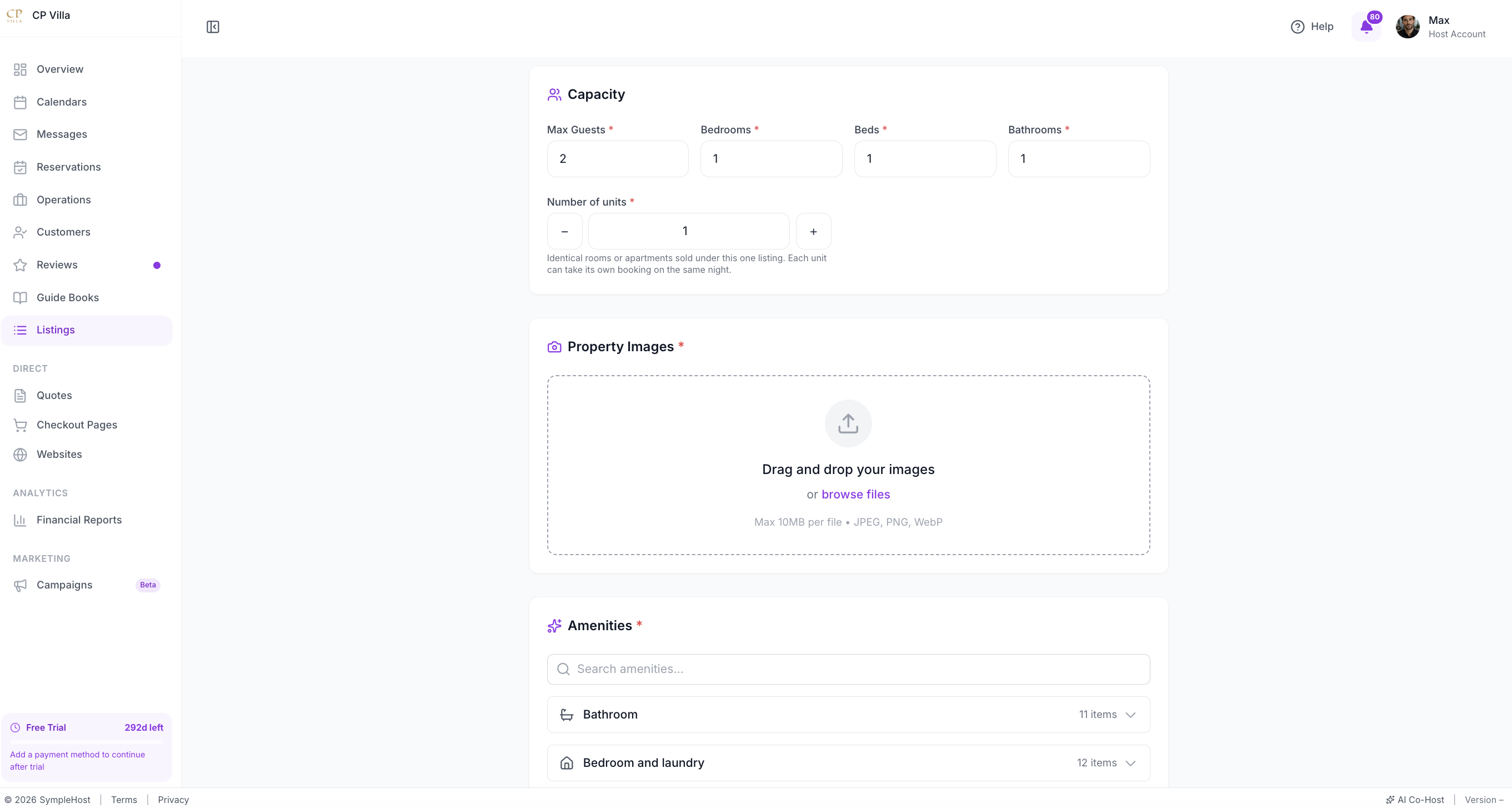
- Number of units tells SympleHost how many identical rooms or apartments are sold under this one listing. Each unit can take its own booking on the same night.
- The calendar handles availability. Each booking or block uses one unit from that count. While at least one unit is still free, the date stays bookable. When every unit is booked or blocked, the date becomes unavailable.
For example, if you set Number of units to 5 and three units are booked for 12 March, SympleHost still shows 2 units available for that night.
Before You Start
Make sure you have:
- Your company profile set up — currency and timezone affect pricing and booking times. See Setting Up Your Company Profile.
- Your unit count — how many identical rooms guests can book at this property (Number of units).
- Room capacity and bed setup — maximum guests, bedrooms, beds, and bathrooms that match what one guest booking actually gets.
- Photos — the property exterior, shared spaces, and the rooms guests will stay in. Supported formats: JPEG, PNG, or WebP, up to 10MB per image.
Create a Standalone Property and Set Number of Units
- Click Listings in the sidebar.
- Click + New Property and select Manual.
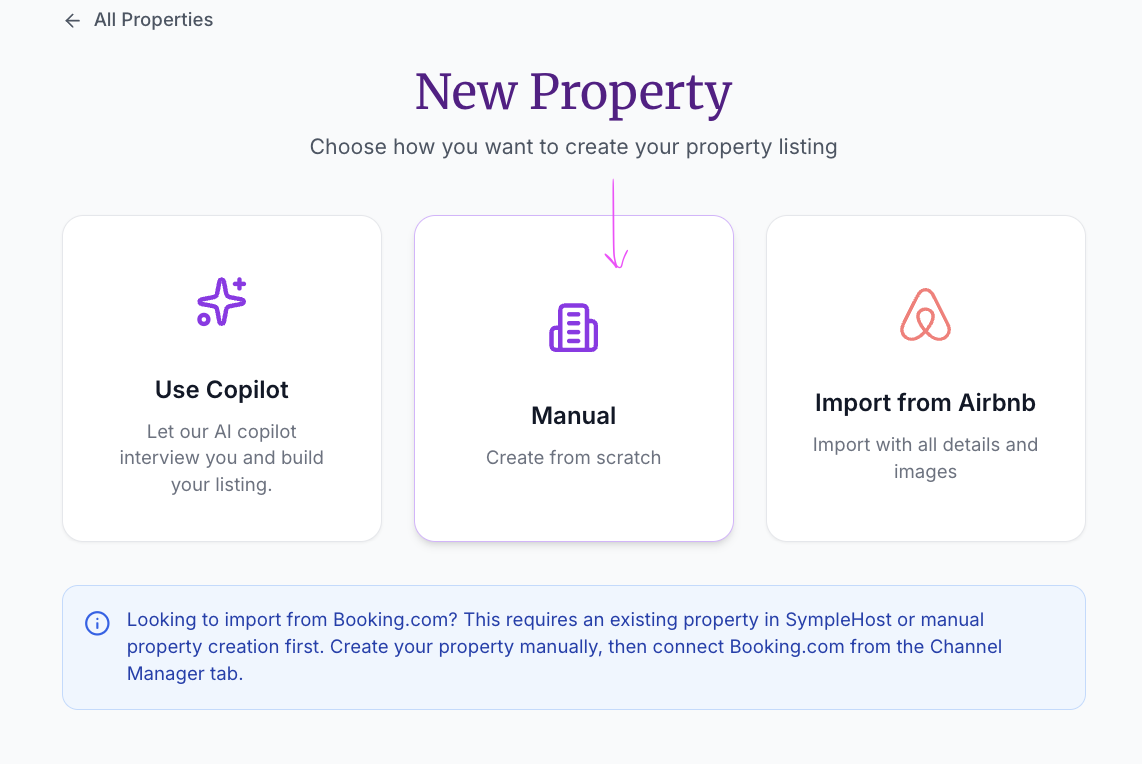
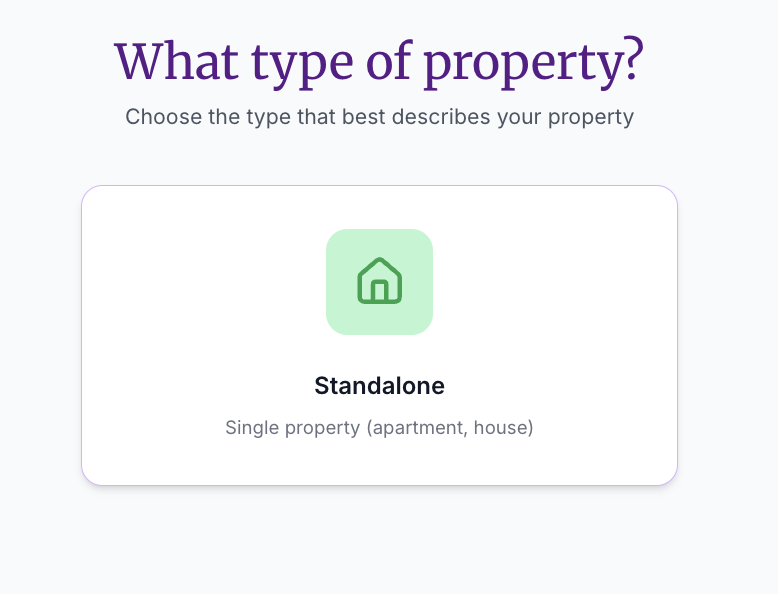
- When asked What type of property?, choose Standalone (single property such as an apartment or house). Multi-unit property types are no longer used — guesthouses and boutique hotels with several identical rooms stay on one Standalone listing.
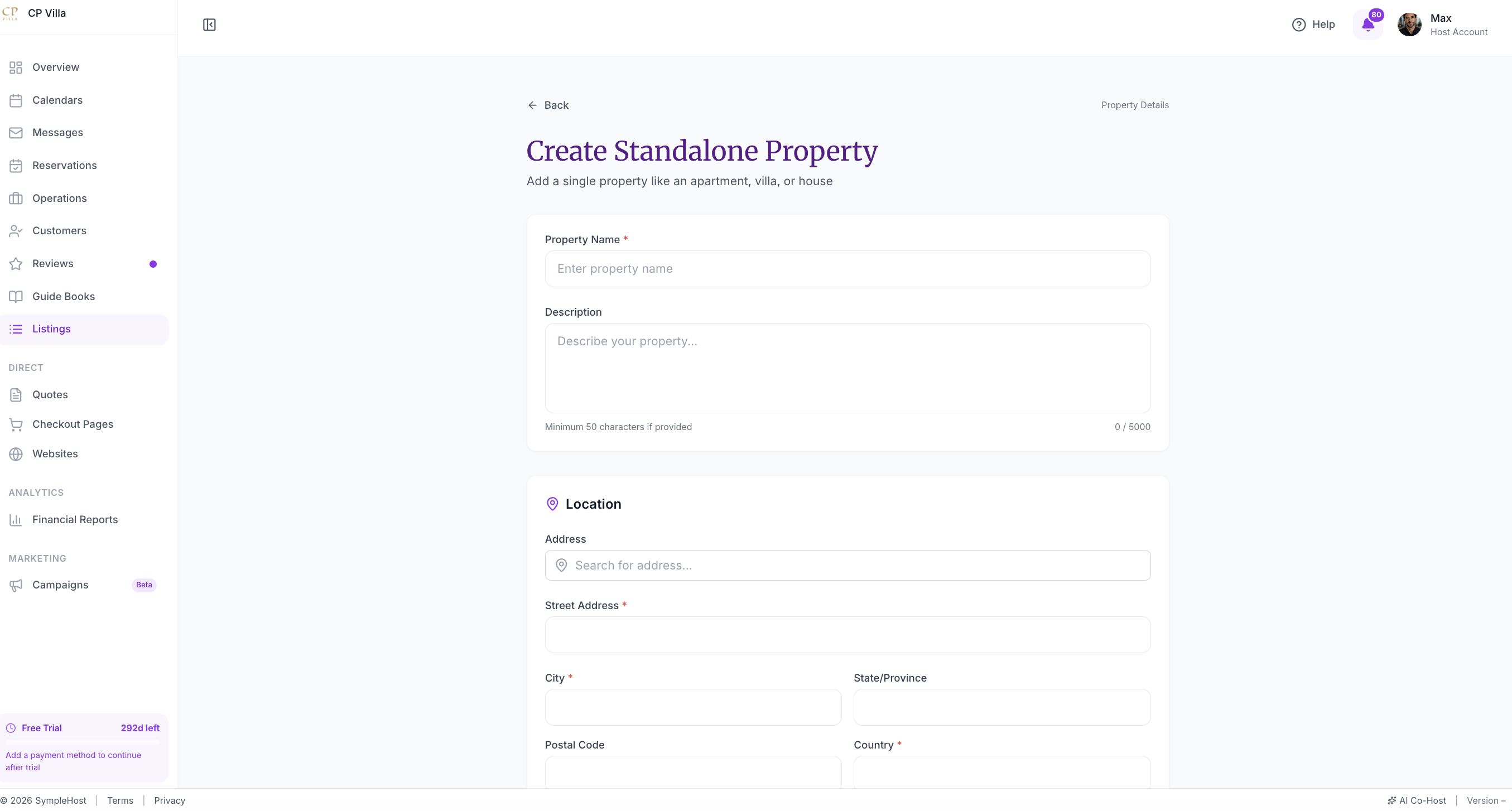
- Fill in Create Standalone Property: name, description, and location.
- In Capacity, set Max Guests, Bedrooms, Beds, and Bathrooms for what a single booking includes. Then set Number of units — identical rooms or apartments sold under this one listing. Each unit can take its own booking on the same night.
- Add photos, amenities, and a cancellation policy as described in Adding a Listing Manually.
- Click Save & Continue to Pricing and set your nightly rate.
💡 Tip: Set capacity for one room, not for the whole building. If each room sleeps two guests, enter two as the maximum guests even when Number of units is five.
Check Availability on the Calendar
Open Calendars → Properties and find the property. For listings with Number of units above one, the calendar can show:
- an xN badge next to the property name (for example x5)
- a UNITS badge with the total (for example 6 UNITS)
- expandable Unit 1, Unit 2, … lanes under the property
- per-date availability such as 0/6, 1/6, or 2/6
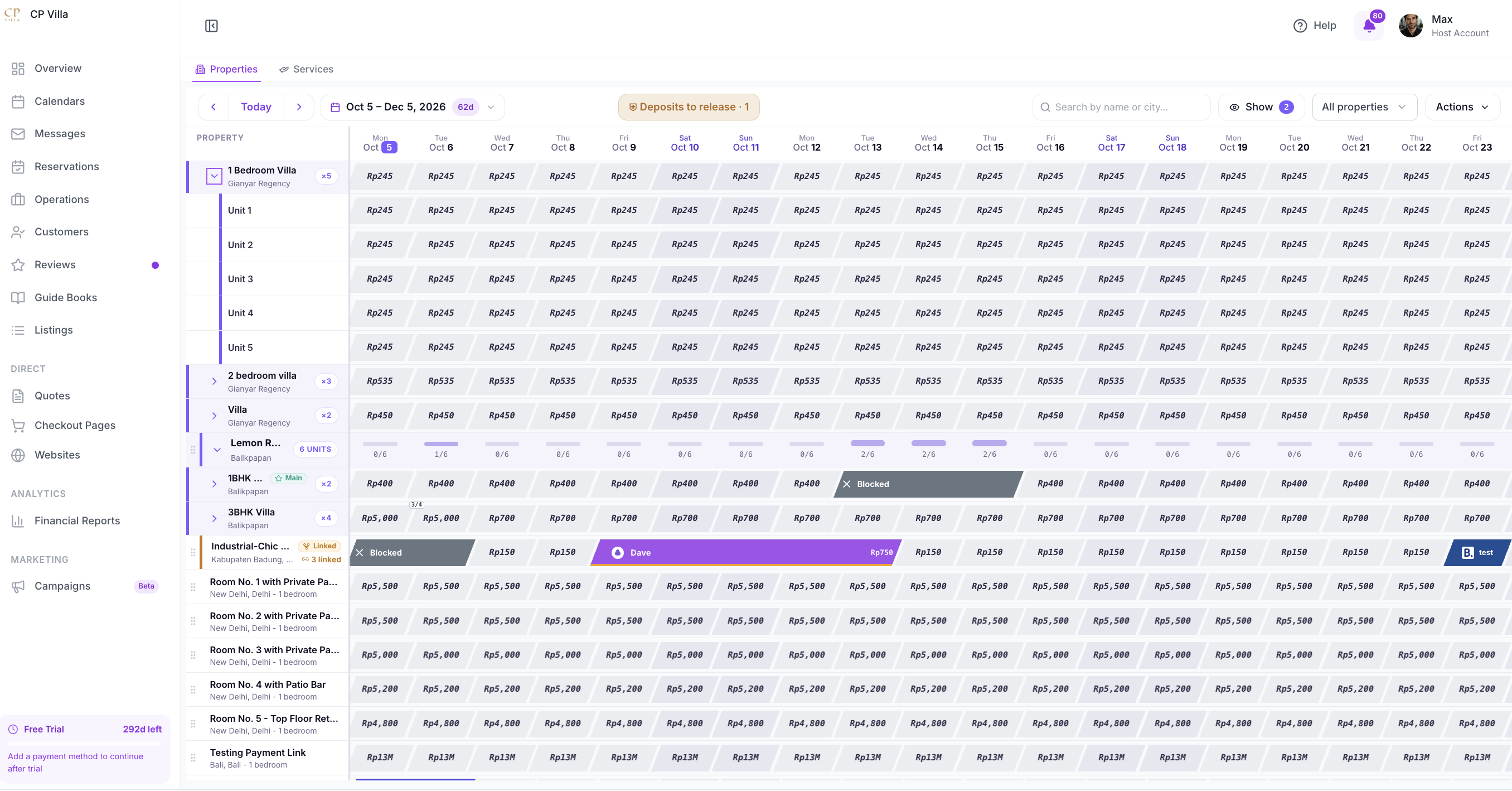
From the calendar you can:
- see how many units are still available on each night
- block a specific number of units for maintenance or owner use
- create direct reservations while units are still available
- update nightly pricing and stay rules for the property
See How to Manage Bookings & Your Calendar for the full calendar guide.
Connect Booking.com, Expedia, Agoda, or Trip.com
Once the property is saved, priced, and has the correct Number of units:
- Open Listings → Channel Managers.
- Click Connect OTA and choose the channel.
- Approve Channex.io as the connectivity provider in the OTA’s extranet, then enter the OTA property ID in SympleHost.
- Map the OTA room and rate plan to this SympleHost listing and its rate plan.
- Complete sync and check the connection status.
SympleHost then syncs availability, rates, restrictions, and reservations through Channex.io. The available unit count the OTA sees follows your SympleHost calendar.
Channel-specific steps:
- How to Connect Booking.com to SympleHost
- How to Connect Expedia to SympleHost
- How to Connect Agoda to SympleHost
- How to Connect Trip.com to SympleHost
⚠️ Important for Booking.com: Booking.com requires specific bed types (for example “1 Queen bed”), not just a bed count. Fill in the bed setup on the listing before you connect.
Troubleshooting
An OTA shows the wrong number of available rooms
Check Number of units on the listing. This is the total inventory the channel sees. Actual availability is managed by the calendar, so units that are already booked or blocked are subtracted automatically.
A date is unavailable even though some units are free
Check the calendar for blocks on that date, including blocks that came from a channel sync or a linked calendar. Also confirm Number of units on the listing is correct.
Booking.com sync failed with “Missing bed configuration”
Open the listing and make sure specific bed types are selected. A generic “2 beds” count isn’t enough — Booking.com requires exact bed types.
Booking.com says another provider is connected
Open the Booking.com Extranet and change the connectivity provider to Channex.io. If another channel manager is still connected, disconnect it in Booking.com before retrying in SympleHost.
Key Takeaways
- A guesthouse or boutique hotel is one Standalone property in SympleHost
- Set Number of units for identical rooms sold under that listing — do not create a listing for every room
- The calendar shows unit lanes, xN / UNITS badges, and availability ratios for those listings
- Set capacity and beds for one room, not the whole building
- Create, price, and set Number of units first, then connect OTAs from Channel Manager