
What Is the Fees & Taxes Library?
The Fees & taxes library is where you define a fee or tax once and then apply it to any of your properties.
It applies to direct bookings only. OTAs (online travel agencies) such as Airbnb and Booking.com manage their own fees and taxes. To review what an OTA holds for a listing, see How to Check a Listing’s Settings for Each OTA.
SympleHost does not give tax advice. The page itself says: Confirm with your tax adviser before charging guests.
Before You Start
- Know which fees and taxes apply to your properties. Check with your tax adviser if you are unsure.
- Set up your nightly rates first. See How to Set Up Your Pricing & Rate Rules.
- To take payment for direct bookings, connect a payment gateway. See How to Set Up Payments.
Step 1: Open Fees & Taxes
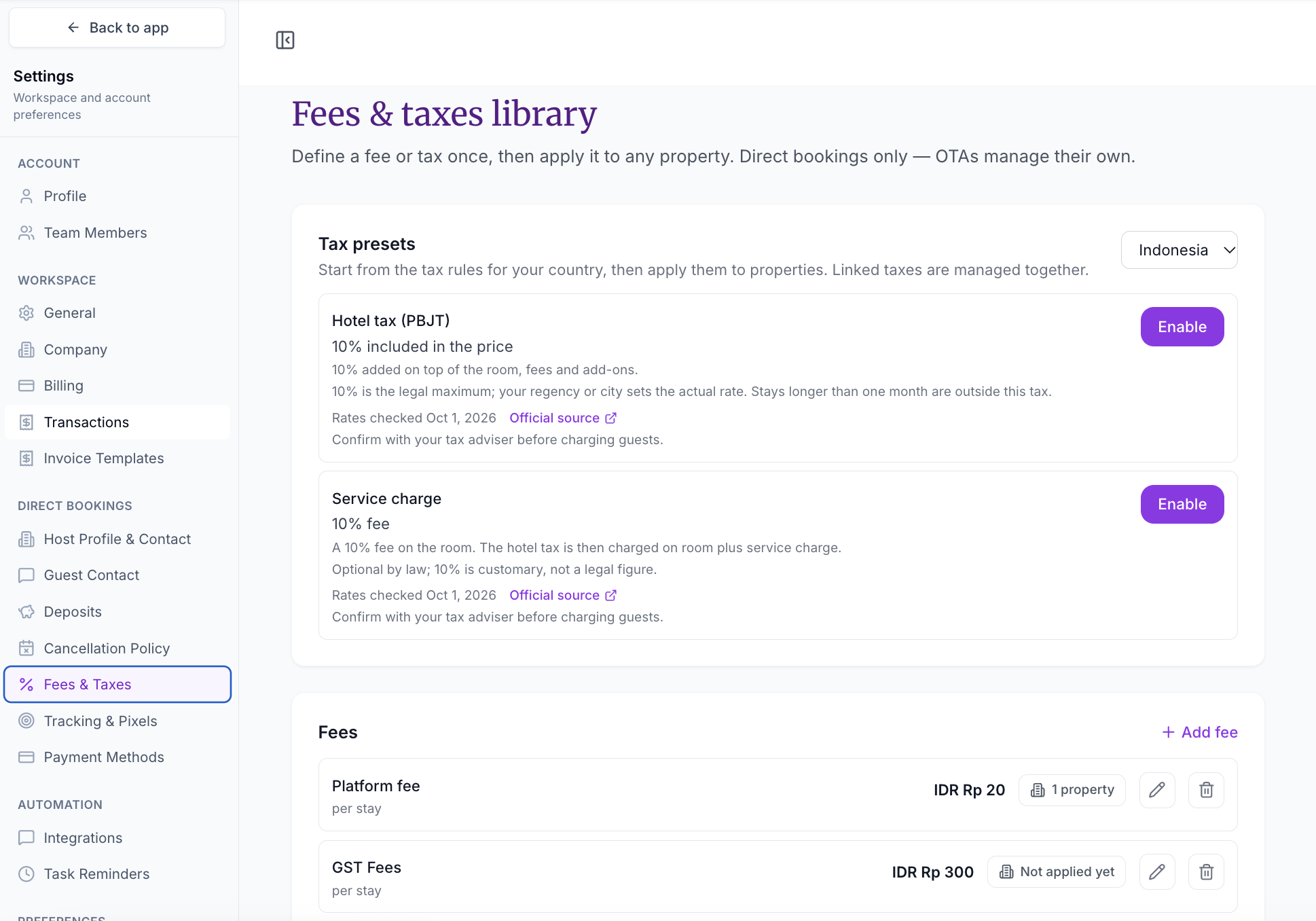
Go to Settings. In the left menu, under DIRECT BOOKINGS, click Fees & Taxes.
The Fees & taxes library page opens.
Step 2: Start from a Tax Preset (Optional)
The Tax presets card lets you start from the tax rules for your country, then apply them to properties. Linked taxes are managed together.
- Select your country in the dropdown at the top right of the card.
- Read each preset. Each one shows its name, its rate, a short description, the date the rates were checked (for example, Rates checked Oct 1, 2026), and an Official source link.
- Click Enable on each preset you want to use.
The presets you see depend on the country you select. For example, with Indonesia selected, the presets are Hotel tax (PBJT) and Service charge.
Open the Official source link to check the rules yourself, and confirm with your tax adviser before charging guests.
Step 3: Manage Your Fees
The Fees card lists every fee in your library. Each row shows:
- The fee name, such as Platform fee
- How often it is charged, such as per stay
- The amount, such as IDR Rp 20
- How many properties it is applied to, such as 1 property, or Not applied yet
- An edit (pencil) icon and a delete (bin) icon
To create a new fee, click + Add fee. To change or remove a fee, use the edit or delete icon on its row.
Step 4: Manage Your Taxes
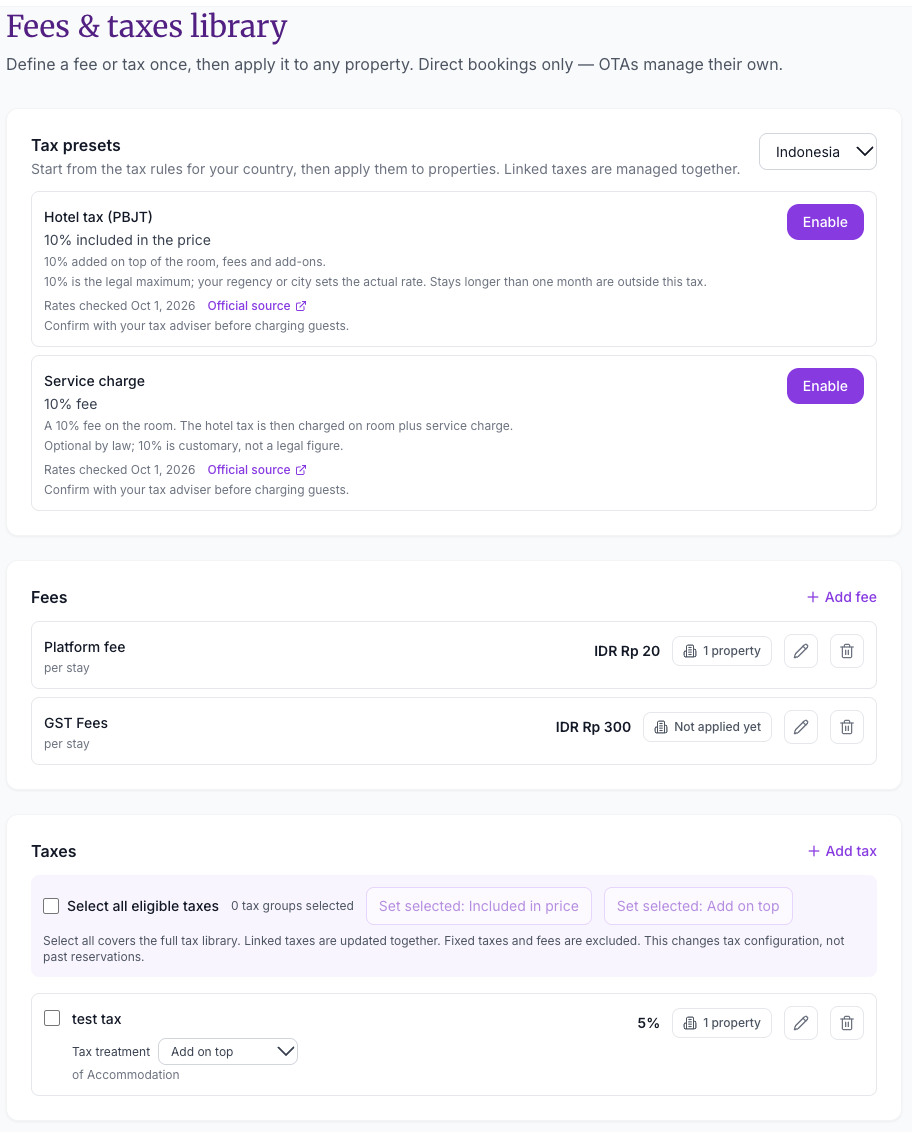
The Taxes card lists every tax in your library. Each row shows:
- A checkbox to select the tax
- The tax name, such as test tax
- A Tax treatment dropdown, such as Add on top, with what the tax is charged on, such as of Accommodation
- The rate, such as 5%
- How many properties it is applied to
- An edit (pencil) icon and a delete (bin) icon
To create a new tax, click + Add tax.
Included in Price or Add on Top
The tax treatment decides how a tax relates to the price:
- Included in price: the tax is part of the price shown.
- Add on top: the tax is added to the price.
Change the Treatment for Several Taxes at Once
- Tick the checkbox next to each tax you want to change, or tick Select all eligible taxes. The bar shows how many tax groups are selected.
- Click Set selected: Included in price or Set selected: Add on top.
Keep in mind:
- Select all covers the full tax library.
- Linked taxes are updated together.
- Fixed taxes and fees are excluded.
- This changes your tax configuration, not past reservations. To update existing reservations, use the next step.
Step 5: Apply Taxes to Existing Reservations
Use the Apply taxes to existing reservations card to add taxes to direct reservations you already have.
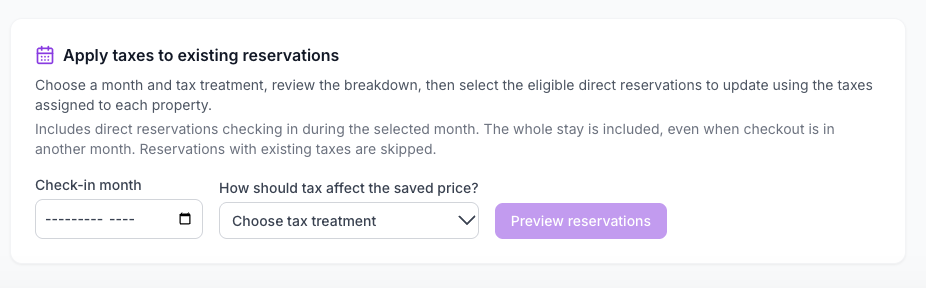
- Choose a Check-in month.
- In How should tax affect the saved price?, choose a tax treatment.
- Click Preview reservations.
- Review the breakdown.
- Select the eligible direct reservations to update.
The reservations are updated using the taxes assigned to each property.
Which reservations are included:
- Direct reservations checking in during the selected month.
- The whole stay is included, even when checkout is in another month.
- Reservations with existing taxes are skipped.
Troubleshooting
My OTA Bookings Do Not Show These Fees or Taxes
The Fees & taxes library applies to direct bookings only. OTAs manage their own fees and taxes.
I Changed the Tax Treatment but Old Reservations Did Not Change
Changing the treatment in the Taxes card changes your tax configuration, not past reservations. Use Apply taxes to existing reservations to update existing direct reservations.
A Reservation Was Not Updated
Reservations that already have taxes are skipped. Also check that the reservation is a direct booking and that its check-in date falls in the month you selected.
A Fee Shows Not Applied Yet
The fee is in your library but is not applied to any property yet.