
A direct booking is any reservation that did not come from an OTA such as Airbnb, Booking.com, Vrbo, Agoda, or Expedia.
Common examples include:
- a repeat guest booking by WhatsApp, phone, email, or Instagram
- a guest booking through your direct booking website
- a corporate, group, referral, or owner-introduced booking
- a guest who paid by bank transfer, cash, or another offline method
Direct bookings appear on the same calendar as OTA reservations. They block availability, can sync back to connected channels through your mapped channel manager setup, and can be tracked in Reservations, Messages, payment workflows, and reports.
Start From the Calendar
The fastest way to add a direct booking is from the property calendar.
- Click Calendars in the sidebar.
- Open the Properties calendar.
- Find the correct property row and check-in date.
- Click the available date cell.
- Choose New reservation.
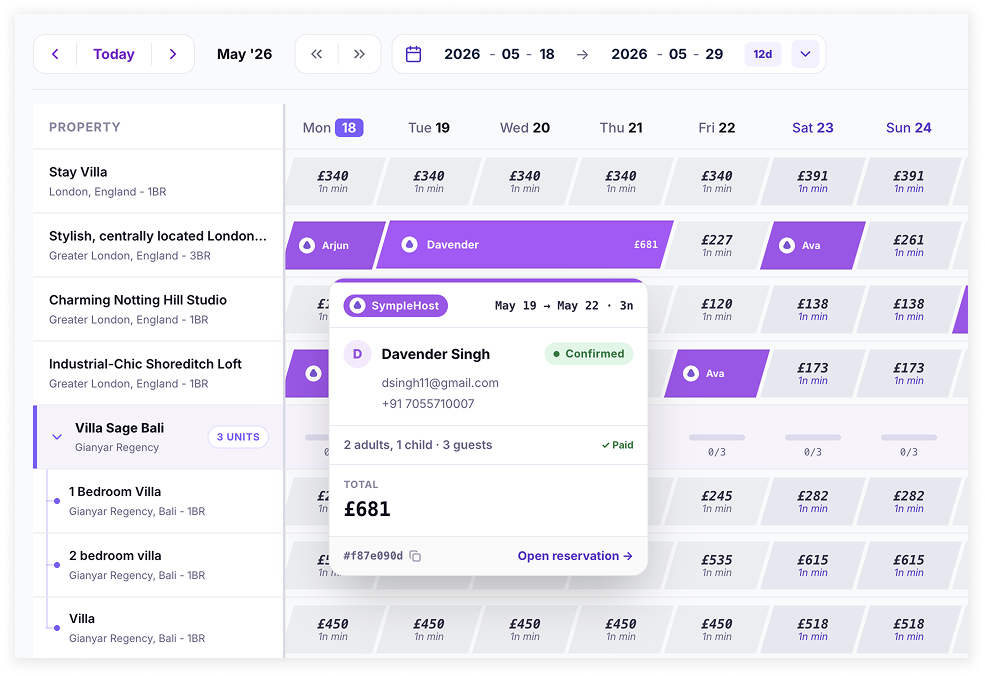
SympleHost opens the New reservation side panel. If you started from a calendar date, the property and check-in date are pre-filled. The check-out date starts from the property’s minimum-night rule, but you can change it before saving.
Complete the New Reservation Panel
Work through the panel from top to bottom.
| Section | What to check |
|---|---|
| Property | Confirm the listing is correct. If needed, choose another property. |
| Guest | Search for an existing guest or create a new guest. Contact details can be added if you have them. |
| Dates | Confirm check-in and check-out. SympleHost checks availability for the selected stay. |
| Guests | Enter adults and kids, staying within the listing capacity. |
| Pricing | Review the quoted stay amount. The quote uses the listing’s pricing rules where available. |
| Discount | Add a manual discount if you agreed one with the guest. |
| Notes | Add internal context, such as “repeat guest via WhatsApp” or “owner referral”. |
| Money received | Choose whether to create a payment-link flow or record money already received. |
If the dates are not available, the panel will show an availability warning. Change the dates or choose a different property before saving.
Choose the Payment Flow
Direct bookings are not paid through an OTA, so you need to decide how payment should be handled.
Create Reservation and Send a Payment Link
Leave Money received off if the guest still needs to pay online.
When you save, SympleHost creates the reservation as a direct booking with payment pending. Use this when:
- the guest has confirmed but has not paid yet
- you want to send or manage payment separately
- your team needs the dates held while payment is collected
Record Money Already Received
Choose Record money received if the guest has already paid by cash, bank transfer, or another offline method.
You can record:
- a full stay payment
- a partial payment or deposit
- the payment method, such as cash, bank transfer, or other
- an optional security deposit held separately from the stay total
SympleHost also suggests a deposit amount based on the quoted stay total. You can use the suggestion or enter your own amount.
Security deposits are tracked separately from the accommodation total. Use the security deposit option when you have collected money that may later be released or deducted after checkout.
Save and Check the Booking
Before saving, check the summary at the bottom of the side panel. It shows whether the reservation is ready to create and, when relevant, what payment or deposit will be recorded.
After saving:
- the direct booking appears on the calendar
- the dates are held so they cannot be double-booked in SympleHost
- connected and mapped channels receive the updated availability through the channel manager sync
- the reservation appears in the Reservations module
- recorded payments and security deposits appear in the reservation payment activity
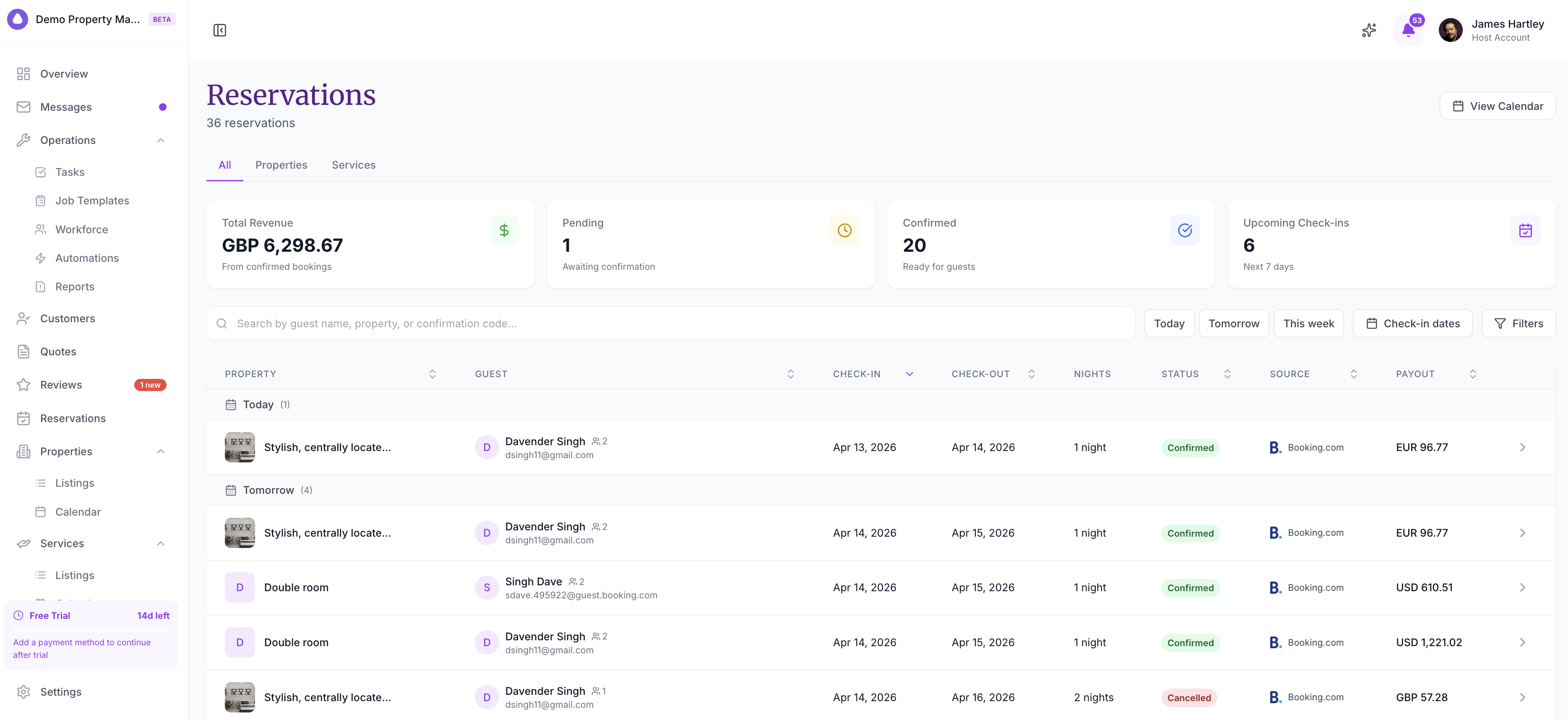
If the reservation is created but payment recording fails, the reservation still stays in SympleHost. Open the reservation detail page and record the payment from there.
Confirm a Direct Booking
A new direct reservation usually starts as Pending.
Open the booking from Calendars or Reservations. Depending on the booking status, payment state, and your permissions, you may see:
- Confirm Reservation — confirm an eligible direct reservation, record the outstanding payment, and send the guest confirmation email.
- Mark Deposit Paid — record the deposit and hold the dates without confirming the reservation or emailing the guest.
- Record payment — add a cash, bank transfer, or other offline payment.
- Release deposit — return or deduct a held security deposit.
- Message guest — open the linked guest conversation.
Payment and deposit actions are mainly for direct/SympleHost reservations. OTA reservations usually follow the OTA’s payment and modification rules.
Direct Booking vs OTA Booking
| Detail | Direct booking | OTA booking |
|---|---|---|
| Source | Created by your team or direct website | Created by Airbnb, Booking.com, Vrbo, Agoda, Expedia, or another connected channel |
| Payment | You collect it, record it, or send a payment link | OTA or channel payment rules usually apply |
| Guest contact | Usually full guest details | May be masked or limited by the OTA |
| Commission | No OTA commission | OTA commission or service fee may apply |
| Availability | Blocks SympleHost calendar and syncs mapped channels | Enters SympleHost through the connected channel sync |
| Cancellation rules | Your direct booking policy | OTA cancellation policy usually applies |
| Messaging | Email, WhatsApp, Messenger, Instagram, Gmail, LINE, or another direct channel where connected | OTA messaging where supported |
Good Habits
- Add the reservation as soon as the guest confirms, even if payment is still pending.
- Put the source in notes, such as “repeat guest via WhatsApp”.
- Record payment method clearly for finance and reporting.
- Use the security deposit field only for deposit money that should be held separately from the stay total.
- Check the calendar after saving to confirm the correct dates are blocked.
- Open the reservation after saving if you need to review payment activity, guest details, or the full booking timeline.
Troubleshooting
I cannot create the reservation
Check that the listing is active, the dates are available, the check-out date is after check-in, and your role can create reservations.
The dates are not available
There may already be a booking, block, restriction, linked calendar hold, or channel-synced unavailable date. Check the calendar row and blocked-date details before overriding anything.
The payment link option is unavailable
Check your payment gateway setup from the top-right profile menu, then Settings. If your payment integration is not connected, record offline payments manually until setup is complete.
I recorded payment but it did not attach
Open the reservation detail page and record the payment again from there. The reservation is not removed if the follow-up payment recording step fails.
I only need to hold dates without a guest
Use Block day from the calendar instead of creating a direct booking.