What the Website Module Does
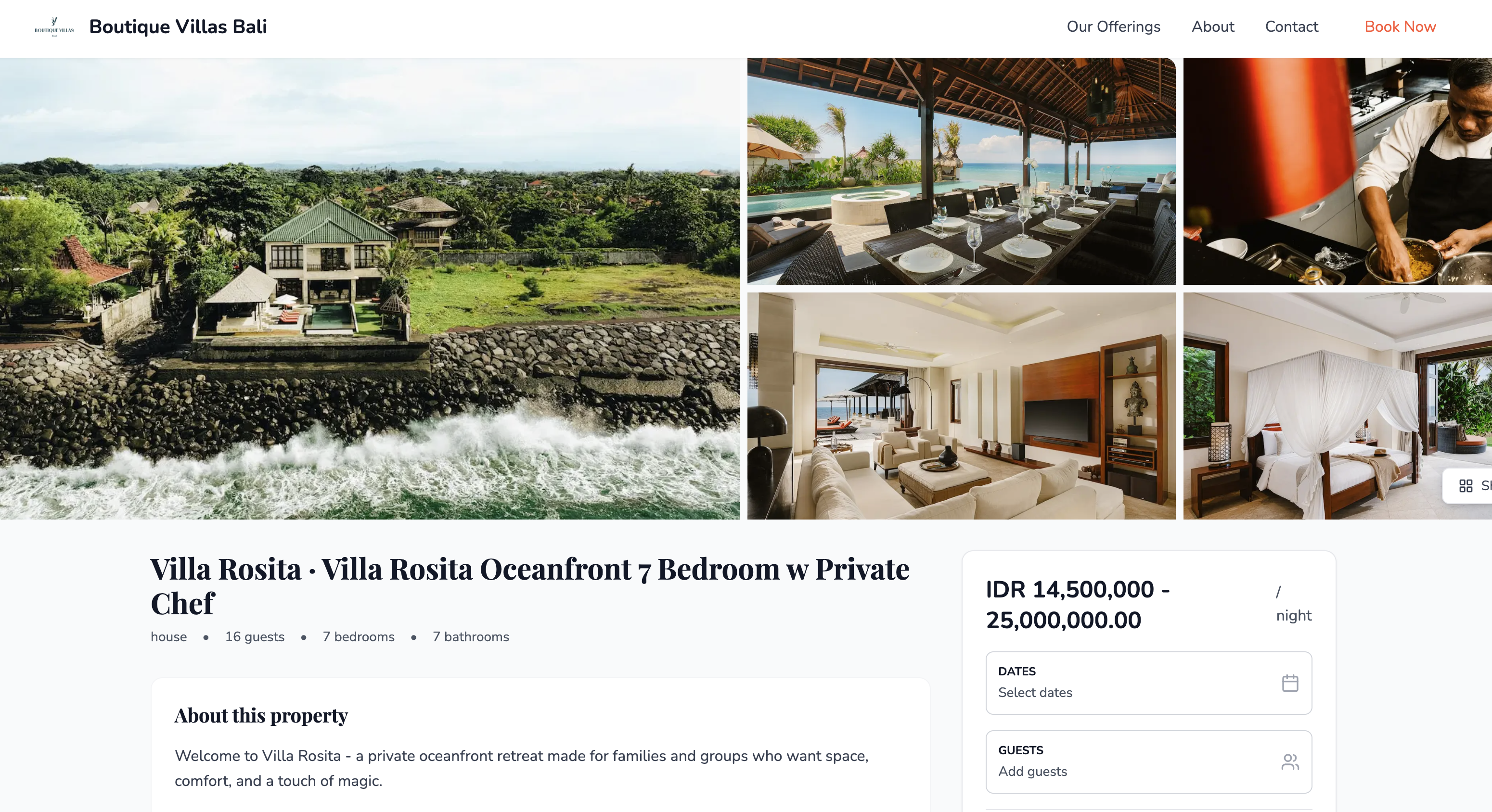
The Websites module helps you create a guest-facing direct booking website from the content already inside SympleHost. You can feature listings, services, tours, experiences, direct booking checkout pages, and brand information without building a separate site from scratch.
Use this when you want guests to:
- Browse your properties or services from one branded website.
- Book directly instead of only through OTAs.
- See your logo, photos, business description, contact details, FAQs, and social links.
- Pay through SympleHost checkout when payments and direct booking settings are ready.
If you do not see Websites in the left sidebar, the module may not be enabled for your account yet.
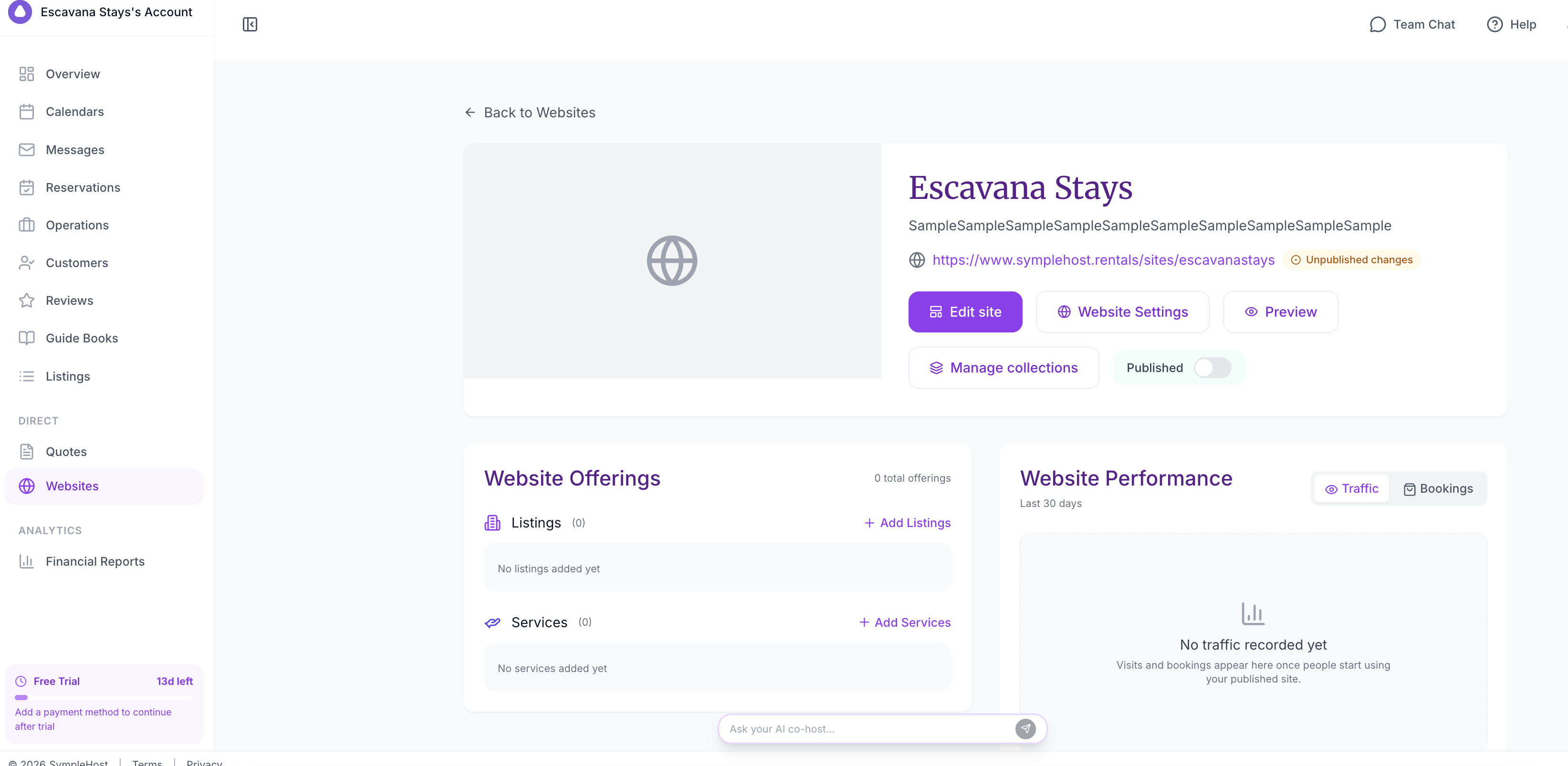
Before You Start
Prepare these items first:
| Item | Why It Matters |
|---|---|
| Listings or services | Your website needs at least one property or service to show. |
| Direct booking enabled | Selected listings and services must be published and available for direct booking before guests can book them. |
| Payment gateway | Connect Stripe or your available payment gateway if you want guests to pay online. |
| Brand assets | Logo, hero image, gallery images, brand colours, and a short description. |
| Domain choice | Choose a short, memorable SympleHost subdomain for your public website. |
You can save a draft while you are still collecting content. Publish only when the website, offerings, payments, and booking rules are ready.
Create the Website
- Open Websites from the left sidebar.
- Click Create Website.
- Follow the setup wizard.
The setup flow walks you through:
| Step | What You Add |
|---|---|
| Business information | Business name, tagline, description, logo, hero image, and gallery images. |
| Content selection | Listings and services you want to feature. |
| Template and style | Website template, colours, and fonts. |
| Subdomain | Your public SympleHost website address. |
| Review and publish | Final checks before the website goes live. |
Add Business Information
Use this step to explain who you are and what guests can book with you.
Add:
- Business name: The name guests should see in the website header.
- Tagline: A short phrase that explains your offer.
- Description: A clear introduction to your brand, location, property type, or services.
- Logo: PNG or JPG, up to 2 MB.
- Hero image: The main image used to introduce the website.
- Gallery images: Up to 5 supporting images.
Keep the description practical. Mention the destination, style of stays or services, and why guests should book directly.
Choose Listings and Services
Select the properties and services you want to display on the website.
Important: a listing or service may appear in the admin setup, but it still needs to be ready for direct booking before guests can book it publicly. If a selected item is not published, inactive, archived, or direct booking is disabled, SympleHost will stop you from publishing or show it as unavailable.
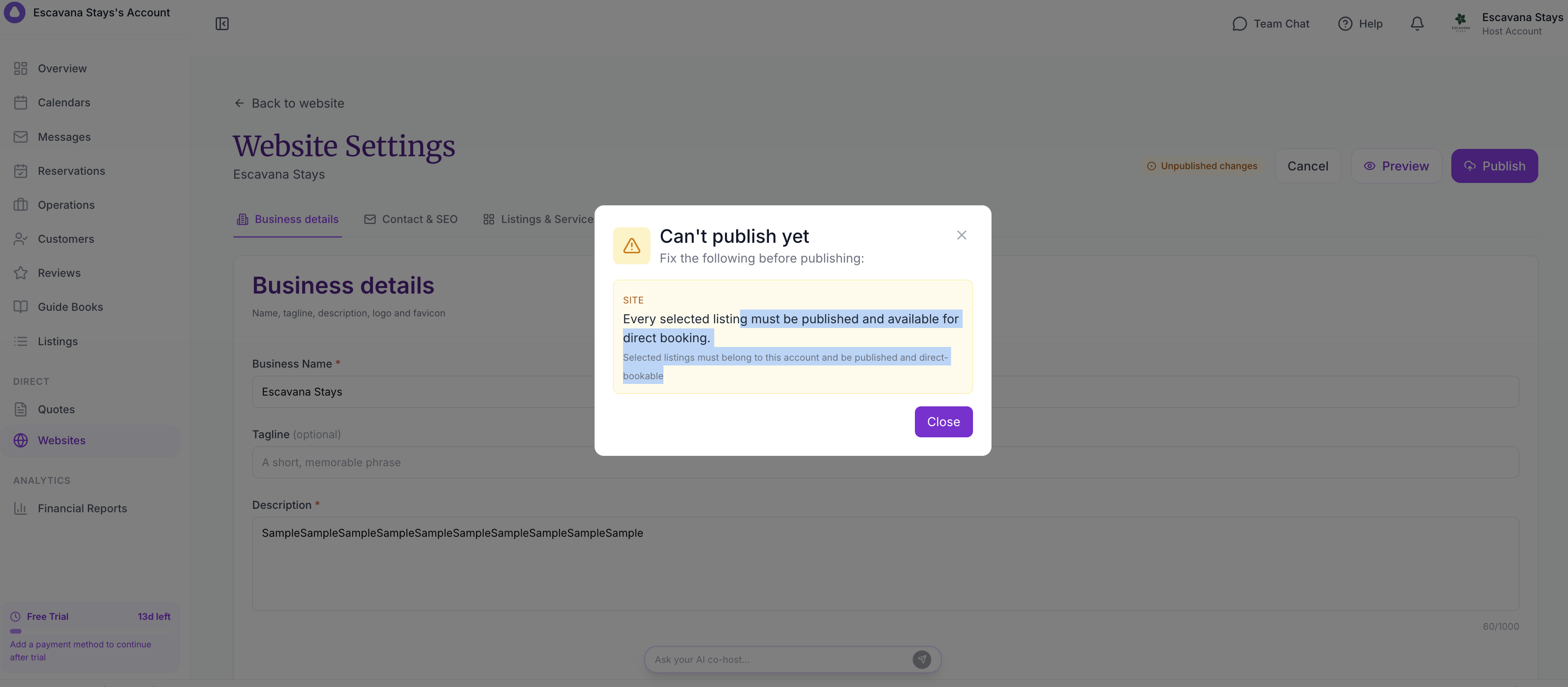
Use this check:
| If You Want To Sell | Check This First |
|---|---|
| A property stay | Listing is active, not archived, priced, available, and direct booking is enabled. |
| A service or tour | Service is published, has pricing, availability, and direct booking enabled. |
| Online payment | Payment gateway is connected and checkout settings are complete. |
Select Template and Style
Choose the template that best matches what you sell.
Then adjust:
- Accent, background, and text colours.
- Heading font and body font.
- The overall look of your guest-facing pages.
Pick a template based on the guest journey. For example, a villa portfolio needs strong imagery and property cards, while a tour or experience business may need service cards and clear booking paths.
Choose a Subdomain
Your subdomain becomes the public address for the website.
Subdomain rules:
- Use lowercase letters, numbers, and hyphens.
- Start and end with a letter or number.
- Use 3 to 63 characters.
- Avoid double hyphens.
- Avoid reserved words such as
admin,support,checkout,app, orhelp.
Choose something guests can recognise easily, such as your business name or destination brand. The subdomain is checked for availability before you publish.
Review and Publish
Before publishing, confirm:
- Business name and description are complete.
- At least one listing or service is selected.
- Selected offerings are published and direct-bookable.
- Logo, hero image, and gallery images look correct.
- Subdomain is available.
- Payment and direct booking settings are ready.
Click Publish when everything is ready.
After publishing, open the public website in a new tab and test the guest journey from homepage to checkout.