
When to Use Website Settings
Use Website Settings when you already have a website and want to update what guests see before they book.
From Websites, open the website, then click Website Settings or Edit site.
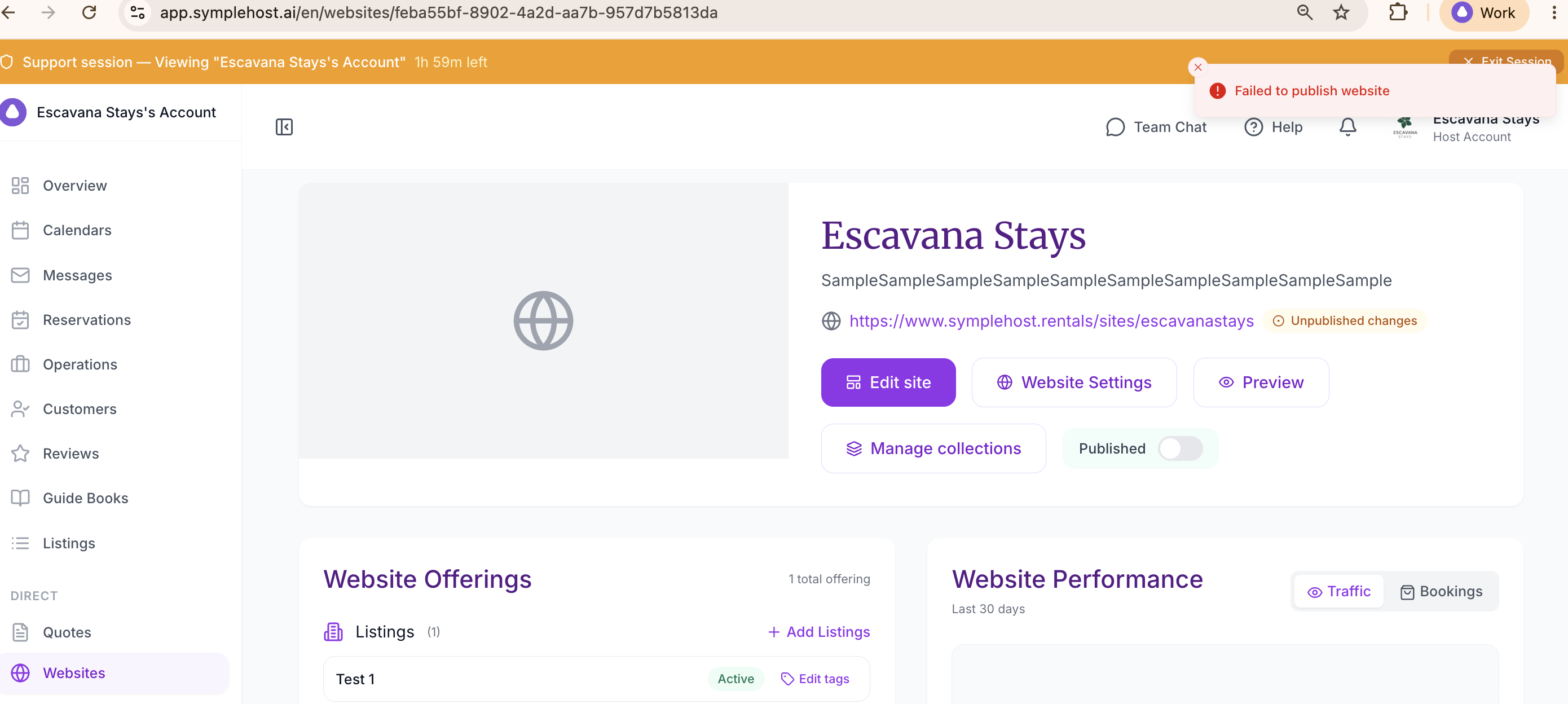
The editor is organised into sections so you can change one part of the website without rebuilding the whole site.
Business Details
Use Business details for the main guest-facing identity of the site.
Update:
- Business name.
- Tagline.
- Description.
- Logo.
- Hero image.
- Gallery images.
Use the hero image for the strongest first impression. Use gallery images to show property quality, guest experience, views, interiors, amenities, or services.
Contact and SEO
Use Contact & SEO to control how guests contact you and how the page appears when shared or indexed.
Update:
| Field | Use It For |
|---|---|
| Contact email | Guest enquiries and direct communication. |
| Contact phone | Phone or WhatsApp contact if you want guests to reach you directly. |
| Address | Business or destination location details. |
| Social links | Instagram, Facebook, X, LinkedIn, YouTube, TikTok, or website links. |
| SEO title | The page title shown in browser tabs and search previews. Keep it under about 70 characters. |
| SEO description | The summary shown in search previews. Keep it under about 160 characters. |
| GA4 Measurement ID | Google Analytics tracking ID, usually starting with G-. |
| FAQs | Common guest questions and answers shown on the website. |
Good FAQs reduce manual messages. Add questions about check-in, payment, cancellation, location, transport, house rules, services, and what is included.
Listings and Services
Use Listings & Services or Website Offerings to choose what appears on the website.
You can add:
- Listings, such as villas, apartments, hotels, or guesthouses.
- Services, such as airport transfers, private chefs, tours, equipment rental, or experiences.
Before publishing, make sure each selected item is:
- Active or published.
- Available for direct booking.
- Priced correctly.
- Connected to the right availability and booking rules.
If an item is not ready, guests may not be able to book it even if it appears in your internal setup.
Design
Use Design to adjust the visual style.
You can update:
- Website template.
- Accent colour.
- Background colour.
- Text colour.
- Heading font.
- Body font.
Use colours and fonts that match your brand and property type. For luxury villas, keep the design calm and image-led. For tours or experiences, make the call to book clear and easy to find.
Domain
Use Domain to view or change the website subdomain.
The subdomain is your public SympleHost website address. It is locked after publishing so it is not changed by accident. Owner or account admin access may be required to unlock and change it.
For custom domain requirements, speak with SympleHost support so the team can confirm what is available for your account.
Preview Before Publishing
Use Preview before publishing changes. Check:
- Logo and hero image are not stretched or cropped badly.
- The booking button is easy to find.
- Listings and services shown are the right ones.
- Prices, availability, and checkout pages are correct.
- Contact details, social links, and FAQs are accurate.
If there are unpublished changes, publish once you are comfortable with the live version.