
What Is a Manual Reservation?
A manual reservation is a booking you create yourself in SympleHost instead of waiting for it to arrive from an OTA or direct booking website.
Create one when:
- a repeat guest books by phone, email, WhatsApp, Instagram, or Messenger
- a guest pays by bank transfer, cash, or another offline method
- you need to hold dates while payment is being arranged
- you want the stay to appear on the calendar and in reports
Use Block day instead of a reservation when the dates are unavailable for maintenance, owner use, or an internal hold with no guest attached.
Before You Start
Make sure you have:
- at least one active listing
- pricing configured for the listing
- a payment gateway connected if you want to send payment links or collect online payment
- permission to manage reservations
- the guest’s name and contact details if you want to message them from SympleHost
- a clear payment decision: payment link, payment already received, deposit only, or hold dates while payment is pending
For setup help, see How to Set Up Your Pricing & Rate Rules and How to Set Up Payments.
Create a Reservation from the Calendar
- Click Calendars in the sidebar.
- Open the Properties tab.
- Find the listing row and click the guest’s check-in date.
- Choose New reservation from the date popover.
- Confirm the listing and check-in date.
- Set the check-out date. SympleHost starts from the listing’s minimum-night rule.
- Search for an existing guest or create a new customer.
- Add adults, children, notes, and any required booking details.
- Review the calculated price.
- Add a discount or adjustment if needed.
- Choose whether money has already been received.
- Save the reservation.
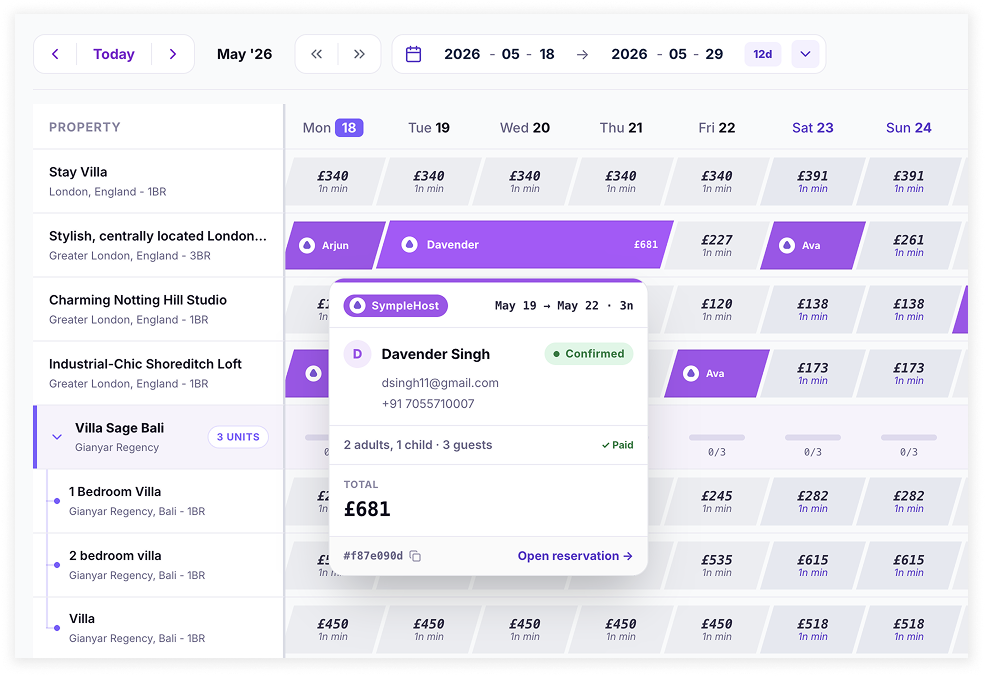
The reservation appears on the calendar immediately and is created as a pending booking until it is confirmed or payment status is updated.
Record Payment While Creating the Reservation
If the guest already paid outside SympleHost, record it during reservation creation so the booking does not sit in an unclear payment state.
You can record:
- full stay payment
- partial payment or deposit
- payment method, such as bank transfer, cash, or other
- security deposit held separately from the stay total
If you leave Money received off, SympleHost creates the reservation without recording payment. Use this when you want to send/manage a payment link or when the team needs to hold the dates while payment is still being arranged.
If the reservation saves but the payment record fails, open the reservation detail page and record the payment from there. The booking itself is still created.
Confirm the Reservation
After creating a pending reservation, open it from the calendar or Reservations.
Only use Confirm Reservation when the booking is genuinely ready to operate as a confirmed stay. In practice, that usually means you have received the required payment, approved the booking internally, or intentionally decided to confirm before collecting the balance.
This matters because a pending reservation is not treated the same as a confirmed stay. If you do not confirm the booking, guest-facing workflows that depend on confirmed reservations, including automated guest messages, may not fire. Confirming is the step that tells SympleHost the stay is ready for the normal confirmed-booking workflow.
Depending on the payment state and your permissions, you may see:
- Confirm Reservation — records the outstanding balance, confirms the reservation, and sends the confirmation email to the guest.
- Mark Deposit Paid — records the deposit and holds the dates without confirming or emailing the guest.
- Record payment — records cash, bank transfer, or another offline payment.
- Release deposit — manages a held security deposit after the stay.
If you have received the payment needed to proceed, confirm the booking after recording it. If you only want to hold dates while waiting for payment, leave it pending and follow up with the guest.
For more detail, see How to Check Reservations in the Reservations Module.
Where to Find the Reservation Later
Use:
- Calendars for a date-based view of the booking.
- Reservations for the full booking record, filters, payment history, guest information, and activity timeline.
- Overview for upcoming check-ins, check-outs, unread messages, open tasks, and new reservations.
Manual Reservation vs Direct Booking
In practice, most manual reservations are direct bookings. The difference is mainly how they enter SympleHost.
| Type | How it enters SympleHost | Best next action |
|---|---|---|
| Manual reservation | You create it yourself from the calendar | Confirm, record payment, and message the guest |
| Direct website booking | Guest books through your SympleHost direct booking page | Review payment and guest details in Reservations |
| OTA booking | Airbnb, Booking.com, Expedia, Agoda, VRBO, or another OTA syncs it in | Check channel details and message through the connected channel |
| Block | You block the dates without a guest | Use Block day, not New reservation |
Troubleshooting
The date is not available
Check for an existing booking, manual block, linked calendar block, or OTA/channel sync block. If the date is blocked by a channel or linked calendar, it may be re-blocked during the next sync.
The price looks wrong
Review the listing’s base rate, rate plans, custom calendar rates, length-of-stay discounts, fees, taxes, and deposit/payment settings.
I cannot record payment
Payment actions depend on your role, payment gateway setup, and the reservation source. Direct/SympleHost reservations support more manual payment actions than OTA reservations.
Automated guest messages did not send
Check whether the reservation is still pending. Automated guest messages that are designed for confirmed stays may not send until the booking is confirmed.
I created the booking on the wrong dates
Open the reservation detail page and edit the dates if the action is available. SympleHost will warn you if the new dates conflict with another booking or block.