
Connect an existing Agoda property to SympleHost by approving Channex.io as its connectivity provider, copying its Property ID, and completing the connection and mapping flow in Channel Manager.
Before You Start
Have the following ready:
- Access to the property in Agoda YCS, with permission to manage its connectivity provider.
- The matching property in SympleHost, with its Number of units and pricing set up.
- The Agoda rooms and rate plans you want to connect.
If the property does not exist in SympleHost yet, add it manually or import it from Airbnb. For a guesthouse or boutique hotel that is one standalone property with several rooms, set the Number of units when you create the listing — the calendar handles that inventory. See Setting Up a Guesthouse or Boutique Hotel with Several Rooms.
Step 1: Add Channex.io as Your Connectivity Provider
Sign in to Agoda Partner Portal (formerly YCS) and select your property. The menu depends on the property type.
If Agoda Lists Your Property as a Hotel or Multi-Room Home
- Open Property → Property settings. Older YCS screens use Settings → Property Settings.
- Open Optional Settings.
- Enable Channel manager mode.
- Choose Channex in the provider dropdown and click Save.
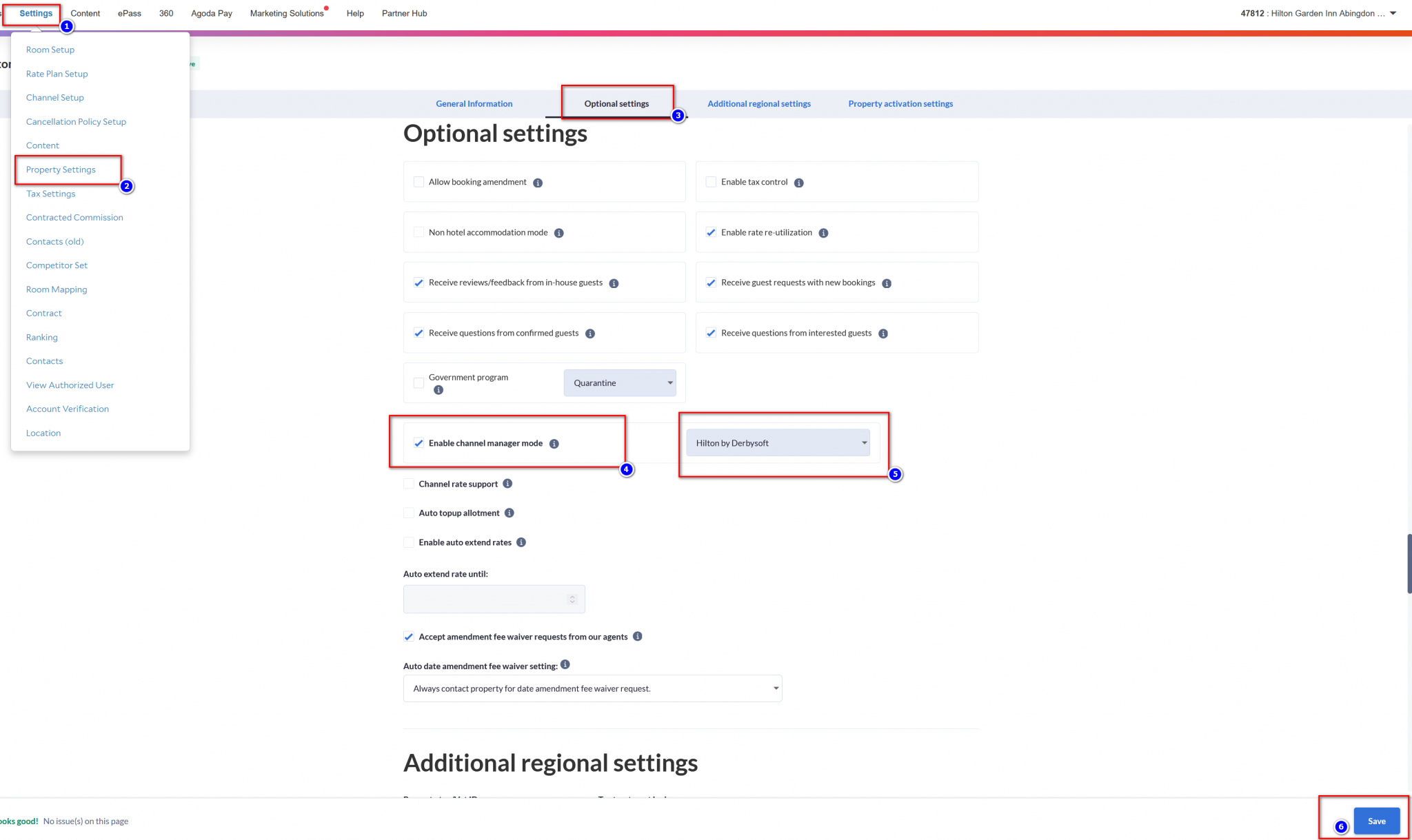
This reference screenshot shows the older YCS layout and an example provider. Select Channex, not the provider shown in the image. Screenshot: Channex’s Agoda guide.
If Agoda Lists Your Property as a Single-Unit Home
- Open Rates and availability → Connectivity settings.
- Select Channel manager.
- Choose Channex and click Save.
Menu paths: Agoda’s official channel-manager instructions. If Channex is unavailable, ask Agoda support through the portal to help connect your property.
Step 2: Copy Your Property ID
Copy the Property ID displayed beside your property name at the top of Agoda Partner Portal or on Listings. Older YCS views may also display it in the property dropdown or URL. Copy the ID itself, not the full URL. See Agoda’s ID-finding instructions.
Use the identifier issued by Agoda for this property. A SympleHost listing ID, room ID, or reservation number will not identify the OTA property for this connection.
Step 3: Connect the Property in SympleHost
- Open Listings → Channel Managers.
- Click Connect OTA and choose Agoda.
- On Connect account, paste the value you copied into Property ID.
- Click Request connection.
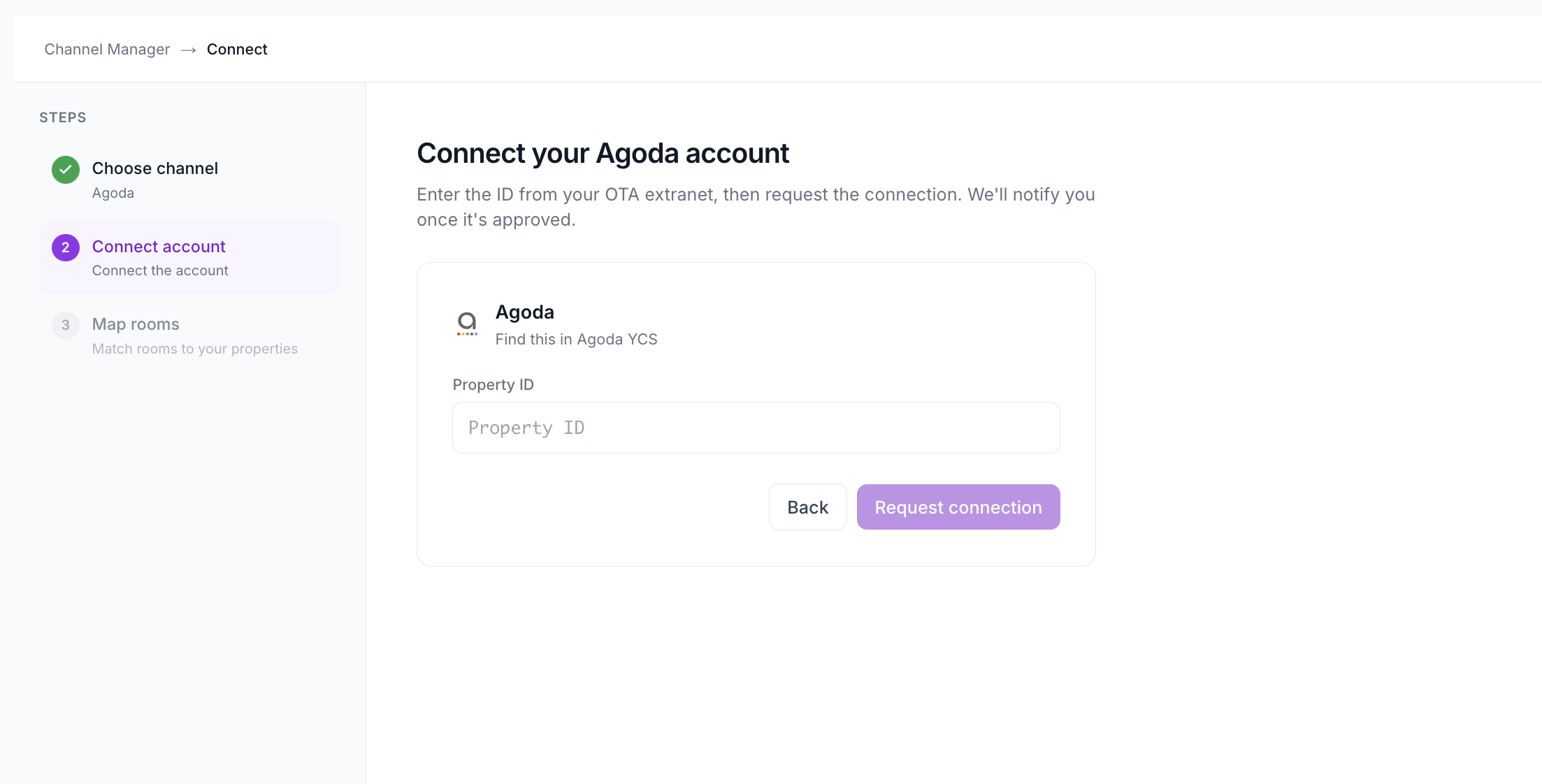
SympleHost will notify you once the connection is approved. After approval, open the connection and continue to Map rooms. Submitting the request does not mean your rooms are already mapped or syncing.
Step 4: Map Rooms and Rate Plans
Once the connection is approved, review the rooms and rate plans loaded from Agoda.
- Match each room you want to sell to the corresponding SympleHost listing.
- Select the appropriate SympleHost rate plan for each channel rate you are mapping.
- Review room names, occupancy, and rate-plan choices so each channel rate points to the intended accommodation and pricing.
- Save the mappings and complete the remaining setup prompts.
If the flow shows occupancy-based rates, review each occupancy and the primary selection used for restrictions. Avoid mapping different room types to the same SympleHost listing unless they genuinely share the same rooms and Number of units.
Step 5: Complete Sync and Check the Connection
- Complete the remaining sync setup for the mapped inventory.
- Return to Channel Manager and open the Agoda connection.
- Check its status and resolve any sync errors.
- Compare availability and rates for a sample date and room in SympleHost and Agoda, using the same guest count and rate plan.
An approved connection still needs correct mappings and a successful sync. Check all three before relying on the channel’s availability and prices.
Set a Markup for Agoda
To set or change a markup for Agoda, follow How to Set Markups for All OTAs. It has the current steps, screenshots, and example calculations.
A markup applies to one listing on one channel. Review each mapped room or listing separately.
Troubleshooting
The Connection Is Pending or Cannot Be Approved
Confirm that Channex.io is approved for the correct property in Agoda YCS. Recheck the Property ID and make sure any previous provider change is complete.
No Rooms or Rate Plans Appear
Confirm that the identifier belongs to the intended property and that its rooms and rate plans exist in Agoda. Check provider approval, then retry loading the connection.
I Cannot Find the Matching SympleHost Listing
Check that the property has been created in SympleHost with the correct Number of units. Finish its pricing setup before returning to the mapping step.
Prices or Availability Do Not Match
Check room and rate-plan mappings, the applicable calendar pricing, channel markup, and sync status. Compare the same dates and guest count, accounting for channel promotions, fees, and taxes.