
SympleHost brings your booking channels into one Channel Manager so you can manage inventory mappings, availability, rates, and connection health from one place.
For most hosts, Airbnb should be the first connection. Airbnb can import an existing listing as a new SympleHost property. After the property exists, connect Booking.com, VRBO, Expedia, Agoda, MakeMyTrip, Trip.com, and other supported platforms by mapping their rooms and rates to that property.
Step-by-Step OTA Connection Guides
For these channels, approve Channex.io as the connectivity provider in the OTA account, then copy the hotel’s or property’s identifier into the SympleHost connection flow:
For VRBO, see How to Connect VRBO to SympleHost — it uses your VRBO login and a verification code.
After connecting, use How to Set Markups for All OTAs to adjust each channel’s prices.
Choose the Right Starting Point
| Your current setup | Best path |
|---|---|
| You already list on Airbnb | Connect Airbnb first and import the listing into SympleHost. |
| The property already exists in SympleHost and Airbnb | Connect Airbnb, then choose Map instead of creating a duplicate property. |
| You start with Booking.com | Create the property in SympleHost, approve Channex.io in the Booking.com Extranet, then connect the Hotel ID and map rooms. |
| You run a direct-booking-only business | Add the property manually, then set up pricing, payments, and direct booking. |
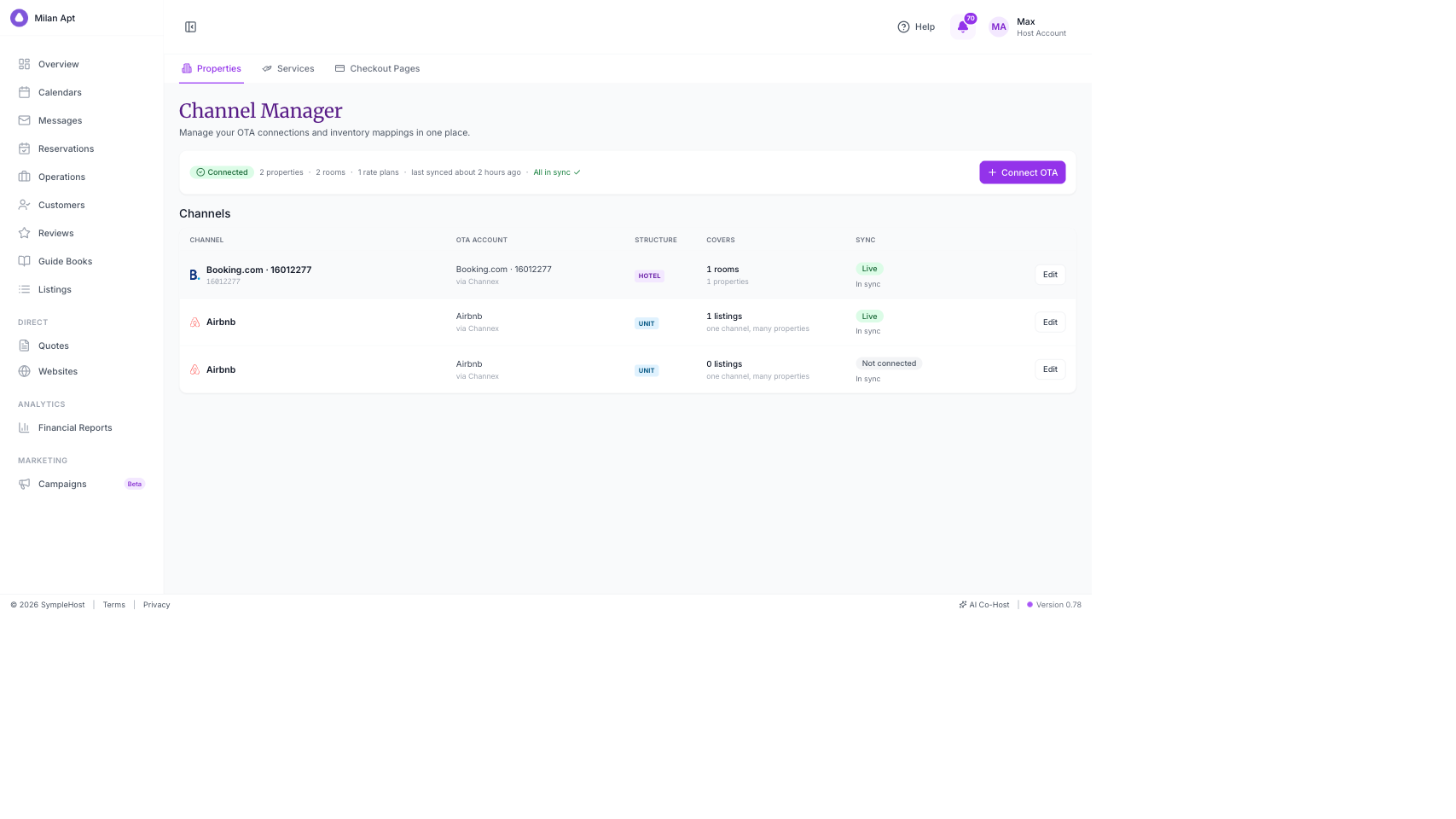
Open Channel Manager
- Click Listings in the sidebar.
- Open Channel Managers above the property list.
- Review existing channel accounts, the properties and rooms they cover, and their sync status.
- Click Connect OTA.
The connection wizard shows each supported platform and the type of information it needs.
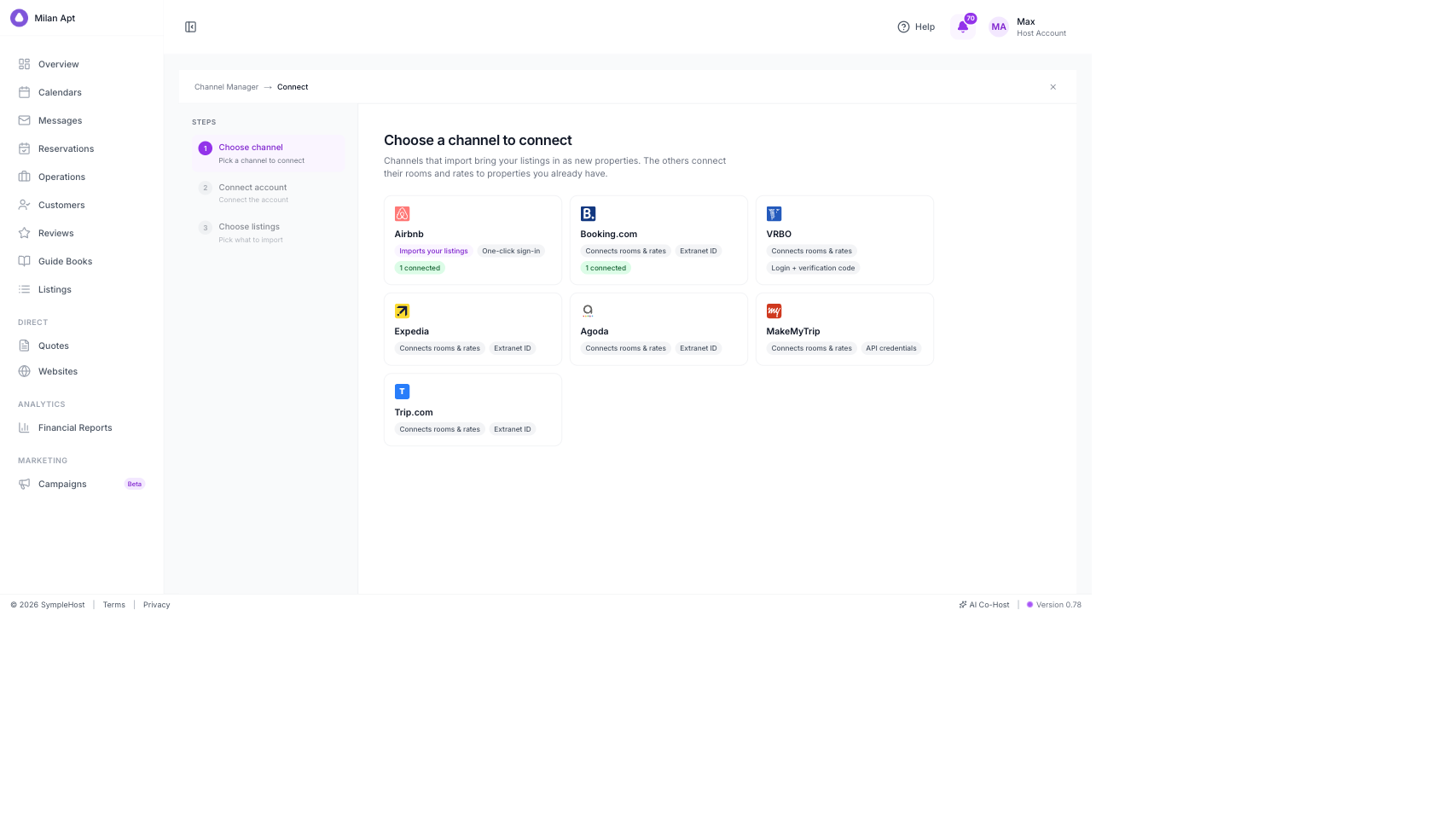
| Platform | Connection method | What happens next |
|---|---|---|
| Airbnb | One-click sign-in | Import or map Airbnb listings. |
| Booking.com | Hotel ID from the Extranet | Request the connection, then map rooms. |
| VRBO | Login and verification code | Connect the account, then map listings. |
| Expedia | Extranet ID | Connect the property, then map rooms and rates. |
| Agoda | Extranet ID | Connect the property, then map rooms and rates. |
| MakeMyTrip | API credentials | Authorize the account, then map inventory. |
| Trip.com | Extranet ID | Connect the property, then map rooms and rates. |
Connect Airbnb First
Step 1: Choose Airbnb
- Open Listings → Channel Managers.
- Click Connect OTA.
- Select Airbnb.
Airbnb is the recommended first connection because SympleHost can use it to create the initial property record rather than making you enter the same listing information again.
Step 2: Connect or Choose an Airbnb Account
SympleHost shows Airbnb accounts already connected to the workspace.
- Choose Use this account when the correct Airbnb account is already present.
- Choose Connect another account to sign in to a different Airbnb account.
- Choose Invite the owner when you manage the property but do not own the Airbnb account.
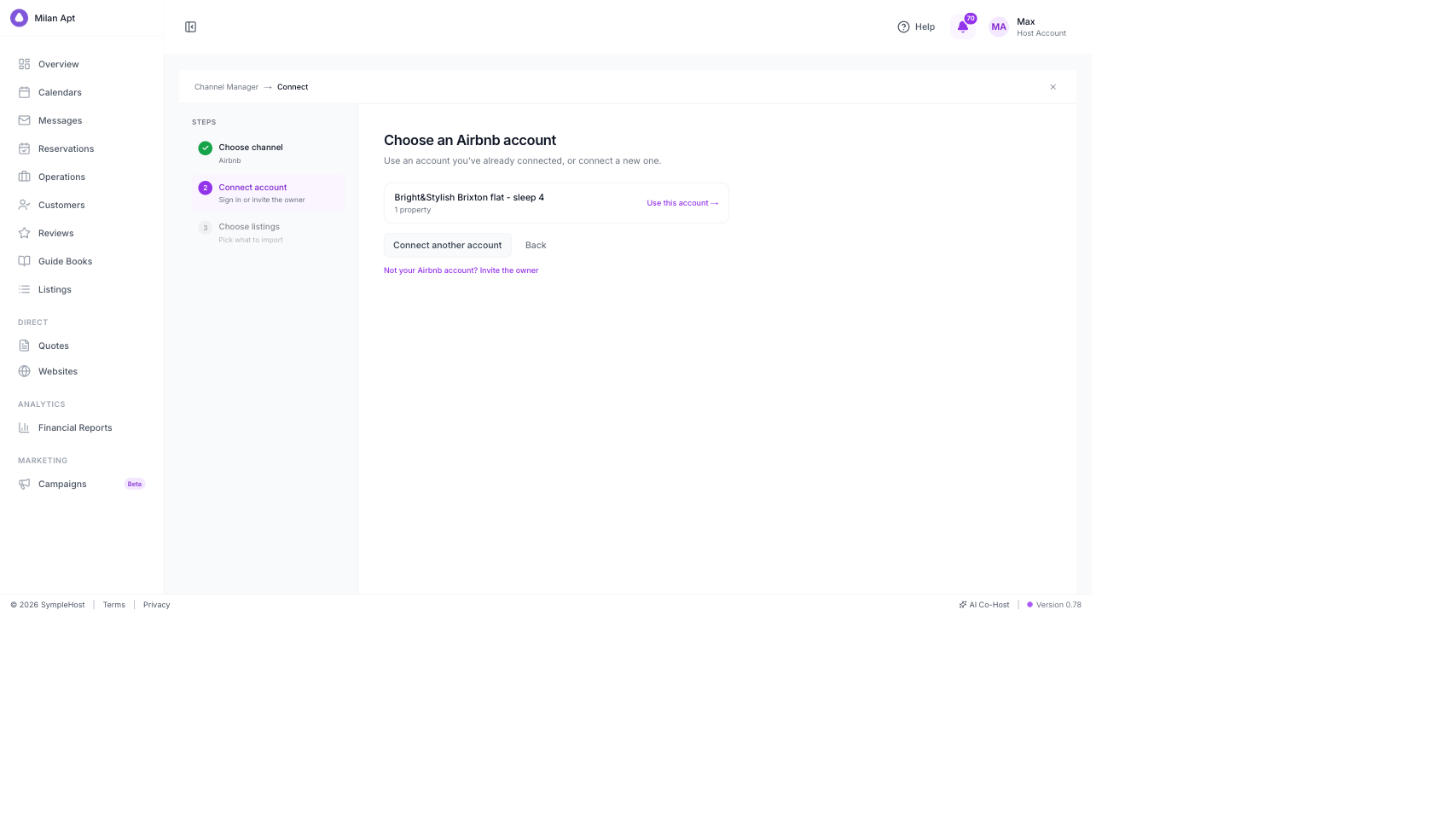
If you connect another account, complete Airbnb’s authorization screen in the popup. Sign in with the Airbnb account that owns or manages the listings and approve the requested access.
Step 3: Choose What to Do With Each Listing
SympleHost fetches the listings available in the connected Airbnb account. This can take up to a minute.
| Choice | Use it when |
|---|---|
| Import | The Airbnb listing does not exist in SympleHost. A new SympleHost property will be created. |
| Map | The same property already exists in SympleHost. Link Airbnb to the existing property instead of creating a duplicate. |
| Skip | You do not want to connect this Airbnb listing now, or it is already linked. |
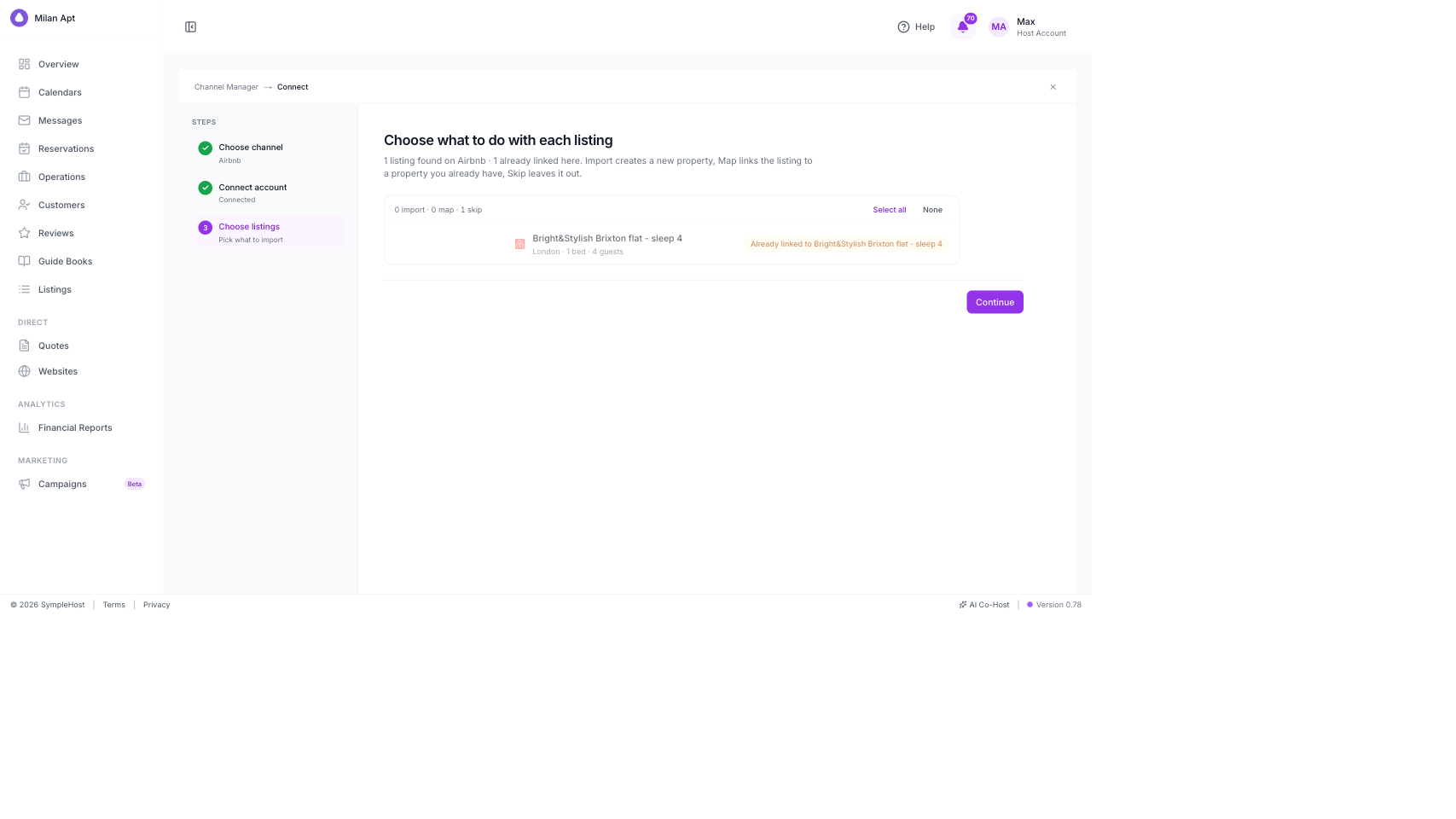
Review the totals for Import, Map, and Skip, then click Continue. Keep the tab open while SympleHost completes the setup.
Step 4: Follow the Import Progress
After you continue, SympleHost sets up each selected listing in the background. You can leave the import screen and continue using the platform.
During setup, progress can appear in several places:
| What you see | What it means | What to do |
|---|---|---|
| Importing X/Y in the top bar | SympleHost is still creating or linking listings. | Let the import continue. Click the indicator to open the affected properties. |
| Setting up on a property | That listing is moving through its setup steps. | Open the property to see its current step and progress. |
| Setting up X listings in Channel Manager | One or more listings under that channel connection are still being prepared. | You can continue working elsewhere and return later. |
| Import finished | Every listing in that import completed successfully. | Review the new properties, then dismiss the message when ready. |
| Needs attention or a red count | One or more listings stopped before setup completed. | Open the indicator or channel connection, select the affected listing, and review the failed step. |
These messages are temporary and only appear while a real import is running or needs attention, so your screen may move directly to the completed connection view.
Do not start the same import again just because setup is still in progress. Larger listings, or properties with several rooms, can take several minutes while SympleHost creates rooms, rate plans, availability, pricing, and channel mappings.
Give the first sync time to finish. SympleHost shows the setup status while it sends availability, rates, reservations, and restrictions between systems. During this initial sync, an OTA calendar may temporarily appear blocked or not yet show the latest availability. This is a protective state while the calendars reconcile, not necessarily a problem with the connection. Owner blocks can also take a little time to reach every connected channel. Wait until the listing changes from Setting up to Live / In sync, then refresh the OTA calendar and check again before changing mappings or reconnecting the account.
Step 5: Verify the Airbnb Connection
Return to Channel Manager and confirm:
- the Airbnb account shows Connected
- the expected property is covered
- the channel is Live
- the sync status is In sync
If a listing still shows Setting up, wait for it to finish before checking the final connection state. If it shows Needs attention, open that listing to identify the failed step before reconnecting the entire Airbnb account.
If you manage several owners, you can connect more than one Airbnb account. Keep each listing mapped to the correct SympleHost property.
Connect Booking.com
Booking.com connects differently from Airbnb. It does not create the SympleHost property through this flow. The property should already exist so Booking.com rooms can be mapped to it.
Step 1: Choose Channex.io in the Booking.com Extranet
Booking.com allows one connectivity provider at a time.
- Sign in to the Booking.com Extranet.
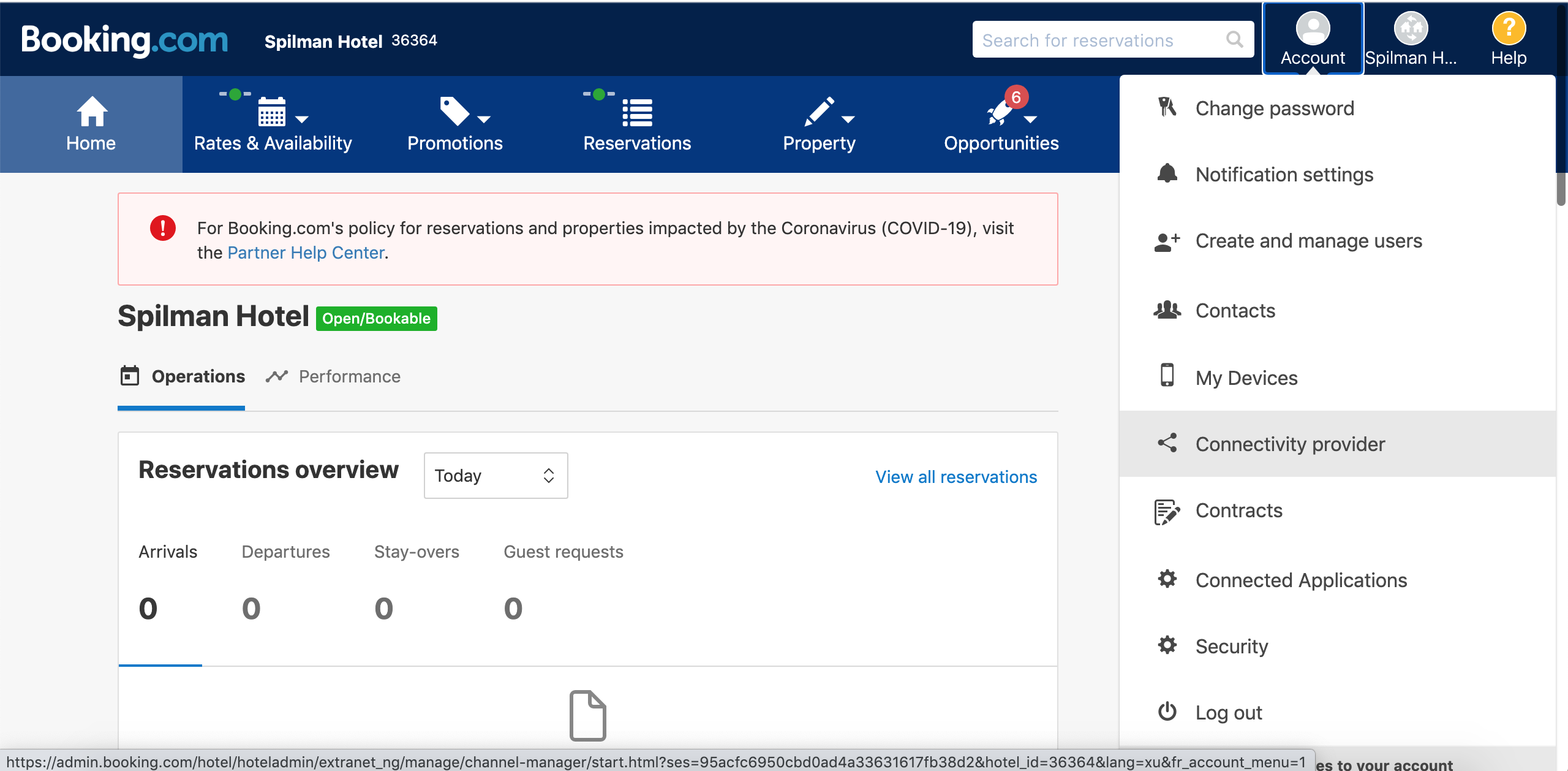
- Open the account menu and choose Connectivity provider.
- Disconnect the previous PMS or channel manager if required.
- Search for Channex.io.
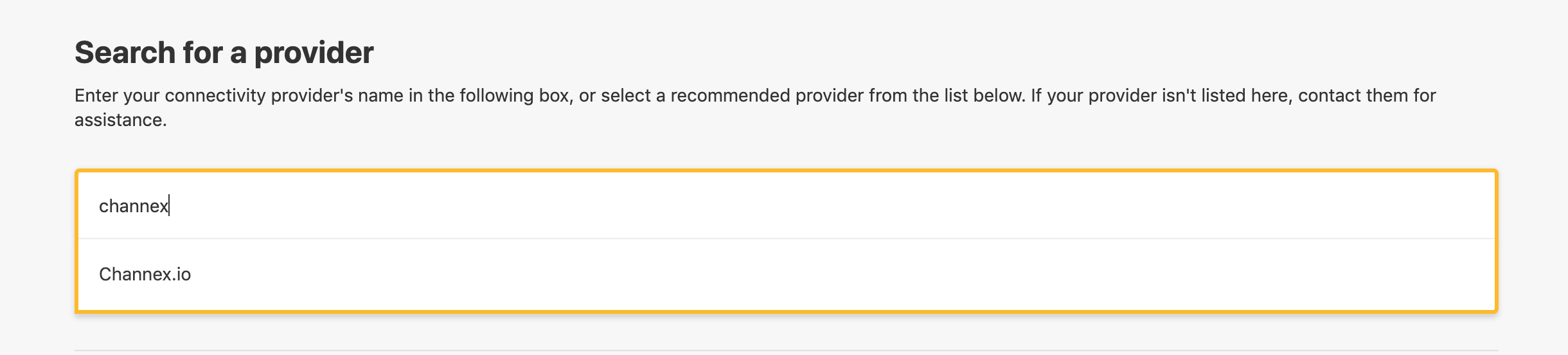
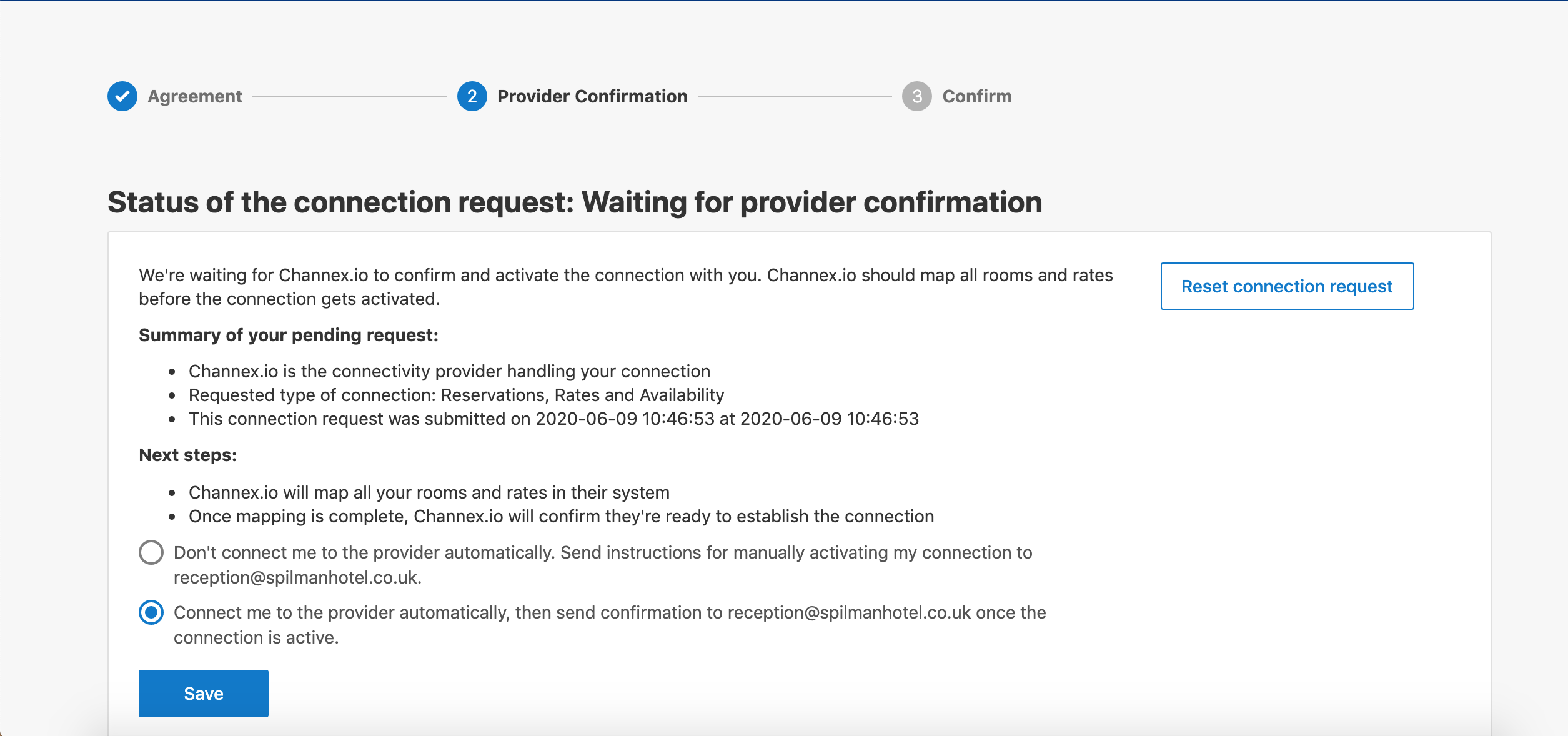
- Select Channex.io and complete the approval steps.
Step 2: Request the Connection in SympleHost
- Open Listings → Channel Managers.
- Click Connect OTA.
- Choose Booking.com.
- Enter the numeric Hotel ID from the Booking.com Extranet.
- Click Request connection.
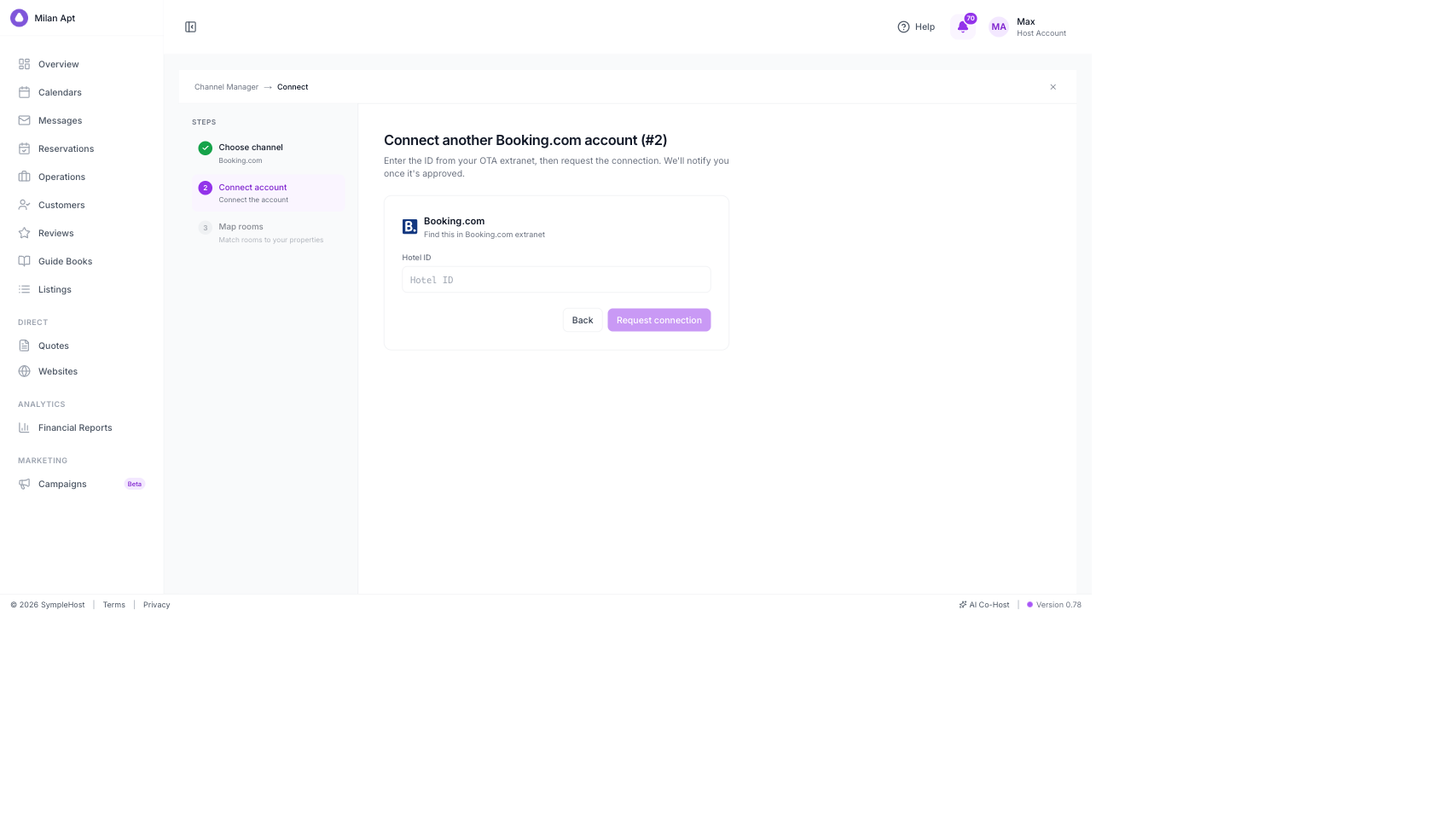
SympleHost will notify you when the connection is approved.
Step 3: Map Rooms and Rates
After approval:
- Open the Booking.com connection in Channel Manager.
- Match each Booking.com room or room type to the correct SympleHost listing.
- Match the correct rate plans.
- Review availability and pricing before starting sync.
- Save the mappings and complete the sync step.
Do not map different room types to the same SympleHost listing unless they genuinely share the same rooms and Number of units.
Connect Other Booking Platforms
For VRBO, Expedia, Agoda, MakeMyTrip, and Trip.com:
- Create or import the property in SympleHost first.
- Open Listings → Channel Managers → Connect OTA.
- Choose the platform.
- Enter the requested login, verification code, Extranet ID, Hotel ID, hotel code, or API credentials.
- Complete any connectivity-provider approval required in the OTA portal.
- Map the OTA listing, rooms, and rate plans to the correct SympleHost listing.
- Start the sync and confirm the connection becomes live.
The screens vary by platform, but the operating rule is the same: connect the account, map the correct inventory, then verify sync health.
Review Channel Health
Use Channel Manager after setup to check:
- whether the account is connected
- how many properties, rooms, and rate plans it covers
- whether the connection is live
- whether it is in sync
- when it last synced
Return here before troubleshooting rates or availability on the OTA. A disconnected or unhealthy channel cannot reliably receive updates.
Important Checks After Connecting
- Open Listings and confirm there are no duplicate properties.
- Check property details, photos, capacity, and address.
- Review the Pricing Calendar and minimum-stay rules.
- Open Calendars and compare availability with the OTA.
- Confirm that a future availability or rate update reaches the connected channel.
- Review any channel markup or pricing adjustment before going live.
Importing a property and connecting a channel are related but different actions. Import creates or maps the property. Channel sync keeps supported availability, rates, restrictions, and reservations moving between systems.
Troubleshooting
Airbnb shows the property as already linked
Choose Skip unless you intentionally need to change the existing mapping. Do not import it again, because that can create a duplicate property.
The correct Airbnb account is not listed
Choose Connect another account. If the Airbnb account belongs to the property owner, use Invite the owner so they can authorize it directly.
Airbnb listings are still loading
Keep the tab open for up to a minute. If the list does not appear, return to Channel Manager, confirm the Airbnb account is connected, and restart the flow.
Booking.com will not connect
Confirm that the Hotel ID is correct and that Channex.io is approved as the connectivity provider in the Booking.com Extranet. Booking.com cannot use two connectivity providers at the same time.
A room is connected to the wrong property
Stop before syncing more changes. Open the channel connection, review the room mapping, and match it to the correct SympleHost listing.
Availability or rates are not updating
Open Channel Manager and check whether the connection is live and in sync. Then review room mapping, rate-plan mapping, property pricing, availability restrictions, and any channel markup.
I cannot see Connect OTA
Your role may not have permission to manage listings or channel connections. Ask the account owner or administrator to review your role under Settings → Team Members.