
What Is SympleHost?
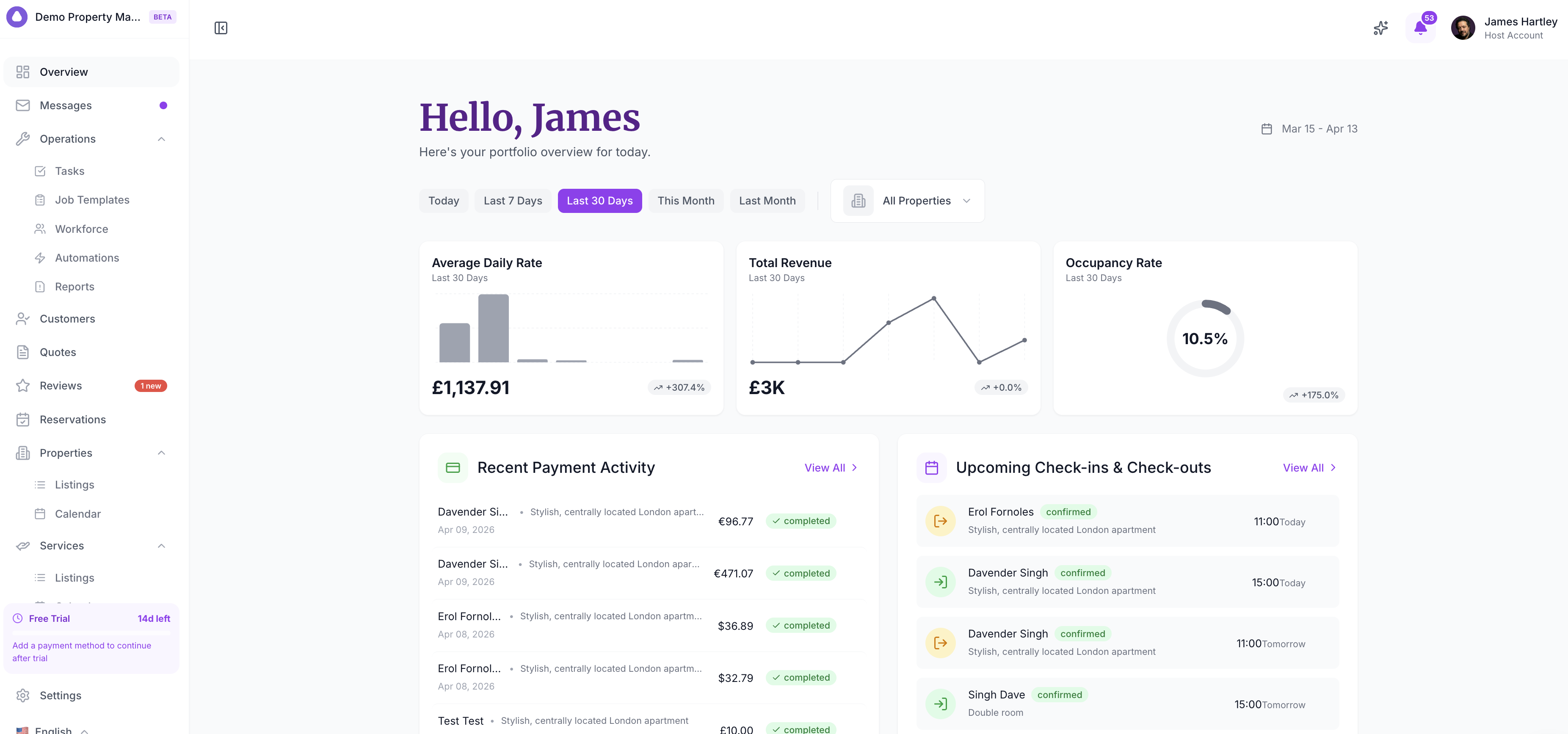
SympleHost is a property management platform built for vacation rental and short-term rental hosts. It brings your listings, calendars, reservations, guest communication, direct booking tools, and team operations into one place, so you are not juggling between OTAs, WhatsApp, spreadsheets, and email.
Think of it as mission control for your rental business. You manage listings, track reservations, message guests with AI support, coordinate your team, and prepare direct bookings from a single workspace.
Who Is SympleHost For?
- Solo hosts managing one or a handful of listings
- Property managers running multiple properties or units
- Teams — cleaners, co-hosts, booking coordinators — who need shared access
Whether you’re running a beachside villa or a portfolio of city apartments, SympleHost scales with you.
A Quick Tour of the Platform
When you log in, you’ll see a sidebar on the left. This is how you navigate everything. Here’s what each section does:
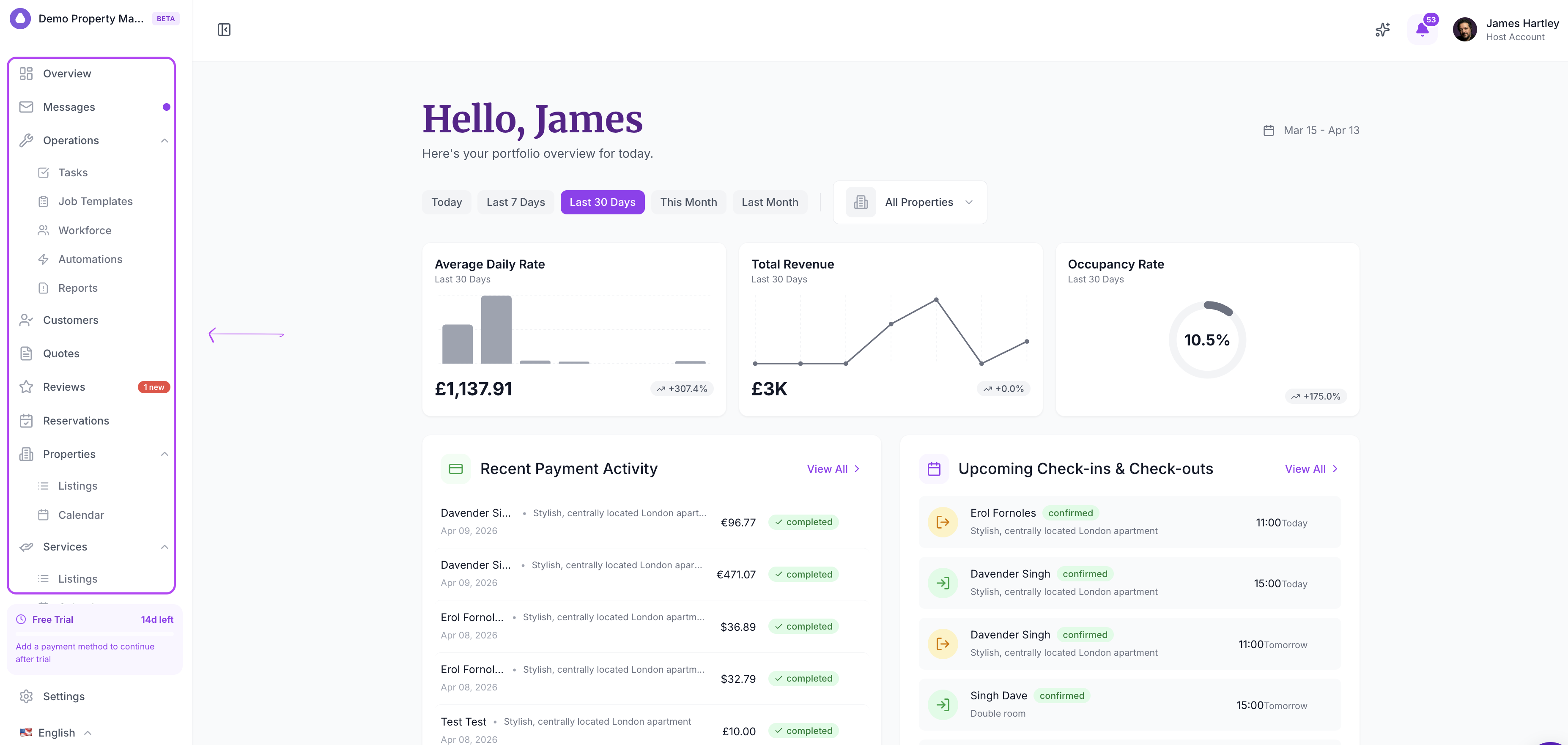
Overview — Your dashboard. Shows unread messages, open tasks, check-ins, check-outs, new reviews, reservations, and daily operating activity at a glance.
Calendars — Your availability and booking calendar for properties and services.
Messages — Your unified inbox. Guest messages from connected channels appear here, with AI draft and Autopilot options depending on your setup.
Reservations — View and manage bookings across channels, including manual and direct reservations.
Operations — Where your team’s work lives. Create tasks, schedule jobs, manage workforce, use task templates, and set up automations.
Customers — Your guest database. Every guest who books with you gets a profile here.
Listings — Your properties and services. Add listings, manage pricing, review availability, and connect channels.
Guide Books — Create guest-facing guides, local recommendations, and add-ons for each property.
Quotes — Create and send quotations to guests for custom stays or services.
Websites — Build and manage direct booking websites when your account has website access enabled.
Financial Reports — Track revenue and finance reports when your role and account settings allow access.
Settings — Opened from the top-right profile menu. Configure your profile, team, workspace, direct bookings, payment gateway, integrations, notifications, and reminders.
Some menu items only appear when your role, subscription, and account feature flags allow them. If you do not see an item, ask your account owner or admin to check your permissions.
Start With These Essentials
Once you understand where everything lives, use the setup articles below to make the account ready for real work.
-
Complete your company profile — Set your business name, country, currency, timezone, and date format so calendars, pricing, and guest-facing content display correctly. → See: Setting Up Your Company Profile
-
Add or import your first listing — If you already have Airbnb, import that listing first. Use Manual only if you are starting fresh or running a fully direct-booking business. After the listing exists, connect Booking.com, Expedia, Agoda, VRBO, and other OTAs through Channel Manager. → See: Adding a Listing Manually or How to Import or Connect Listings from an OTA
-
Set pricing and availability — Add your standard rate, review the pricing calendar, and check blocked or booked dates before you connect more channels. → See: How to Set Up Your Pricing & Rate Rules
-
Connect a guest messaging channel — Link WhatsApp, Instagram, Facebook Messenger, or another supported channel so your team can reply from Messages. → See: Connecting Messaging Integrations
-
Use Autopilot in suggestion mode first — Let AI draft replies before you allow automatic sending. → See: Autopilot, Automated Messages, and Concierge
-
Create or review your first reservation — Confirm guest details, dates, payment status, and the handoff tasks your team needs. → See: Creating a Reservation Manually
-
Invite the right team members — Add managers, booking coordinators, cleaners, or maintenance staff with the access they actually need. → See: How to Add Team Members & Assign Roles
-
Connect payments before taking direct bookings — Choose the payment gateway available in your country, then configure deposits, cancellation policies, and fees. → See: How to Set Up Payments
If you want a time-based checklist, follow Your First 24 Hours in SympleHost.
What to Avoid on Day One
- Do not turn full Autopilot on before your listing details, house rules, and check-in instructions are accurate.
- Do not connect multiple booking channels until pricing and availability look right.
- Do not invite staff as admins unless they truly need account-wide access.
- Do not launch direct bookings until payments, deposits, cancellation policy, and guest contact settings are reviewed.
Key Takeaways
- SympleHost brings listings, bookings, calendars, guest messaging, direct bookings, and team operations into one platform
- Start with correct account settings, one accurate listing, pricing, calendar, and one messaging channel
- Autopilot is most valuable after your guest information and operating rules are clean
- Payments and direct booking settings should be reviewed together before guests start paying directly