
Why This Matters
Your company profile controls how dates, times, currencies, and prices appear across your entire account — in your dashboard, on booking confirmations, and on your direct booking website. Getting these settings right early saves you from confusing mismatches later.
How to Update Your Company Profile
Setting Your Workspace Name & Logo
- Click your profile photo or name in the top right, then choose Settings.
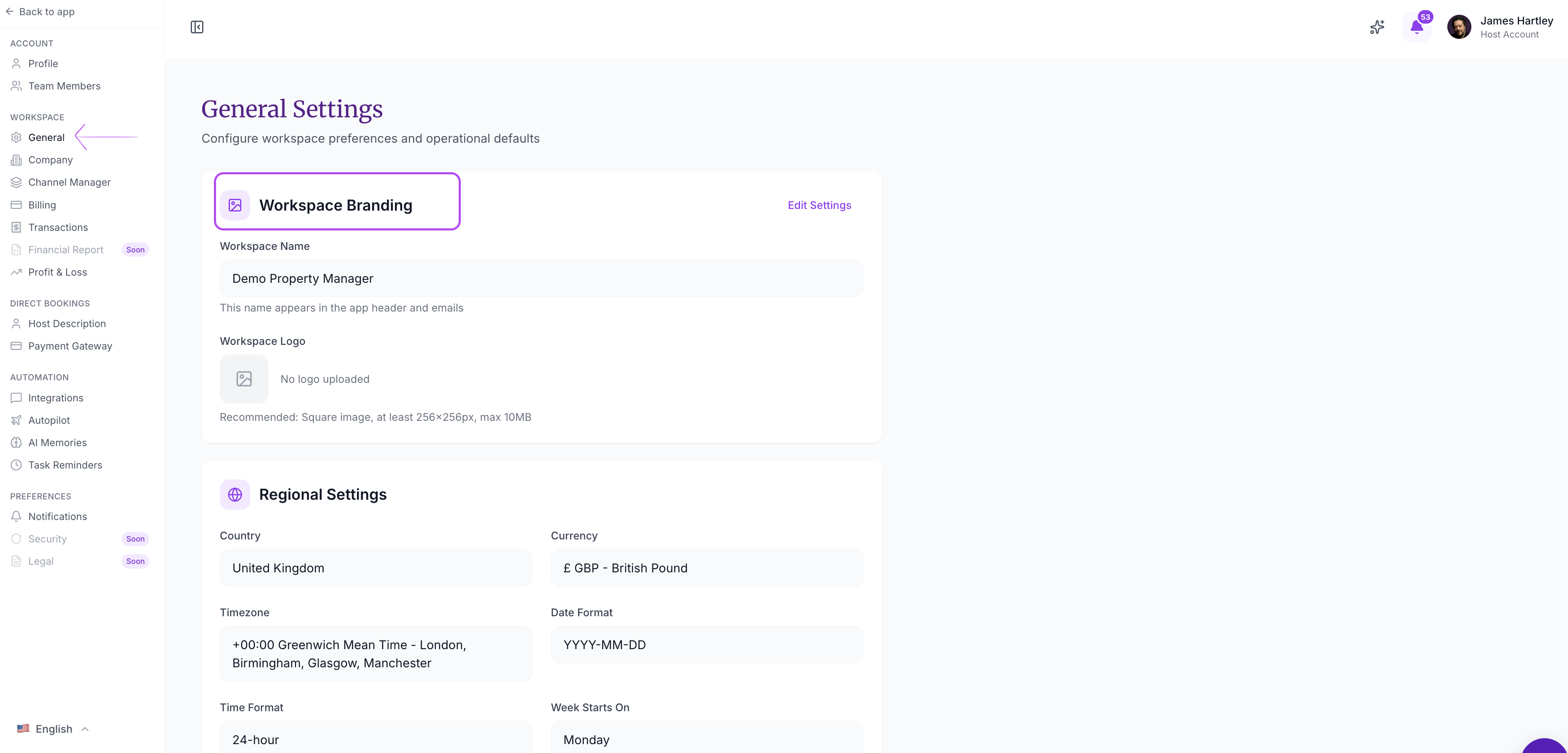
- Click General.
- In the Workspace Branding section, you’ll see your Workspace Name — this is the name your team sees when they log in.
- Click Edit (top right) to make changes.
- Update the Workspace Name if needed.
- To add or change your Logo, click the upload area and select an image (JPG or PNG).
- Click Save.
💡 Tip: Your logo appears in your workspace and may be used on your direct booking website and guest-facing pages. Use a clear, high-resolution image.
Configuring Regional Settings
These settings affect how dates, times, and currency are displayed everywhere in your account.
- On the same Settings → General page, scroll to the Regional Settings section.
- Click Edit to enter edit mode.
- Set the following:
| Setting | What It Does | Options |
|---|---|---|
| Country | Determines your currency and local defaults | Select from the dropdown |
| Currency | How prices are displayed (auto-set from country) | Read-only — changes when you change country |
| Timezone | Used for booking times, check-in/out, and notifications | Select from the full timezone list |
| Date Format | How dates appear across the platform | MM/DD/YYYY, DD/MM/YYYY, or YYYY-MM-DD |
| Time Format | 12-hour or 24-hour clock | 12h or 24h |
| Week Starts On | How calendars display the first day of the week | Sunday or Monday |
- Click Save when you’re done.
⚠️ Important: Changing your country will change your currency. If you’ve already set up pricing for your listings, double-check that the new currency is correct before saving.
Updating Company Details
For your legal business information:
- Go to Settings → Company.
- Update your Legal Name and Business Name as needed.
- Click Save.
Your legal name is used for invoicing and official documents. Your business name is the friendly name shown in your workspace.
Managing Support Access
At the bottom of the Settings → General page, you’ll find a Support Access toggle. This controls whether the SympleHost support team can access your account to help troubleshoot issues.
- Enabled — the support team can view your account data to help resolve issues faster.
- Disabled — no one outside your team can access your account.
You can enable or revoke this at any time.
Troubleshooting
I picked the wrong country and my currency is incorrect
Go to Settings → General, click Edit, change your Country to the correct one, and click Save. The currency will update automatically. Then review your listing pricing to make sure the amounts still make sense in the new currency.
My timezone seems off — booking times don’t match
Go to Settings → General and check your Timezone setting. If you’re in a different timezone than what was auto-detected during onboarding, update it here. This affects how check-in times, notifications, and calendar events are displayed.