
Connect an existing MakeMyTrip property to SympleHost by adding Channex as its connectivity provider, copying its MakeMyTrip Hotel ID, and completing the connection and room-mapping flow in Channel Manager.
Channex.io is the connectivity provider used by SympleHost. Complete the provider step in MakeMyTrip, then return to SympleHost to connect the account and map rooms.
Before You Start
Have the following ready:
- Access to your property in your MakeMyTrip extranet.
- Your MakeMyTrip Hotel ID.
- The access token for your MMT Connect / Extranet API credentials.
- The matching property in SympleHost.
In Channel Manager, MakeMyTrip is listed under Hotels — one property with room types. Channels that import bring your listings in as new properties; the others, including MakeMyTrip, connect their rooms and rates to properties you already have in SympleHost.
If the property does not exist in SympleHost yet, add it manually or import it from Airbnb. For a guesthouse or boutique hotel that is one standalone property with several rooms, see Setting Up a Guesthouse or Boutique Hotel with Several Rooms.
Step 1: Add Channex as the Connectivity Provider in MakeMyTrip
In your MakeMyTrip extranet, add Channex (it may appear as channex.io) as the connectivity provider for your property.
Step 2: Copy Your MakeMyTrip Hotel ID
In your MakeMyTrip extranet, copy the MakeMyTrip Hotel ID for the property you want to connect. The field in SympleHost shows an example such as 200912345678.
Use the identifier issued by MakeMyTrip for this property. A SympleHost listing ID, room ID, or reservation number will not identify the OTA property for this connection.
Step 3: Choose MakeMyTrip in SympleHost
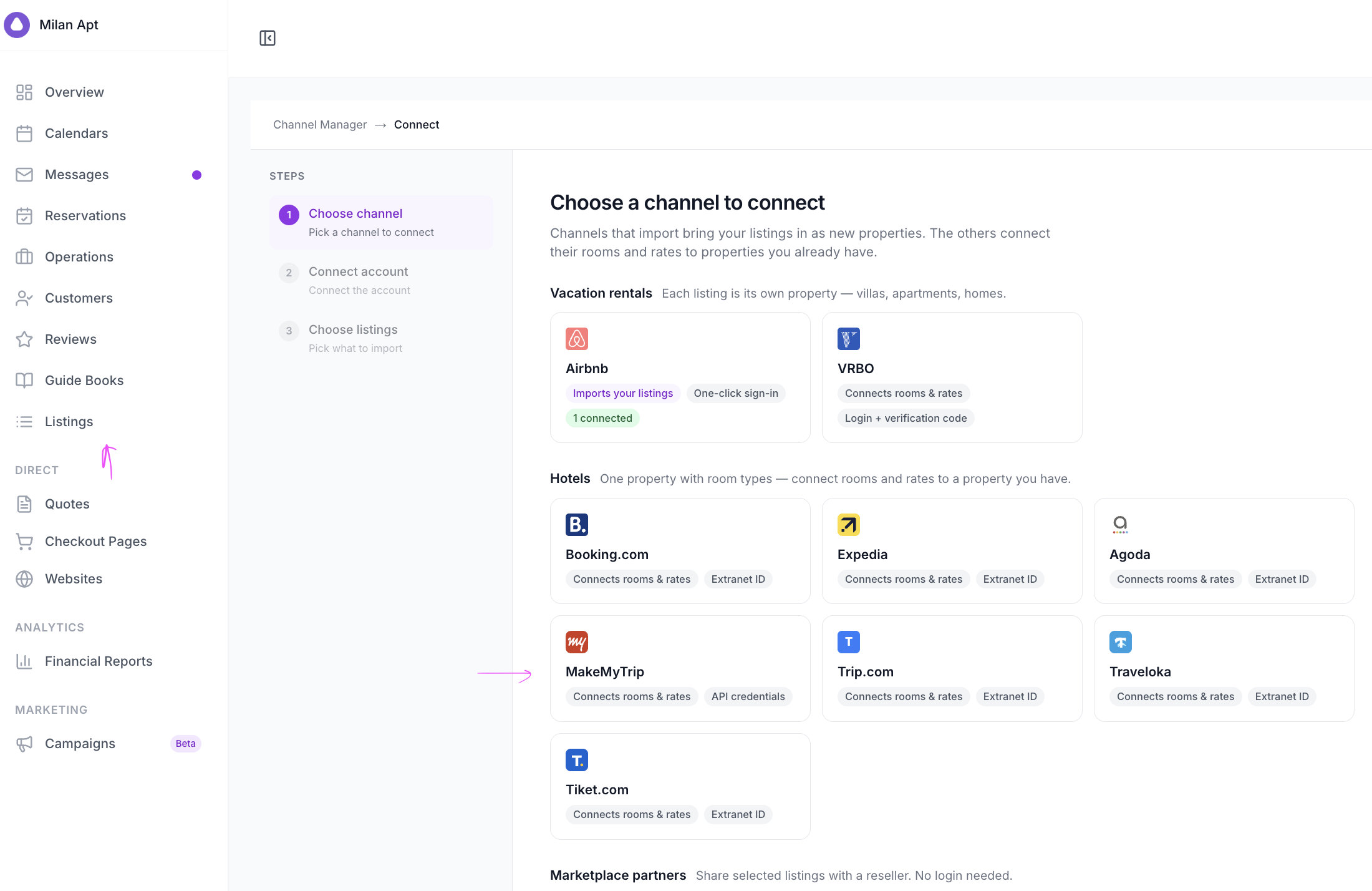
- Click Listings in the left menu.
- Click Channel Manager.
- Click Connect OTA.
- On Choose a channel to connect, find the Hotels group and select MakeMyTrip. Its tile shows Connects rooms & rates and API credentials.
Step 4: Connect Your MakeMyTrip Account
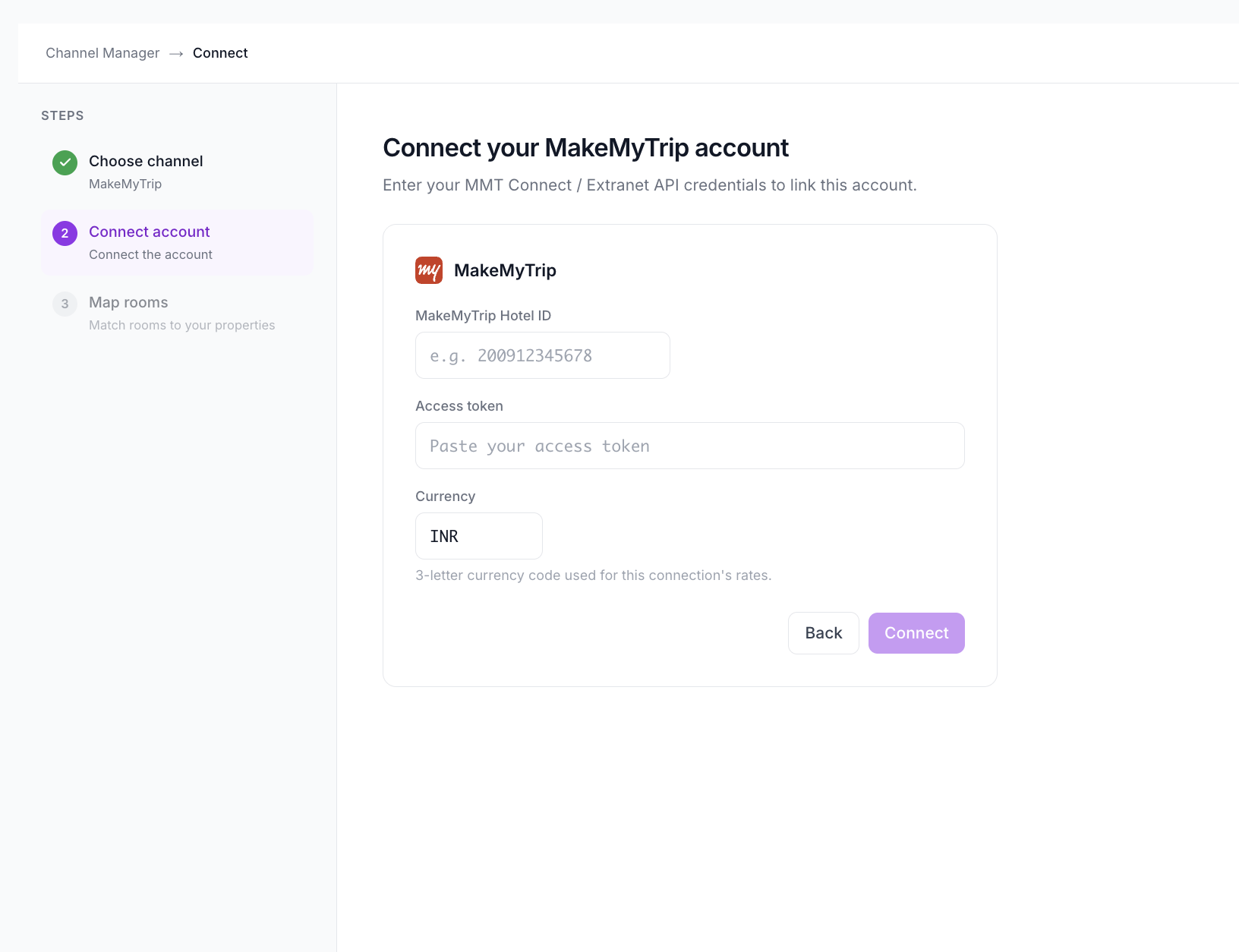
On Connect your MakeMyTrip account, enter your MMT Connect / Extranet API credentials:
- MakeMyTrip Hotel ID — paste the Hotel ID you copied in Step 2.
- Access token — paste the access token for your MMT Connect / Extranet API credentials.
- Currency — enter the 3-letter currency code used for this connection’s rates. It defaults to INR.
- Click Connect.
Step 5: Map Rooms
After you click Connect, continue to step 3 of the wizard, Map rooms, and match your MakeMyTrip rooms to your SympleHost properties.