
What Is the Overview Dashboard?
The Overview is the first screen you see when you log in to SympleHost. It gives you a snapshot of what needs attention today — guest messages, open tasks, arrivals, departures, reviews, and new reservations — all on one page.
Think of it as the control panel for your day: a quick glance tells you what needs attention right now.
How to Get to the Dashboard
Click Overview at the top of the sidebar. If you’ve just logged in, you’re already here.
Understanding the Attention Cards
At the top of the dashboard, you’ll see quick cards that help you decide what to handle first:
Unread messages
Shows guest or team conversations waiting for a reply. Start here if the number is high.
Open tasks
Shows work that still needs to be completed, such as cleaning, maintenance, guest requests, or internal follow-up.
Check-ins today
Shows arrivals due today, with tomorrow’s count shown underneath when relevant.
Check-outs today
Shows departures due today, with tomorrow’s count shown underneath when relevant.
New reviews
Shows reviews that have recently arrived and may need a response.
New reservations
Shows new bookings that have entered the account and may need review, guest communication, or payment follow-up.
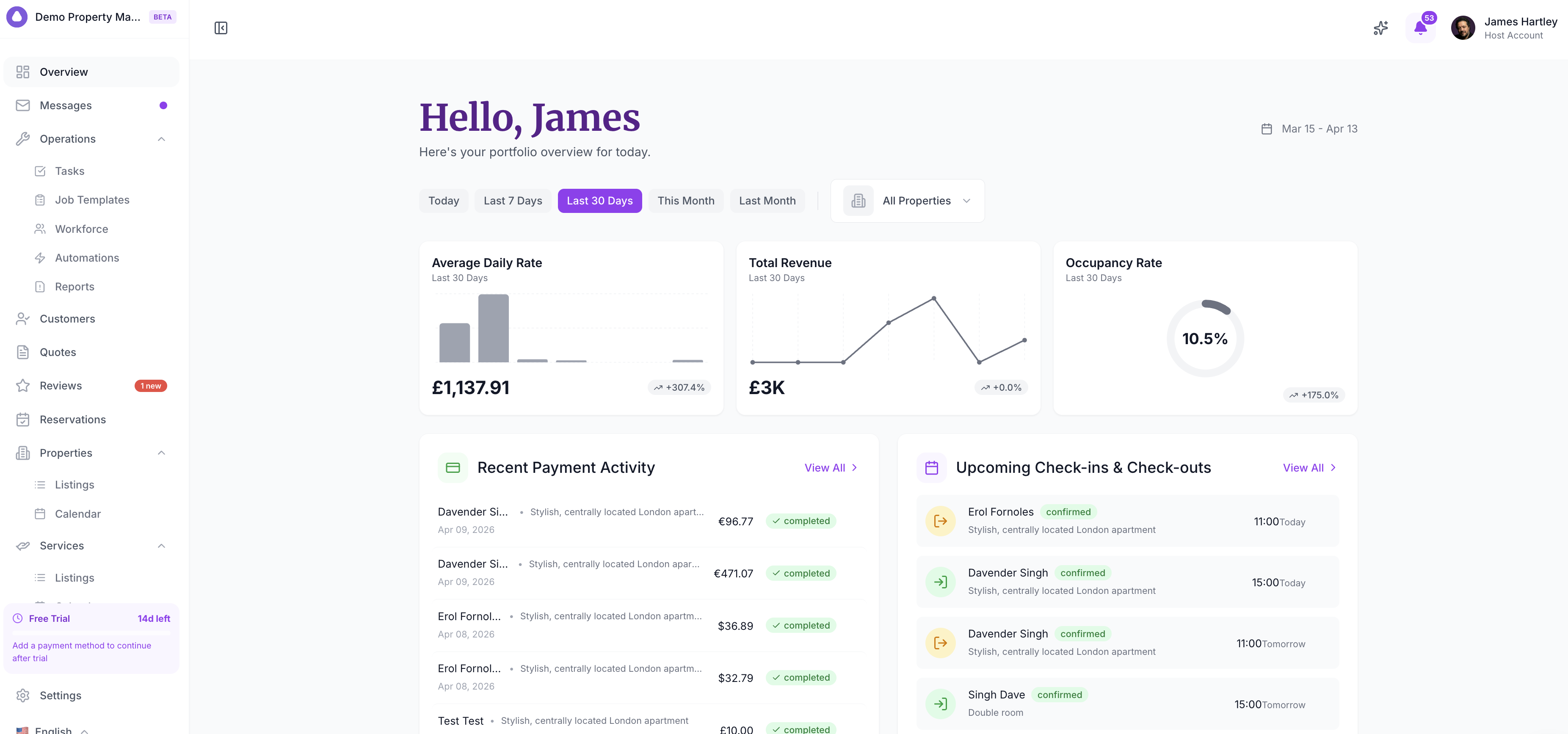
Filtering Your Dashboard
You can narrow the dashboard to focus on the work you need:
By Property
Use the All Properties dropdown to focus on one listing, or keep it on All Properties for the full workspace view.
By Ownership
Use My tasks only when you want to focus on work assigned to you instead of the whole team.
Refreshing the dashboard
Click Refresh after making changes elsewhere, such as creating tasks or updating reservations, to reload the latest state.
Timeline Sections
Below the attention cards, you’ll find practical operating panels:
Today’s schedule
Shows arrivals and departures for today. Use this to confirm what needs to happen before guests arrive or after they leave.
Upcoming arrivals
Shows guests arriving over the next few days, including the property and arrival timing, so you can prepare ahead.
Needs a reply
Highlights conversations that need attention, so guest communication does not depend on memory.
Tasks & reminders
Shows overdue and upcoming work for your team, helping you keep cleaning, maintenance, and guest follow-up moving.
When to Use the Dashboard
- Every morning — Check unread messages, arrivals, departures, and overdue tasks.
- Before check-in time — Review today’s schedule and upcoming arrivals.
- After a new booking — Confirm guest details, payment status, and any prep tasks.
- Per property — Filter to a single listing when you want to focus on one property’s work.
Troubleshooting
The dashboard shows all zeros
If you’ve just created your account, the dashboard won’t have data until you’ve added listings and bookings. Add your first listing and create a test booking to see the dashboard come to life.
Numbers don’t match what I expect
Check the property filter and whether My tasks only is enabled. Also verify your timezone in Settings → General, as this affects which day bookings fall into.