
📘 Step 4 of 5 in Set Up Guest Messaging: The Complete Guide
Autopilot decides what AI Co-Host is allowed to do with real guests: stay quiet, draft replies for you to approve, or reply on its own. Most hosts start on Suggestion and switch to On once they trust the answers.
TL;DR: Go to Messages → Settings → Current Autopilot and pick Off, Suggestion or On. Start with Suggestion: AI Co-Host drafts every reply and you decide what gets sent. You can also change the mode for one guest from the conversation itself.
The Three Modes
| Mode | What happens | Good for |
|---|---|---|
| Off | AI Co-Host doesn’t reply. You answer every message yourself. | While you’re still setting up |
| Suggestion | AI Co-Host drafts a reply. You review it, edit it if needed, and send it. | Your first weeks, or if you like to check every message |
| On | AI Co-Host replies by itself after a short delay. | Once its test answers are consistently right |
Think of Suggestion like a new team member who writes drafts for you to check before anything goes out. On is the same team member after they’ve earned your trust.
Before you choose Suggestion or On, set up what AI Co-Host knows. See Set Up Your AI Co-Host.
How to Choose a Mode
- Go to Messages in the sidebar.
- Click the Settings tab at the top.
- Click Current Autopilot in the left menu.
- Click Off, Suggestion or On.
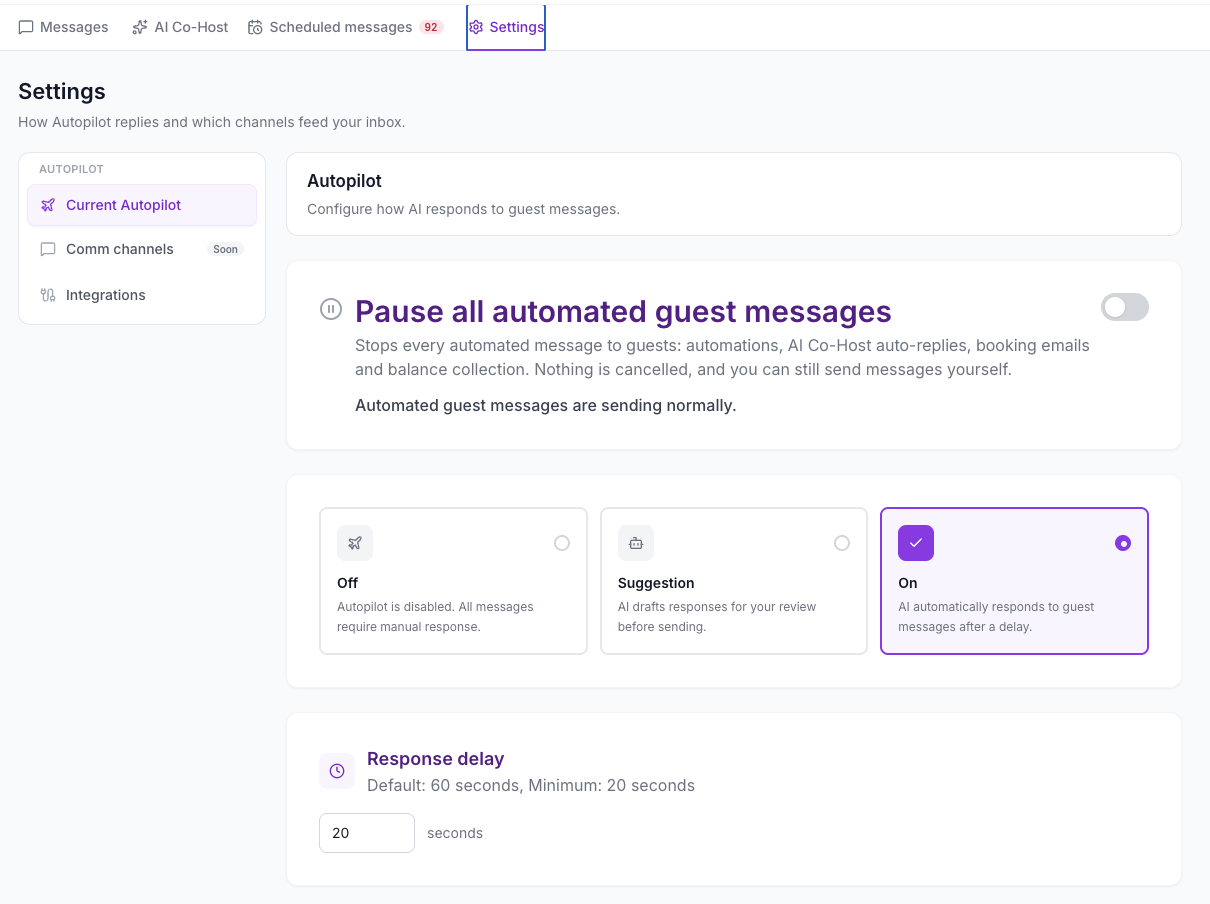
Response delay
When Autopilot is On, AI Co-Host waits before it replies. The default is 60 seconds and the minimum is 20 seconds. The wait gives your team a chance to jump in first, and it keeps replies from feeling robotic.
Working in Suggestion Mode
In Suggestion mode, AI Co-Host writes a draft whenever a guest messages you. You’ll find it in the conversation in Messages, in a Suggested Reply box.
For each draft, you can:
- Send Now: send it as it is.
- Edit: change the wording, then send.
- Preview: see exactly what the guest will get.
- Dismiss: throw the draft away and write your own reply.
If the guest sends another message before you reply, the older draft is replaced with a new one, so you only ever have one draft to review.
💡 Tip: If a draft is wrong, fix the source instead of just editing the draft. Add the missing fact to the listing’s document or add a rule. That way the next guest gets the right answer too.
Change the Mode for One Guest
Sometimes you want AI Co-Host to step back for one guest, for example a VIP or a guest with a complaint, without changing it for everyone.
- Open the conversation in Messages.
- Find Autopilot in the bar above the messages.
- Click it to switch between Suggesting, Auto-replying and Off.

This only changes that guest. Everyone else keeps your account-wide mode.
Handing a Conversation to Your Team
AI Co-Host passes a conversation to you when it can’t answer confidently, or when a rule is set to Avoid. You can also do it yourself:
- Open the conversation and click Escalate.
- Add a note so your team knows why.
- Click to confirm. The conversation moves to the Escalated list for the whole team.
When the issue is sorted, click Resolve escalation.
SympleHost also spots conversations that look finished, for example when the guest says it’s sorted, has checked out, or hasn’t written for 3 days. You’ll see Looks resolved with Confirm resolved and Keep open.
Set How AI Co-Host Sounds
On the same Current Autopilot page, the AI Co-Host voice card controls how replies sound:
- Tone: Formal, Friendly or Casual.
- Enthusiasm: Reserved, Warm or Enthusiastic.
- Says it is AI: Never, Only if asked, or Always.
- Hand-off message: what AI Co-Host tells a guest when it passes the conversation to your team, for example “Let me check with the team and get back to you shortly.”
- Let finished conversations end: when the guest’s question is answered, AI Co-Host stops instead of sending a filler reply like “You’re welcome!”
- Written voice: a description of how you write to guests. Click Generate from my replies to have SympleHost draft one from your past messages. Nothing changes until you click Use this.
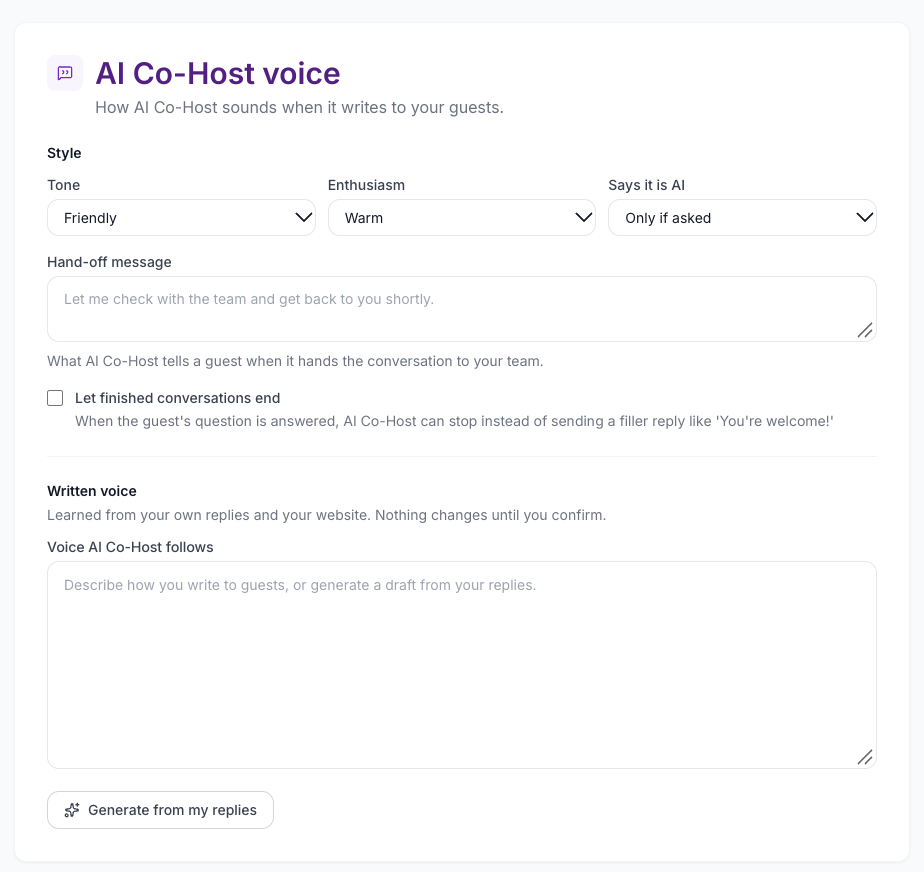
💡 Tip: For anything more specific, like “never use emojis” or “sign off as The Ocean Stays Team”, add a rule. See Set Up Your AI Co-Host.
Pause Everything at Once
Pause all automated guest messages (at the top of the Current Autopilot page) stops every automatic message to guests: scheduled messages, AI Co-Host’s auto-replies, booking emails and balance collection.
- Nothing is cancelled. Queued messages are kept.
- AI Co-Host keeps drafting replies for you to send yourself.
- You can still send messages yourself as normal.
When you switch it back off, messages that came due during the pause wait in Scheduled messages → Outgoing messages, so you can choose to send or dismiss each one.
Only the account owner, an admin or a manager can pause and resume.
When to Switch From Suggestion to On
Switch to On when:
- You’ve been sending most drafts without editing them for a week or two
- Your listing documents, General document and rules are complete
- Sensitive topics like refunds, damage and complaints are set to Avoid or Alert in your rules
You can switch back to Suggestion at any time.
Troubleshooting
AI Co-Host isn’t drafting or replying at all
Check three things: the mode in Current Autopilot isn’t Off, the conversation’s own Autopilot isn’t set to Off, and Pause all automated guest messages is switched off.
AI Co-Host replies on its own, but I only wanted drafts
That conversation may be set to Auto-replying. Click its Autopilot setting and switch it to Suggesting.
A draft keeps giving the wrong answer
Fix the knowledge, not just the draft. Check the listing’s document, your General document and your rules, then try the question in the Test tab.
Next step: Step 5 — Translate and keep teaching AI Co-Host · Back to the complete guide