
📘 Step 5 of 5 in Set Up Guest Messaging: The Complete Guide
Guests write in many languages, and AI Co-Host won’t get every answer right on day one. SympleHost lets you translate messages in both directions and correct AI Co-Host right where you spot a mistake.
TL;DR: Click Translate under a guest’s message to read it in your language, or switch on automatic translation in Settings → General. Under every AI Co-Host reply, click Good if it was right or Fix this to write the correct answer. AI Co-Host uses your fix next time.
Translate a Guest’s Message
When a guest writes in a different language from yours, a Translate link appears under their message.
- Open the conversation in Messages.
- Click Translate under the guest’s message.
- The message changes to your language. Click Show original to see what the guest wrote.
The guest’s original message never changes, and AI Co-Host always reads the original.
Translate every guest message automatically
If many of your guests write in other languages, turn on automatic translation so you don’t have to click Translate each time.
- Open your account Settings and click General. This is different from the Settings tab inside Messages.
- Switch on Auto-translate guest messages and reviews.
Only account admins can change this setting.
New guest messages and reviews are now translated into your account’s language as they arrive. The translation shows first, and the original is one click away. This is off until you switch it on.
Reply in the Guest’s Language
You can write in your own language and let SympleHost translate your reply.
- In the conversation, switch on Auto-translate next to the reply box.
- Check the language it shows, for example will send in Japanese.
- Type your reply in your own language and send it.
The guest gets your reply in their language, with your original text underneath. If the guest already writes in your language, you’ll see Guest language matches yours — no translation needed.
Teach AI Co-Host From a Conversation
Under every reply AI Co-Host sends, you’ll see Was this a good reply? with two buttons.

Good
Click Good when the reply was right. SympleHost records it so we can track how well AI Co-Host is doing. It doesn’t change future answers, so you don’t need to click it on every reply.
Fix this
Click Fix this when the reply was wrong or incomplete.
- Click Fix this under the reply.
- In What should AI Co-Host say instead?, write the answer you’d want a guest to get. Write it as the full, correct answer, not as a note about what went wrong.
- Click Save fix.
You’ll see Fixed — AI Co-Host will answer this way next time.
Your fix is saved as a lesson for the listing the guest was asking about.
If the conversation isn’t linked to a listing, for example a WhatsApp chat where the guest hasn’t booked yet, the fix is saved for your team’s reference only. AI Co-Host won’t use it in guest replies, even though the confirmation message says it will. The same applies to fixes saved as “All properties (host copilot only)”. To teach something for every listing, add it to your General document or as a quick note on General instead.
Good fix: “Check-in is from 3 pm. If you arrive earlier, you can leave your bags at reception from 11 am.”
Weak fix: “Wrong time, it’s 3.”
Find and manage your fixes
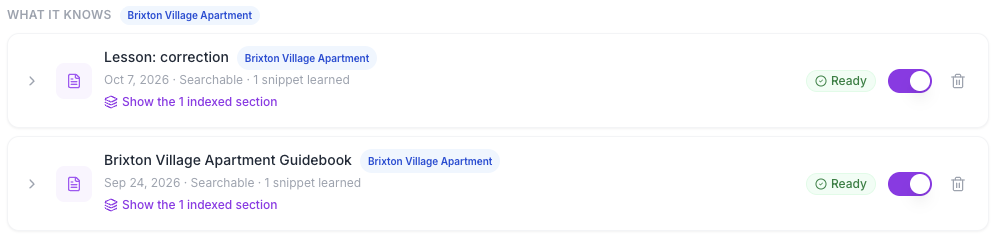
Each fix appears as a Lesson source in that listing’s Knowledge tab (Messages → AI Co-Host → Knowledge Base, then open the listing). Switch it off to pause it, or click the bin to delete it.
Fixes made in the Test tab work slightly differently. You type the answer and click Teach it, and it’s saved as a quick note on the listing the Test tab is set to (or on General), not as a Lesson. You can edit or pause it the same way.
💡 Tip: If you find yourself writing the same fix more than once, the fact is missing from your documents. Add it to the listing’s document or your General document so it’s in one place. See Set Up Your AI Co-Host.
Answer Questions AI Co-Host Couldn’t Answer
When AI Co-Host can’t answer, the question lands in Messages → AI Co-Host → Action Items.
- Open the item.
- Write the correct reply.
- Choose what to do with it:
- Send to guest: replies to this guest only.
- Save for future guests: adds your answer to AI Co-Host’s knowledge without sending it.
- Send to guest and save: does both.
Choosing Save means the next guest who asks gets the answer straight away.
Troubleshooting
I don’t see a Translate link
The link only appears when the guest’s message is in a different language from the one you use SympleHost in.
My fix didn’t change the answer for another listing
A fix is saved for the listing the conversation was about. To make it apply everywhere, add the same fact to your General document, or as a quick note on General.
I don’t see Good or Fix this
These buttons appear under replies AI Co-Host sent. They don’t appear under messages you wrote yourself.
You’ve finished the setup. Back to the complete guide