
Use the QID integration when you need guests to complete identity verification or web check-in before arrival. SympleHost connects to the QID forms you already created in your QID dashboard, then uses those form templates for guest verification flows.
Before You Start
Make sure you have:
- A QID account.
- Access to your QID dashboard.
- A QID API key for your organisation.
- A national ID template form ID.
- An international guest template form ID.
- Admin access in SympleHost so you can open Settings -> Integrations.
Create or confirm your QID templates in QID first. SympleHost does not create the QID forms for you; it stores the form IDs so the correct check-in forms can be used from SympleHost.
In QID, open Forms and select the check-in form you want to use. Most teams create one form for local or national ID checks and another for international or foreign guest check-in.
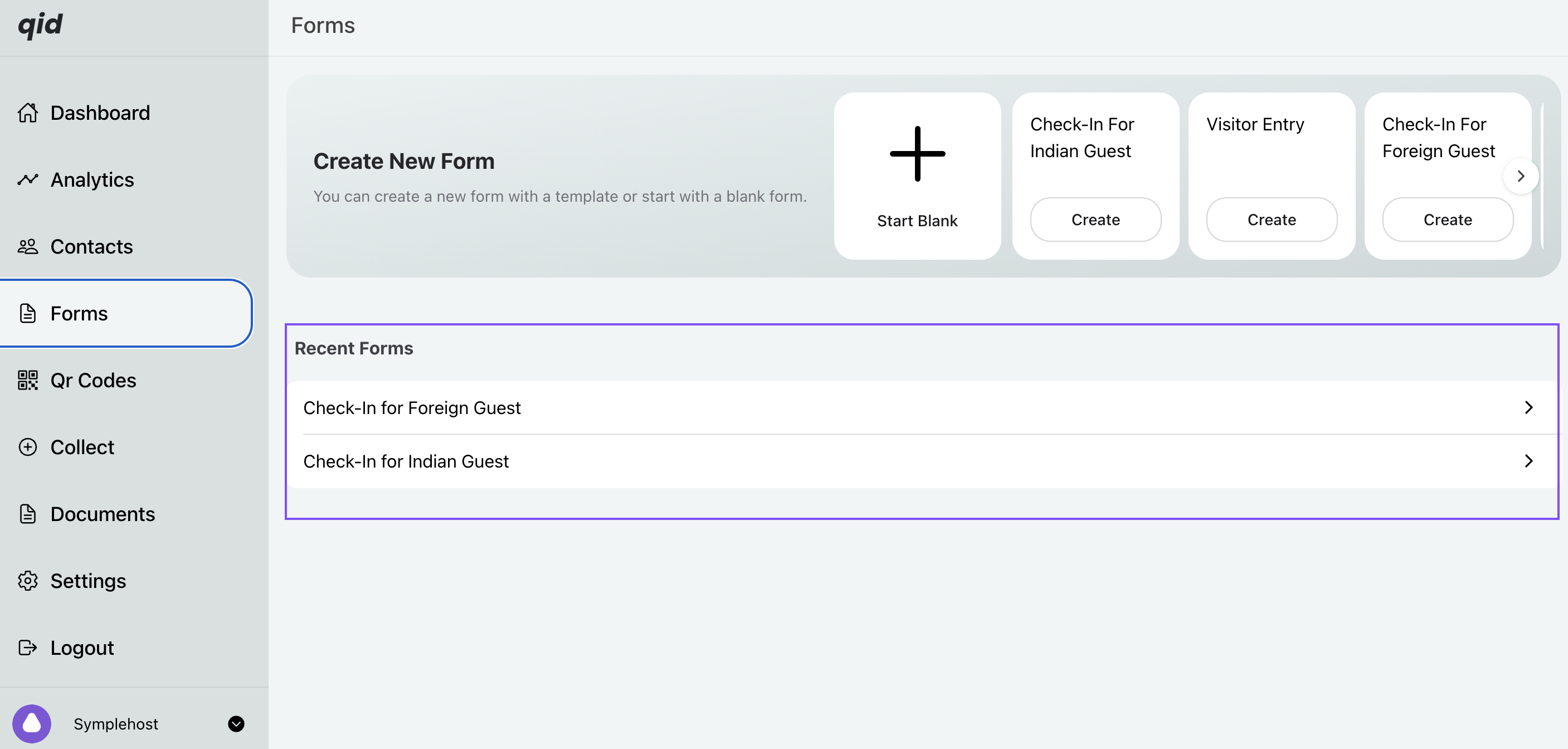
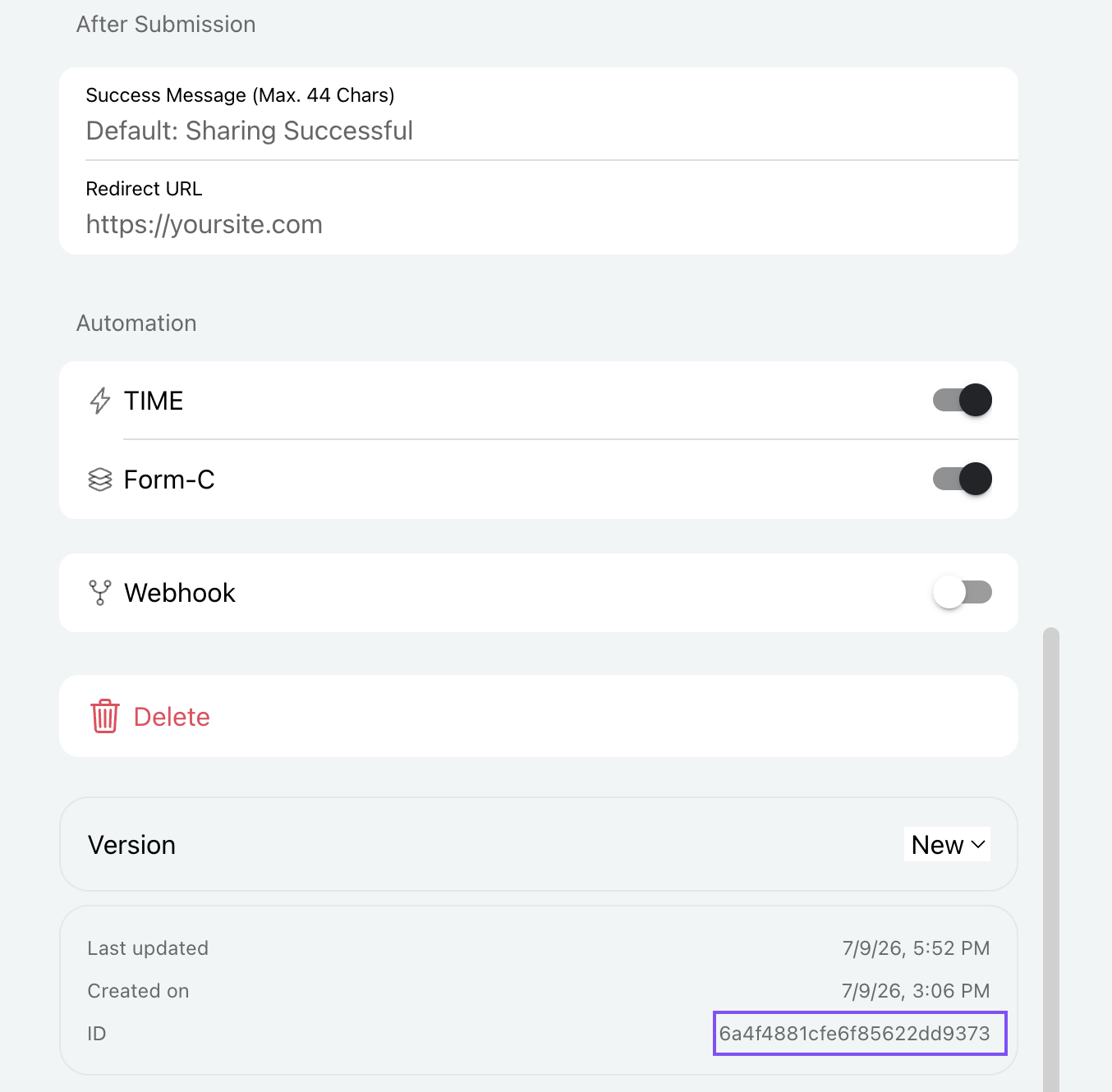
The template form ID appears at the bottom of each form. Copy the ID from the national ID form and the ID from the international guest form, then paste both into SympleHost.
For the operational reasons behind guest ID checks, see Guest ID Verification for Short-Term Rentals.
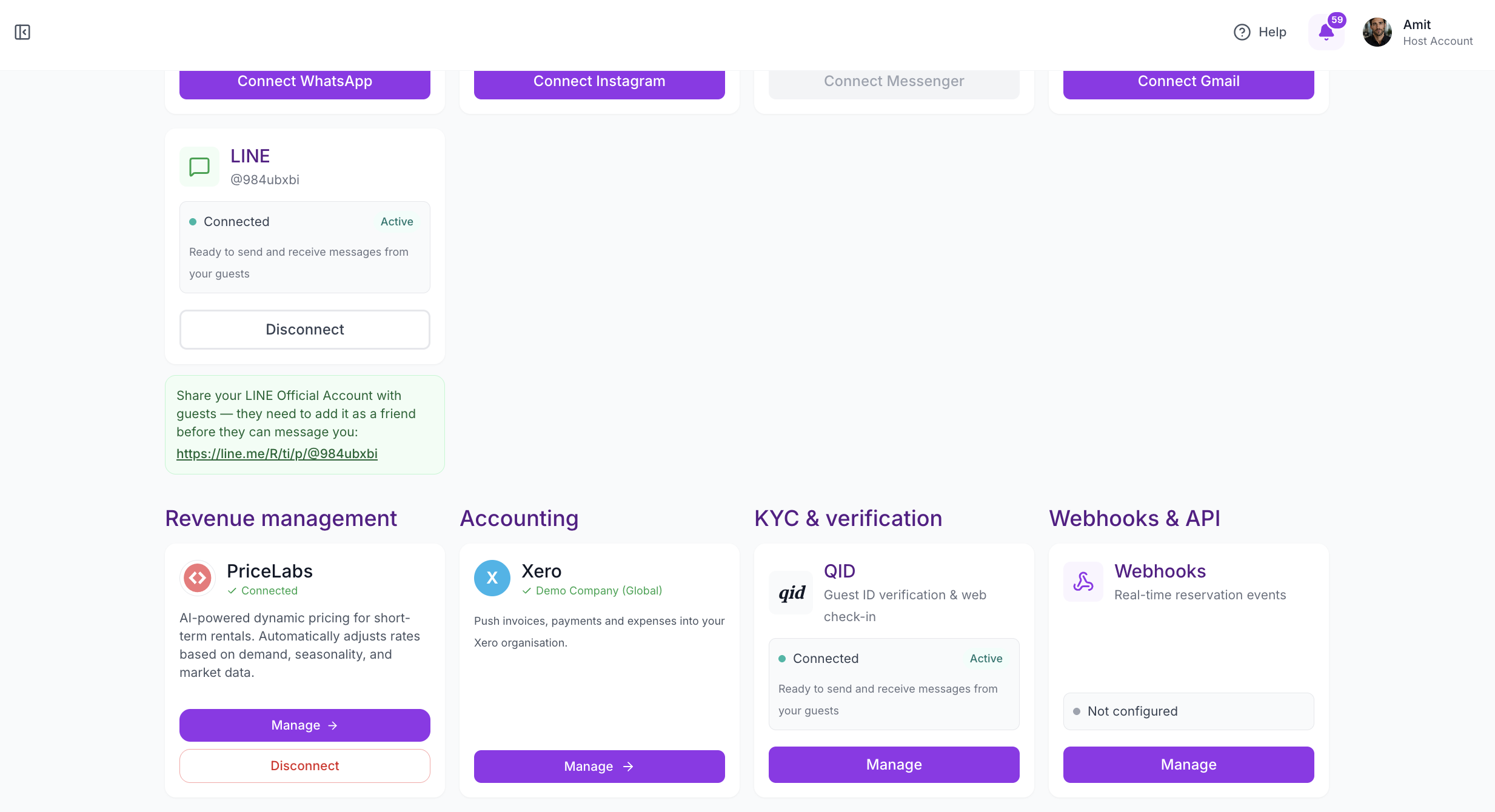
Open the QID Integration
- Log in to SympleHost.
- Click your profile photo or name in the top-right corner.
- Open Settings.
- Go to Integrations.
- Find QID under KYC & verification.
- Click Manage.
Connect or Update QID
In the Manage QID modal, add or confirm the template IDs from your QID dashboard. Each template ID comes from the bottom of the matching form inside QID.
- Confirm the QID organisation is connected.
- Check that the API key is present.
- Enter the National ID template (form ID).
- Enter the International guest template (form ID).
- Click Save.
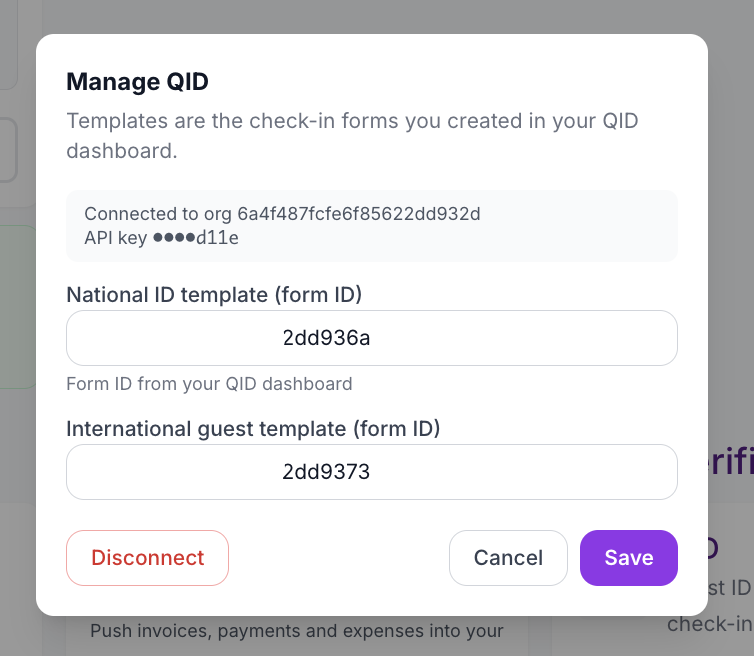
Use the national ID template for local guests where national identity collection is required. Use the international guest template for overseas guests who need passport or international traveller details.
What Happens After QID Is Connected
Once QID is active, SympleHost can use your configured QID templates in the guest check-in flow. This helps your team:
- Collect the right ID details before arrival.
- Keep national and international guest flows separate.
- Reduce manual follow-up for missing guest information.
- Support smoother web check-in for direct and managed reservations.
Troubleshooting
If QID does not work as expected, check these first:
- The API key is still valid in QID.
- The national and international form IDs are copied exactly from QID.
- The QID templates are active in your QID dashboard.
- The guest is using the correct check-in link.
- Your SympleHost user has permission to manage integrations.
If you change a template in QID, return to Settings -> Integrations -> QID -> Manage and confirm the form ID still matches the version you want guests to use.