
Use the Xero integration when your finance workflow needs SympleHost booking and payment records to flow into Xero. The integration is designed to push invoices, payments, approved expenses, security deposits, and owner payouts to your connected Xero organisation.
The most important setup step is account mapping. SympleHost needs to know which Xero account code should receive each type of revenue, fee, expense, deposit, and payout before sync is switched on.
Before You Start
Make sure you have:
- A Xero account.
- Access to the correct Xero organisation.
- Permission in Xero to authorise connected apps.
- Admin access in SympleHost so you can open Settings -> Integrations.
- Your Xero chart of accounts reviewed with your accountant or bookkeeper.
- The bank account, revenue accounts, expense accounts, tax/liability accounts, and owner payout account you want to use in Xero.
- Unique account codes on the Xero accounts you plan to map.
- Any payment-enabled account settings checked in Xero for accounts that should accept payments.
- Your reservation, payment, expense, and payout workflows set up in SympleHost.
If you manage multiple companies or accounting entities, confirm which Xero organisation should receive the SympleHost records before connecting.
Open the Xero Integration
- Log in to SympleHost.
- Click your profile photo or name in the top-right corner.
- Open Settings.
- Go to Integrations.
- Find Xero under Accounting.
- Click Manage or Connect Xero.
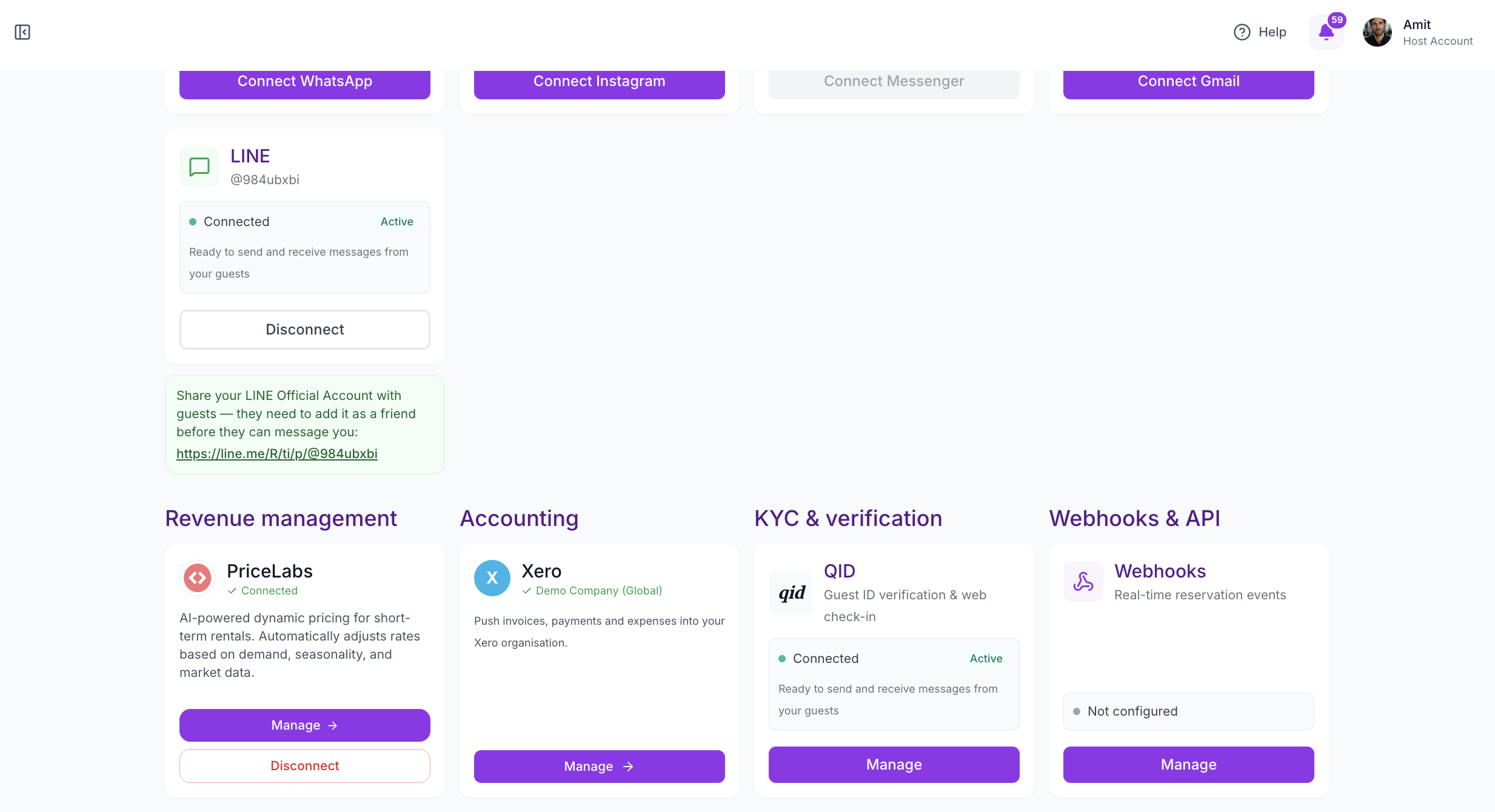
Connect Xero
When you connect Xero, SympleHost opens the Xero authorisation flow.
- Choose the Xero organisation you want to connect.
- Approve the requested permissions.
- Return to SympleHost after authorisation.
- Confirm the Xero card shows the connected organisation.
- Complete the account mapping before turning on Enable sync.
If your Xero login has access to more than one organisation, choose the organisation that should receive this workspace’s accounting records.
Map Accounts Before You Enable Sync
After Xero is connected, SympleHost pulls your live Xero chart of accounts into the mapping screen. Map each SympleHost category to the Xero account code your accountant wants to use.
Each mapped Xero account should have a unique account code. If an expected account is missing from the dropdown, open Xero first and confirm the account is active, has an account code, and is the correct account type for the category you are mapping. For payment-related accounts, also confirm the account can accept payments where Xero requires that setting.
Sync cannot be enabled until the required mappings and sync start date are saved.
| SympleHost category | Map this to in Xero | Why it matters |
|---|---|---|
| Accommodation revenue | Sales or accommodation revenue account | Nightly stay revenue on reservation invoices. |
| Cleaning fees | Sales, cleaning revenue, or recovery account | Cleaning fee lines are separated from accommodation revenue for cleaner reporting. |
| Other fees | Sales, other income, or service-fee account | Add-ons, admin fees, service fees, and other booking charges. |
| Taxes collected | Tax, liability, or nominated tax-clearing account | Reservation-level taxes are sent as an explicit line so SympleHost and Xero totals match. Confirm this account with your accountant. |
| OTA commission | Commission or channel-fee expense account | OTA bookings use a negative commission line so the Xero invoice can reconcile to the host payout. |
| Payment bank account | Xero bank account that receives payments | Guest payments, payout receipts, and bill payments are applied through this account. |
| Security deposit liability | Current liability or deposits-held account | Collected and refunded security deposits are kept out of revenue and tracked as money held. |
| Default expense account | General repairs, operations, or default expense account | Fallback account when an approved expense does not have a more specific category mapping. |
| Owner payouts | Owner payout, clearing, liability, or equity account | Paid owner payouts sync as spend-money transactions for the net payout amount. |
Map Expense Categories
For better reporting, map each SympleHost expense category to the matching Xero expense account. For example:
- Cleaning -> Cleaning contractors or housekeeping expense.
- Maintenance -> Repairs and maintenance.
- Supplies -> Guest supplies or operating supplies.
- Utilities -> Electricity, water, internet, or utilities.
If an expense category is not mapped, SympleHost uses the Default expense account. This keeps the sync moving, but your reports will be more useful if common categories have their own Xero accounts.
Only approved expenses sync to Xero. If an expense needs owner approval, it will not sync until the approval step is complete.
Optional: Discuss Tracking Categories
If your accountant uses Xero tracking categories to report by property, region, or business unit, set those up in Xero before you start syncing. Tracking can be useful for multi-property reporting, but it does not replace the required account mappings above.
Choose a Sync Start Date
Set the date SympleHost should use for the first sync. Records before this date are skipped.
Use this to avoid sending old historical records into Xero by accident. A common approach is to start from the first day of the current month, quarter, or financial year after your accountant confirms the opening balances.
What Syncs to Xero
Once mappings are complete and Enable sync is turned on, SympleHost can push:
- Direct, manual, and website bookings as Xero sales invoices linked to the guest contact.
- OTA bookings as Xero sales invoices linked to the channel contact, such as Airbnb or Booking.com.
- OTA commission as a negative invoice line mapped to the OTA commission account, so the amount due matches the expected host payout.
- Guest payments as Xero payments applied to the matching invoice.
- Partial payments as separate Xero payments, so the Xero invoice balance reflects what has actually been received.
- Security deposits collected and refunded as receive-money or spend-money transactions against the security deposit liability account.
- Approved expenses as Xero bills, using the expense category mapping or the default expense account.
- Paid owner payouts as spend-money transactions for the net payout amount.
What Does Not Sync
The Xero integration is one-way from SympleHost to Xero. In the current version, it does not pull edits back from Xero into SympleHost.
It also does not sync:
- Draft or unconfirmed reservations.
- Records before the selected sync start date.
- Card pre-authorisation holds, because no money has moved yet.
- Receipt attachments for expenses.
- Manual journals.
- Manual damage-deposit reclassification from liability to income.
- Edits made directly inside Xero back into SympleHost.
Review Sync Status
After Xero is connected, open Manage on the Xero card to review the sync page.
The sync page shows:
- Pending records waiting to be sent.
- Synced records that successfully reached Xero.
- Errors that need attention.
- Skipped records that were not sent.
- The last sync time.
- A manual Sync now button.
- A Disconnect option if you need to remove the connection.
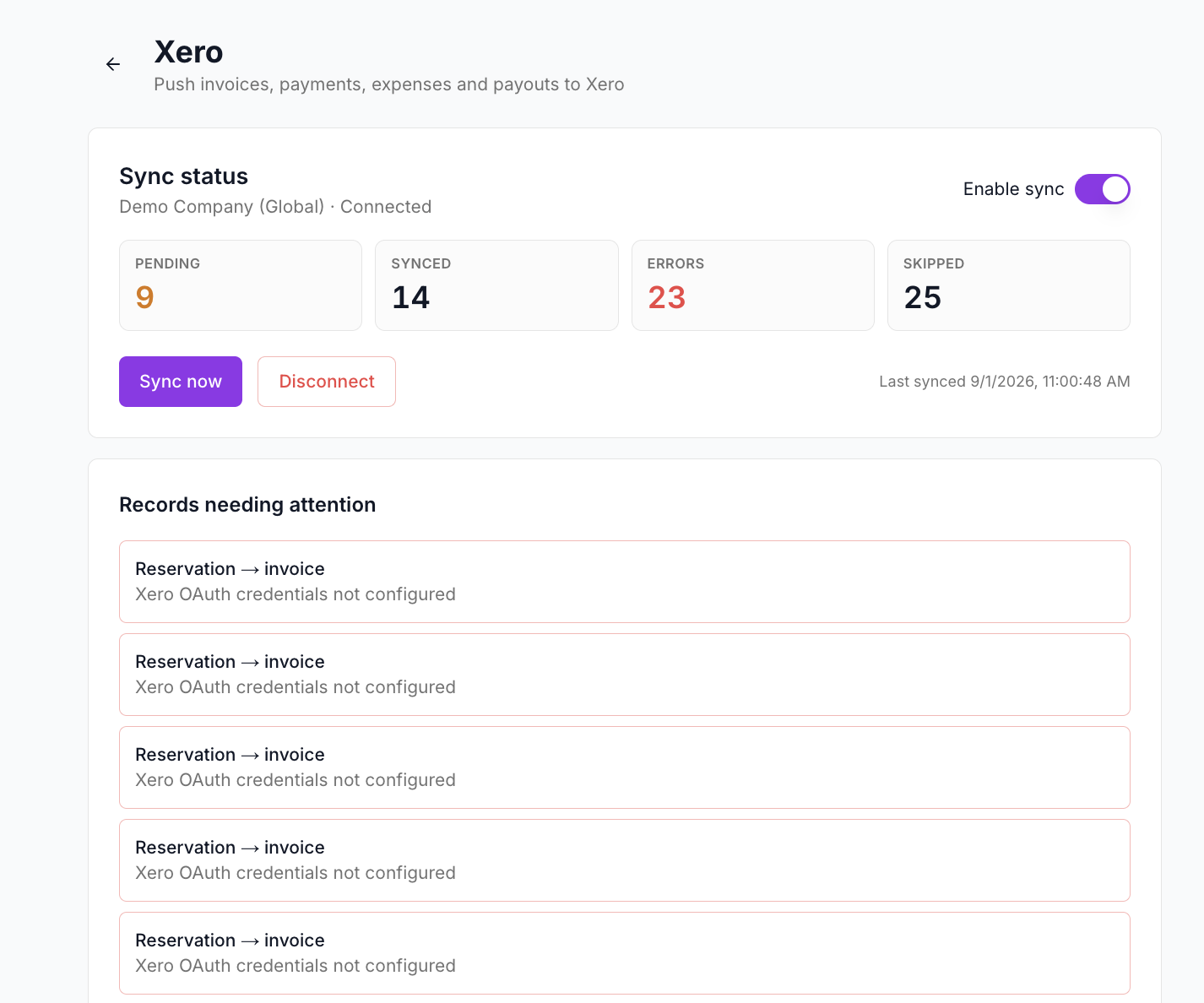
Records That May Need Attention
If SympleHost cannot send a record to Xero, it appears under Records needing attention. For example, a reservation invoice may show an error if Xero OAuth credentials are missing or expired.
When you see errors:
- Open the Xero integration page.
- Check whether the account is still connected.
- Reconnect Xero if credentials have expired.
- Confirm all required account mappings are saved.
- Confirm Enable sync is turned on.
- Click Sync now after fixing the issue.
Common Mapping Issues
An account is missing from the dropdown
Check the account in Xero. It may be archived, missing a unique account code, missing the right payment setting, or not the right account type for the SympleHost category you are mapping.
The enable-sync toggle is disabled
Save all required mappings and choose a sync start date. SympleHost keeps sync disabled until the required accounting categories are complete.
Xero rejects a tax or account combination
Review the account and tax setup in Xero with your accountant. Xero can reject transactions when a tax rate is not allowed for the selected account type.
Payments do not reconcile cleanly
Confirm the Payment bank account is the same Xero bank account where deposits, card settlements, or OTA payouts are reconciled.
OTA revenue looks higher than the payout
OTA reservations can show gross revenue and a negative commission line. This is intentional: it keeps revenue and channel commission visible while still reconciling to the payout received.
Best Practices
- Ask your accountant to confirm the account mappings before enabling sync.
- Create any missing Xero accounts before mapping them in SympleHost.
- Keep separate accounts for accommodation revenue, cleaning fees, other fees, OTA commissions, security deposits, and owner payouts if you want cleaner reporting.
- Map high-volume expense categories individually instead of relying only on the default expense account.
- Choose a sync start date that matches the start of a clean accounting period.
- Review errors regularly so finance records do not pile up.
- Use Sync now after resolving connection, mapping, or data issues.
- Disconnect only if you are intentionally changing Xero organisations or stopping the accounting sync.
- Keep reservation and payment records clean in SympleHost before syncing them into Xero.