
Use Operations → Command Center when operational work needs a clear owner, due date, related record, and status. This is where cleaning, maintenance, inspections, guest requests, restocking, provider jobs, and service follow-up move out of chat and into a trackable workflow.
When to Create a Task
Create a task when someone needs to do something operational, such as:
- clean after checkout
- inspect before check-in
- replace a broken item
- restock amenities
- follow up on a guest issue
- check damage or maintenance
- assign a provider job
- prepare for an owner stay
If the same work repeats often, create a task template first, then attach that template when creating the task.
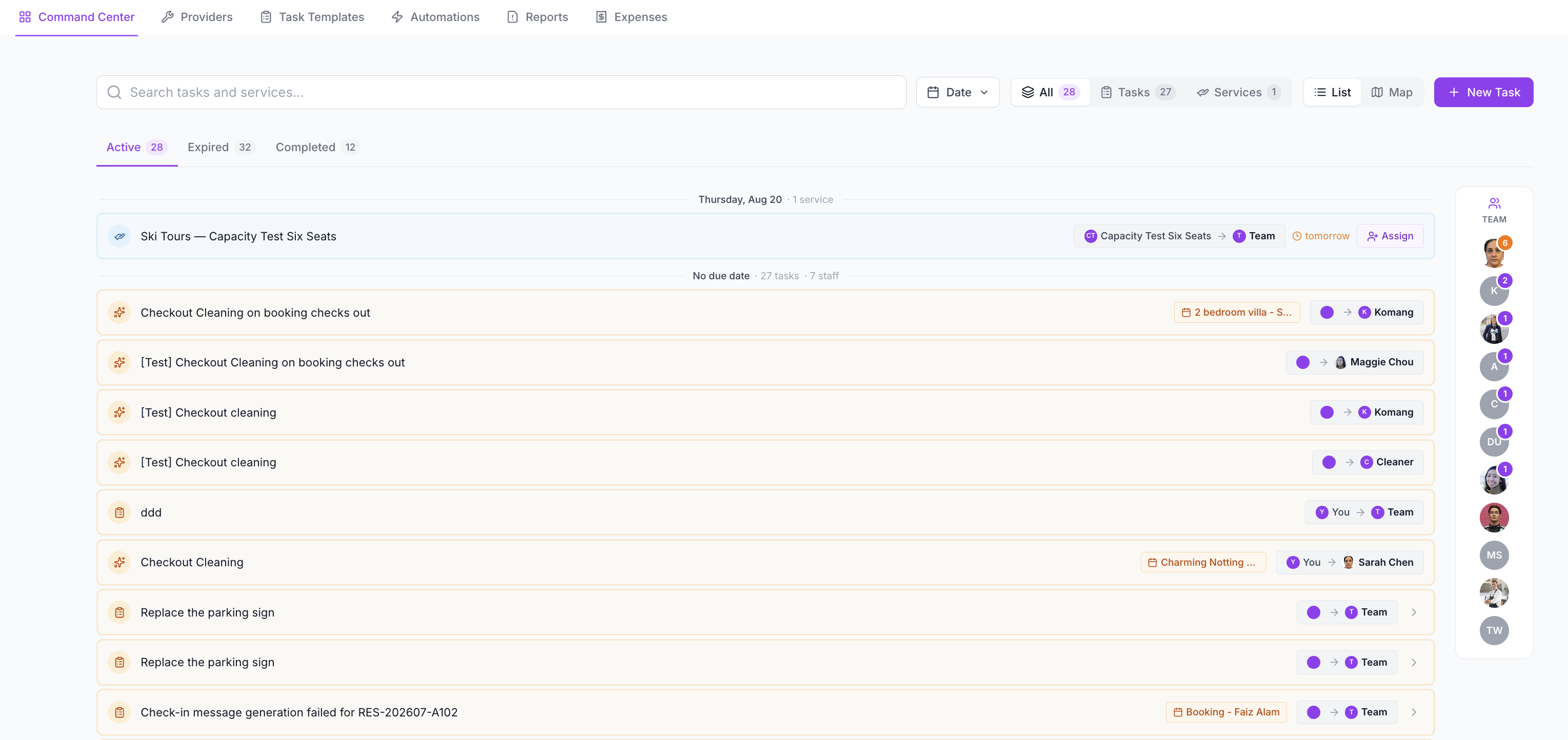
Open the Command Center
- Click Operations in the left sidebar.
- Open Command Center.
- Use the search bar to find tasks or service bookings.
- Use the date filter when you are planning a specific operating day.
- Use All, Tasks, and Services to switch between normal tasks and service-booking work.
- Use List view for daily work or Map view when location matters.
- Use Active, Expired, and Completed to understand status.
- Click New Task.
The right-side Team rail helps managers quickly see who has open work and who may need follow-up. On smaller screens, the team view appears as a collapsible section.
Use Map view for geographically spread work, such as provider visits or multiple same-day turnovers.
Create a Task
In the Create New Task modal, add the operational context before assigning the work.
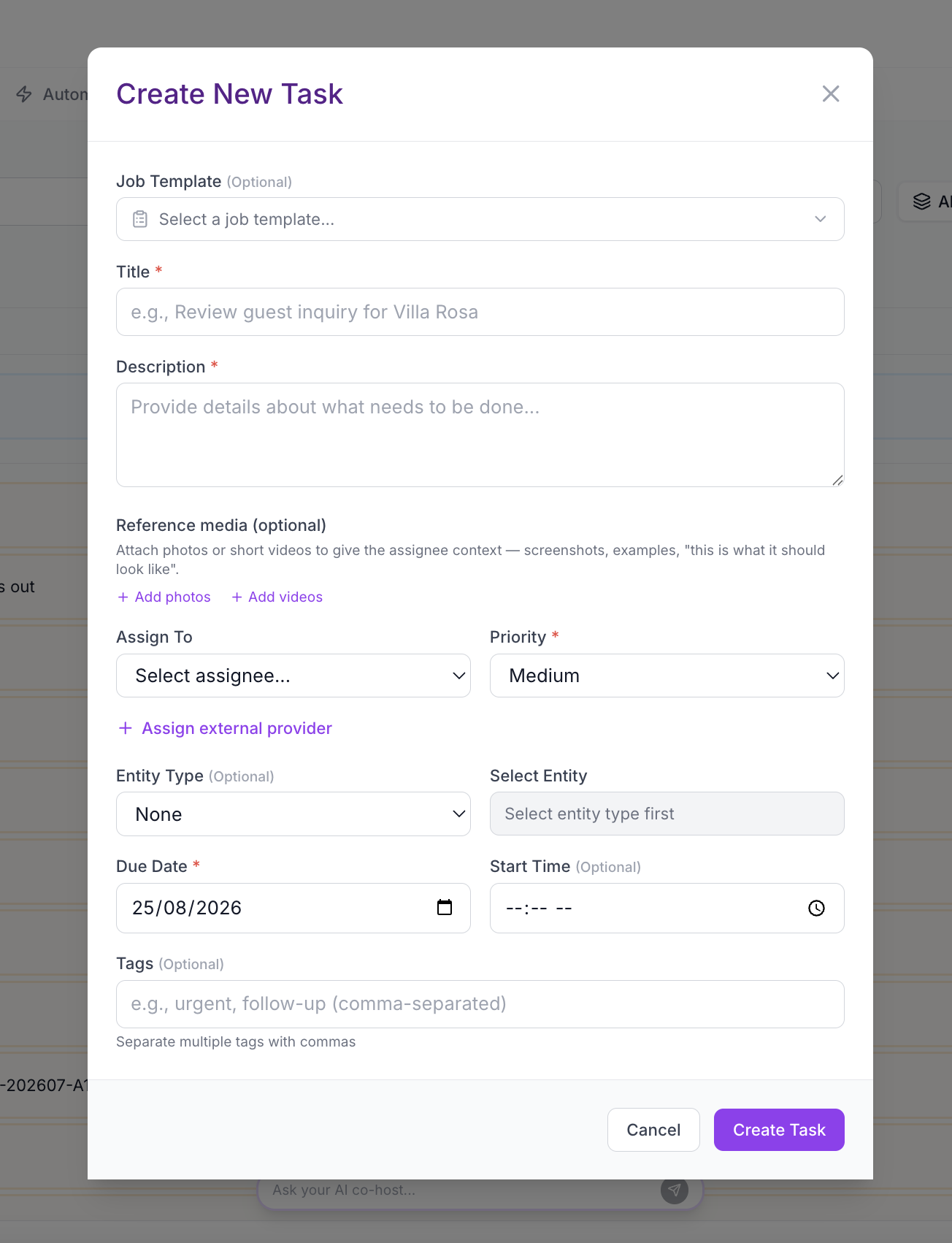
Complete the main fields:
| Field | What to Add |
|---|---|
| Job Template | Optional. Use this when the task should include a saved checklist. |
| Title | A short action-based title, such as Prepare Villa Luna for 3 PM check-in. |
| Description | The details the assignee needs before starting. |
| Assign To | A team member responsible for the work. |
| Provider | Optional. Use this when the work is handled by an external vendor instead of a team member. |
| Budget | Optional provider budget, with currency, when you want the expected cost visible on the job. |
| Invoice Review | Turn on when a provider invoice should be reviewed before the task is closed financially. |
| Priority | Use Urgent only when it changes the order of work. |
| Due Date | The deadline for completion. |
| Start Time | Optional, useful for cleaning windows, inspections, and provider visits. |
| Related To | Link the task to a listing, booking, customer, quotation, or service when relevant. |
| Reference Photos or Videos | Optional visual instructions, before examples, damage photos, or expected setup proof. |
| Tags | Optional labels such as urgent, follow-up, linen, pool, or maintenance. |
SympleHost requires either a team member assignee or an external provider. This keeps every task accountable before it is created.
Click Create Task once the work is clear enough for someone else to complete without extra messages.
Link Tasks to the Right Record
Linking a task helps the team understand why the work exists.
Use:
- Listing for property-level work, such as maintenance or inventory.
- Booking for stay-specific work, such as checkout cleaning or guest arrival prep.
- Customer for guest follow-up that is not tied to one booking.
- Quotation when work is connected to a quoted direct booking or service.
- Service when the work supports a service booking or tour.
This makes task history easier to review later and keeps the operational trail connected to the customer or reservation.
Use a Task Template
Use a Job Template when the work should follow a repeatable checklist.
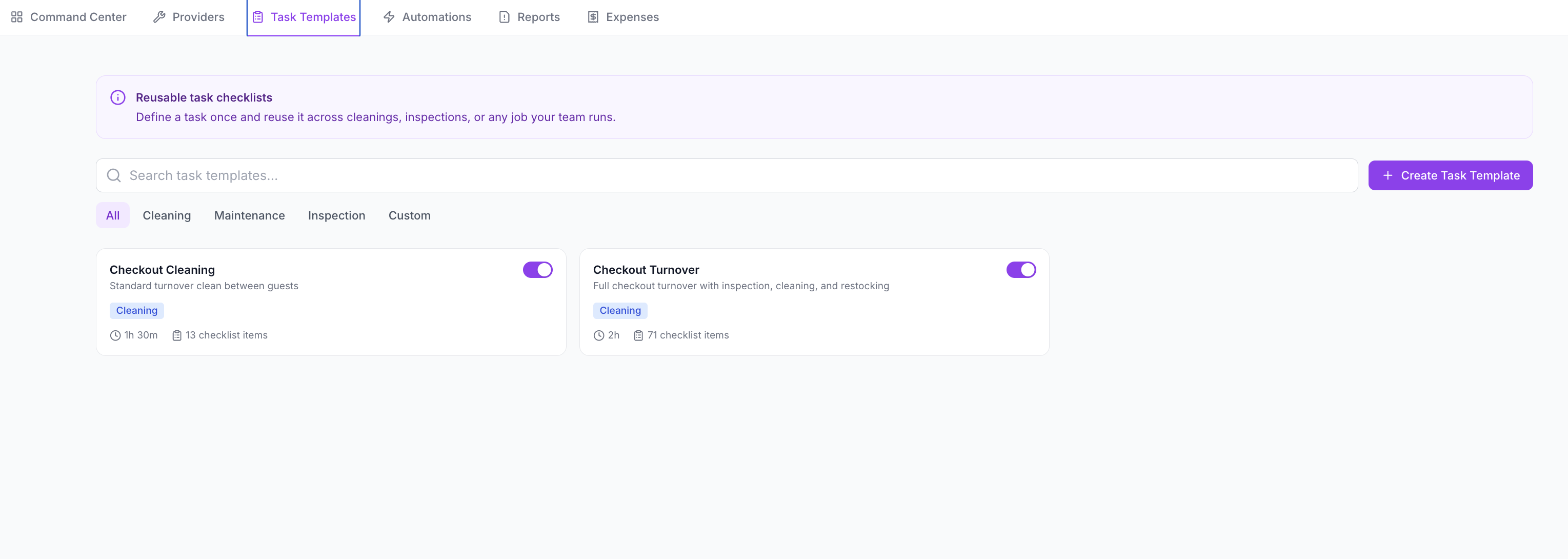
Templates are useful for:
- checkout turnovers
- pre-arrival inspections
- maintenance checks
- deep cleans
- inventory and amenity counts
- photo-proof workflows
- standard operating procedures
When a template is attached, its checklist is copied into the task. If the task has not started yet, managers can still change the template from the task detail page; changing it replaces the checklist with the new template.
Assign to a Team Member
Assign normal internal work to a team member or workforce member.
Use a team member assignment for:
- cleaners
- inspectors
- maintenance staff
- operations coordinators
- team members who update work from SympleHost or the staff portal
If cleaners need a simpler mobile view, set them up through Workforce and the cleaner portal.
Assign to an External Provider
Use provider assignment when the work is handled externally, such as:
- specialist repairs
- pool, garden, or pest control
- appliance servicing
- contractor jobs
- transport or service partners
For provider work, choose the provider, add the expected budget when known, select the currency, and turn on invoice review if the final invoice should be checked.
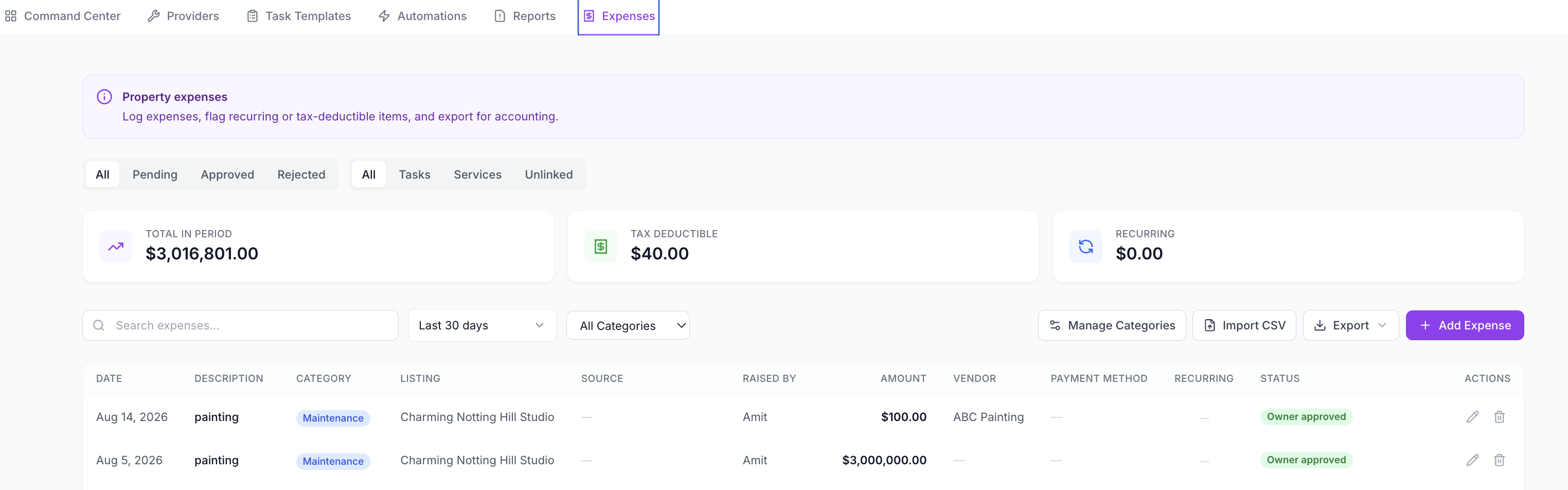
If a cost needs to be tracked formally, record or review it in Operations Expenses.
Add Reference Media
Reference photos and videos help the assignee understand the expected standard.
Use reference media for:
- room setup examples
- damage that needs inspection
- appliance issues
- before-condition photos
- where to find equipment
- how a completed setup should look
Reference media is different from completion proof. Reference media tells the worker what to do; completion proof is what they upload while completing the task.
Track the Task After Creating It
After the task is created, track it from Operations → Command Center.
Use:
- Active for open work
- Expired for overdue work
- Completed for finished work
- All / Tasks / Services to separate normal tasks from service-booking work
- Date to focus on a specific operating day
- Team rail to filter by person and spot overloaded team members
- Map view when task location matters
Open the task detail page to edit the description, schedule, assignee, provider details, related record, or template where editing is still allowed.
Completed tasks can still feed into Reports and Expenses when checklist issues, proof, or costs need review.
Good Task Titles
Good titles are specific and action-based.
| Weak Title | Better Title |
|---|---|
| Pool issue | Replace pool pump filter before Friday check-in |
| Clean villa | Checkout turnover for Villa Luna, booking #2041 |
| Guest request | Deliver baby cot to Villa Sari before 2 PM |
| Maintenance | Inspect AC leak in master bedroom and upload photo |
| Provider | Send plumber to inspect downstairs bathroom leak |
The goal is simple: the assignee should know what success looks like before opening the task.
Best Practice Flow
- Create reusable templates for repeatable work.
- Open Operations → Command Center.
- Create or automate the task.
- Attach the right job template.
- Link it to the booking, listing, customer, quotation, or service.
- Assign a team member or provider.
- Add due date, start time, priority, and reference media.
- Track it from Active, Expired, and Completed.
- Review any issues in Operations → Reports.
- Add expenses or owner approvals where needed.
Common Examples
| Scenario | Recommended Setup |
|---|---|
| Checkout turnover | Booking-related task, cleaning template, cleaner assignee, due date before next check-in. |
| AC repair | Listing-related task, maintenance priority, provider assignment, budget, invoice review. |
| Guest request | Booking or customer-related task, team member assignee, due date before guest arrival. |
| Inventory check | Listing-related task, checklist template with count items. |
| Service booking support | Service-related task or service booking assignment, visible in the Services filter. |
Troubleshooting
I cannot see Operations or Command Center
Your role may not have access. Workforce members see only their own schedule through their portal link, while account admins and managers can usually see broader Operations tools.
I cannot create the task
Make sure the task has a title, description, due date, and either a team member assignee or an external provider.
The assignee is missing
Check that the person is active in your team. If they are a cleaner or workforce member, confirm they are set up under Operations → Workforce.
The provider is missing
Add or check the provider under Operations → Providers, then return to the task.
The task template is missing
Make sure the template is active and saved under Operations → Job Templates.
The related record search does not show the right item
Select the related type first: listing, booking, customer, quotation, or service. Then search for the specific record.
The task is linked to the wrong booking or listing
Open the task detail and update the related record if editing is still available. If the work has already been completed and reported, create a follow-up task with the correct link.
The cost is missing from Expenses
Check whether the cost was submitted as part of task completion or added manually in Operations → Expenses. Link the expense to the task when you want the financial trail to stay connected.