
This guide is for Operations automations and staff task reminders. These tools create or remind people about operational work. They do not send guest messages.
If you are setting up guest-message automation, AI replies, Autopilot, or Concierge, start with Get Started with Messages, AI, and Automation instead.
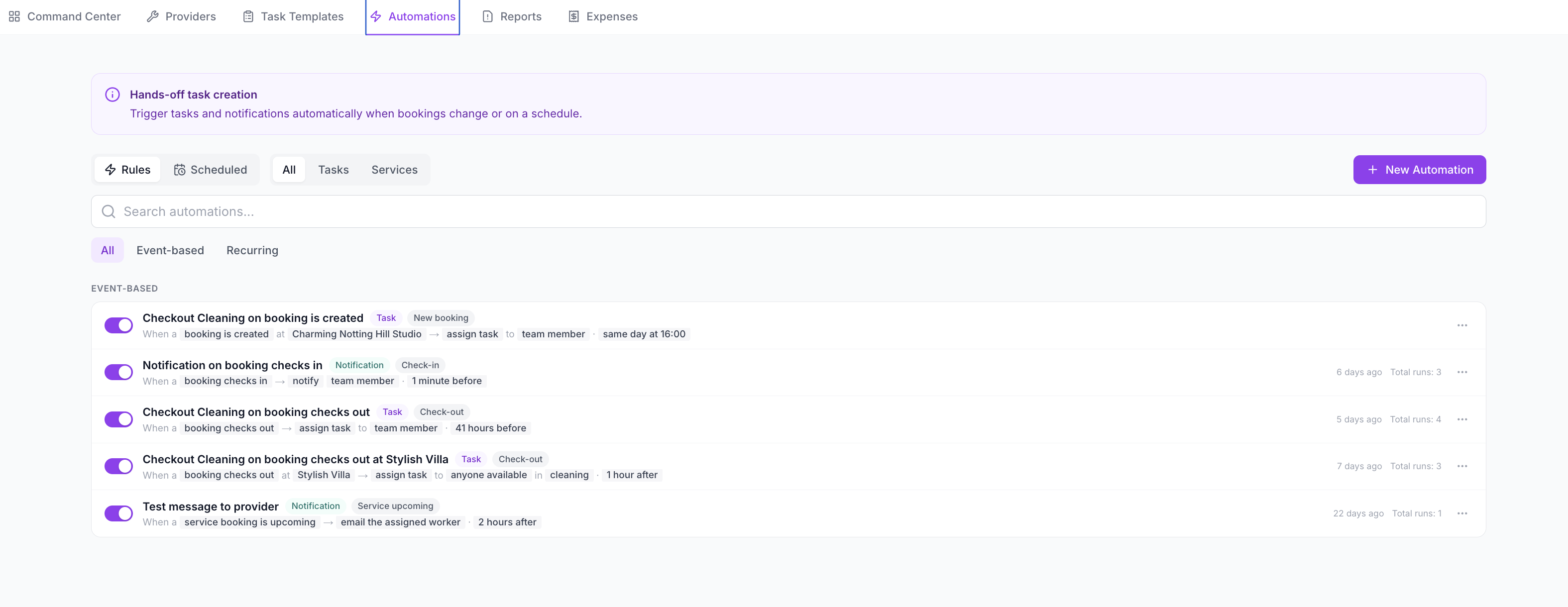
Automations vs Task Reminders
SympleHost separates the workflow into two parts:
| Tool | What It Does | Example |
|---|---|---|
| Operations Automations | Creates operational work automatically. | Create a checkout cleaning task after every checkout. |
| Task Reminders | Notifies staff about assigned work. | Remind the cleaner 1 hour before the task is due. |
Use them together when the same task should happen reliably:
- The automation creates the task.
- The assigned person receives reminders.
- The manager tracks progress from Operations → Tasks.
Common Automation Examples
Start with simple, high-value automations:
- checkout cleaning after every departure
- pre-arrival inspection before check-in
- monthly maintenance inspection
- owner-stay preparation
- follow-up task when a guest reports an issue
- restocking task after checkout
- provider task for scheduled maintenance
Do not automate a workflow until the manual version is clear. Create the task manually a few times first, then automate once the team knows what should happen.
Create an Operations Automation
- Click Operations in the left sidebar.
- Open Automations.
- Click New Automation.
- Choose the trigger type.
- Select the job template or task action.
- Choose the assignee, team, provider, or fallback owner where available.
- Set priority and due timing.
- Save the automation.
Automation triggers can be based on booking events, service events, or schedules. Depending on your setup, this may include check-in, checkout, new booking, cancellation, daily, weekly, or monthly schedules.
Use Job Templates With Automations
Automations work best when they create tasks from Job Templates.
Example checkout workflow:
- Create a Checkout Turnover template in Operations → Job Templates.
- Add checklist items for linen, bathrooms, restocking, photos, and damage checks.
- Create an automation in Operations → Automations.
- Set the trigger to run after checkout.
- Attach the Checkout Turnover template.
- Assign it to the cleaner or cleaning team.
Every checkout can now create the same structured task automatically.
Manage Existing Automations
From Operations → Automations, review automations regularly.
You may be able to:
- search automations
- filter active or paused automations
- edit trigger, schedule, assignee, and template
- duplicate an automation
- pause or reactivate an automation
- review upcoming runs
- check execution history
Pause an automation instead of deleting it when the workflow is seasonal or temporarily not needed.
Set Up Task Reminders
Task reminders are configured from Settings because they control account-level notification behavior.
- Open the top-right profile menu.
- Click Settings.
- Open Task Reminders.
- Turn on Enable Task Reminders.
- Choose which reminders to send.
Common reminder options include:
- 1 day before due
- 1 hour before due
- 1 hour overdue
- 4 hours overdue
- 1 day overdue
Reminders are sent to the assigned staff member or team contact based on the notification setup available for the account.
Good Habits
- Start with checkout cleaning and pre-arrival inspection.
- Attach templates so automated tasks include a checklist.
- Use one automation per workflow.
- Give automations clear names, such as Checkout cleaning after departure.
- Check overdue tasks daily after launching a new automation.
- Pause automations when a property is closed, seasonal, or under renovation.
- Review timezone settings if reminders or due times look wrong.
Troubleshooting
My automation did not run
Check that the automation is active, the trigger event happened, and the related reservation or schedule matches the rule.
Tasks are created at the wrong time
Check the automation timing and your workspace timezone in Settings → General.
Staff are not receiving reminders
Check Settings → Task Reminders, then confirm the assignee has the right phone number or notification details in their profile.
The wrong person was assigned
Edit the automation and update the assignee. If a team member, provider, or team was removed, choose an active replacement.
Guest messages are not being sent
This article is for Operations tasks. For guest messages, use Set Up Automated Messages or Set Up Concierge for Guest Questions.