
Use Operations → Tasks to see what is active, what is overdue, and what has been completed. This is the daily control view for cleaners, maintenance, inspections, service follow-up, and operational handoffs.
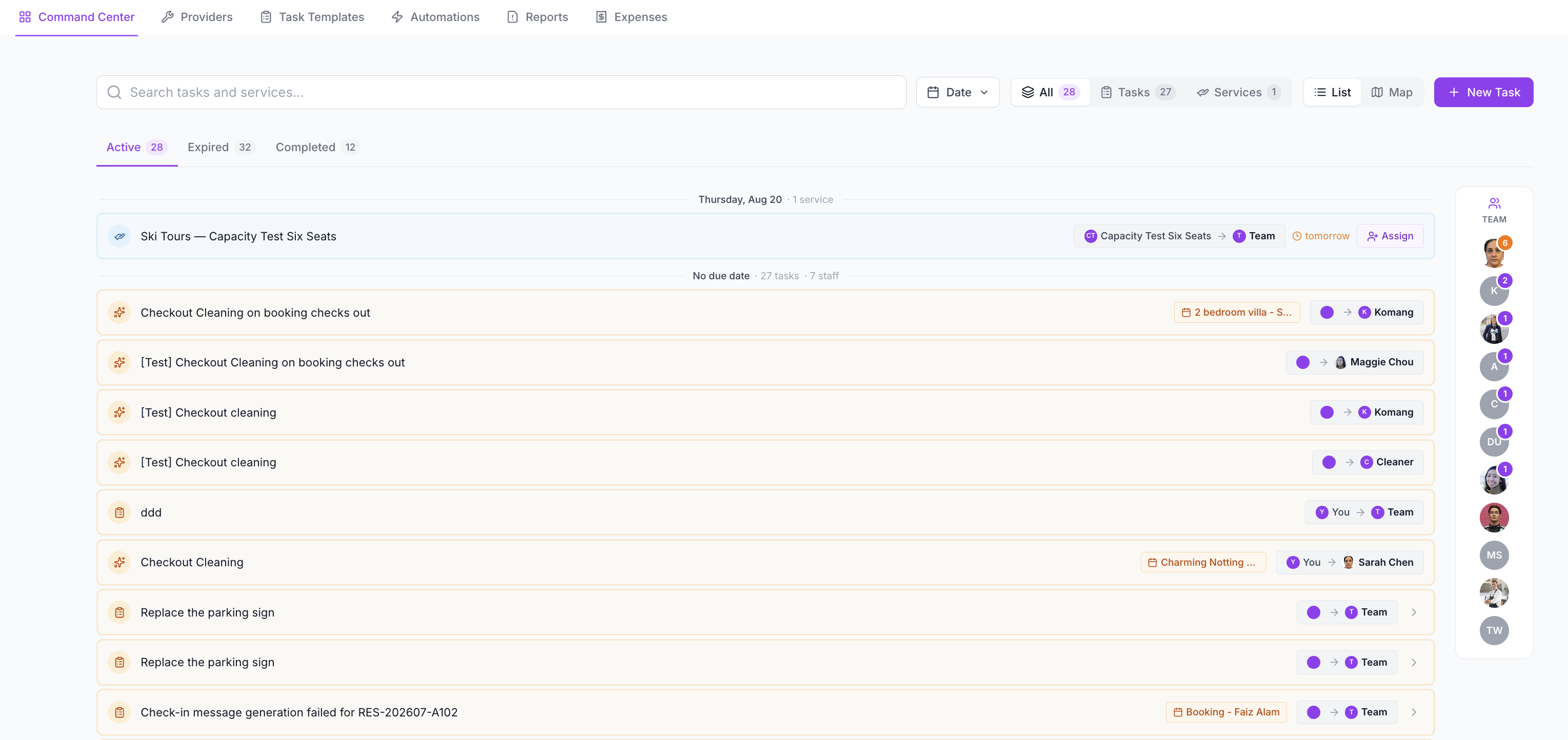
What to Check First
When you open the Tasks page, check in this order:
- Expired tasks first.
- Today’s Active tasks.
- Unassigned or overloaded team members.
- Recently Completed tasks that need review.
- Reports for flagged issues.
This keeps urgent operational problems visible before they affect a guest arrival.
Use the Task Tabs
The task tabs separate work by status:
| Tab | What It Shows | When to Use It |
|---|---|---|
| Active | Work still open and not completed. | Daily planning and team follow-up. |
| Expired | Work past its due date. | Urgent review before arrivals or deadlines. |
| Completed | Finished work. | Proof checks, manager review, and records. |
If something looks missing, clear filters first. The task may be hidden by date, status, assignee, or search filters.
Search and Filter Tasks
Use filters when the list is busy.
Common filters include:
- task title
- property or listing
- assignee
- date
- status
- priority
- linked booking, customer, quote, or service
For same-day operations, combine the date filter with Active or Expired.
Use List View and Map View
Use List view for most operational planning. It is best for checking due dates, priorities, task titles, and assignees.
Use Map view when location matters, such as:
- multiple villas across an area
- provider route planning
- same-day maintenance visits
- cleaners moving between properties
Review Team Progress
The team panel helps managers understand workload at a glance.
Use it to check:
- who has open work
- who has completed work
- who may be overloaded
- which tasks are unassigned
- whether the team is on track for the day
If one person has too much open work, reassign tasks before they become expired.
Open a Task Detail
Open a task to review:
- title and description
- assignee or provider
- priority
- due date and start time
- linked listing, booking, customer, quote, or service
- checklist progress
- notes and comments
- photos, videos, or other completion proof
- created and updated timestamps
If the task came from a job template, the checklist should be completed before the task is marked done.
Mark a Task Complete
- Open the task.
- Review any checklist items.
- Add required notes, photos, videos, or counts.
- Flag any issues that need manager review.
- Click Mark Complete.
Completed tasks remain available for records and reporting.
Review Issues in Reports
Go to Operations → Reports when a completed checklist flags something that still needs attention.
Reports are useful for:
- damage found during cleaning
- missing towels, keys, or amenities
- failed inspection checks
- maintenance issues
- unexpected costs
- provider follow-up
The goal is to separate task completed from nothing else needs action. A cleaner may complete the turnover but still report a broken appliance that needs a follow-up task.
Completion Review Checklist
Before considering a task fully closed, check:
- Was the right booking or listing linked?
- Did the assignee complete all required checklist items?
- Were required photos or videos uploaded?
- Were any issues flagged?
- Does a follow-up task need to be created?
- Did the work create an expense?
- Does an owner need to approve a cost?
Troubleshooting
I cannot see all tasks
Clear filters and check whether you are viewing only your assigned tasks. Your role may also limit what you can see.
A task is overdue but already handled
Open it and mark it complete, or update the due date if the deadline changed and the work is still valid.
A completed task still has an issue
Review the linked report in Operations → Reports and create a follow-up task if someone needs to take action.
A task has the wrong assignee
Open the task and reassign it if editing is available. If the task came from an automation, update the automation too so future tasks go to the right person.
The map view is not useful
Use List view if tasks do not have property locations or if you are managing work by due date rather than geography.